
Is your TCL TV’s power light blinking nonstop and leaving you frustrated? You’re not alone.
When that little light flashes repeatedly, it’s more than just a minor annoyance—it’s a signal that something isn’t right inside your TV. But don’t worry, you don’t have to be a tech expert to understand what’s happening or how to fix it.
You’ll discover clear, simple explanations and easy steps to get your TCL TV back to normal. Keep reading, because solving this blinking power light issue could be simpler than you think—and you’ll be back to enjoying your favorite shows in no time.
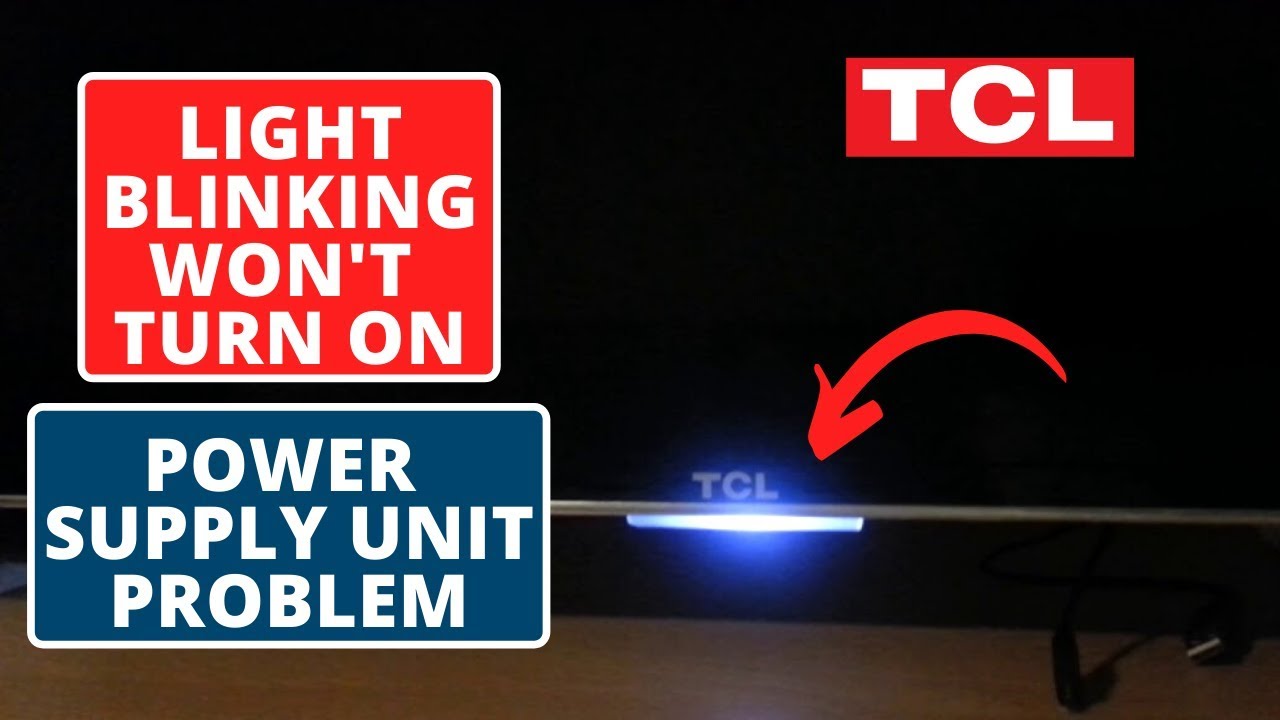
Power Light Blinking Causes
The blinking power light on a TCL TV signals an issue inside the device. This blinking acts as a warning to users that something needs attention. Understanding the causes helps in troubleshooting the problem effectively. Several factors may trigger this blinking light, ranging from hardware to software errors.
Internal Hardware Issues
Hardware faults often cause the power light to blink. Components like the main board or power board can fail. Loose connections inside the TV may also trigger this problem. Damaged parts affect the TV’s ability to start properly. Checking these components is crucial for resolving the blinking light.
Firmware Glitches
Software errors in the TV’s firmware can cause the blinking light. Outdated or corrupted firmware disrupts normal operation. A failed update may lead to system instability. Resetting or updating the firmware can fix these glitches. Keeping the firmware current helps prevent such issues.
Power Supply Problems
Problems with the power source often cause the blinking light. Unstable or insufficient power can harm the TV’s functions. Faulty power cords or adapters are common culprits. Power surges or voltage drops may also trigger blinking. Ensuring a stable power supply is important for proper TV operation.
Overheating Concerns
Excess heat inside the TV can make the power light blink. Poor ventilation or blocked vents cause overheating. Overheating protects the TV by forcing it to shut down. Cleaning vents and avoiding heat sources prevents this problem. Monitoring the TV’s temperature helps maintain its health.
Basic Troubleshooting Steps
The blinking power light on your TCL TV signals a possible issue. Basic troubleshooting helps identify simple problems quickly. These steps often restore normal function without repair costs. Follow each carefully to check your TV’s status.
Power Cycle The Tv
Turn off the TV using the power button. Unplug the TV from the wall outlet. Wait at least 60 seconds to clear temporary errors. Plug the TV back in and press the power button. This can reset the system and fix blinking lights.
Check Power Connections
Ensure the power cord is firmly plugged into the TV. Check the wall outlet for power using another device. Avoid using extension cords or power strips temporarily. A loose or faulty connection may cause blinking power lights.
Disconnect External Devices
Remove all devices connected to the TV, like gaming consoles and streaming sticks. Power cycle the TV again with no devices attached. This helps find if a device causes the blinking light. Reconnect devices one by one to identify the problem source.
Inspect Hdmi And Other Cables
Look closely at HDMI and other cables for damage or loose ends. Replace any worn or broken cables. Securely reconnect all cables to the TV and external devices. Faulty cables often cause signal issues and blinking lights.
Resetting Your Tcl Tv
Resetting your TCL TV can solve many common issues, including a blinking power light. It helps clear temporary glitches and refreshes the system. Different reset methods suit different problems and user needs. Knowing how to reset properly keeps your TV running smoothly.
Soft Reset Methods
A soft reset is the simplest way to fix minor problems. Start by unplugging the TV power cord from the outlet. Wait for about 60 seconds to let the TV drain any remaining power. Plug the power cord back in and turn on the TV. This method clears temporary glitches without erasing any settings or apps.
Performing A Hard Reset
A hard reset restores the TV to its factory settings. It erases all your personal data and installed apps. To do this, open the TV menu and go to Settings > System > Advanced System Settings > Factory Reset. Confirm the reset, and the TV will reboot. Use this method if the soft reset does not fix the blinking power light issue.
Resetting Without A Screen
Sometimes the TV screen stays black, making resets tricky. To reset without a screen, first unplug the TV. Press and hold the power button on the TV (not the remote) for about 15 seconds. Release the button, plug the TV back in, and press the power button again. This can reset the TV even if the screen does not show any image.
Firmware And Software Updates
Firmware and software updates play a key role in fixing issues like the blinking power light on your TCL TV. These updates can repair bugs and improve system stability. Keeping your TV’s software current helps maintain smooth performance and prevents glitches.
Regular updates also enhance security and add new features. Ignoring updates may cause the TV to behave unpredictably, including power light blinking. The following sections explain how to check, install, and handle update problems.
Checking For Updates
Start by turning on your TCL TV and connecting it to the internet. Go to the Settings menu using your remote control. Find the section labeled “System” or “About.”
Look for an option called “Software Update” or “Firmware Update.” Select this option to see if a new update is available. The TV will check online and show the latest version.
Note the date and version number of the current firmware. If a newer update is listed, it means your TV needs an update. Always ensure the TV stays powered during this process.
Installing Firmware Patches
Once you find a new firmware update, select “Download” or “Install.” The TV will start downloading the update files. This may take a few minutes, depending on your internet speed.
After download, the TV will install the update automatically. It may restart several times during installation. Do not unplug or turn off the TV while it updates.
After the update finishes, the TV will boot up normally. Check if the blinking power light issue is resolved. If problems persist, try reinstalling the update or move to troubleshooting.
Dealing With Update Failures
Sometimes updates fail due to poor internet or power loss. If the update does not complete, the TV may freeze or keep blinking the power light. Start by unplugging the TV for one minute.
Plug the TV back in and try the update process again. If it still fails, reset the TV to factory settings from the menu. This erases all settings but can fix corrupted firmware.
In case of repeated failure, visit the TCL support website. Download the firmware update file to a USB drive and install it manually. Contact TCL support if none of these steps work.
Dealing With Screen Issues
Screen issues on a TCL TV can be frustrating. These problems often cause the display to go dark or flicker. Fixing them requires checking a few key settings and components. Small adjustments may bring the picture back to life quickly.
Understanding the cause of the issue helps find the right solution. Some screen problems relate to backlight and brightness settings. Others may show a completely black screen. Testing the screen carefully can reveal hidden problems.
Backlight And Brightness Adjustments
The backlight controls how bright the screen appears. Sometimes the backlight setting is too low or turned off. This makes the screen look black or very dim. Adjust brightness in the TV’s menu under picture settings. Increase it slowly to see if the image returns.
Eco mode or power saving settings can reduce backlight too. Turn these off to check if they affect the screen brightness. A proper backlight level helps avoid black screen problems.
Identifying Black Screen Problems
A black screen can mean different things. It may be a backlight issue or a hardware failure. Check if the TV powers on and shows sound or menus. If sound works but no picture, the backlight or display panel might be faulty.
Look for blinking power lights or error codes on the screen. These signals help diagnose the problem. Make sure all cables are secure and the input source is correct. Simple fixes often solve black screen troubles.
Testing With Flashlight Method
The flashlight method helps check if the screen is working without backlight. Shine a flashlight closely at the TV screen in a dark room. Look carefully for faint images or shapes.
If you see faint pictures, the LCD panel is working but the backlight is off. This confirms a backlight failure. No images at all may point to a deeper hardware issue. This test guides the next repair steps.

Advanced Hardware Checks
When your TCL TV shows a blinking power light, simple fixes may not solve the issue. Advanced hardware checks help find deeper problems inside the TV. These checks focus on key parts that control the screen and power. Understanding these parts can guide proper repairs or replacements.
Issues in certain hardware components often cause the blinking power light. Testing these components carefully can save time and prevent further damage. The following sections explain the common hardware failures linked to this issue.
Tcon Board Failures
The TCON board controls the TV screen’s timing and image display. If it fails, the screen may not show images correctly or stay blank. A failing TCON board often causes the power light to blink as the TV tries to fix the error. Signs include flickering or distorted pictures.
Testing the TCON board requires opening the TV and checking cable connections. Replacing the board can solve the blinking light problem if this part is faulty.
Backlight Led Damage
The backlight LEDs light up the TV screen. Damage to these LEDs causes the screen to go dark while the TV stays on. The blinking power light may appear as the TV detects the backlight issue. Common signs include a very dim screen or no picture at all.
Checking backlight LEDs involves testing the voltage and replacing any broken LEDs. This repair often restores normal TV function and stops the blinking light.
Main Board Issues
The main board manages all TV functions, including power and signal processing. If the main board has defects, it can trigger the blinking power light. Problems here might cause the TV to turn off unexpectedly or fail to start fully.
Diagnosing main board issues can be complex. It may require professional tools and expertise. Replacing the main board is a common solution for persistent blinking light problems.
Improving Tv Performance
Improving your TCL TV’s performance can enhance your viewing experience and reduce issues like blinking power lights. Simple adjustments and maintenance keep the TV running smoothly and prevent common problems. Follow these easy steps to optimize how your TCL TV works and looks.
Optimizing Picture Settings
Adjust picture settings for clearer and brighter images. Increase brightness and contrast to make visuals sharper. Lower sharpness slightly to avoid grainy pictures. Use preset modes like “Standard” or “Movie” for balanced colors. Changing these settings reduces strain on the TV and improves display quality.
Disabling Eco Mode
Eco Mode saves energy but may limit performance. It can cause the screen to dim or the TV to react slowly. Turn off Eco Mode from the settings menu to boost brightness and response time. Disabling it helps fix flickering and blinking power lights caused by power-saving limits.
Ensuring Proper Ventilation
Keep your TCL TV in a well-ventilated space. Avoid placing it inside closed cabinets or near heat sources. Proper airflow prevents overheating, which can cause blinking power lights and random shutdowns. Clean vents regularly to remove dust and maintain good air circulation around the TV.
Connectivity And Network Fixes
Connectivity issues often cause the TCL TV blinking power light problem. A weak or unstable network can stop the TV from working correctly. Fixing network problems can help the TV regain normal function quickly. Below are simple steps to improve your connection and stop the blinking light.
Restarting Router And Modem
Turn off your router and modem. Wait for about 30 seconds. Plug them back in and wait for all lights to turn stable. This refreshes the network and clears temporary glitches. Restarting the router and modem often fixes slow or broken connections affecting the TV.
Checking Network Strength
Check the Wi-Fi signal near your TV. A weak signal can cause the power light to blink. Move the router closer to the TV if possible. Avoid obstacles like walls and large metal objects between the router and TV. Stronger signals improve TV performance and stop blinking.
Using Wired Connections
Use an Ethernet cable to connect your TCL TV to the router. Wired connections are faster and more stable than wireless ones. This reduces interruptions and fixes blinking power light caused by network drops. Ethernet cables provide a steady internet connection for smooth TV operation.
When To Seek Professional Help
Knowing when to seek professional help is important if your TCL TV’s power light keeps blinking. This blinking often signals a deeper problem inside the TV. Simple troubleshooting may not fix the issue. Delaying expert repair can cause more damage or make the TV unusable. Recognizing the right moment to call a technician saves time and money.
Warranty And Support Options
Check if your TCL TV is still under warranty. A valid warranty may cover repairs or replacements. Contact TCL customer support for guidance. They can explain your warranty terms and available services. Avoid opening the TV yourself during the warranty period. Doing so can void the warranty and cause extra costs.
Repair Vs Replacement Decisions
Consider the cost of repair compared to buying a new TV. If the repair is expensive or parts are hard to find, replacement might be better. Older TCL TVs may have outdated parts that are costly to fix. A professional can assess the damage and suggest the best option. Choose repair only if it is affordable and extends the TV’s life.
Use authorized TCL service centers for repairs. These centers have trained technicians and genuine parts. Repairs done here keep your warranty intact. Non-authorized shops may offer cheaper fixes but risk poor quality work. Search online or call TCL support to find the nearest authorized center. Professional repair ensures your TV works safely and well.
Frequently Asked Questions
Why Does My Tv Power Light Keep Blinking?
Your TV power light blinks to signal internal errors, power issues, or firmware problems. Check connections, power cycle, and update firmware to fix it.
TCL TVs do not have a physical reset button. Perform a factory reset through the TV’s settings menu instead.
Why Is The Screen Of Death Black On My Tcl Tv?
The black screen of death on your TCL TV often results from backlight failure or very low brightness settings. Check and increase the backlight in the TV’s settings menu. Persistent black screens may indicate hardware issues like a faulty TCON board or backlight LEDs.
What Is The Most Common Problem With Tcl Tvs?
The most common problem with TCL TVs is screen issues like black or dim displays caused by backlight or TCON board failures. Users also face random reboots, Wi-Fi problems, audio lag, and flickering, often fixed by power cycling, updating firmware, or checking cable connections.
Why Is My Tcl Tv Power Light Blinking?
A blinking power light means the TV has found an internal error. It often shows when the TV cannot start properly.
Conclusion
A blinking power light on your TCL TV signals an internal issue. Try simple fixes like unplugging and plugging back in. Check all cable connections to rule out loose wires. Adjust the backlight settings if the screen looks dim or black.
Performing a hard reset can clear software glitches. Persistent blinking might mean hardware problems, such as a faulty board. Seek professional help if basic steps don’t work. Stay calm and patient while troubleshooting. Your TCL TV can often be fixed with these easy tips.









