
Are your Philips Hue lights blinking nonstop and leaving you puzzled? You’re not alone.
Many users experience this frustrating flickering that can disrupt your mood and smart home vibe. But why does it happen, and more importantly, how can you stop it? Whether your lights are flashing on and off like crazy or just dimly flickering, this blinking isn’t something you should ignore.
You’ll discover simple steps to diagnose and fix the problem quickly. Keep reading to regain control of your Philips Hue lights and enjoy that perfect, steady glow again.
Common Causes Of Blinking
Philips Hue lights blinking can be frustrating. Understanding common causes helps fix the problem fast. Blinking often points to simple issues. Some relate to hardware, others to software or wiring. Knowing these causes saves time and effort.
Here are the main reasons your Philips Hue lights may blink unexpectedly.
Loose Bulb Or Fixture
A loose bulb or fixture can cause flickering. Check if the bulb is screwed in tightly. Sometimes the socket connection is weak. Adjust the bulb and ensure it fits snugly. This simple step often stops blinking immediately.
Power Fluctuations
Power surges or drops affect light stability. Fluctuating power can cause bulbs to blink or dim. These changes might come from your home’s electrical system. Using a surge protector can help protect your lights. Consistent power keeps Philips Hue steady.
Wi-fi And Zigbee Interference
Philips Hue uses Zigbee, which can face interference. Other wireless devices may cause signal problems. Wi-Fi routers and cordless phones often interfere. Keep your Hue Bridge away from strong wireless devices. Reducing interference improves light performance.
Outdated Firmware
Firmware controls your Philips Hue lights’ functions. Outdated software may cause blinking or glitches. Regularly update the Hue app and Bridge firmware. Updates fix bugs and improve stability. Staying current helps your lights run smoothly.
Electrical Wiring Issues
Faulty or old wiring can cause flickering lights. Loose connections or damaged wires create electrical noise. This affects bulb performance and causes blinking. An electrician can inspect and repair wiring safely. Proper wiring ensures reliable light operation.
Quick Fixes To Try First
Philips Hue lights blinking can interrupt your home’s ambiance. Start with simple fixes before deeper troubleshooting. Quick fixes often solve blinking issues fast. These steps help save time and avoid frustration. Try these easy solutions first.
Power Cycle Bulb And Bridge
Turn off the Hue bulb and unplug the Hue Bridge. Wait for 10 seconds. Plug the Bridge back in and turn the bulb on. This resets their connection. Power cycling often clears minor glitches.
Restart Router
Unplug your router for 15 seconds and plug it back in. A fresh router connection can improve signal strength. This helps Hue devices communicate better with the Bridge. Restarting the router fixes many network problems.
Check For App And Firmware Updates
Open the Hue app and check for updates. Update the app if a new version is available. Next, update the firmware on your bulbs and Bridge. Updates fix bugs that cause blinking and improve stability.
Secure Loose Bulbs
Turn off the light and gently tighten the bulb in its socket. Loose bulbs can flicker or blink due to poor contact. Check all bulbs connected to the Hue system. Secure bulbs stop flickering caused by loose connections.
In-app Troubleshooting Steps
Philips Hue lights blinking can be frustrating. The app offers useful tools to fix this issue quickly. You can try simple steps without needing extra devices. These in-app troubleshooting steps help keep your lights working smoothly. Follow the steps below to solve blinking problems effectively.
Remove And Re-add Lights
Open the Philips Hue app and go to settings. Select “Lights” from the menu to see all connected bulbs. Tap the blinking light you want to fix. Scroll down and choose “Delete” to remove the light from the app. After removal, go back and tap “Add Light” to re-add the bulb. This refreshes the connection and often stops blinking.
Change Zigbee Channel
The Philips Hue Bridge uses Zigbee to communicate with bulbs. Interference from other devices may cause blinking. In the app, open the Bridge settings. Find the option to change the Zigbee channel. Select a different channel to reduce interference. Save the changes and check if the blinking stops. This step improves wireless communication stability.
Reset Light Settings
Resetting a bulb clears all previous settings and errors. In the app, go to the light’s settings page. Scroll down and tap “Reset” or “Factory Reset.” Confirm the reset to restore default settings. After this, re-add the bulb to the app. Resetting often fixes blinking caused by software glitches.
Performing A Factory Reset
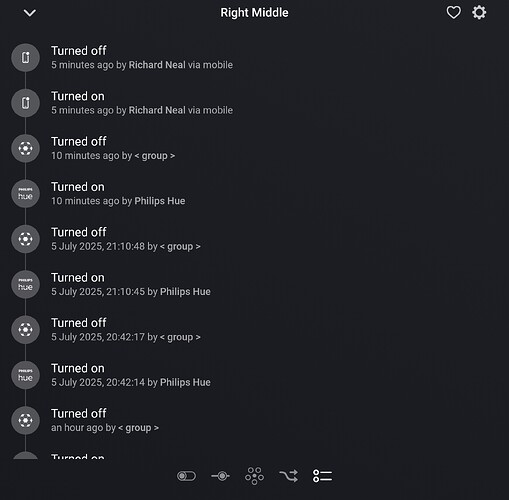
Performing a factory reset on your Philips Hue lights can solve blinking or unresponsive issues. This process clears any glitches and restores the bulb to its default settings. After the reset, you can set up the light again through the Hue app. Resetting helps if the bulb is not connecting or keeps blinking without reason.
There are different ways to reset Philips Hue bulbs. The method depends on your setup, such as using a dimmer switch or a standard light switch. Both methods are simple and do not require extra tools.
Using A Dimmer Switch
Start with the dimmer switch connected to the Hue bulb. Press and hold the “off” button on the dimmer switch for about 10 seconds. The bulb will blink, indicating it is resetting. Release the button once the blinking stops. The light should now be reset to factory settings.
This method works well for bulbs controlled by a Philips Hue dimmer switch. It is quick and does not interrupt other devices on the network.
Using A Standard Light Switch
Turn the light switch off and on in a specific pattern. Switch the light on for 2 seconds, then off for 2 seconds. Repeat this cycle five times in a row. The bulb will blink to show it is resetting. Leave the light on after the last blink.
This reset method suits bulbs controlled by a regular wall switch. It is helpful if you do not have a dimmer switch or the Hue app is not working.
Dealing With Integration Issues
Philips Hue lights blinking can cause frustration, especially during smart home integration. These issues often arise from connection problems between Hue lights and voice assistants or home systems. Fixing these integration problems quickly helps restore smooth operation and convenience.
Integration issues may include Alexa not controlling lights correctly, Google Home failing to sync, or Apple HomeKit showing errors. Each platform requires specific steps to resolve the blinking and connection troubles.
Fixing Alexa Connection
Start by checking your Alexa app for any updates. Disable and re-enable the Philips Hue skill to refresh the connection. Make sure your Alexa device and Hue Bridge are on the same Wi-Fi network.
Restart your Hue Bridge and Alexa device to clear temporary glitches. If blinking continues, unlink the Hue account from Alexa and link it again. This often solves communication delays and sync errors.
Resolving Google Home Sync
Open the Google Home app and verify that Philips Hue devices appear under your devices list. Remove and add your Hue lights to force a fresh sync. Check for firmware updates on both your Hue Bridge and Google Home device.
Ensure your Google Home device and Hue Bridge share the same Wi-Fi network. Restart the router to fix possible network conflicts. If blinking persists, unlink and relink the Philips Hue service in Google Home.
Troubleshooting Apple Homekit
Confirm your Hue Bridge is updated with the latest firmware. Restart your iPhone or iPad and the Hue Bridge to reset connections. Remove the Hue accessory from the Home app and add it again.
Reset your HomeKit setup if errors continue. Check that your Apple device and Hue Bridge use the same Wi-Fi network. These steps help stabilize communication and stop lights from blinking.
Preventing Future Flickering
Preventing future flickering of Philips Hue lights ensures a smooth and reliable lighting experience. Flickering can disrupt your ambiance and may indicate deeper issues. Taking proactive steps helps keep your lights stable and functioning well. Simple maintenance and setup adjustments can greatly reduce blinking problems.
Maintaining Firmware Updates
Keep your Philips Hue lights and Bridge updated with the latest firmware. Updates fix bugs and improve stability. Check the Hue app regularly for new versions. Installing updates can stop flickering caused by software glitches. Set reminders to update firmware every few weeks.
Optimizing Network Setup
Strong and stable Wi-Fi is crucial for Philips Hue performance. Place the Hue Bridge near your router to boost connection. Avoid Wi-Fi interference from other devices or thick walls. Use a dedicated 2.4 GHz network if possible. A good network setup reduces signal drops and blinking lights.
Regular Hardware Checks
Inspect your bulbs and fixtures often to spot loose or damaged parts. Tighten bulbs gently to ensure good contact. Clean dust and debris from sockets and bulbs. Replace old or faulty bulbs promptly. Regular hardware checks prevent flickering caused by physical issues.
Frequently Asked Questions
Why Do My Philips Hue Lights Keep Flashing?
Philips Hue lights flash due to loose bulbs, power fluctuations, or network interference. Updating firmware and resetting bulbs often solves the issue.
How Do I Reset My Philips Hue Lights?
Open the Hue app, go to Settings > Lights, select the bulb, scroll down, and tap Delete. Confirm to reset. Alternatively, use the dimmer switch reset method by pressing the On and Off buttons simultaneously for 10 seconds.
Why Are My Lights Randomly Flashing?
Random light flashing often results from loose bulbs, faulty wiring, power fluctuations, or outdated firmware. Check connections and update devices to fix the issue.
How Do I Fix Unresponsive Hue Lights?
Power cycle the Hue bulb and Bridge. Update the app and firmware. Restart your router. Remove and re-add the light in the Hue app. Perform a factory reset using a light or dimmer switch if needed. Ensure the Bridge connects properly and minimize Wi-Fi interference.
Why Are My Philips Hue Lights Blinking Repeatedly?
Blinking often signals connectivity or power issues with your bulbs. Check if the bulb is properly screwed in and the power supply is stable. Unstable Wi-Fi or bridge problems can also cause blinking.
Conclusion
Philips Hue lights blinking can feel frustrating but often have simple fixes. Check for loose bulbs or power issues first. Updating the app and firmware usually helps. Restart your Hue Bridge and router to clear glitches. Removing and re-adding the light in the app can restore connection.
Sometimes, a full reset is necessary for stubborn problems. Keep your setup clean and connections tight to avoid flickering. With patience, your lights will shine steady and bright again. Stay calm, follow these steps, and enjoy your smart lighting.









