
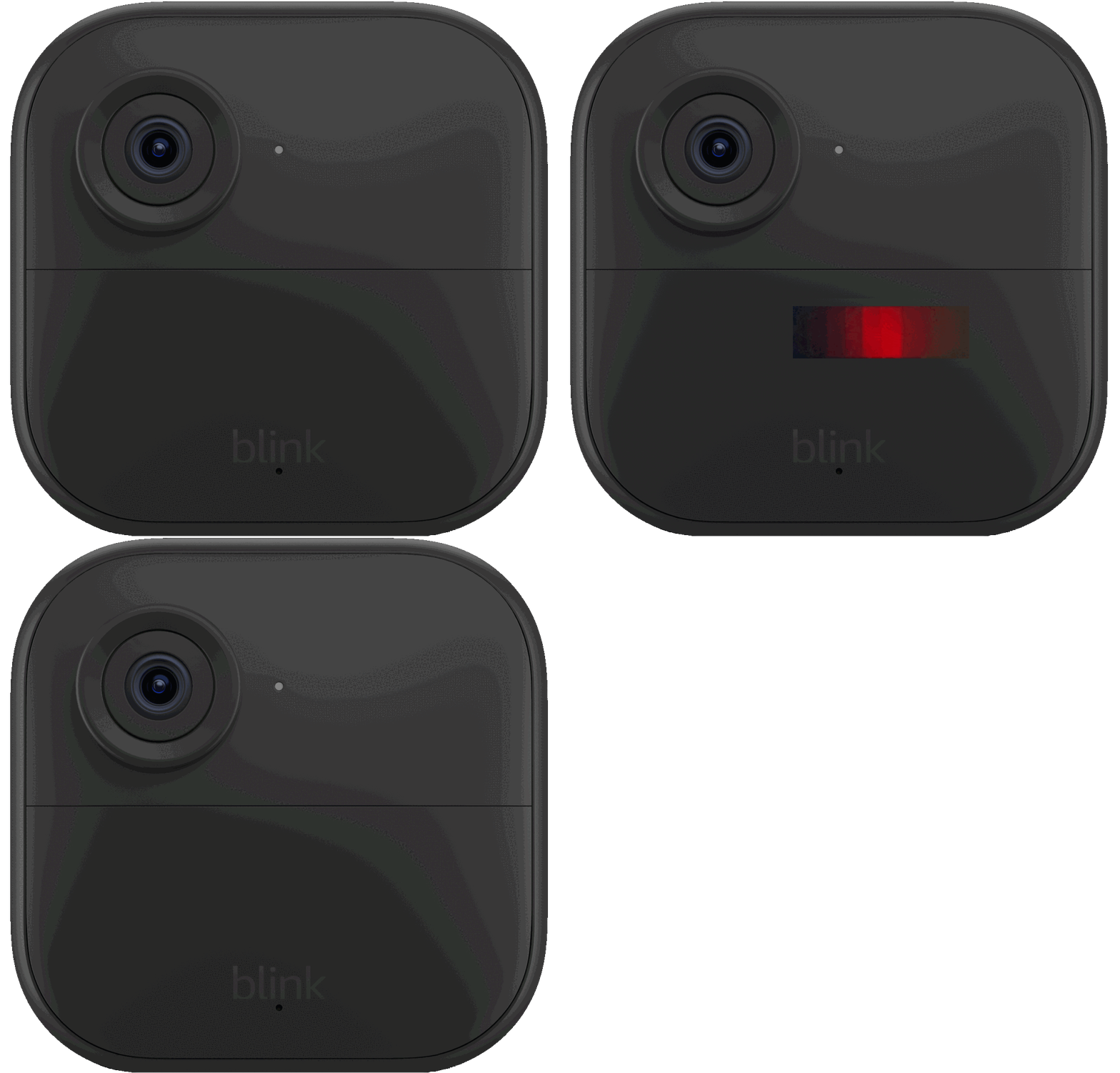
Is your Blink doorbell blinking red and leaving you puzzled? When your doorbell flashes red, it’s a clear sign that something needs your attention.
You might be wondering if it’s a battery issue, a Wi-Fi problem, or something else entirely. Don’t worry—you’re not alone, and this guide is here to help you fix it quickly. Keep reading to discover simple steps you can take right now to get your Blink doorbell back to working perfectly.
Your home’s security depends on it!
Blink Doorbell Red Light Causes
The red light blinking on your Blink doorbell signals an issue needing attention. This warning helps identify problems quickly to restore your doorbell’s function. Several common causes trigger the red blinking light. Understanding these causes simplifies troubleshooting and saves time.
Battery Issues
Low or dead batteries often cause the red light to blink. Replace batteries with high-quality Energizer Ultimate Lithium types. Weak batteries reduce performance and disconnect your doorbell. Check battery levels regularly to avoid interruptions. Removing and reinserting batteries can also help reset the device.
Wi-fi Connectivity Problems
A poor or lost Wi-Fi connection triggers the red blinking light. The doorbell needs stable internet to work properly. Restart your router to fix temporary issues. Move the doorbell closer to the router if the signal is weak. Avoid physical obstructions between the router and doorbell for better connectivity.
Sync Module Errors
The Sync Module manages communication between your doorbell and the app. If it has errors, the red light may blink. Ensure the Sync Module is plugged in and shows a solid green light. Restarting the Sync Module can clear temporary glitches. Check its placement for good Wi-Fi reception.
Power Supply Concerns
Power issues can cause the red light to blink continuously. Confirm that the doorbell’s power source is stable and connected. For wired models, check the transformer and wiring for faults. Battery-powered doorbells must have fresh batteries installed properly. Power interruptions disrupt device operation and trigger alerts.

Battery Replacement Tips
Battery replacement is a common solution for a Blink doorbell blinking red. This section shares simple tips to replace your doorbell batteries safely and effectively. Proper battery care keeps your doorbell working longer and prevents red blinking issues.
Choosing The Right Batteries
Use high-quality batteries for the best performance. Energizer Ultimate Lithium batteries work well with Blink doorbells. Avoid cheap or rechargeable batteries, as they may cause errors. Check your doorbell manual for recommended battery types. Fresh batteries improve device reliability and reduce blinking red alerts.
How To Remove And Insert Batteries
Turn off the doorbell before replacing batteries. Open the battery compartment gently using the latch or screwdriver. Remove old batteries carefully to avoid damage. Insert new batteries with correct polarity, matching plus and minus signs. Close the compartment securely to prevent moisture or dirt from entering.
Battery Life Indicators
Blink doorbells often show battery status through LED signals or app alerts. A blinking red light usually means low battery power. Check the Blink app for exact battery percentage. Replace batteries promptly to avoid device shutdown. Monitoring battery life helps keep your doorbell active and responsive.
Wi-fi Troubleshooting
Wi-Fi issues often cause the Blink doorbell to blink red. Fixing these problems improves your doorbell’s connection and performance. The following Wi-Fi troubleshooting tips will help you restore a strong link between your doorbell and network.
Checking Signal Strength
Start by measuring the Wi-Fi signal near your doorbell. Weak signals can cause blinking red lights. Use a phone or tablet to check signal bars at the doorbell’s location. Move closer to the router to see if signal strength improves. If the signal is low, consider relocating your router or adding a Wi-Fi extender.
Restarting Router And Doorbell
Turn off your router and unplug it for 30 seconds. This clears temporary network glitches. Press and hold the reset button on your Blink doorbell for 10 seconds to reboot it. Power the router back on and wait for all lights to stabilize. Then check if the red blinking stops on your doorbell.
Reducing Interference
Wi-Fi signals can weaken due to interference from other devices. Keep your doorbell away from microwaves, cordless phones, and baby monitors. Metal objects and thick walls also block signals. Try moving the router or doorbell to minimize obstacles. Clear space between the doorbell and other electronics for a better connection.
Network Bandwidth Considerations
Your Wi-Fi may slow down if many devices use it at once. Streaming videos, gaming, and downloads consume bandwidth. Pause or limit other device activity to free up Wi-Fi speed. Check your internet plan to ensure it supports multiple connected devices. A faster plan or router upgrade can improve doorbell performance.

Sync Module Checks
The Sync Module plays a vital role in keeping your Blink Doorbell connected. Checking its status helps solve many blinking red light issues. This section guides you through Sync Module checks to ensure smooth operation.
Identifying Sync Module Lights
The Sync Module shows different colors to indicate its status. A solid green light means it works well. A blinking red light signals a problem with connection or power. A yellow light usually shows the Sync Module is starting up or updating. Knowing these lights helps identify issues fast.
Resolving Sync Module Connectivity
Check the Sync Module’s connection to power and Wi-Fi. Make sure the power adapter is firmly plugged in. Confirm your Wi-Fi network is working and the signal is strong near the Sync Module. If the connection is weak, move the Sync Module closer to the router. Avoid obstacles like thick walls or metal objects that block the signal.
Rebooting The Sync Module
Rebooting the Sync Module can fix many problems. Unplug the power adapter from the Sync Module. Wait about 30 seconds to clear the memory. Plug the power adapter back in. Wait for the Sync Module lights to stabilize. This refreshes the connection and often stops the red blinking light on your Blink Doorbell.
Resetting Your Blink Doorbell
Resetting your Blink Doorbell often resolves the blinking red light issue. This process refreshes the device’s connection and settings. Following a clear reset guide can bring your doorbell back to normal quickly.
The reset button is usually on the back of your Blink Doorbell. You may need to remove the doorbell from its mount to see it. It is a small, recessed button designed to prevent accidental presses.
Use a paperclip or a similar small tool to press the button. Avoid using sharp objects that could damage the button or the device. Knowing the exact location saves time during the reset process.
Step-by-step Reset Process
First, press and hold the reset button for about 10 seconds. Watch for the LED light to turn solid red, then release the button. The doorbell will reboot and start the reset sequence.
Wait for the LED to blink blue and red, indicating the reset is in progress. After a minute, the doorbell will enter setup mode. You can now reconnect it to your Wi-Fi network through the Blink app.
When To Factory Reset
Use a factory reset if normal reset steps fail to fix the blinking red light. This deletes all your settings and data from the doorbell. Perform this only when you want to start fresh or transfer ownership.
To factory reset, press and hold the reset button longer, usually for 20 seconds. Release the button once the light changes as instructed in your manual. Set up the doorbell again from the beginning to restore full function.
Reconnecting Doorbell To Wi-fi
Reconnecting your Blink doorbell to Wi-Fi resolves the blinking red light issue. The doorbell needs a strong, stable connection to work properly. This section explains how to identify setup mode signals, use the Blink app for reconnection, and fix common connection problems. Follow these steps for a smooth reconnection process.
Setup Mode Indicators
The Blink doorbell shows different light patterns during setup. A blinking red light means it is trying to connect to Wi-Fi but fails. A steady blue or green light usually means a good connection. Recognizing these signals helps you know the doorbell’s status quickly. It also guides you on the next steps to take.
Using The Blink App
Open the Blink app on your smartphone to start reconnecting. Select your doorbell device from the list. Follow the on-screen instructions to enter setup mode. The app will prompt you to connect to your Wi-Fi network. Enter your Wi-Fi password carefully to avoid errors. The app will confirm once the doorbell connects successfully.
Troubleshooting Connection Failures
Check your Wi-Fi signal near the doorbell. Weak signals cause the red blinking light. Restart your router to refresh the network. Move the doorbell closer to the router if possible. Make sure the Sync Module has a solid green light and is plugged in. Replace the doorbell batteries if the problem continues. These steps fix most common connection issues.
Preventive Maintenance
Preventive maintenance plays a key role in keeping your Blink Doorbell running smoothly. It helps avoid common issues that cause the red blinking light. Regular care extends the device’s life and improves performance. Simple steps can prevent many problems.
Regular Battery Checks
Check your doorbell’s batteries often. Low battery power is a common cause of a red blinking light. Use high-quality lithium batteries for the best results. Replace batteries before they run out completely. Keeping batteries fresh prevents sudden power loss and connection issues.
Keeping Firmware Updated
Firmware updates fix bugs and improve device stability. Check for updates in the Blink app regularly. Install new versions as soon as they are available. Updated firmware can solve many connectivity and performance problems. It also adds new features and security improvements.
Optimizing Wi-fi Setup
Strong Wi-Fi signals keep your doorbell connected without interruptions. Place your router close to the doorbell if possible. Avoid walls or objects that block the signal. Use the Blink app to check signal strength. Restart your router occasionally to maintain a stable connection.
Frequently Asked Questions
How Do I Reconnect My Blink Doorbell To Wi-fi?
Press and hold the Blink doorbell reset button until red and blue LEDs flash. Open the Blink app and follow Wi-Fi setup prompts to reconnect. Replace batteries if no red LED appears. Ensure your router is working and within range for a stable connection.
How Do I Get My Doorbell Back Online?
Check your Wi-Fi and internet speed. Restart your doorbell and router. Replace the batteries if needed. Move devices closer to the router. Wait a few minutes, then test connection again.
Why Is The Red Light Blinking On My Ring Doorbell?
A blinking red light on your Ring doorbell indicates low battery, Wi-Fi issues, or a failed setup. Try recharging or resetting it.
How Do You Reset Your Blink Doorbell?
Press and hold the reset button on your Blink doorbell until the front LED turns solid red. Release to complete the reset.
Why Is My Blink Doorbell Blinking Red?
A red blinking light usually means low battery or a connection problem. Check and replace the batteries first. Also, ensure your Wi-Fi signal is strong.
Conclusion
A blinking red light on your Blink doorbell signals a connection or power issue. Start by replacing the batteries with fresh ones to ensure enough power. Next, check your Wi-Fi and reboot your router if needed. Make sure the Sync Module shows a solid green light.
If problems continue, try resetting the doorbell. These simple steps often fix the blinking red light quickly. Keep your doorbell working smoothly with regular checks and maintenance.









