
Is your Xfinity box blinking red and you’re not sure why? That flashing light can be frustrating and confusing, especially when you just want to watch your favorite shows.
But don’t worry—this blinking red light is a signal your box is sending you, and understanding it can help you fix the problem fast. You’ll discover exactly what the red blinking means, why it happens, and simple steps you can take to get your service back up and running.
Keep reading—you’re just moments away from solving the issue and enjoying seamless entertainment again.

Common Causes Of Red Blinking Light
The red blinking light on your Xfinity box can be frustrating. It signals a problem that needs attention. Understanding common causes helps fix the issue faster.
Several reasons may cause the red light to blink. These include power problems, software glitches, or hardware failures. Knowing these can guide you through simple checks and fixes.
Power And Connection Issues
Power problems are a frequent cause of the red blinking light. Loose cables or power interruptions can disrupt the box’s operation. A faulty power outlet or surge protector may also cause issues. Ensuring all cables are secure and the power source is stable often solves the problem.
Software Glitches
Software glitches can cause the Xfinity box to blink red. These glitches may occur during updates or system errors. Restarting the box can clear minor software bugs. Sometimes, a system reset or update is necessary to fix deeper issues.
Hardware Malfunctions
Hardware malfunctions lead to persistent red blinking lights. Components like the hard drive or internal circuits may fail. Physical damage or wear and tear over time can affect hardware. Professional repair or replacement is often needed for hardware problems.

Immediate Steps To Try
Seeing a red blinking light on your Xfinity Box can be frustrating. It often means the box is having trouble connecting or working properly. Before calling support, try some quick fixes. These steps can solve many common problems fast.
Start with the easiest actions. They do not take much time and often fix the issue without extra help. Follow the steps below carefully to get your Xfinity Box back to normal.
Restarting The Xfinity Box
Turn off your Xfinity Box using the power button or remote. Wait about 30 seconds to let it fully shut down. Turn it back on and watch the lights. Restarting can clear minor errors and refresh the system.
Checking Cables And Connections
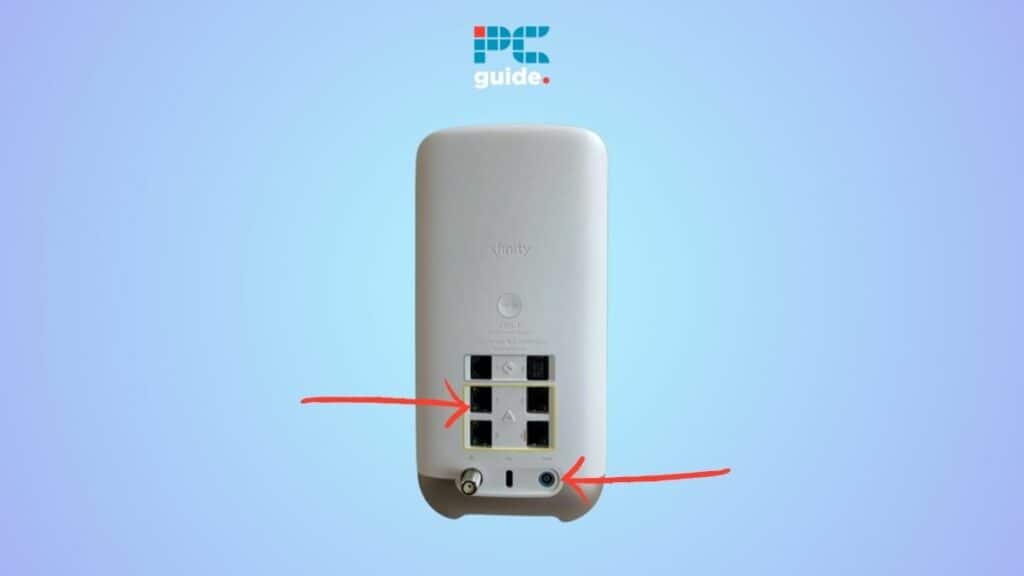
Look at all cables connected to the box. Make sure each cable is plugged in tightly and correctly. Loose or damaged cables cause blinking red lights. Check the power cord, coaxial cable, and HDMI or AV cables. Secure or replace any faulty cables.
Resetting The Device
Find the reset button on your Xfinity Box. It is usually small and may need a paperclip to press. Hold the button for about 10 seconds until the box restarts. This resets settings to default and can fix deeper issues.
Advanced Troubleshooting Methods
Advanced troubleshooting helps fix persistent issues with your Xfinity Box blinking red. These steps go beyond basic resets and checks. They dive deeper into software and settings to solve the problem.
Follow these methods carefully. They can restore your box’s normal function without extra help.
Firmware Updates
Firmware controls how your Xfinity Box works. Outdated firmware can cause blinking red lights. Check for updates in your box’s settings menu. Install the latest version if available. Updated firmware often fixes bugs and improves performance.
Network Settings Check
Network problems may cause the red blinking light. Review your box’s network settings. Make sure it connects to the correct Wi-Fi or Ethernet. Check for any IP conflicts or incorrect DNS settings. Correct settings help your box communicate smoothly.
Factory Reset
A factory reset restores your box to its original state. This step removes all custom settings and data. Use it if other methods fail. Find the reset option in the settings menu or use a pin to press the reset button. After reset, set up your box again from scratch.
When To Contact Xfinity Support
Knowing when to contact Xfinity support is key if your Xfinity box keeps blinking red. Some problems fix themselves. Others need expert help fast. Recognizing the signs saves time and stress. It ensures your service gets back to normal quickly.
Identifying Persistent Problems
Check if the red light blinks constantly. If it blinks for several hours or days, the problem is persistent. Restarting the box may not help. Watch for other issues like no picture or sound. These signs show a deeper issue with your device or connection.
Preparing For Support Call
Have your account details ready. Write down the model number of your Xfinity box. Note when the blinking started and what you tried to fix it. Describe any other problems with your TV or internet. Clear information helps the support team find solutions faster.
What To Expect From Support
Support will guide you through simple troubleshooting steps. They may ask you to restart the box or check cable connections. If the problem stays, they will schedule a technician visit. Sometimes, they replace your device. Their goal is to restore your service quickly and smoothly.
Preventive Tips For Smooth Operation
Keeping your Xfinity box running smoothly helps avoid the blinking red light problem. Simple steps can stop issues before they start. These tips focus on daily care and smart use. Follow them to enjoy better performance and less hassle.
Regular Maintenance
Dust and dirt can cause your device to overheat. Clean the box gently with a dry cloth every week. Avoid placing heavy objects on top of it. Check cables and connections often to ensure they are tight. A clean and secure setup helps the box work well.
Optimal Placement Of Device
Place the box in a cool, open area. Avoid tight spaces or closed cabinets. Keep it away from heat sources like heaters or direct sunlight. Good airflow prevents overheating and blinking red lights. Make sure the device is on a flat surface for stability.
Keeping Software Updated
Software updates fix bugs and improve device stability. Check for updates regularly through the settings menu. Allow automatic updates if possible. Updated software helps the box handle tasks without errors. Staying current reduces chances of blinking red alerts.
Frequently Asked Questions
Why Is My Xfinity Box Blinking Red?
A blinking red light means the box is not working properly. It may have lost connection or need a reset.
How Do I Fix The Xfinity Box Blinking Red Light?
Try unplugging the box for 30 seconds, then plug it back in. This often resets the device and fixes the issue.
Can A Red Blinking Xfinity Box Affect My Tv Service?
Yes, the blinking red light usually means your TV service is interrupted or unstable. Fixing the box restores your service.
What Causes The Xfinity Box To Blink Red Continuously?
A continuous red blink can be due to a power issue or a system error. Checking cables and restarting helps.
When Should I Call Xfinity Support For A Blinking Red Box?
Call support if the red light keeps blinking after multiple resets. They can check for outages or hardware problems.
Conclusion
A blinking red light on your Xfinity box signals a problem. Restart the box to see if it fixes the issue. Check all cables for loose or damaged connections. Sometimes, the issue clears after a quick reset. Contact Xfinity support if the problem continues.
They can offer specific help or send a technician. Staying calm and following simple steps saves time and stress. Your TV service can return to normal with little effort. Keep these tips in mind for future issues. Troubleshooting is easier than it seems.