
Are you seeing blinking lights on your weBoost signal booster and wondering what they mean? Those little lights aren’t just random—they hold important clues about how your booster is working.
Whether it’s a steady green, a flashing orange, or a red warning, understanding these signals can help you fix connection issues quickly and keep your phone calls clear and fast. You’ll learn exactly what each blinking light means, why it happens, and simple steps you can take to get your booster back on track.
Keep reading to make sure your weBoost device is giving you the strongest signal possible.
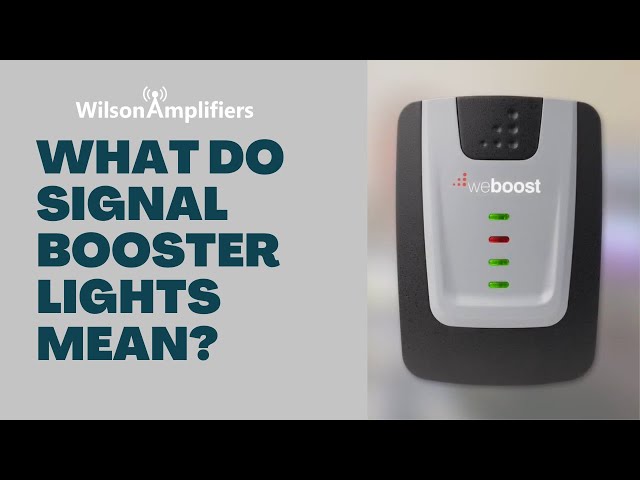
Weboost Light Indicators
The weBoost light indicators provide clear signals about your booster’s status. These lights help you understand if the device works well or if there is an issue. Each color and blinking pattern means something important. Knowing what each light means makes troubleshooting easier and faster. Below are the main weBoost light indicators and their meanings.
Green Light Signals
A solid green light means the booster is working correctly. It shows the device has power and a good signal boost. A steady green light means your phone should get better reception. If the green light blinks slowly, the booster is powering up or adjusting. Green signals usually mean everything is fine.
Red Light Alerts
A red light signals a problem with the booster. It may mean the device is overloaded or has a signal issue. A steady red light could show a weak or no signal from the outside antenna. Blinking red lights often mean the booster needs a reset or repositioning. Red alerts call for action to fix the problem.
Yellow Light Warnings
The yellow light shows a warning but not a full error. It may mean the booster is close to overload. Sometimes it appears when the signal is weak but still working. Yellow lights warn you to check the antenna connections and cable quality. It helps prevent bigger issues before they happen.
Blinking Light Patterns
Blinking lights combine colors and speeds to give more details. For example, a blinking green and orange light means too much signal from the outside antenna. Fast blinking red lights might mean a hardware fault. Different blink rates signal power status or interference problems. Watching these patterns helps keep your booster running well.

Common Signal Issues
Troubleshooting WeBoost blinking lights is simple with clear steps. These steps help identify common issues fast. Follow the guide below to fix your signal booster and restore strong coverage.
Check Power Connections
Start by verifying the power cable is firmly plugged in. Make sure the outlet provides electricity. A loose or faulty connection can cause blinking lights. Use a different outlet to test power supply. Confirm the power adapter is the correct one for your booster.
Inspect Antenna Setup
Examine the outside antenna for damage or misplacement. The antenna should face the nearest cell tower. Ensure cables connecting antennas are tight and undamaged. Too strong a signal or interference can cause blinking lights. Move the antenna or adjust its angle slightly to improve signal.
Resetting The Booster
Power off the booster by unplugging it. Wait about 30 seconds to clear any errors. Plug the booster back in and power it on. Resetting helps clear temporary faults causing blinking lights. Watch the lights as the booster restarts; normal operation usually shows solid green.
Running A Line Test
Perform a line test to check signal flow. Disconnect the inside antenna cable, then observe the lights. If blinking stops, the inside antenna or cable may be faulty. Replace or reposition the cable and antenna to fix issues. A line test isolates parts causing signal problems.
Step-by-step Troubleshooting
Keeping your weBoost signal booster in good condition helps avoid blinking light issues. Preventive maintenance extends the device’s life and ensures steady signal strength. Simple care steps can reduce common problems and keep your connection strong.
Regular Equipment Checks
Check your weBoost booster regularly for signs of damage. Look for loose cables, worn connectors, and dirt buildup. Clean dust off the device and ports gently. Ensure power cords are firmly plugged in and not frayed. Early checks catch problems before blinking lights appear.
Proper Antenna Installation
Install the outside antenna away from metal objects and tall trees. Place it high and clear to capture better signals. Make sure cables are tight and not bent sharply. Poor antenna setup often causes blinking lights due to weak or overloaded signals. Follow the manual for the best antenna position.
Avoiding Signal Interference
Keep the booster and antenna away from other electronics. Devices like microwaves and routers create interference that affects signals. Avoid placing the booster near thick walls or metal furniture. Interference can cause blinking lights and disrupt calls or internet speed.
Firmware Updates
Update your weBoost booster’s firmware to fix bugs and improve performance. Check the manufacturer’s website or app for new versions. Updates help the booster handle signals better and reduce blinking light errors. Regular updates keep your device running smoothly and reliably.
Preventive Maintenance Tips
Knowing when to contact support for your weBoost blinking lights can save time and prevent frustration. The lights indicate the booster’s status and can help identify issues early. Recognizing the signs that need expert help ensures your signal booster works effectively.
Persistent Blinking Lights
Blinking lights often mean the booster is trying to fix a problem. If the lights keep blinking for a long time, it may not resolve itself. Persistent blinking suggests a deeper issue. Contact support to check the system and prevent damage.
No Signal Boost
Sometimes, the booster shows green lights but does not improve your signal. This means the device is on but not working correctly. A line test may be needed to find the fault. Reach out to support for a detailed check and fix.
Hardware Malfunctions
Physical problems like loose cables or damaged parts affect the booster’s function. If you notice unusual lights or no power, hardware might be the cause. Support can guide you through troubleshooting or arrange repairs for faulty components.
Warranty And Repairs
weBoost offers warranty coverage on many models. If your booster needs repair or replacement, support handles the process. Contact them to confirm warranty status and learn how to send your device for service. Avoid unauthorized fixes to keep warranty valid.

Frequently Asked Questions
Why Is My Weboost Blinking Green?
Your WeBoost blinking green means it detects a signal but may be experiencing oscillation or overload. Check antenna placement.
How To Tell If Weboost Is Working?
Check your phone for stronger signal bars or faster data speeds. The WeBoost unit shows a steady green light when working correctly. Blinking or red lights indicate issues needing attention.
How To Reset Weboost Signal Booster?
To reset a weBoost signal booster, unplug its power cable, wait 30 seconds, then plug it back in. This restarts the device and clears minor issues.
Why Did My Cell Booster Suddenly Stop Working?
Your cell booster may stop working due to overload or oscillation issues. Check antenna placement and power connections. Resetting often restores function.
What Do The Blinking Lights On A Weboost Mean?
Blinking lights on a WeBoost indicate different statuses or issues. For example, a blinking green light often shows normal operation. Other colors or blinking patterns can signal problems like overload or poor connection.
Conclusion
Understanding the blinking lights on your WeBoost helps keep your signal strong. Each light color or pattern tells you what the booster is doing. A steady green means the booster works well. Blinking lights can show issues like overload or antenna problems.
Checking power connections solves many problems fast. Simple resets often restore normal function. Watching these signals saves time and frustration. Keep your booster running smoothly for better calls and faster data. Knowing these signs makes your WeBoost easier to manage every day.









