
Is your Synology device showing a blinking blue light? You might be wondering what this means and if your data is at risk.
That blinking light isn’t just a random signal—it’s trying to tell you something important about your device’s status. Understanding this simple indicator can save you time, prevent data loss, and keep your system running smoothly. Keep reading to find out exactly what the blinking blue light means and what you should do next to protect your valuable files.
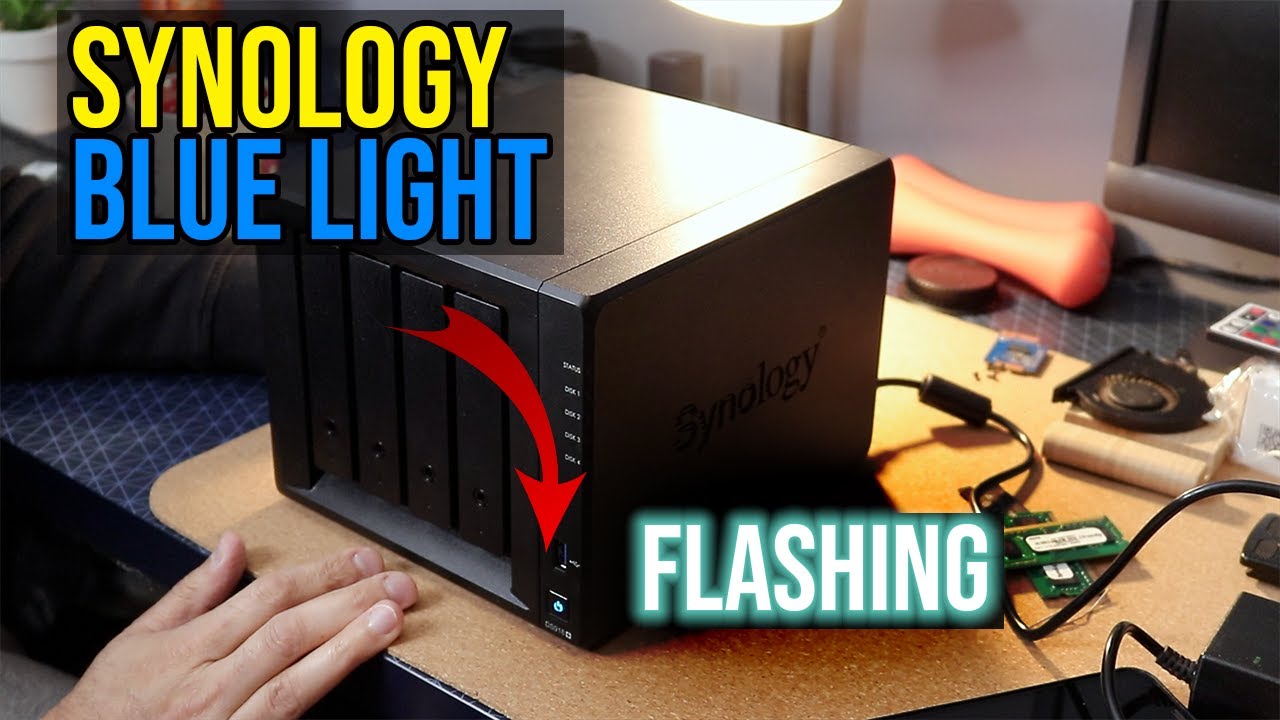
Causes Of Blinking Blue Light
The blinking blue light on your Synology device signals various system states. Understanding its causes helps fix issues quickly. This light often indicates normal activity but can also warn of problems. Below are common reasons why the blue light blinks.
Power Issues
Power problems often cause the blue light to blink. Loose or faulty power cables disrupt the device’s energy supply. Unstable power can make the system restart repeatedly. Check the power connection and use a stable outlet. Avoid using damaged power adapters to prevent blinking.
Network Connectivity
The blinking blue light may show network issues. The device tries to connect to your router or switch. Weak or lost network signals cause this blinking. Ensure cables are properly plugged in and the network is active. Restart your router to refresh the connection if needed.
System Updates
During system updates, the blue light blinks to show progress. This blinking is normal and means the device is installing updates. Avoid turning off the device during this process. Interrupting updates can cause system errors or data loss.
Hardware Malfunctions
Hardware problems can trigger the blinking blue light. Faulty hard drives or memory issues affect system performance. The device alerts you to check the hardware status. Run diagnostic tools to find the exact problem. Replace damaged parts to stop the blinking light.
Basic Troubleshooting Steps
When your Synology NAS shows a blinking blue light, start with basic troubleshooting. These simple steps can often fix the problem quickly. Follow each step carefully to avoid further issues.
Restarting The Nas
Turn off your Synology NAS. Wait for about 30 seconds before turning it back on. This helps clear temporary errors. Watch the light after restarting. The blinking may stop if the device resets correctly.
Checking Power Supply
Check the power cable connection. Make sure it is plugged in firmly. Try using a different power outlet. A weak or loose power supply can cause blinking lights. Replace the power adapter if you suspect it is faulty.
Inspecting Network Cables
Look at the network cables connected to your NAS. Make sure they are not damaged or loose. Swap the current cable with a new one to test. A bad network cable can cause connection problems and blinking lights. Secure all connections tightly for a stable network.
Resetting Your Synology Nas
Resetting your Synology NAS can help fix issues related to the blinking blue light. This process restores settings and can solve network or software problems. It is important to know the types of resets and when to use them.
Choose the reset method carefully to avoid losing important data or settings. Below are two common reset options: soft reset and hard reset.
Soft Reset
A soft reset reboots your Synology NAS without deleting data. It clears network settings and resets the admin password. Press the reset button for about 4 seconds until you hear a beep. This method helps when you cannot access the NAS or forgot the password.
Hard Reset
A hard reset restores the NAS to factory settings. It deletes all configurations but keeps your stored data safe. Hold the reset button for about 10 seconds until the device beeps twice. Use this only if the soft reset does not solve the problem.
When To Reset
Reset your Synology NAS if the blue light keeps blinking without stopping. Also, try resetting if you cannot log in or the device is unresponsive. Avoid resetting if the NAS works fine or only shows minor issues.
Firmware And Software Updates
Firmware and software updates keep your Synology NAS running smoothly. They fix bugs, improve security, and add new features. Ignoring updates can cause issues like the blinking blue light. Regular updates help prevent these problems and ensure your device works well.
Updating Dsm
DSM stands for DiskStation Manager, Synology’s operating system. To update DSM, log in to your NAS through the web interface. Go to Control Panel, then Update & Restore. Click Check for Updates. If an update is available, click Download and Install. The system will restart after updating. Keep your NAS connected to power during this process.
Using Synology Assistant
Synology Assistant is a tool to help find your NAS on the network. Download and install it on your computer. Open the app and let it scan for devices. Select your NAS from the list. Click on the update button if it appears. Follow the instructions to complete the update. This method is useful if your NAS is hard to access via the web.
Manual Firmware Installation
Manual installation works if automatic updates fail. First, download the latest firmware from Synology’s website. Save it on your computer. Log into your NAS’s web interface. Go to Control Panel and then Update & Restore. Choose Manual Update and upload the firmware file. Click OK to start the process. Wait until the update finishes and the system reboots.
Advanced Fixes
Advanced fixes for the Synology blinking blue light involve deeper checks and repairs. These steps help solve problems that basic troubleshooting cannot. You need some technical skills and patience to follow these methods.
Replacing Faulty Hardware
The blinking blue light may signal hardware failure. Start by identifying which part causes the issue. Common faulty parts include RAM, power supply, or hard drives. Replace the damaged component carefully to avoid more damage. Always power off the device before opening it. Use compatible parts recommended by Synology for best results.
Checking Disk Health
Disk problems often trigger the blinking blue light. Use Synology’s built-in tools to check disk health. Run a SMART test to find bad sectors or errors. Replace any disk that shows signs of failure. Keep your data backed up to avoid loss during this process. Healthy disks ensure your NAS runs smoothly.
Contacting Synology Support
When advanced fixes don’t work, contacting Synology support is best. They provide expert advice and can guide you through complex issues. Support can also help with warranty claims or repairs. Have your device details and error messages ready. Professional help often saves time and prevents further damage.
Preventive Measures
Preventive measures help avoid the Synology blinking blue light issue. They keep your system safe and working well. Simple habits can protect your data and hardware. These steps reduce risks and improve device lifespan.
Regular Backups
Backups save your important files. Create copies often and store them safely. Use external drives or cloud services for extra security. Regular backups prevent data loss during errors or failures.
Monitoring System Health
Check your Synology’s health regularly. Use built-in tools to watch disk and system status. Early signs of trouble show before big problems start. Fix issues fast to keep your system stable.
Proper Shutdown Procedures
Always shut down your Synology correctly. Avoid unplugging or forcing power off. Use the official shutdown option in the interface. Proper shutdown stops data corruption and hardware damage.
Frequently Asked Questions
What Does A Blinking Blue Light On Synology Mean?
A blinking blue light shows the Synology device is starting up or shutting down. It means the system is busy but working normally.
How Long Should Synology Blue Light Blink?
The blue light usually blinks for a few minutes during startup. If it blinks longer than 10 minutes, there might be a problem.
Can Blinking Blue Light Indicate A Disk Issue?
No, the blinking blue light is not related to disk errors. Disk issues usually show a red or orange light.
How To Fix Synology Blinking Blue Light Stuck?
Try restarting your Synology device by unplugging it for 10 seconds. If it stays blinking, check your power supply or contact support.
Does Firmware Update Affect Synology Blue Light Blinking?
Yes, during a firmware update the blue light may blink continuously. Wait until the update finishes to avoid interrupting the process.
Conclusion
A blinking blue light on your Synology device signals a need for attention. It often means the system is starting up or updating. Check your connections and wait a few minutes. Restart the device if the light keeps blinking. Always keep your Synology firmware updated for smooth operation.
Small steps can prevent bigger issues later. Stay calm and follow simple fixes to keep your NAS running well. Understanding these signals helps you manage your device with ease.









