
Is your Samsung Frame remote blinking red and leaving you frustrated? You’re not alone.
That blinking red light is your remote’s way of signaling that something isn’t quite right. It could be a simple fix like low batteries or a more complex issue like a lost Bluetooth connection. But don’t worry—you don’t have to guess or struggle in the dark.
This guide will walk you through the common causes and easy solutions to get your remote working smoothly again. Keep reading, and you’ll be back in control of your Samsung Frame TV in no time.
Red Light Signals
The blinking red light on your Samsung Frame remote is a clear signal. It tells you the remote faces some issues. Understanding these signals helps you fix the problem fast.
The red light often warns about battery, connection, or button problems. Knowing what each blink means guides you to the right solution.
Battery Issues
Low or dead batteries cause the red light to blink. Replace old batteries with new ones. Make sure to insert them correctly. Fresh batteries often stop the blinking immediately.
Bluetooth Connection Problems
Smart remotes use Bluetooth to connect to the TV. A blinking red light shows the connection is lost. You may need to re-pair the remote with the TV. Keep the remote close to the TV during pairing.
Infrared Mode Blink
Sometimes the remote switches to infrared mode. The red light blinks only when you press buttons. This means the remote sends signals via IR, not Bluetooth. Check if the TV sensor is clear.
Signal Interference
Objects or other devices can block the remote signal. This causes the red light to blink. Remove any obstacles between the remote and TV sensor. Avoid using the remote near strong wireless devices.
Stuck or faulty buttons may cause the red light to blink oddly. Dirt or damage can block button contacts. Clean the remote carefully. If a button is broken, it may need repair or replacement.
Battery Replacement Tips
Replacing the batteries in your Samsung Frame remote is key to stopping the red blinking light. Using fresh batteries improves remote performance and avoids repeated blinking. Proper installation also ensures the remote works smoothly without power interruptions. Follow these tips for effective battery replacement.
Choosing Fresh Batteries
Pick new batteries from a trusted brand. Cheap or old batteries lose power quickly. Check the expiration date on the package. Use alkaline batteries for longer life. Avoid mixing old and new batteries together. This can cause uneven power and damage the remote.
Correct Battery Installation
Open the battery compartment carefully. Match the positive (+) and negative (-) ends with the markings inside. Insert batteries fully and firmly. Loose batteries may cause the red light to blink. Close the compartment securely to keep batteries in place. Test the remote after installation to confirm it works well.
Resetting The Remote
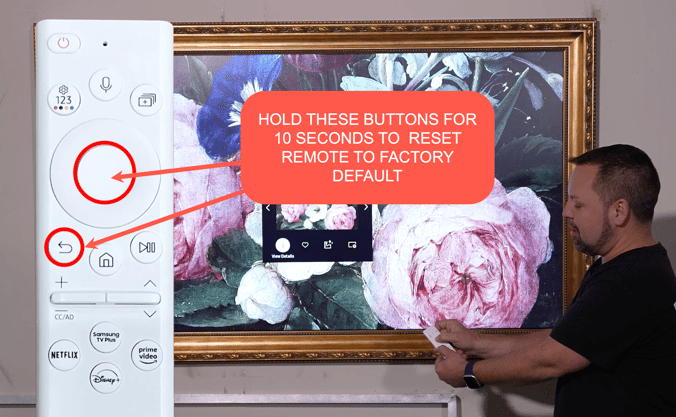
Resetting the Samsung Frame remote often resolves blinking red light issues. This step refreshes the remote’s connection with the TV. It can clear glitches caused by low power or signal interference. Resetting is simple and does not require technical skills. Follow the methods below to reset your remote effectively.
Power Cycle Tv
Turn off your Samsung Frame TV using the power button. Unplug the TV from the power source. Wait for about one minute to clear the TV’s memory. Plug the TV back into the outlet. Turn the TV on using the power button. This process helps reset both the TV and remote connection. The remote’s red light should stop blinking after this step.
Remove the batteries from the remote control. Press and hold the power button on the remote for 20 seconds. This action drains any leftover power in the remote. Release the power button and reinsert the batteries. Point the remote at the TV and press the power button. This method resets the remote’s internal settings. It often stops the red light from blinking and restores normal function.
Cleaning Tips
Cleaning your Samsung Frame remote can solve blinking red light issues quickly. Dirt or dust on key parts may block signals or cause poor contact. Regular cleaning keeps the remote working well and extends its life.
Battery Contacts
Remove the batteries before cleaning. Use a cotton swab dipped in isopropyl alcohol. Gently rub the metal contacts inside the battery compartment. This removes dirt and corrosion that can stop power flow. Let the contacts dry completely before reinserting batteries.
Check the batteries for leaks or damage. Replace old batteries with fresh ones. Make sure to insert them with the correct polarity (+ and – signs).
Tv Ir Sensor
Locate the infrared (IR) sensor on your TV, usually at the bottom center. Use a soft, dry cloth to wipe the sensor gently. Dirt or smudges can block the remote’s signals. Avoid using liquids directly on the sensor to prevent damage.
Ensure nothing is blocking the sensor between the remote and the TV. Clear any objects or dust that might interfere. A clean sensor helps the remote communicate without blinking red errors.
Re-pairing Smart Remote
Re-pairing the Samsung Frame Smart Remote fixes blinking red light issues. The red blink often means the remote lost connection to the TV. Re-pairing restores the Bluetooth link quickly. This process is easy and takes only a few minutes.
Preparing Tv And Remote
Turn on your Samsung Frame TV. Keep the remote close to the TV’s sensor. Remove any obstacles between the remote and TV. Check that the remote has fresh batteries installed. This ensures the remote sends a strong signal. Also, restart the TV to clear temporary glitches.
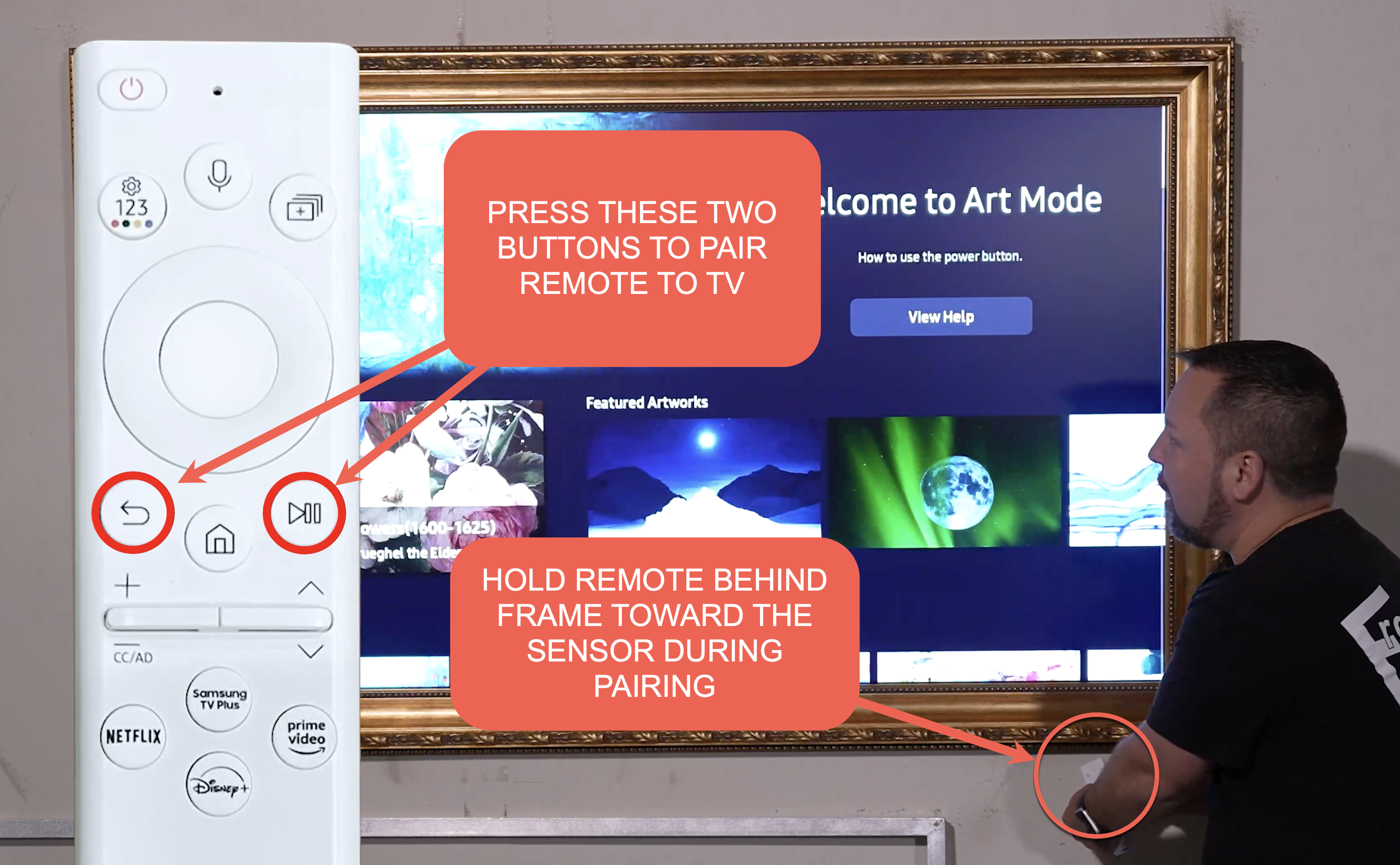
Press and hold the Return and Play/Pause buttons on the remote at the same time. Hold them for about 3 to 5 seconds. Watch the TV screen for a pairing message. Release the buttons once the message appears. The remote will connect to the TV automatically. The blinking red light should stop once paired.
Avoiding Signal Interference
Signal interference often causes the Samsung Frame remote to blink red. It blocks the remote’s commands from reaching the TV. Removing interference helps restore smooth remote operation. Simple steps clear the path for a strong signal.
Removing Obstacles
Objects between the remote and TV can block signals. Keep the area in front of the TV clear. Avoid placing decorations or electronics on the TV stand. Clean the TV screen and sensor to remove dust. A clear line of sight improves remote response.
Reducing Device Interference
Other electronic devices may disrupt the remote’s signal. Move Wi-Fi routers, cordless phones, and other remotes away from the TV. Turn off unused devices near the TV during remote use. Avoid using multiple remotes at the same time. Reducing interference helps the Samsung Frame remote work properly.
Stuck buttons on your Samsung Frame remote can cause the red light to blink continuously. This issue often interrupts normal remote functions. Troubleshooting stuck buttons helps restore smooth control of your TV. Follow simple steps to identify and fix button problems quickly.
Check each button carefully for any signs of sticking or resistance. Press every button slowly and notice if any feel different or do not spring back. A stuck button may feel jammed or stay pressed down. Observe if the red light blinks more when pressing certain buttons. These signs point to which button may be faulty.
Remove the remote’s back cover and batteries before starting. Use a cotton swab dipped in isopropyl alcohol to clean around the button contacts. Dirt and grime can cause poor contact and make buttons stick. Press the buttons several times after cleaning to loosen any debris. Reassemble the remote and test the buttons again to see if the blinking stops.

Frequently Asked Questions
Why Is The Red Light Flashing On My Remote Control?
A flashing red light on your remote often signals low batteries, Bluetooth pairing issues, or infrared signal problems. Replace batteries, reset the remote, or re-pair to fix it. Clean sensor and contacts to avoid interference or stuck buttons causing the blink.
How Do I Pair My Frame Tv Remote?
Turn on your Frame TV and place the remote near the sensor. Press and hold Return and Play/Pause buttons until pairing appears on-screen. Replace batteries if the remote blinks red. Clean remote contacts and ensure no obstruction blocks the TV sensor for a stable connection.
How Do I Fix The Blinking Red Light On My Samsung Tv?
Replace the remote’s batteries with new ones, ensure correct polarity, and clean the battery contacts. Reset the remote by unplugging the TV and holding specific buttons. For smart remotes, re-pair it by holding Return and Play/Pause near the TV sensor until pairing appears.
Why Is The Light Flashing On My Samsung Smart Remote?
The flashing light on your Samsung Smart remote signals low batteries, a lost Bluetooth connection, or an IR signal issue. Replace batteries, reset the remote, or re-pair it with the TV to fix the problem. Cleaning the sensor and contacts also helps restore proper function.
Why Is My Samsung Frame Remote Blinking Red?
A blinking red light usually means low batteries or connection issues. It can also signal an IR sensor problem or stuck buttons.
Conclusion
A blinking red light on your Samsung Frame remote signals common issues. Check the batteries first and replace them if needed. Clear any obstructions between the remote and TV sensor. Reset the remote by unplugging the TV and pressing specific buttons.
For smart remotes, try re-pairing via Bluetooth to restore connection. Regular cleaning of contacts helps maintain proper function. These simple steps usually solve the blinking red light problem quickly. Stay patient and follow each step carefully to get your remote working again.









