
Is your Nest thermostat showing a blinking red light but the display stays blank? This frustrating issue can leave you wondering if your smart thermostat is broken or if there’s an easy fix.
You rely on your Nest to keep your home comfortable, so when it doesn’t turn on or respond, it disrupts your day. The good news is, a blinking red light usually signals a low battery or wiring problem—something you can often solve yourself.
You’ll discover simple, step-by-step solutions to get your Nest back up and running quickly. Keep reading to take control and avoid costly repairs or replacements.
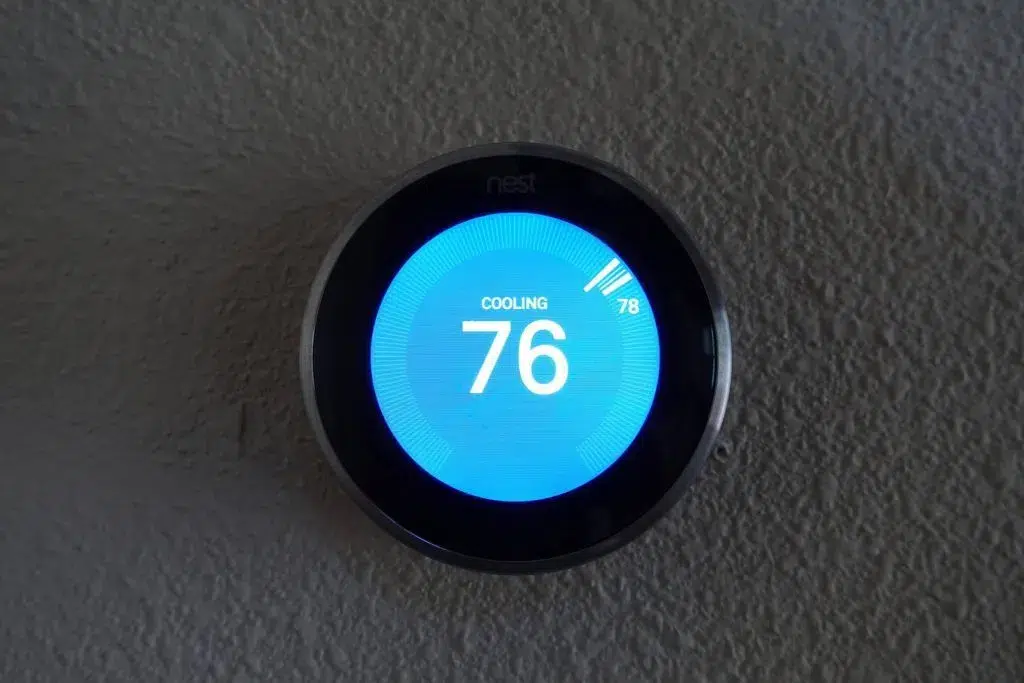
Red Light Causes
The red light on your Nest thermostat signals a problem. It often means the device cannot power on or show a display. Understanding the causes helps you fix it fast. Several issues can trigger the blinking red light and no display.
Low Battery Issues
Low battery is a common cause. The Nest thermostat needs enough power to start up. If the battery is drained, the red light blinks. The device will not show the screen until it charges. Charging can take a few hours. Using a micro-USB cable speeds this up.
Wiring Problems
Incorrect or loose wiring can cause power failures. The thermostat relies on proper wiring for energy. Poor connections stop the device from getting enough power. This leads to the red light blinking. Check all wires are secure and correctly placed. Fixing wiring issues often restores normal function.
Power Outages
Power outages disrupt the Nest thermostat’s energy source. Without power, the device cannot turn on or display anything. The red light blinks as a warning. Once the power returns, the thermostat should recover on its own. Extended outages may require manual charging or resetting.
Battery Charging Tips
Battery charging plays a key role in fixing a Nest blinking red light with no display. A low or dead battery often causes this issue. Proper charging helps restore power and revive the device. Use these battery charging tips to improve your Nest thermostat’s performance and avoid long downtime.
Using Usb Charging
Charging your Nest with a USB cable can speed up the process. Locate the micro-USB port on the thermostat’s back. Connect a reliable USB charger and plug it into a power source. Keep the thermostat connected for at least two hours. This method bypasses the internal battery charger, giving the device direct power. USB charging is useful when the built-in battery is deeply drained.
Speeding Up Battery Recovery
Turn off the Nest thermostat during charging to save energy. Avoid pressing buttons or trying to use the device while charging. Charge in a cool, dry place for better battery health. Remove the thermostat from its base if needed to access the USB port easily. Check the charging progress after a few hours. A steady or solid light shows the battery is recovering well. Quick charging helps bring the Nest back to life faster.
Wiring Checks
Wiring issues often cause the Nest thermostat to blink red and show no display. Checking the wiring is a key step. It ensures the thermostat gets enough power to work properly. Poor connections or missing wires can stop the device from turning on. This section covers simple wiring checks to help fix the problem quickly.
Securing The R Wire
The R wire supplies power to the Nest thermostat. Make sure it is tightly connected to the R terminal. A loose R wire can cause power interruptions. Turn off your HVAC system before touching wires. Use a screwdriver to secure the wire firmly. Avoid bending or damaging the wire during this process.
Importance Of The C Wire
The C wire provides continuous power to the thermostat. Without it, the Nest may blink red and fail to display. Many older HVAC systems lack a C wire. If your system does not have one, consider adding it. This wire stabilizes power and prevents battery drain. Check if the C wire is connected and tight in the terminal.
Common Wiring Mistakes
Incorrect wiring is a frequent cause of Nest errors. Connecting wires to wrong terminals can damage the unit. Mixing up the R and Rc wires may cut power. Failing to remove old wires can confuse the system. Always label wires before disconnecting them. Inspect for frayed or broken wires that need replacement.
Restarting The Nest
Restarting your Nest thermostat can fix many issues quickly. It helps reset the device’s system. This action can solve problems like a blinking red light or no display.
Sometimes, the Nest gets stuck due to software glitches. Restarting refreshes the system and restores normal operation. It is a simple step before trying more complex fixes.
Force Restart Steps
Press and hold the thermostat ring. Keep it held for about 10 seconds. Release the ring when the screen turns off. Wait for the Nest to reboot fully. This process forces the device to restart. It clears minor errors and freezes.
Make sure the thermostat is connected to power. A force restart can help if the display is blank. It often solves the blinking red light issue too.
When To Restart
Restart if the Nest shows a red blinking light. Also restart if the screen stays black. Try restarting when the device does not respond. It helps after power outages or wiring changes.
Restarting can improve performance during slow response times. Use it before resetting or calling support. It is a quick way to fix many common problems.
Firmware And Software
The firmware and software inside your Nest thermostat control its functions and display. Problems like a blinking red light with no display often relate to software glitches or outdated firmware. Keeping the device updated ensures smooth operation and prevents errors. Sometimes, the firmware needs a manual update to fix bugs that cause the red light issue.
Updating The Thermostat
Updating the Nest thermostat firmware can solve many common problems. The device usually updates automatically when connected to Wi-Fi. If the screen is blank and the red light blinks, try restarting the thermostat first. Then, connect it to a reliable Wi-Fi network to trigger the update.
You can also update the firmware using the Nest app. Open the app and check for available updates under device settings. Installing the latest software version fixes bugs and improves device stability. Keep the thermostat plugged in during the update to avoid interruptions.
Software Support Limits
Older Nest models may stop receiving software updates after some years. Lack of updates causes the device to malfunction or show error lights. Google phases out support for early Nest thermostats to focus on newer models.
Without software updates, the thermostat cannot fix bugs or improve security. A blinking red light with no display might signal that the firmware is outdated. In such cases, consider replacing the device to regain full smart features and reliable performance.

Hardware Lifespan
The Nest thermostat is built to last several years. Its hardware can function well for a long time under normal use. Over time, parts wear down and may cause issues like a blinking red light or no display.
Understanding the lifespan helps you decide when to repair or replace it. Battery and hardware health are key factors in its longevity. Paying attention to signs of failure can save you from sudden breakdowns.
Signs To Replace
Frequent rebooting or losing Wi-Fi signal shows hardware trouble. Unresponsive buttons and irregular temperature readings also point to problems. If the screen stays blank despite power, replacement might be needed.
Constant low battery warnings or rapid battery drain are clear signs. When the thermostat cannot hold a charge, it may be time to get a new unit. Older models losing software support also require replacement.
Battery Health Over Time
The Nest uses a rechargeable battery that weakens with age. Batteries lose capacity after many charge cycles. This causes the device to blink red or show no display during low power.
Charging issues often stem from battery wear, not wiring faults. The battery is not easily replaceable in most models. A failing battery limits the thermostat’s useful life significantly.
Keeping the battery healthy extends the device’s operation. Avoid long power outages and extreme temperatures. Using a micro-USB cable can help recharge if the battery is low.
Advanced Fixes
Advanced fixes for a Nest blinking red light with no display require careful steps. These methods address deeper issues beyond basic troubleshooting. They help restore your device’s function effectively.
Follow these solutions precisely to avoid damage. They suit users comfortable with hands-on fixes or those ready to seek professional help.
Resetting The Device
Resetting your Nest can clear errors causing the red blinking light. Start by pressing the thermostat ring for about 10 seconds. Release when the screen turns off.
The device will reboot and attempt to start fresh. This process can fix minor software glitches or battery issues.
If the reset does not work, try a factory reset. Navigate through the menu to find the reset option, then confirm. Keep in mind, factory reset erases your settings.
Professional Repair Options
When resets fail, consider professional repair services. Certified technicians can diagnose hardware problems inside your Nest.
They check internal components like the battery, wiring, and circuit board. Repairs often resolve power or display failures causing the blinking red light.
Using professional help ensures safe handling and reliable fixes. Contact authorized service centers or Google Nest support for trusted assistance.

Preventive Maintenance
Preventive maintenance is key to keeping your Nest thermostat working well. Regular care helps avoid sudden issues like a blinking red light or no display. Simple steps can extend the life of your device. It also saves you time and money on repairs or replacements.
By checking your Nest thermostat regularly, you catch small problems early. This keeps your home comfortable and your thermostat reliable.
Routine Checks
Inspect your thermostat for dirt and dust. Clean the screen gently with a soft cloth. Check the wiring connections to ensure they are secure. Look for signs of wear or damage on cables. Test the battery status often to avoid low power issues. Update the thermostat’s software regularly for best performance. Make sure your Wi-Fi connection is strong and stable. These simple steps keep your Nest running smoothly.
Avoiding Future Issues
Keep your thermostat away from direct sunlight and heat sources. Avoid placing it near drafts or vents that affect temperature readings. Use surge protectors to guard against power spikes. Schedule regular inspections by a professional if unsure about wiring. Replace batteries before they run too low. Avoid using harsh chemicals when cleaning. Follow manufacturer guidelines for maintenance and updates. These habits reduce the chance of a red blinking light or no display.
Frequently Asked Questions
Why Is My Nest Thermostat Blinking Red And Not Turning On?
A blinking red light means your Nest thermostat’s battery is too low to start. Check wiring or power supply. Charge it using a micro-USB cable to speed recovery. The thermostat should power on after a few hours of charging.
What Is The Life Expectancy Of A Nest Thermostat?
A Nest thermostat typically lasts around 10 years. Battery health and software support affect its lifespan. Software updates may end earlier, requiring upgrades for smart features.
How Do You Fix A Dead Nest Thermostat?
Remove the Nest thermostat from its base and charge it with a USB cable for a few hours. Check that the red (R) wire is secure. Restart the device after charging. If no common (C) wire exists, consider adding one to maintain battery power.
How To Force Restart A Nest Thermostat?
Press and hold the thermostat ring for about 10 seconds until the screen turns off. Release to restart the Nest thermostat.
Why Is My Nest Thermostat Blinking Red With No Display?
A blinking red light means the battery is very low and cannot start the device. This may happen due to wiring issues or a power outage.
Conclusion
A blinking red light and no display on your Nest can signal power issues. Check wiring and battery status first. Charging with a USB cable can help restore power quickly. Keep your thermostat updated to avoid future problems. Regular maintenance helps your Nest work smoothly.
If problems persist, contacting support may be necessary. Staying calm and following simple steps solves most issues. Your Nest can get back to normal with a little care.









