
Is your LG dryer showing a blinking “CL” code and you’re wondering what it means? You’re not alone.
That flashing “CL” might look like a problem, but it’s actually your dryer’s way of telling you the child lock or control lock feature is activated. While this safety feature helps prevent accidental changes during a cycle, it can also stop your dryer from working the way you expect.
If you want to get your dryer back to normal quickly, understanding what the “CL” code means and how to turn it off is key. Keep reading, and you’ll learn simple, step-by-step solutions to fix the blinking “CL” on your LG dryer without any hassle.

What The Cl Code Means
The CL code on your LG dryer is a message shown on the display. It is not an error or a sign of a problem. Instead, it tells you that a safety feature is active. This safety feature helps prevent accidental changes or starts.
Understanding this code helps you use your dryer safely and correctly. It also avoids confusion when the dryer does not respond as expected.
Child Lock Function
The Child Lock function stops children from changing settings. It locks the control panel buttons. This keeps the dryer running safely without interruptions. Parents use this feature to prevent accidents.
When Child Lock is on, the CL code appears on the screen. This tells you the lock is active. Pressing buttons will not change any settings until you turn it off.
Control Lock Safety Feature
Control Lock is similar to Child Lock but for all users. It protects the dryer’s controls from accidental presses. This is helpful during cleaning or moving clothes. It keeps the settings safe and unchanged.
The CL code shows that Control Lock is on. It stops the dryer from starting or changing cycles until unlocked. This feature adds extra safety and convenience.
Why The Code Appears
The CL code appears when you press certain buttons together. This activates the Child Lock or Control Lock. It can happen by mistake or on purpose. The dryer shows CL to let you know the lock is active.
You cannot start or change cycles with the lock on. To remove the code, press and hold the lock button or button combo. This unlocks the controls and clears the CL code.
The code helps prevent unwanted changes or starts. It is a normal part of using your LG dryer safely.
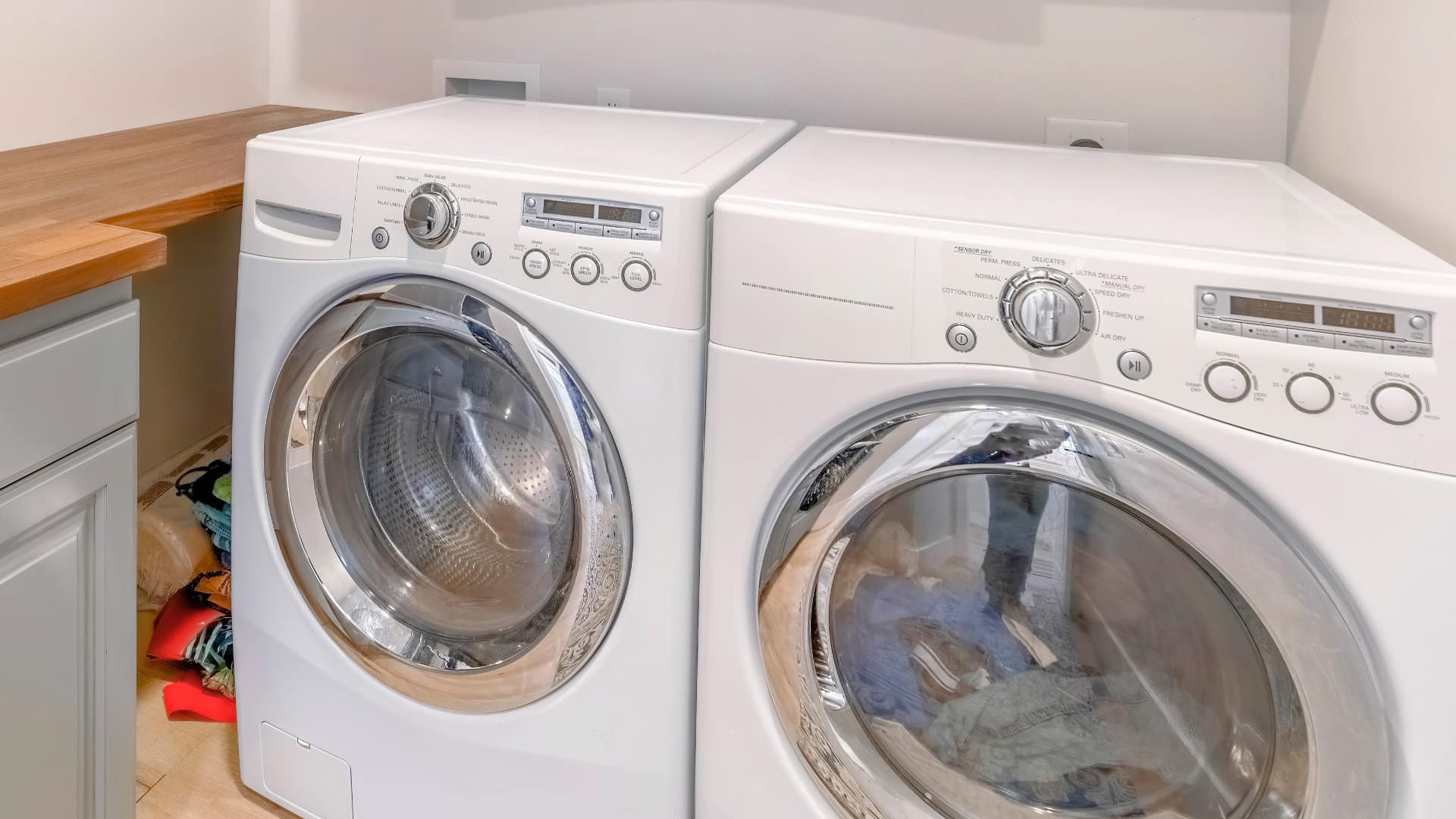
How To Turn Off The Cl Code
The CL code on an LG dryer means the Child Lock or Control Lock is active. This feature prevents accidental changes during a drying cycle. Turning off the CL code is simple. It usually involves pressing certain buttons together. The exact method depends on your dryer model. Below are easy ways to turn off the CL code.
Most LG dryers use a button press combination to disable the Child Lock. Press and hold the “Signal” and “Dry Level” buttons at the same time for 3 seconds. The CL code should disappear. Another common combo is holding the “Wrinkle Care” and “Start/Pause” buttons together. Try holding different pairs of buttons for a few seconds to see which works. This resets the control lock quickly.
Model-specific Controls
Some LG dryer models have a dedicated Child Lock button. Check your user manual for exact instructions. On certain models, the “Control Lock” icon lights up when active. Press and hold the button labeled “Control Lock” or “Child Lock” for 3-5 seconds. The icon and CL code will turn off. If unsure, look for a button with a lock symbol. This is the control lock toggle.
Many LG dryers use the “Delay End” and “Anti Crease” buttons to control the Child Lock. Press and hold these two buttons at once for 3-5 seconds. The CL code will turn off, and the lock will release. This method works on popular LG models. It also prevents wrinkles by keeping the drum moving after the cycle. Use this combo to disable the lock safely.
Troubleshooting Common Issues
The LG dryer blinking “CL” code signals common issues users face. This code usually means the child lock or control lock is active. Sometimes, it can also remind you to clean the dryer filter. Understanding how to troubleshoot these issues helps keep your dryer working well.
When The Code Won’t Clear
If the “CL” code stays on the screen, it means the child lock is still active. Press and hold the child lock button or the button combination for about 3 seconds. This action should turn off the lock and clear the code. Check your dryer’s manual for the exact buttons if unsure.
Sometimes, the code may not clear due to a software glitch. In that case, try resetting the dryer by unplugging it for a few minutes. After plugging it back in, check if the code has disappeared.
Filter Cleaning Reminders
The “CL” code can also signal that the lint filter needs cleaning. A clogged filter reduces dryer efficiency and may cause the code to blink. Remove the filter and clean off all lint and debris. Use a soft brush or vacuum if needed.
Regularly cleaning the filter after every load helps prevent the code from appearing. It also improves drying performance and saves energy.
Power Cycle And Reset Steps
Power cycling your LG dryer can fix many minor errors, including the blinking “CL” code. To do this, unplug the dryer from the power outlet. Wait for about 5 minutes to let the system reset.
Plug the dryer back in and turn it on. Check if the code is gone. This simple reset often clears control lock errors and refreshes the dryer’s system.
If the problem continues, contacting LG support may be necessary for further help.

Credit: www.lg.com
Using Your Dryer With Cl Active
Using your LG dryer with the CL active means the Child Lock feature is turned on. This feature prevents accidental changes to the settings during the drying cycle. It keeps children or pets from stopping or altering the dryer operation. Understanding how to use the dryer with CL active helps you avoid confusion and ensures safe use.
Is Operation Possible?
The dryer does not start or change settings with CL active. It locks the control panel to prevent any button presses. You can run the dryer only if the cycle was set before activating the lock. New programs or changes cannot be made until you disable the Child Lock.
Safety Considerations
Child Lock protects children from stopping the dryer or opening the door. It also stops accidental pauses or cycle cancellations. The feature prevents sudden interruptions that might cause wet clothes or damage. Using the dryer with CL active adds a safety layer in homes with young children or pets.
When To Disable Child Lock
Turn off the Child Lock when you need to change the drying cycle. Disable it to add or remove clothes safely. Also, turn it off before cleaning the lint filter or dryer drum. The lock should stay active only during the drying process for safety.
Preventing Cl Code From Returning
Preventing the CL code from returning on your LG dryer helps keep your drying routine smooth. The CL code signals that the child lock or control lock is active. This feature stops changes during a drying cycle, which is helpful but can be frustrating if it turns on by mistake. Taking simple steps can help you avoid seeing the CL code frequently. These actions keep your dryer working well and save time.
Avoiding Accidental Activation
Many users activate the child lock by pressing the wrong buttons. Learn your dryer’s control panel to avoid this. Do not press multiple buttons at once unless required. Keep children and pets away from the control panel. This reduces the chance the lock turns on by accident. Double-check the display before starting your dryer. This helps catch the CL code early.
Regular Maintenance Tips
Clean the lint filter after every load. A clogged filter may cause the dryer to act strangely. Wipe the control panel with a soft cloth. Avoid harsh chemicals that can damage buttons. Inspect the door latch for any damage. A faulty latch can trigger safety features like the child lock. Schedule a professional check-up if the code returns often. Regular care prevents errors and extends dryer life.
Lock Feature Best Practices
Use the child lock only when needed for safety. Turn off the lock immediately after use. Follow your model’s instructions carefully to disable the lock. Avoid holding buttons too long, as this may activate the lock. Teach family members how to operate the lock properly. Correct use minimizes frustration and keeps the dryer ready for use. Keep the manual nearby for quick reference.
Frequently Asked Questions
Can I Still Use The Dryer With The Cl Code?
No, you cannot use the dryer with the CL code active. It means Child Lock is on, preventing operation. Disable Child Lock to start the dryer.
How Do I Clear The “cl” Code?
To clear the “CL” code on your LG dryer, press and hold the “Delay End” and “Anti Crease” buttons together for 3 seconds. This disables the Child Lock feature and clears the code. The dryer will resume normal operation once the lock is off.
Will The Cl Code Go Away On Its Own?
The CL code on an LG dryer indicates the Child Lock is active. It won’t go away alone; you must disable it manually.
How To Get Lg Dryer Off Child Lock?
Press and hold the “Delay End” and “Anti Crease” buttons together for 3-5 seconds. The “CL” symbol will disappear, unlocking the child lock feature.
What Does The Lg Dryer Blinking Cl Mean?
The blinking CL means the Child Lock feature is activated. It stops accidental changes during drying. This is a safety function, not an error.
Conclusion
The blinking “CL” on your LG dryer means the child lock is on. This feature keeps the dryer controls safe from accidental changes. To stop the blinking, press and hold the correct button combination for your model. Usually, it takes just a few seconds to unlock.
Remember, this code does not show a problem with the dryer itself. Knowing this helps you use your dryer with confidence and ease. Keep your appliance working well by understanding these simple signals.









