
Is your HP laptop’s power LED blinking continuously but the screen stays black? It’s frustrating when you press the power button and nothing shows up on the display, leaving you wondering what went wrong.
You’re not alone—this issue is common and can signal several different problems, from power supply glitches to hardware failures. But don’t panic just yet. You’ll discover simple, step-by-step solutions that can help you diagnose why your HP laptop’s power light won’t stop blinking and get your screen back on.
Keep reading, and you’ll learn how to bring your laptop back to life without unnecessary stress or costly repairs.
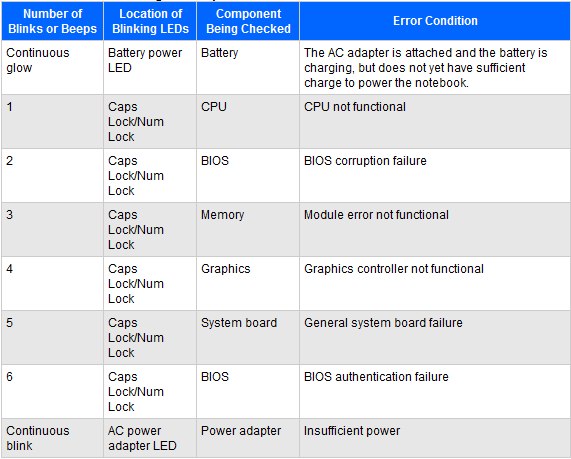
Power Led Blinking Causes
The continuous blinking of the power LED on an HP laptop without any display is a common sign of a deeper problem. This blinking acts as a warning that something is wrong. Understanding the causes helps in troubleshooting the issue correctly. Several factors may trigger this blinking light, each linked to different hardware or software components.
Battery Issues
A faulty or drained battery often causes the power LED to blink. The laptop may fail to get enough power to start. Sometimes, the battery loses its ability to hold charge. This issue stops the laptop from turning on properly. Checking the battery health or removing it temporarily can help identify if it is the cause.
Charger And Power Adapter Problems
Problems with the charger or power adapter can cause power LED blinking. A damaged cable or loose connection prevents the laptop from receiving power. Using a charger with incorrect voltage may also trigger the light. Testing with a known good charger can confirm if the adapter is faulty.
Internal Hardware Faults
Hardware issues inside the laptop can cause the LED to blink continuously. Faulty RAM, motherboard, or CPU can stop the laptop from starting. Loose or damaged components may also lead to this problem. Diagnosing internal faults often requires professional tools or service support.
Bios Or Firmware Errors
Corrupted BIOS or firmware may cause the laptop to blink the power LED. The system fails to complete the startup process correctly. BIOS errors can arise after failed updates or power interruptions. Resetting or updating the BIOS might solve the issue, but caution is needed during this process.
Initial Checks
When your HP laptop shows a blinking power LED but no display, start with initial checks. These help find simple issues before deeper troubleshooting. A few quick steps often solve the problem.
Verify Power Connection
Check if the power adapter is firmly plugged into the laptop and the wall socket. Loose connections can stop the laptop from getting enough power. Try another power outlet to rule out socket issues. Look for any damage on the charger cable or adapter. Replace if you see frayed wires or breaks.
Inspect Battery Health
Remove the battery if your model allows it. Then, connect the charger and try to power on the laptop. If it starts, the battery might be faulty or drained. Batteries lose capacity over time and may cause power problems. Consider replacing the battery if the laptop runs only on charger power.
Remove External Devices
Disconnect all USB devices, external drives, and peripherals. Sometimes, faulty external devices can block the laptop from booting properly. After removal, press the power button to check if the laptop boots. This step helps isolate the cause and ensures nothing outside affects the startup.
Performing A Power Reset
Performing a power reset can fix the blinking power LED issue on your HP laptop. This process clears the laptop’s memory and resets hardware settings. It often resolves problems that cause the screen to stay black while the power light blinks. Follow these simple steps carefully to try this fix at home.
Step-by-step Power Reset
First, shut down your laptop completely. Do not just close the lid or put it to sleep. Next, unplug the AC adapter and remove all connected devices like USB drives or external mice. Press and hold the power button for about 15 seconds. This drains any residual power inside. After this, reconnect the AC adapter but keep the battery out if it is removable. Now, try turning on the laptop normally.
Removing And Reinstalling The Battery
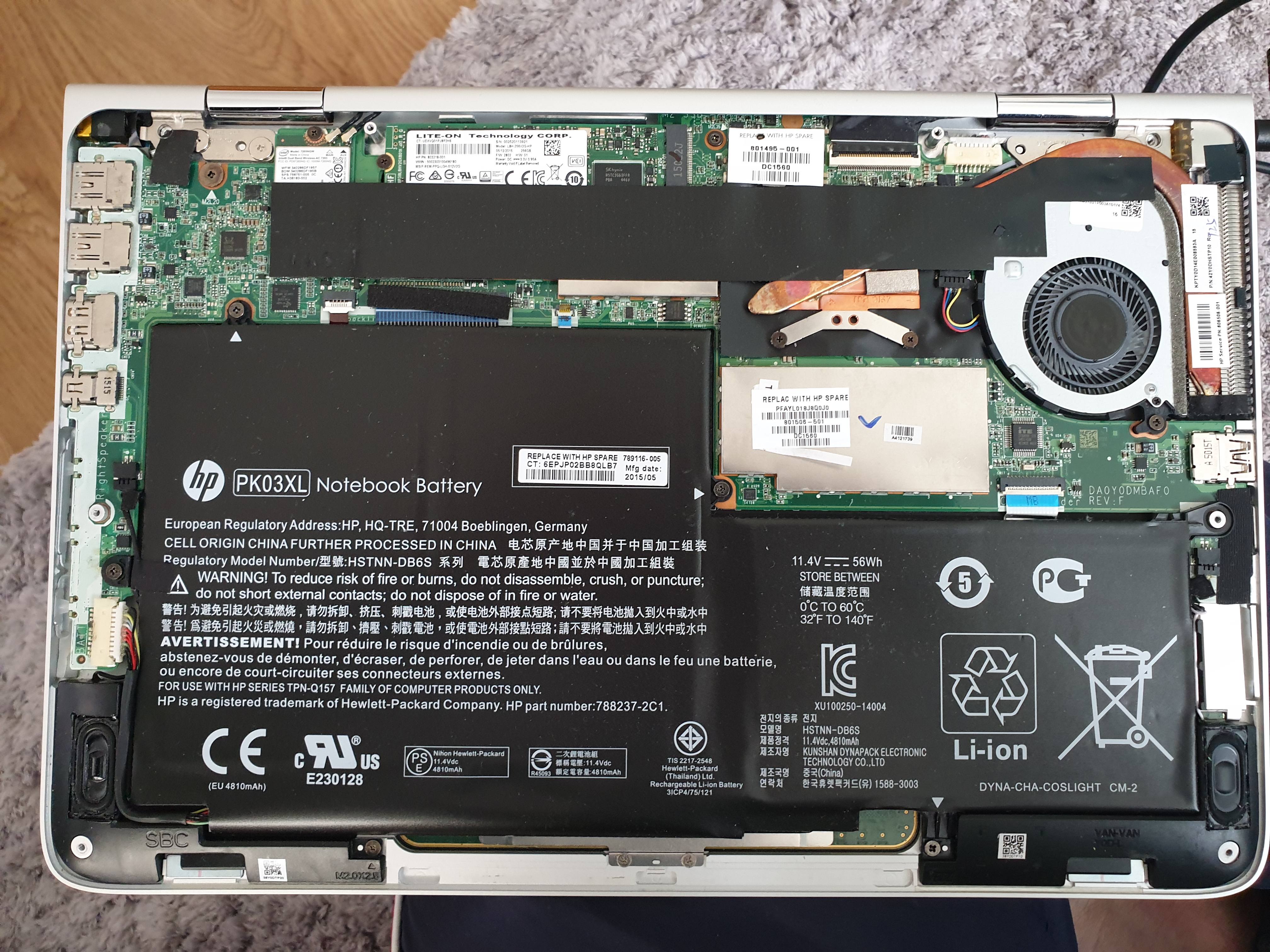
Turn off the laptop and unplug it from the power source. Flip the laptop over and find the battery release latch. Slide the latch to remove the battery carefully. Wait for a minute to let the laptop reset. Place the battery back in its slot and secure it. Plug the charger back in and power on the laptop. This step can refresh the battery connection and stop the blinking LED.
Testing Without Battery
Remove the battery following the previous instructions. Connect the AC adapter to the laptop without the battery. Press the power button to turn on the laptop. If the laptop starts normally, the battery might be the problem. This test helps isolate if the battery causes the blinking power light. Replace the battery if needed or consult a technician for further help.
Fixing Black Screen Issues
Fixing black screen issues on an HP laptop can be simple with the right steps. The blinking power LED often signals a hardware or software problem. This section guides you through quick checks and easy fixes to bring your display back to life.
Graphics Driver Reset Shortcut
Resetting the graphics driver can solve many display problems. Press Windows + Ctrl + Shift + B keys together. The screen may flicker or go black briefly. This shortcut forces the graphics driver to restart. It often fixes the black screen without shutting down your laptop.
Checking Display Connections
Loose or damaged cables cause no display issues. Turn off your laptop and unplug it. Check the screen cable inside if you can open the laptop safely. For external monitors, ensure the HDMI or VGA cable is firmly connected. Replace cables if you see damage or wear. A stable connection is key for the display to work.
Using External Monitor
Connecting an external monitor helps find if the laptop screen is faulty. Plug in an external monitor via HDMI or VGA port. Press Windows + P to switch display modes. Choose “Duplicate” or “Extend” to show the screen on the external monitor. If the external monitor works, the laptop screen or its connection may need repair.
Bios And Firmware Recovery
The BIOS and firmware control the basic functions of your HP laptop. Problems with them can cause the power LED to blink without showing any display. Recovering the BIOS or firmware can fix these startup issues. This process restores the laptop’s essential instructions and can bring it back to life.
BIOS recovery is not difficult but must be done carefully. There are different methods depending on your laptop model. Following the correct steps helps avoid further damage and ensures success.
Some HP laptops have a BIOS reset button or pinhole. This button resets the BIOS settings to default. Locate the button or pinhole on your laptop’s bottom or side panel. Use a paperclip or small tool to press and hold it for 10 to 15 seconds. Release the button and try turning on the laptop again. This method can clear BIOS errors causing the blinking power LED.
Key Combinations For Bios Recovery
HP laptops often include special key combinations to start BIOS recovery. Turn off your laptop first. Then press and hold the Windows key + B together. While holding these keys, press and hold the power button for 2 to 3 seconds. Release the power button but keep holding Windows + B keys. Wait for BIOS recovery to start. You may hear beeps or see a blank screen for a while. This process can restore corrupted BIOS files and fix startup issues.
Updating Bios Safely
Updating the BIOS can prevent power LED blinking problems. Download the latest BIOS update from HP’s official website. Use the exact model number of your laptop to find the correct version. Before updating, connect the laptop to a power source. Avoid interrupting the update process. A failed update can cause more serious issues. Follow the on-screen instructions carefully during the update. After completion, restart your laptop. A safe BIOS update improves system stability and fixes many errors.
Advanced Troubleshooting
Advanced troubleshooting helps identify deeper issues causing the HP laptop power LED to blink continuously without showing a display. It requires careful steps to diagnose and fix hardware or system errors. Follow these methods to find the root cause and improve chances of repair.
Diagnosing Hardware Failures
Start by checking the laptop’s hardware components. Remove external devices like USB drives and printers. Listen for unusual sounds such as beeps or clicks. These signals often indicate hardware problems. Inspect the power adapter and battery for damage. Loose or faulty parts can cause the blinking power LED and no display.
Testing Ram And Storage
RAM and storage issues often cause startup failures. Power off the laptop and open the back cover carefully. Remove and reseat the RAM sticks to ensure good contact. Try booting with one RAM stick at a time. Use tools like MemTest86 to scan for memory errors. For storage, connect the hard drive or SSD to another device and check its health. Faulty drives may prevent the display from turning on.
Consulting Hp Support Tools
HP provides diagnostic tools to detect system faults. Use the HP PC Hardware Diagnostics utility available from the boot menu. Run tests for memory, battery, and system board. These tests give error codes that help identify problems. Visit the official HP support website for detailed guides. Use serial numbers to access model-specific troubleshooting resources.
Preventive Measures
Preventing the HP laptop power LED from blinking continuously and showing no display is easier than fixing it later. Simple steps can keep your device healthy and avoid power issues. Regular care improves battery life and system stability. Follow these preventive measures to keep your laptop running smoothly.
Regular Battery Maintenance
Check your battery health often. Remove the battery if you use the laptop plugged in for long periods. Avoid letting the battery drain to zero frequently. Clean battery contacts gently with a soft cloth. Replace old or damaged batteries promptly to prevent power errors.
Safe Charging Practices
Use only the original or certified charger for your HP laptop. Avoid overcharging by unplugging once fully charged. Keep the charging port clean and free from dust. Do not bend or twist the charging cable sharply. Charge the laptop on a flat, stable surface to prevent overheating.
Keeping Firmware Updated
Regularly update the laptop BIOS and firmware. Visit the official HP support site for updates. Firmware updates fix bugs and improve hardware compatibility. Do not interrupt the update process once started. Updated firmware helps prevent power and display errors.
Frequently Asked Questions
Why Is My Hp Laptop Not Turning On And The Power Light Blinking?
A blinking power light on an HP laptop usually signals a hardware or power issue. Check the battery, charger, and connections. Perform a hard reset by unplugging, removing the battery if possible, then reconnecting power and restarting. Persistent blinking may require professional repair.
Why Is My Hp Laptop Charging Led Blinking Continuously?
A blinking charging LED on your HP laptop signals power issues. Check the charger, battery, and internal power connections. Perform a power reset or remove the battery to isolate the problem. This often means the laptop struggles to charge or power on properly.
How Do I Force My Hp Laptop To Start Up?
Shut down your HP laptop. Unplug the AC adapter and remove all peripherals. If removable, take out the battery. Reconnect the AC adapter and battery, then press the power button to start the laptop. For black screen, press Shift + Ctrl + Windows + B keys together.
Why Is My Laptop Charger Light Blinking But Not Turning On?
A blinking laptop charger light usually signals power issues. Check the charger, battery, and connections. Try a power reset by unplugging, removing the battery if possible, then reconnecting and powering on. Faulty hardware or internal faults may also cause this problem.
Why Is My Hp Laptop Power Led Blinking Continuously?
A blinking power LED usually means a hardware or power problem. It may indicate battery, charger, or motherboard issues. Diagnosing the blink code can help identify the exact cause.
Conclusion
A blinking power LED with no display often signals hardware or power issues. Simple steps like disconnecting power, removing the battery, and performing a reset can help. Checking the charger and connections may fix the problem. If the light keeps blinking, professional help might be needed.
Understanding these signs helps you act quickly. Your HP laptop can often recover with patience and proper care. Keep troubleshooting calmly and avoid rushing repairs.









