
Have you noticed a blue blinking light on your CenturyLink modem and wondered what it means? That small light might seem harmless, but it can tell you a lot about your internet connection.
If you’re facing slow speeds or interruptions, understanding this blinking light could be the key to fixing the problem fast. Keep reading, and you’ll learn exactly what the CenturyLink blue blinking light signals and how to get your connection back on track without any hassle.

Causes Of Blue Blinking Light
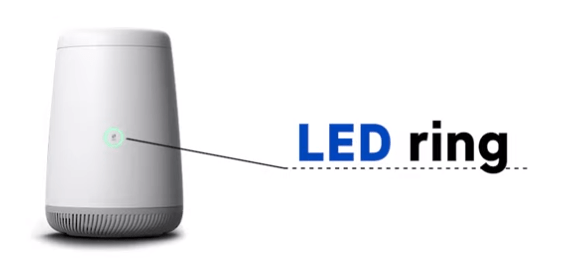
The blue blinking light on your CenturyLink modem signals a problem. It tells you the device is not working as it should. Understanding the causes helps solve the issue quickly. Several reasons can trigger this blinking blue light.
Network Connectivity Issues
Network problems often cause the blue blinking light. The modem may not connect to the internet properly. This can happen due to loose cables or poor signal strength. Sometimes, the modem struggles to get a stable connection from CenturyLink’s network.
Firmware Glitches
Firmware controls how the modem works. Bugs or errors in the firmware can cause the blue light to blink. Outdated firmware may fail to communicate with the network. Restarting or updating the firmware can fix these glitches.
Hardware Malfunctions
Physical damage or internal faults can trigger the blue blinking light. Overheating, power surges, or worn-out parts often cause hardware issues. If the modem’s components fail, it cannot maintain a steady connection.
Service Outages
Sometimes, the problem is outside your home. CenturyLink might have a service outage in your area. This stops the modem from connecting to the internet. Checking for local outages helps confirm this cause.
Quick Fixes To Try
The CenturyLink blue blinking light can be frustrating. It often means the modem is having trouble connecting. Some quick fixes can help you get the internet back fast. These simple steps do not need special skills. Try them one by one to see what works.
Power Cycle The Modem
Turn off the modem by unplugging it from power. Wait for about 30 seconds. Plug it back in and turn it on. This can clear temporary glitches. The blue blinking light may stop after this.
Check Cable Connections
Look at all cables attached to the modem. Make sure each cable is fully plugged in. Loose or damaged cables cause connection issues. Replace any broken cables with new ones. Secure connections can fix the blinking light problem.
Reset To Factory Settings
Find the reset button on the modem. Press and hold it for 10 seconds using a paperclip. The modem will restart and return to default settings. This removes any incorrect settings causing the issue. You may need to set up your modem again.
Update Firmware
Firmware controls how your modem works. Old firmware can cause problems. Check CenturyLink’s website for updates. Follow instructions to download and install the latest firmware. Updated firmware can fix bugs and stop the blinking light.
Advanced Troubleshooting Steps
Troubleshooting a CenturyLink modem with a blue blinking light can require deeper steps. Basic fixes may not solve the problem. Advanced troubleshooting helps find hidden issues.
This section covers key steps. These steps help you understand modem status and fix errors.
Accessing Modem Settings
Start by opening your modem’s settings page. Enter the modem’s IP address in a web browser. Usually, it is 192.168.0.1 or 192.168.1.1.
Login using your username and password. Check the modem status and connection details here. Look for error messages or warnings.
Running Diagnostic Tests
Most modems have built-in diagnostic tools. Find the diagnostics section in the settings menu. Run tests for signal strength and connection quality.
These tests highlight problems like weak signals or failed connections. Save or note the results for further help.
Checking For Interference
Wireless signals can face interference from other devices. Move your modem away from microwaves, cordless phones, and metal objects.
Change the Wi-Fi channel in the settings to avoid crowded frequencies. Check if the blinking light stops after these changes.
Contacting Support
If issues persist, contact CenturyLink support. Share your diagnostic test results and modem status details. This speeds up the help process.
Support can guide you through more fixes or schedule a technician visit if needed.
Preventive Tips For Stable Connection
Keeping a stable internet connection is important to avoid the Centurylink blue blinking light issue. Simple steps can help maintain your modem’s performance. These actions reduce interruptions and keep your connection steady. Follow these tips for a smoother online experience.
Regular Firmware Updates
Firmware controls how your modem works. Updates fix bugs and improve speed. Check for updates often on the Centurylink website. Install new versions quickly to avoid problems. Updated firmware helps keep the blue light steady.
Proper Modem Placement
Place your modem in an open, central spot in your home. Avoid tight spaces or near metal objects. Keep it away from microwaves and cordless phones. Good placement helps the signal spread evenly. This reduces blinking and drops in connection.
Using Surge Protectors
Surge protectors guard your modem against power spikes. Sudden surges can damage the device or cause restarts. Plug your modem into a reliable surge protector. This keeps the device safe and working well. It prevents blinking due to power issues.
Monitoring Network Usage
Heavy internet use can slow your connection. Watch for many devices using data at once. Pause large downloads during important tasks. Limit streaming or gaming when possible. Managing usage helps the modem stay stable and the blue light steady.
Frequently Asked Questions
What Does A Blue Blinking Light On Centurylink Mean?
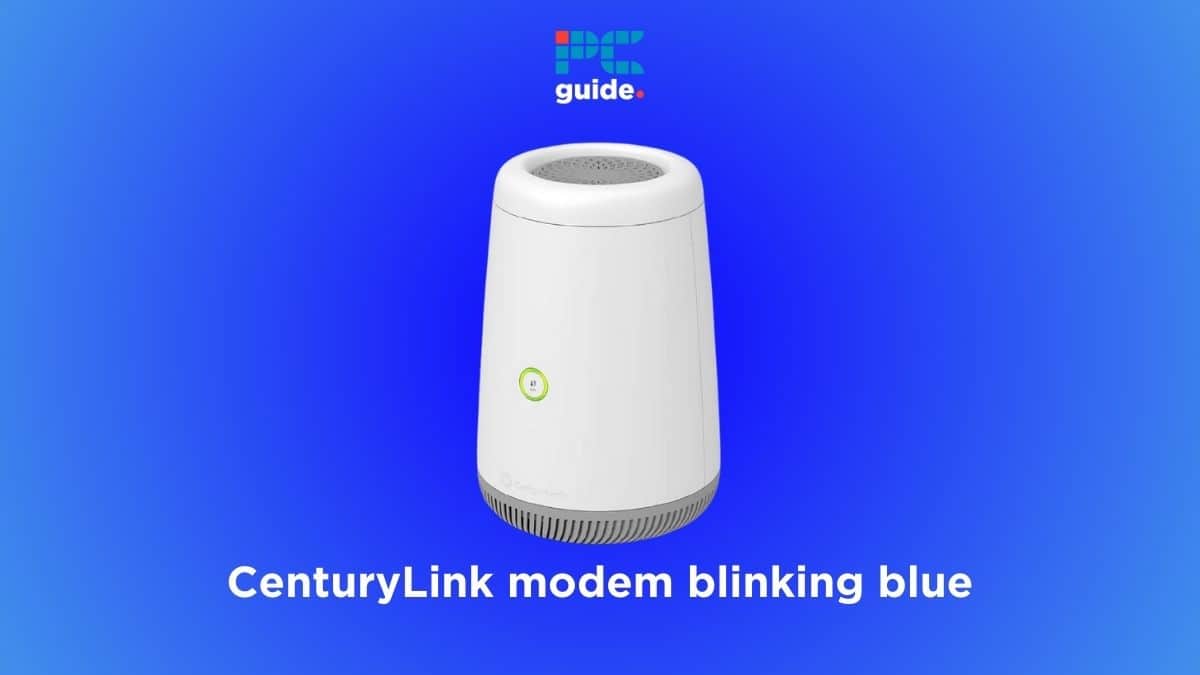
A blue blinking light on CenturyLink usually shows the device is starting or updating. It can also mean the modem is trying to connect to the internet.
How Long Should Centurylink’s Blue Light Blink?
The blue light should blink for a few minutes during startup or update. If it blinks for more than 10 minutes, there might be a connection problem.
Why Is My Centurylink Modem Stuck On Blue Blinking?
A stuck blue blinking light may indicate a firmware issue or poor internet connection. Restarting the modem often fixes this problem quickly.
Can A Blue Blinking Light Affect My Internet Speed?
Yes, a blue blinking light can show connection issues that slow down your internet speed. Fixing the blinking light usually improves your connection.
How Do I Fix A Centurylink Blue Blinking Light?
Try unplugging your modem for 30 seconds and then plug it back in. If the light keeps blinking, contact CenturyLink support for help.
Conclusion
The CenturyLink blue blinking light shows the modem’s status. It can mean your device is connecting or facing issues. Check your cables and restart the modem first. Sometimes, a simple reset fixes the blinking light. If the light stays on, call CenturyLink support for help.
Staying calm and patient helps solve the problem faster. Now, you understand what the blue blinking light means. Keep these tips handy for next time. Your internet connection will work smoothly again soon.









