
Is your Asus router blinking blue and leaving you wondering what it means? You’re not alone.
That steady or flashing blue light can be confusing and even frustrating when you just want your internet to work smoothly. But don’t worry—this blinking blue signal is actually trying to tell you something important about your connection. You’ll discover exactly what the blue light means, why it’s happening, and how you can fix it quickly.
Keep reading, and you’ll get your Asus router back to normal in no time.
Why Asus Router Blinks Blue
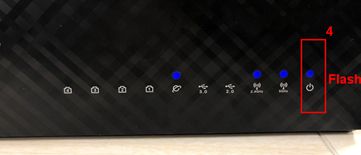
The blinking blue light on your Asus router can mean several things. It is a signal that helps you understand what your router is doing. Knowing why the Asus router blinks blue helps you decide the next steps. This guide explains the common reasons for the blinking blue light.
Normal Startup Indicator
When you first turn on your Asus router, the blue light blinks. This means the router is starting up. It checks its settings and prepares to connect to the internet. The blinking usually stops after a few minutes. A steady blue light means the router is ready to use.
Firmware Update Process
The blue light may blink during a firmware update. Firmware is the software inside the router. Updates improve performance and fix bugs. While updating, the router blinks blue to show progress. Avoid turning off the router during this time. Interrupting the update can cause problems.
Connectivity Issues
A blinking blue light can also signal connection problems. It may mean the router is trying to connect to the internet. Check your modem and cables to ensure they work. Sometimes, the internet service may be down. Restarting the router can often fix this issue.
Basic Troubleshooting Steps
The blinking blue light on your Asus router can signal a connection problem. Basic troubleshooting steps help find and fix the issue fast. Follow these simple actions to check your router and internet setup.
These steps do not need special skills. Anyone can try them and often solve the problem quickly.
Restart Your Router
Turn off your Asus router. Wait for about 30 seconds. Turn it back on. Restarting clears temporary glitches. This step often fixes blinking blue light issues.
Check Cable Connections
Look at all cables linked to the router. Make sure each cable is plugged in firmly. Loose or damaged cables can cause connection problems. Replace any broken cables you find.
Verify Internet Service
Check if your internet service is working. Use another device to see if it connects. Contact your internet provider to confirm there are no outages. Service interruptions can cause the blinking blue light.
Resetting The Router
Resetting the Asus router can fix the blinking blue light issue. This step clears minor glitches and refreshes the device. There are two main ways to reset: soft reset and factory reset. Both methods help restore normal function.
Soft Reset Method
Soft reset restarts the router without erasing settings. Press the power button to turn off the router. Wait 10 seconds, then turn it back on. This simple step often stops the blinking blue light. It takes less than a minute and keeps your network settings.
Factory Reset Instructions
Factory reset erases all custom settings and returns the router to default. Find the reset button on the back of the router. Use a paperclip to press and hold the button for 10 seconds. Release the button when the lights start to blink. Wait for the router to reboot fully. This method solves deeper problems but requires reconfiguring your network.
Firmware Updates
Firmware updates play a key role in fixing the Asus router blinking blue light issue. These updates improve the router’s performance and security. Updating firmware can solve bugs that cause connectivity problems. Keeping the firmware current ensures the router works smoothly and reliably.
Check Current Firmware Version
Start by logging into your router’s admin panel. Look for the firmware version in the system or device info section. This shows the current software your router uses. Write down the version number for reference. Knowing this helps decide if an update is needed.
Download And Install Updates
Visit the Asus official support website to find the latest firmware. Enter your router model to locate the correct file. Download the update to your computer. Return to the admin panel and upload the new firmware file. Follow the instructions carefully to install it. The router will restart after updating. The blinking blue light should stop if the update fixes the problem.
Adjusting Router Settings
Adjusting your Asus router settings can fix many connection issues. A blinking blue light often means the router needs configuration. Changing a few settings can stabilize your internet and improve speed.
Accessing the admin panel is the first step. This panel lets you control all the router features. You can change passwords, update firmware, and manage devices connected to your network.
Accessing The Admin Panel
Open a web browser on a device connected to your router. Type the router’s IP address in the address bar. Common addresses are 192.168.1.1 or 192.168.0.1.
Enter the username and password. The default is usually “admin” for both. If you changed it before, use your custom login details.
Once logged in, you will see the router’s settings dashboard. This is where you make all changes.
Configuring Wireless Settings
Find the wireless or Wi-Fi settings tab in the admin panel. Change the network name (SSID) to something easy to remember. Set a strong password to keep your network secure.
Choose the correct wireless mode, like 802.11ac or 802.11n, for better speed. Adjust the channel to avoid interference from nearby networks.
Save changes and reboot the router if needed. This helps apply the new settings properly.
Disabling Unnecessary Features
Some router features can slow down your connection. Turn off guest networks if you do not need them. Disable WPS (Wi-Fi Protected Setup) for better security.
Check if any parental controls or QoS settings are active. Disable them if they cause issues. Removing unused features helps your router focus on main tasks.
After adjustments, monitor the router light. A steady blue means the connection is stable now.
When To Contact Support
Knowing when to contact support for your Asus router is important. The blinking blue light can mean different things. Sometimes, it is just a simple issue you can fix. Other times, it signals a bigger problem. Understanding when to reach out helps save time and avoid frustration.
Persistent Blue Light Issues
The blue light blinking without stopping is a sign of trouble. It may mean the router cannot connect to the internet. Restarting the router might solve this. If the light keeps blinking after a restart, contact support. They can check the firmware and settings. Persistent blinking often needs expert help to fix.
Hardware Malfunctions
Hardware problems can cause the blue light to blink oddly. This includes broken parts or power issues. If the router feels hot or smells strange, turn it off. Contact support immediately in such cases. They can guide you on repairs or replacements. Do not try to open or fix the hardware yourself.

Frequently Asked Questions
What Does Asus Router Blinking Blue Mean?
A blinking blue light shows the router is booting or updating. It means the device is working but not fully ready yet.
Why Is My Asus Router Blinking Blue Constantly?
Constant blue blinking often means the router is stuck in startup or firmware update. Try restarting or resetting the router to fix it.
How To Stop Asus Router From Blinking Blue Light?
Restart the router by unplugging it for 10 seconds. If blinking continues, update the firmware or perform a factory reset.
Can A Blinking Blue Light Affect Internet Speed?
The blinking light itself does not affect speed. But it shows the router is not fully connected or ready, which can slow internet.
Is Blinking Blue Light Normal During Firmware Updates?
Yes, blinking blue is normal when the router updates firmware. Wait until the light stops blinking before using the internet.
Conclusion
A blinking blue light on your Asus router shows it is trying to connect. Check your internet settings and cables first. Restart the router to refresh its connection. Make sure the firmware is up to date. This simple fix often solves the problem fast.
Stay patient and follow these steps carefully. Your router will work smoothly again soon. Keep your device clean and in a good spot. Good internet means less stress and more fun online.









