
Is your Dell laptop showing a strange blinking pattern with 2 orange and 4 white lights? If so, you’re not alone—and this signal is Dell’s way of telling you there’s a hardware issue that needs your attention.
These blinking lights are more than just a nuisance; they’re a diagnostic code pointing to problems like RAM faults, CMOS battery failure, or even motherboard glitches. Don’t panic. You’ll learn exactly what those flashing lights mean and how you can troubleshoot the problem step-by-step.
By the end, you’ll feel confident about fixing your laptop or knowing when to seek professional help. Keep reading to save time, avoid frustration, and get your Dell laptop back in action!
Dell Blink Codes
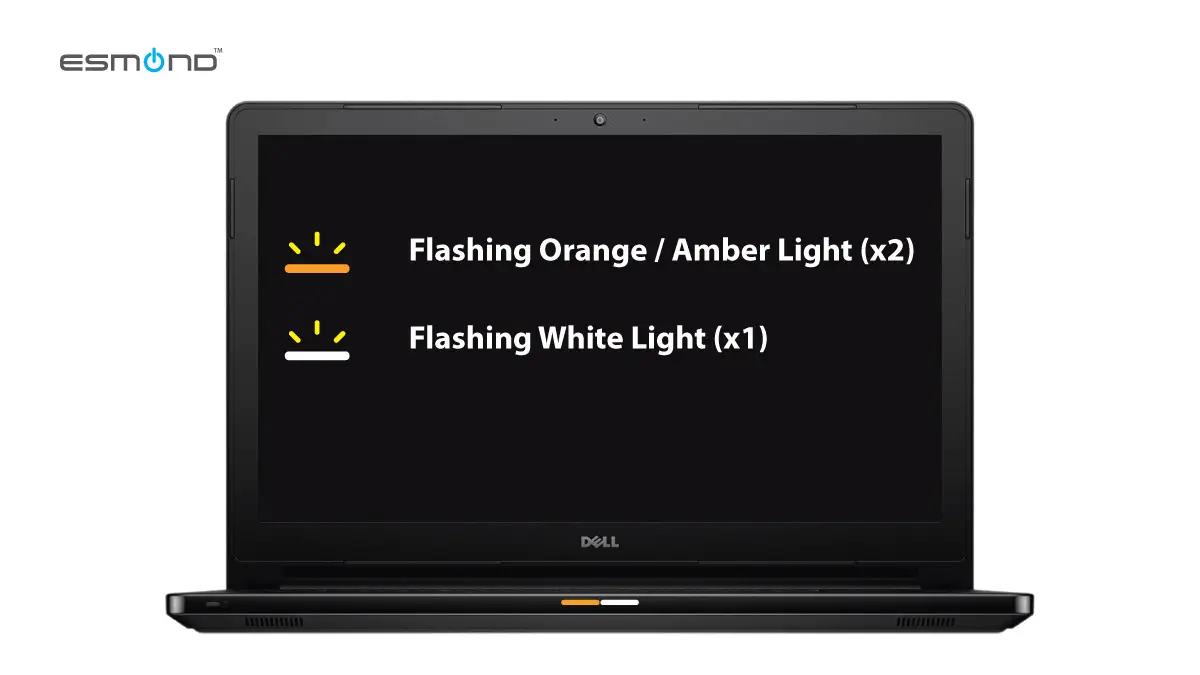
Dell laptops use blink codes to signal hardware problems. These codes help identify issues without needing to open the device or run software diagnostics. Each pattern of orange and white lights means a specific error. Understanding these codes saves time and guides proper troubleshooting. This section explains the Dell blink codes, focusing on the 2 orange and 4 white light pattern.
What 2 Orange And 4 White Mean
The 2 orange and 4 white blinking pattern points to a memory issue. It usually means a problem with the RAM modules. The laptop cannot properly read or access the memory. This error can occur if the RAM sticks are loose, damaged, or faulty. Sometimes, dust or debris in the RAM slot causes this issue. Reseating or replacing the RAM often fixes the problem.
This blink code can also signal motherboard or CPU problems, but those cases are less common. Start by checking the RAM before moving to other hardware parts. If the laptop is under warranty, contacting Dell support is a good idea. They can provide specific guidance based on the blink code.
Other Common Patterns
Dell laptops show different blink codes for various hardware faults. For example, 2 orange and 3 white lights indicate a BIOS failure. This means the system BIOS needs updating or reinstallation. Another pattern, 3 orange and 1 white, points to a motherboard error. It suggests a serious hardware failure requiring professional repair.
Some codes warn about battery or power issues. For instance, 4 orange and 1 white flashes indicate a CMOS battery problem. This battery keeps system settings saved when the laptop is off. Other patterns may relate to graphics card or hard drive errors. Each code helps narrow down the cause without guesswork.

Hardware Issues
The blinking pattern of 2 orange and 4 white lights on a Dell laptop signals a hardware problem. This code often points to issues with key components inside your device. Understanding these hardware faults helps in identifying the root cause quickly. Below are common hardware issues that may trigger this error.
Ram Problems
RAM issues often cause the blinking light error. Loose or faulty RAM modules disrupt normal laptop operation. Removing and reinserting the RAM sticks can fix connection problems. Sometimes, the RAM itself is defective and needs replacement. Testing RAM with diagnostic tools can confirm its health.
Cmos Battery Faults
The CMOS battery powers the BIOS settings. A weak or dead CMOS battery leads to hardware errors. It can cause the laptop to fail POST (Power-On Self-Test). Replacing the CMOS battery is usually simple and restores proper function. This fix often resolves blinking light codes related to BIOS errors.
Motherboard And Cpu
Motherboard or CPU faults cause serious hardware errors. Damaged circuits or overheating CPUs trigger blinking light warnings. Diagnosing these parts requires technical expertise. Repair or replacement of the motherboard or CPU may be necessary. These issues affect the laptop’s core functions and prevent it from starting correctly.
Battery Health
Battery health plays a key role in your Dell laptop’s performance. A weak or failing battery can cause blinking lights like 2 orange and 4 white flashes. These signals often point to battery-related issues that need attention. Understanding battery health helps you spot problems early and avoid sudden shutdowns. Checking the battery status regularly keeps your laptop running smoothly and extends its lifespan.
Signs Of Battery Failure
Battery failure shows through several clear signs. The laptop may not hold a charge as long as before. It might shut down suddenly, even when the battery shows some power. The device can overheat or charge very slowly. Blinking lights, such as 2 orange and 4 white flashes, often indicate battery problems. These signs mean it is time to check the battery condition.
Checking Battery Status
Checking your battery status is simple and quick. Dell laptops have built-in tools to show battery health. You can also use Windows features to get detailed reports. Look for battery wear level and charge capacity. A high wear level means the battery is near the end of its life. Monitoring these details helps decide if you need a battery replacement.
Using Windows Battery Report
Windows Battery Report provides detailed information about your battery. Open Command Prompt and type powercfg /batteryreport. This command saves a report in your user folder. Open the report in a browser to see battery details. Check design capacity versus full charge capacity. The closer these numbers are, the healthier your battery is. The report also shows recent usage and battery life estimates.

Bios And Firmware
The BIOS and firmware play a crucial role in your Dell laptop’s operation. BIOS, or Basic Input Output System, controls the hardware during startup. Firmware is the software programmed into the hardware itself. Together, they ensure all parts work smoothly.
When the Dell laptop shows 2 orange and 4 white blinking lights, it often points to a BIOS or firmware issue. Fixing these can restore your laptop’s normal function. Understanding BIOS updates and resets helps solve these errors effectively.
Bios Update Benefits
Updating the BIOS can fix bugs that cause blinking light errors. It improves hardware compatibility and system stability. Sometimes, a BIOS update enhances battery management and power use. This update can resolve hardware recognition problems. Keeping the BIOS current reduces unexpected crashes and errors.
Running the latest BIOS version helps the laptop communicate well with connected devices. It can also fix security vulnerabilities. Updating BIOS is a key step in troubleshooting blinking light codes on Dell laptops.
Performing A Hard Reset
A hard reset clears temporary system issues that may cause blinking lights. Start by turning off the laptop and unplugging the power cord. Remove the battery if possible. Press and hold the power button for about 15 seconds. This releases stored electrical charge.
Reinsert the battery and plug in the power adapter. Turn on the laptop and check if the blinking stops. This simple step often fixes minor BIOS or firmware glitches. It resets hardware components without erasing your data.
Troubleshooting Steps
The Dell laptop blinking 2 orange and 4 white lights signals a hardware issue. Troubleshooting helps identify the exact cause. Follow these steps carefully to fix the problem.
Start with simple checks before moving to complex solutions. Each step targets common issues related to this error code.
Reseating Ram Modules
Turn off the laptop and unplug it from power. Open the back cover carefully to access RAM modules. Remove each RAM stick gently from its slot. Clean the contacts with a soft cloth. Reinsert the RAM firmly into the slots. Close the cover and power on the laptop. This process fixes loose RAM connections causing the blinking lights.
Testing Battery Condition
Check the battery health using the BIOS or Dell diagnostic tools. A failing battery may cause the error lights. Remove the battery if possible and try powering the laptop with the adapter only. If the laptop works, replace the battery. Ensure the battery fits correctly and holds charge well.
Power Adapter Checks
Inspect the power adapter for damage or loose connections. Use a multimeter to verify the adapter’s voltage output. Try a different compatible adapter if available. A faulty adapter can cause power issues and blinking lights. Ensure the laptop’s charging port is clean and not damaged.
Additional Resources
Finding reliable information about the Dell laptop light blinking 2 orange and 4 white can be tricky. This error code points to specific hardware issues that need careful attention. Extra resources can guide you through clear steps and explanations to fix the problem safely. The following sections offer useful videos and active forums where users share tips and solutions.
Useful Videos
Videos provide visual guidance for troubleshooting the blinking light error. Watching step-by-step repairs helps understand what to do and what to avoid. Many creators show how to check and reseat RAM or update BIOS settings. These videos simplify complex tasks and build confidence for DIY fixes. Some popular channels include MH Tech UK and DIY-time Tech, known for clear and concise tutorials.
Helpful Forums And Posts
Forums hold a wealth of shared experiences from Dell users worldwide. Reading posts on Reddit or Quora reveals common causes and tested solutions. Users discuss BIOS updates, battery checks, and motherboard issues linked to the blinking lights. These conversations often contain tips not found in official manuals. Participating in forums can connect you with experts and fellow users facing the same problem.
Frequently Asked Questions
What Does 2 Blinks Then 4 Mean On Dell?
Two amber blinks followed by four white blinks on a Dell indicate a memory (RAM) failure. Check or reseat RAM modules.
Why Is My Dell Laptop Blinking Orange And White?
Your Dell laptop blinking orange and white signals a hardware issue, often with RAM, CMOS battery, motherboard, or CPU. Count the flashes to identify the specific problem. Try reseating RAM and updating BIOS. Check battery health and power connections to resolve the error.
How To Tell If A Dell Battery Is Bad?
A bad Dell battery drains quickly, causes sudden shutdowns, overheats, swells, or fails to charge properly. Check battery health via BIOS diagnostics or Windows battery report.
How To Hard Reset Dell Battery?
To hard reset a Dell battery, power off the laptop and unplug the AC adapter. Remove the battery if possible. Hold the power button for 15-20 seconds to discharge residual power. Reinsert the battery and reconnect the AC adapter. Turn on the laptop to complete the reset.
What Does 2 Orange And 4 White Blinks Mean On Dell Laptop?
This blinking code signals a hardware problem, often with RAM or CMOS battery. It may also indicate motherboard or CPU issues.
Conclusion
The blinking pattern of 2 orange and 4 white lights on your Dell laptop signals a hardware problem. This often points to issues with the RAM or CMOS battery. Start by checking the RAM connection and reseating the modules if needed.
Updating the BIOS can also help fix this error. If the problem continues, the motherboard or CPU might need professional attention. Understanding these signals can save time and help you address the issue quickly. Stay patient and follow the steps carefully for the best results.