
Seeing a blinking folder with a question mark on your iMac can feel like a sudden roadblock. You turn on your computer, ready to work or relax, and instead, you’re stuck staring at that flashing icon.
What does it mean? Why is it happening? And most importantly, how do you fix it quickly before losing any important files? This guide is here to help you understand exactly what’s going on with your iMac and walk you through simple steps to get it back up and running.
Don’t let this frustrating symbol stop you—let’s solve it together. Keep reading to find out what that blinking folder means and how to fix it fast.
Causes Of Blinking Folder
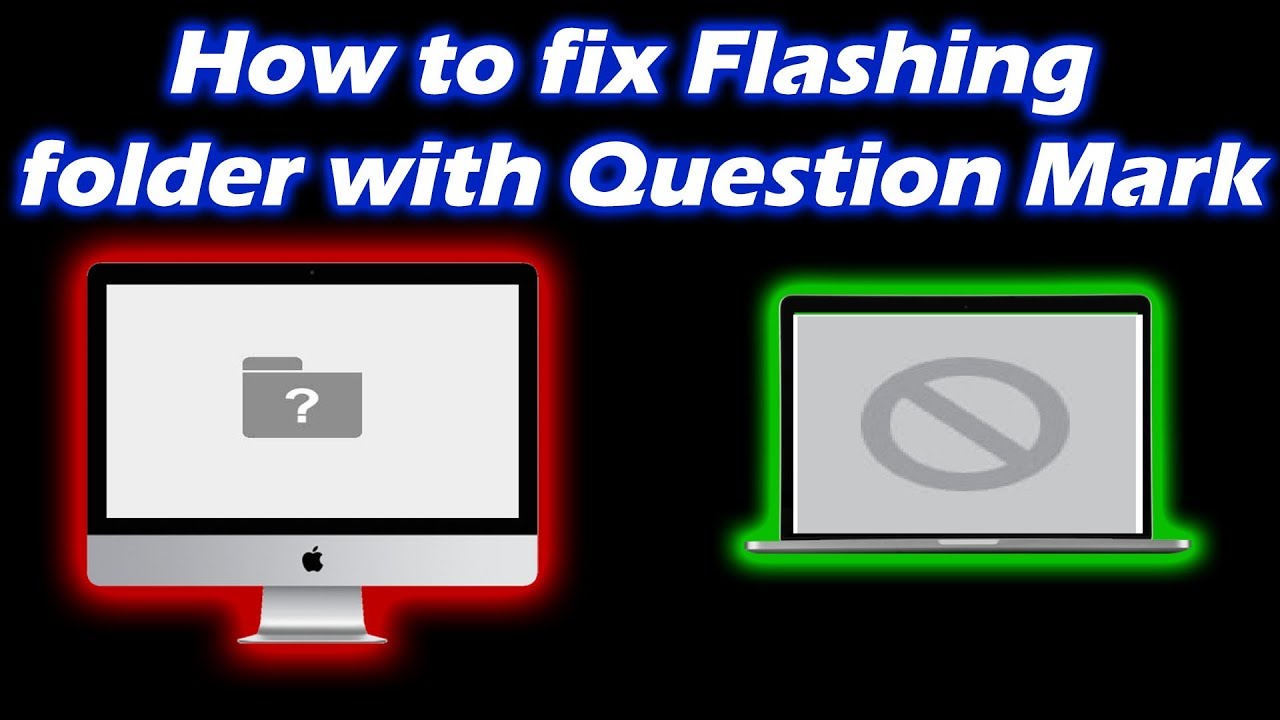
The blinking folder with a question mark on your iMac signals a problem with the startup process. This icon appears when the Mac cannot find a valid system to boot from. Understanding the causes helps you identify the right fix. Common reasons include missing startup disk, corrupted macOS, or hardware problems.
Missing Startup Disk
The Mac cannot find the startup disk or its system files. This can happen if the disk is disconnected or damaged. Sometimes, the startup disk is not selected in System Preferences. This issue stops the Mac from loading macOS properly.
Corrupted Macos
System files can become corrupted due to failed updates or malware. Corruption prevents macOS from booting correctly. The blinking folder shows because the Mac cannot access the necessary startup files. Repair or reinstalling macOS can often fix this.
Hardware Issues
Hardware failures affect the Mac’s ability to read the startup disk. Problems with the hard drive, SSD, or cables cause this error. Faulty RAM or logic board issues may also trigger the blinking folder. Hardware diagnostics help identify these faults.
Initial Troubleshooting Steps
The blinking folder with a question mark on your iMac signals a startup issue. The system cannot find a valid startup disk or operating system. Start with simple troubleshooting steps to identify the problem quickly. These steps often solve the issue without needing expert help.
Force Restart
Begin by forcing your iMac to restart. Press and hold the power button for about 10 seconds until the screen goes black. Wait a few seconds, then press the power button again to turn it back on. This can clear temporary glitches causing the problem.
A force restart resets the hardware and software connections. It often helps the system detect the startup disk again. If the blinking folder persists after restarting, move on to the next step.
Check Startup Disk Settings
Next, check your iMac’s startup disk settings. Turn on your Mac and immediately press and hold the Option key. Keep holding until the Startup Manager appears. This screen shows available startup disks.
Select your main startup disk, usually named “Macintosh HD,” and press Enter. If your iMac starts normally, the startup disk settings were not set correctly. Go to System Preferences > Startup Disk and set your disk as default to avoid future issues.
If the correct startup disk does not appear, the disk might have problems. In this case, use Disk Utility from macOS Recovery to repair it.
Using Macos Recovery
Using macOS Recovery is a key step to fix the blinking folder with a question mark on your iMac. This recovery system helps you access tools to repair your disk or reinstall the operating system. It works even if your Mac cannot start normally. Follow these simple steps to get your iMac back to working order.
Entering Recovery Mode
First, turn off your iMac. Then press the power button and immediately hold down Command (⌘) + R keys. Keep holding these keys until the Apple logo or a spinning globe appears. This means your Mac is starting in Recovery Mode. It may take a few moments to load all the tools.
Running Disk Utility
Once in Recovery Mode, select Disk Utility from the options. Click Continue to open it. In Disk Utility, find your startup disk on the left panel. Select it and click First Aid at the top. Then click Run to check and repair disk errors. This process may fix problems causing the blinking folder.
Reinstalling Macos
If Disk Utility finds no issues or cannot repair the disk, reinstall macOS next. Go back to the main Recovery screen. Choose Reinstall macOS and click Continue. Follow the on-screen instructions to reinstall the system. This will not delete your personal files but refresh system files. After installation, your iMac should start normally.
Advanced Fixes
Advanced fixes for the iMac blinking folder with a question mark can solve deeper system issues. These methods target settings that control how your Mac starts and manages hardware.
They are more technical but often effective when simple steps fail. Follow the instructions carefully to avoid causing new problems.
Resetting Nvram/pram
NVRAM and PRAM store important startup information and settings. Resetting them can fix startup disk detection errors.
To reset, turn off your iMac. Press the power button and immediately hold Option + Command + P + R keys. Keep holding for about 20 seconds.
Your Mac will restart. Release the keys and check if the blinking folder issue is resolved.
Resetting Smc
The System Management Controller (SMC) controls hardware functions like power and battery. Resetting SMC can fix power-related startup problems.
For iMac, unplug the power cord. Wait 15 seconds, then plug it back in. Wait five more seconds, then press the power button to turn it on.
Check if the folder with the question mark disappears and your Mac boots normally.
Using Terminal Commands
Terminal commands can repair disk and startup issues at a system level. Start your Mac in Recovery Mode by holding Command + R during startup.
Open Terminal from the Utilities menu. Type diskutil list to find your startup disk identifier.
Run diskutil repairDisk /dev/diskX, replacing diskX with your disk ID. This repairs disk errors.
Exit Terminal and restart your Mac to see if the problem is fixed.
When To Seek Professional Help
Seeing a blinking folder with a question mark on your iMac signals a startup problem. Sometimes, basic steps fix it. Other times, the issue needs expert help. Knowing when to call a professional can save time and prevent data loss.
Persistent Hardware Failures
If the blinking folder returns after resets and repairs, hardware might fail. The hard drive or SSD could be damaged. Internal cables may be loose or broken. Professionals have tools to test and fix these parts. Attempting repairs alone can cause more harm.
Data Recovery Options
Important files may still be on your iMac’s drive. Professionals use special software to recover data safely. They can copy files to an external device. This helps protect your information before fixing or replacing parts. Trying recovery without skills risks losing data forever.

Preventing Future Issues
Preventing future issues with your iMac blinking folder with a question mark saves time and stress. Taking simple steps helps keep your Mac running smoothly. Protect your data and avoid startup problems with regular care.
Regular Backups
Backing up your data regularly is crucial. Use Time Machine or other backup tools. Store backups on an external drive or cloud storage. This keeps your files safe from unexpected failures. If your startup disk fails, you can restore your system quickly. Set reminders to back up at least once a week. Regular backups reduce data loss risks.
Disk Maintenance Tips
Check your disk health often using Disk Utility. Run First Aid to detect and repair disk errors. Avoid filling your disk to full capacity. Keep at least 10% of free space for better performance. Delete old files and uninstall unused apps. Restart your Mac regularly to clear temporary files. Maintaining your disk prevents many startup issues, including the blinking folder error.
Frequently Asked Questions
How To Fix Blinking Question Mark Folder On Mac?
Restart your Mac and hold Command + R to enter Recovery Mode. Use Disk Utility to repair the startup disk. If repair fails, reinstall macOS or check hardware.
How Do I Get Rid Of The Circle Of Death On My Mac?
To fix the Mac’s circle of death, force quit unresponsive apps, restart your Mac, or use Activity Monitor to close frozen processes.
How Do I Get Rid Of The Question Mark On My Mac?
A flashing question mark on Mac means it can’t find the startup disk. Restart in macOS Recovery, then use Disk Utility to repair the disk. If repair fails, reinstall macOS or check the disk connection.
How To Get Out Of Recovery Mode On A Mac?
To exit Recovery Mode on a Mac, click the Apple menu and select Restart or Shut Down. Your Mac will boot normally.
What Does Blinking Folder With Question Mark Mean On Imac?
It means your iMac can’t find its startup disk. The system disk may be missing or corrupted.
Conclusion
A blinking folder with a question mark signals a startup problem. Your iMac cannot find the operating system. Try booting into macOS Recovery to check the disk. Use Disk Utility to repair any errors on the startup disk. If the disk is damaged, consider reinstalling macOS or seeking expert help.
Acting quickly can prevent data loss and restore normal function. This issue is common but fixable with clear steps. Stay calm and follow the repair process carefully for best results.









