
If your Dell Latitude laptop’s light is blinking in a strange pattern, you might be wondering what it means and how to fix it. These blinking codes are not random—they are your laptop’s way of telling you exactly what’s wrong.
Whether it’s a battery issue, memory problem, or something more serious, understanding these light signals can save you time and frustration. You’ll learn how to decode Dell Latitude light blinking codes, so you can quickly identify the problem and take the right steps to get your laptop back up and running.
Keep reading to unlock the simple secrets behind those flashing lights and regain control over your device.

Dell Latitude Led Signals
Dell Latitude laptops use LED signals to communicate system status and errors. These lights help users identify power, battery, and hardware issues without opening the device. Understanding these LED signals can save time and simplify troubleshooting.
The LED signals often appear as blinking patterns or colors on the power and battery indicators. Each pattern or color has a specific meaning. Learning these codes can guide users to the right solution quickly.
Power And Battery Light Basics
The power and battery lights show the laptop’s charging and power state. A solid light usually means normal operation. Blinking lights indicate warnings or errors. The battery light might blink when the battery charge is low or critical.
Power light patterns can also indicate hardware problems during startup. These signals replace beep codes on many Dell Latitude models. Pay close attention to how the lights blink or change color.
Common Blink Patterns
Blinking patterns repeat in sequences. For example, two amber blinks followed by three white blinks is a common error code. These sequences point to specific issues like memory or motherboard faults.
Short, repeated blinks often mean minor issues. Longer or irregular patterns usually signal serious errors. Check the exact number of blinks and pauses for accurate diagnosis.
Always compare the blink pattern to your model’s service manual. Codes vary between models and years. This ensures you understand the exact problem.
Color Codes And Meanings
Colors play a key role in LED signals. Amber or orange lights often warn about battery or power problems. White lights usually indicate normal status or successful operations. Blue lights may represent wireless or system activity.
An amber blinking light generally means low battery or charging issues. Solid amber means critically low battery. White blinking lights often signal hardware errors or system faults.
Knowing these colors helps identify problems fast. It directs users to check the battery, power adapter, or internal hardware parts.
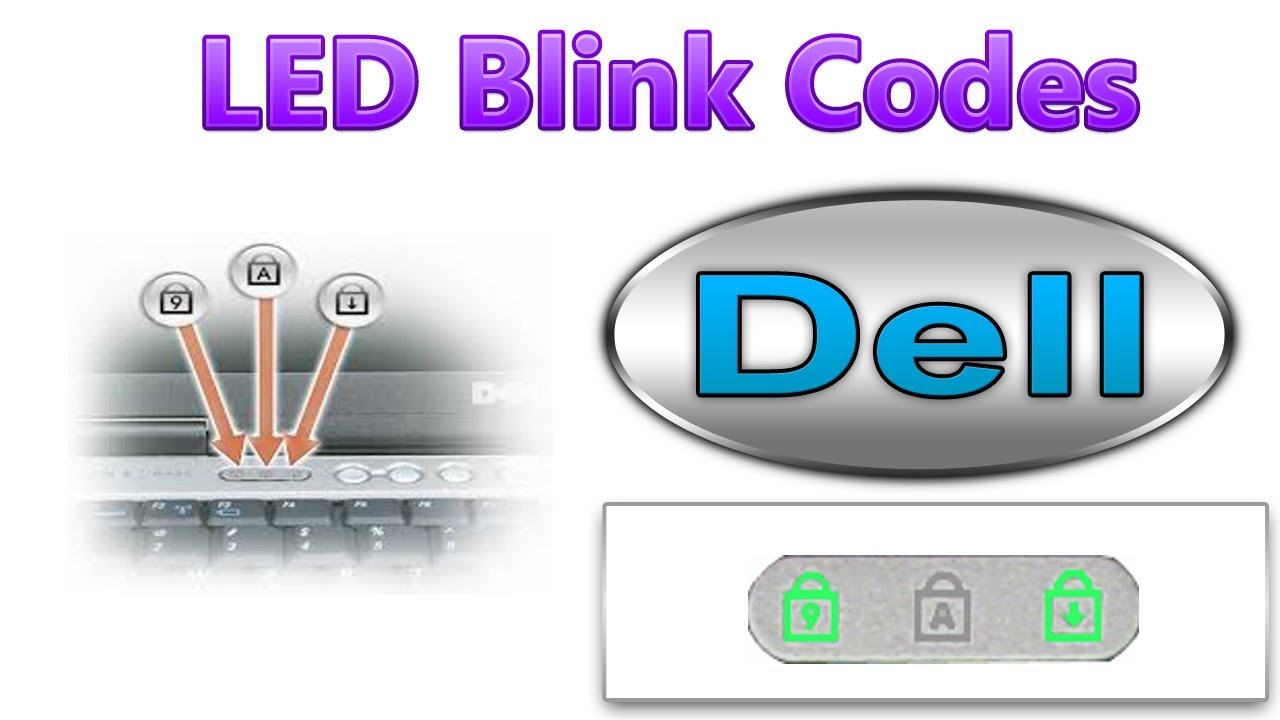
Decoding Blink Patterns
Understanding the blinking lights on your Dell Latitude laptop can save time and prevent frustration. These light patterns act like signals from your device, showing its health and status. Each blink or color change means something specific. Decoding these patterns helps identify issues quickly.
Different colors and blink sequences point to different problems. Knowing what each pattern means lets you take the right steps to fix your laptop. Let’s explore the common blink codes and their meanings.
Amber Light Signals
Amber lights usually warn about battery or hardware problems. A steady amber light means the battery charge is critically low. A blinking amber light signals a battery charge issue or failure.
Multiple amber blinks in a pattern may indicate hardware faults. For example, two amber blinks followed by a pause often mean a memory problem. These codes help identify defective parts without opening the laptop.
White Light Signals
White lights generally indicate normal operation or system activity. A steady white light shows the laptop is powered on and working properly. Blinking white lights can mean the system is in sleep or hibernation mode.
Sometimes, white blink patterns point to hardware checks during startup. For example, three white blinks might mean the system passed the memory test. These signals confirm the laptop’s status at a glance.
Mixed Blink Patterns
Mixed blink patterns combine amber and white lights. These usually show specific hardware errors or battery issues. For instance, two amber blinks followed by three white blinks often indicate a motherboard failure.
Such mixed codes require careful attention. They give detailed clues about the problem’s source. Checking the exact blink sequence can guide you to the right fix without guesswork.
Common Error Causes
Dell Latitude laptops use light blinking codes to signal hardware and power problems. These codes help identify the cause of errors quickly. Understanding common error causes can save time and effort in troubleshooting. The most frequent issues relate to the battery, RAM, and power adapter. Each problem triggers specific blink patterns on the laptop’s LED.
Battery Issues
Blinking lights often point to battery troubles. A weak or dead battery causes the laptop to flash amber or white. Poor battery connection inside the laptop can also trigger error codes. Sometimes, the battery needs calibration or replacement. Checking battery health can prevent unexpected shutdowns and blinking alerts.
Ram And Hardware Failures
Memory problems also cause blinking codes on Dell Latitude laptops. Faulty or loose RAM modules trigger error signals. Other hardware failures like motherboard or graphics card issues may produce similar blinking patterns. Testing and reseating RAM often resolves these errors. Hardware faults require careful diagnosis to avoid further damage.
Power Adapter Problems
The power adapter supplies energy to the laptop and charges the battery. A damaged or incompatible charger can cause blinking light errors. Loose power connections or faulty cables also result in power-related blink codes. Using the correct Dell adapter and checking the power port can fix many adapter issues.
Testing And Troubleshooting
Testing and troubleshooting Dell Latitude light blinking codes help identify hardware issues. These codes guide you through diagnosing problems step-by-step. Understanding how to test key components saves time and effort. Follow simple methods to check battery, RAM, and power system.
Checking Battery Health
Start by inspecting the battery condition. Remove the battery and clean contacts gently. Reinsert it firmly to ensure good connection. Use Dell’s built-in diagnostics to test battery status. A failing battery often causes amber blinking lights. Replace the battery if tests show poor health or no charge.
Ram Diagnostics Steps
RAM issues frequently trigger blinking codes on Dell Latitude. Run the Windows Memory Diagnostic tool for quick checks. Restart your laptop and press the key to enter diagnostics. Let the test complete without interruption. Faulty RAM modules need replacement to stop blinking errors.
Power Reset Methods
Perform a power reset to clear temporary faults. Turn off the laptop and unplug all cables. Remove the battery if possible. Press and hold the power button for 15 seconds. Reconnect battery and power adapter, then power on. This method often resolves blinking light issues caused by power glitches.
Model-specific Variations
Dell Latitude laptops use light blinking codes to signal hardware issues. These codes differ between models. Understanding these model-specific variations is key to accurate diagnosis and repair. Each model may use different patterns or colors to indicate problems. Knowing your laptop’s exact model helps interpret the blinking codes properly.
Consulting Service Manuals
Service manuals provide detailed information on blinking codes for each Latitude model. These manuals explain what each light pattern means. They also offer step-by-step troubleshooting guidance. Finding the correct service manual ensures you get accurate code definitions. Manuals are often available as PDFs on Dell’s official site. Checking the manual before attempting repairs saves time and avoids errors.
Using Dell Support Resources
Dell’s support website offers tools to identify blinking code meanings. You can enter your laptop’s service tag to get model-specific diagnostics. The support pages include FAQs and troubleshooting guides. Dell’s online community forums also help with real user experiences. Using these resources helps you resolve issues faster. They provide trustworthy and updated information tailored to your model.

Fixing Blink Code Errors
Fixing blink code errors on your Dell Latitude can save time and avoid costly repairs. These codes help identify hardware issues quickly. Understanding and addressing them correctly restores your laptop’s function fast.
Each blink pattern points to a specific problem with parts like the battery, RAM, or power adapter. Following the right steps can fix these errors without expert help. Below are simple guides to solve common blink code issues.
Battery Replacement Tips
Start by turning off the laptop and unplugging it. Remove the old battery carefully, following the model’s instructions. Use a compatible replacement battery to avoid errors.
Clean the battery contacts gently before installing the new one. Insert the battery firmly to ensure a good connection. Power on the laptop and check if the blinking stops.
Ram Replacement Guide
Power down and unplug the laptop. Open the back panel using a screwdriver. Locate the RAM slots and release the clips holding the RAM sticks.
Remove the faulty RAM and replace it with new, compatible modules. Press them in firmly until the clips snap back. Close the panel and restart the laptop to test the fix.
Power Adapter Solutions
Check the power adapter for damage or loose connections. Use the correct wattage adapter recommended by Dell. Plug it directly into a working outlet.
Try a different adapter if the light keeps blinking. Inspect the charging port for dust or debris and clean it carefully. Confirm the blinking stops after these steps.
Frequently Asked Questions
What Do The Flashing Lights On My Dell Laptop Mean?
Flashing lights on Dell laptops indicate hardware or battery issues. Amber blinks often signal low battery or power problems. White blinks may point to memory or system errors. Check your model’s manual for specific blink codes to diagnose and fix the issue accurately.
How To Force Reset Dell Latitude?
To force reset a Dell Latitude, hold the power button for 10-15 seconds until it powers off. Then, press it again to restart.
Why Is My Latitude Flashing Orange?
Your Dell Latitude’s flashing orange light signals a low or critically low battery charge. Check the charger, battery connection, or battery health.
What Does 2 Blinks Then 3 Blinks Mean On Dell?
Two amber blinks followed by three white blinks on Dell indicate a memory (RAM) failure. Check or replace the RAM sticks.
What Do Dell Latitude Light Blinking Codes Mean?
Dell Latitude light blinking codes show hardware or battery issues. Each blink pattern points to a specific problem. They help diagnose laptop errors quickly.
Conclusion
Dell Latitude light blinking codes help identify hardware problems quickly. Understanding these codes saves time and guides you to the right fix. Always check your specific model’s manual for exact meanings. Simple steps like checking battery connections or resetting can resolve many issues.
Keep your laptop’s firmware updated for better performance. Paying attention to blinking patterns prevents bigger problems later. Stay calm, follow the code meanings, and fix the issue safely. This knowledge ensures your Dell Latitude runs smoothly and lasts longer.









