
Is your Zebra ZD220 printer showing a blinking green light and leaving you wondering what’s going on? You’re not alone.
That blinking green indicator can mean different things, from the printer receiving data to signaling an error or needing a reset. Understanding what this light means is the first step to fixing the issue quickly and getting your printer back to work without frustration.
You’ll discover what the blinking green light on your Zebra ZD220 really means and simple steps you can take to resolve it. Keep reading to save time and avoid common troubleshooting headaches!
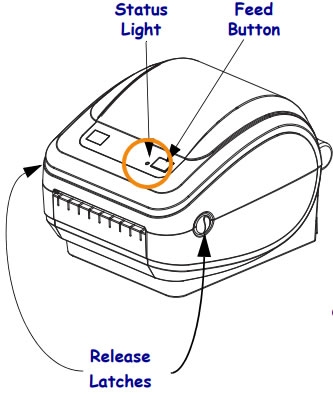
Blinking Green Light Meaning
The blinking green light on the Zebra ZD220 printer signals important information about its status. Understanding this indicator helps users know what the printer is doing. It often relates to data transfer or communication between the printer and the computer.
Recognizing the meaning of the blinking green light can prevent confusion and assist with troubleshooting. This guide explains what the green blinking light means and common reasons behind it.
Data Transmission Indicator
The blinking green light shows the printer is receiving data. It flashes while the printer processes print jobs sent from your computer or device. This means the printer is active and working.
During printing, the green light blinks steadily to confirm data is moving through the connection. Once the job finishes, the light usually stops blinking or turns solid. This helps users know the printer is busy or ready.
Common Causes
Several issues can cause the green light to blink unexpectedly. One common cause is a slow or unstable data connection between the printer and the computer. This delays printing and keeps the light blinking.
Another cause is a print job stuck in the queue or corrupted file data. The printer tries to process it but cannot complete the task, so the light blinks.
Sometimes, firmware or driver problems lead to communication errors. Updating the printer’s software often resolves these blinking light issues.
Checking cables and connections also prevents blinking caused by hardware faults. Loose or damaged cables interrupt data flow and trigger the green light to blink.
Basic Troubleshooting Steps
Troubleshooting the Zebra ZD220 blinking green light starts with simple checks. These steps help find common problems fast. Follow each step carefully. It saves time and avoids unnecessary repairs.
Check Power And Connections
Make sure the printer is plugged in securely. Check the power cord for damage. Confirm the power outlet works by testing another device. Inspect USB or network cables. Loose or damaged cables cause connection issues. Reconnect all cables firmly. Power cycle the printer by turning it off and on.
Inspect Media And Ribbon
Open the printer cover to check the label roll. Verify the labels are loaded correctly and not stuck. Make sure the ribbon is installed properly for thermal transfer printing. Ribbon wrinkles or misalignment trigger errors. Replace the media or ribbon if damaged. Use only compatible supplies recommended by Zebra.
Clear Printer Jams
Label jams often cause blinking lights. Carefully remove any stuck labels or ribbon pieces. Avoid tearing the media inside the printer. Check the print head area for debris. Clean the print head gently with isopropyl alcohol. Close the cover tightly after clearing jams. Restart the printer to reset the status.
Performing A Hard Reset
Performing a hard reset on your Zebra Zd220 printer can resolve many issues, including the blinking green light. This process restores the printer to its default settings. It clears temporary errors and refreshes the system. Hard resets are simple and safe to perform. Below are the common methods to reset your printer effectively.
Turn off the printer using the power switch. Press and hold the PAUSE and FEED buttons at the same time. While holding these buttons, turn the printer back on. Keep holding until the lights change or you hear a beep. Release the buttons after this signal. The printer will reset to factory defaults and may print a few labels.
Using The Reset Hole
Locate the small reset hole on the printer’s body. Use a paperclip or a similar tool. Gently press and hold the reset button inside the hole. Hold for about 5 to 10 seconds. Release the button and wait for the printer to restart. This method resets the printer without needing button combinations.
Reset Variations By Model
Different Zebra Zd220 models may use different reset procedures. Some models need CANCEL + PAUSE buttons instead of PAUSE + FEED. Printers with a display might reset through menu settings. Use the printer’s menu to find Settings > Restore Defaults. For network settings reset, hold specific buttons like CANCEL + PAUSE while powering on. Always check your model’s manual for exact steps.
Resetting Network Settings
Resetting network settings on the Zebra ZD220 printer can resolve many connection issues quickly. This process clears any stored network data and restores default settings. It helps the printer reconnect properly to your network. Resetting is simple and can often fix blinking green light problems.
Network Reset Procedure
First, turn off the printer using the power switch. Next, press and hold the CANCEL and PAUSE buttons together. While holding these buttons, turn the printer back on. Keep holding until the lights change or stop blinking. Then, release the buttons. The printer will reset only the network settings. No labels will print during this process.
When To Use Network Reset
Use a network reset when the printer does not connect to Wi-Fi or Ethernet. It helps if the blinking green light stays on too long. This reset is helpful after network changes, like a new router or IP address. Avoid resetting if the printer has other hardware issues. Network reset is safe and keeps other settings intact.
Using Zebra Setup Utilities
Zebra Setup Utilities is a helpful software for managing your Zebra printer. It lets you adjust settings and fix common issues. This tool is easy to use and works with Windows computers.
With Zebra Setup Utilities, you can quickly restore your printer to factory settings. You can also update the firmware to improve performance. These options help keep your printer running smoothly.
Restoring Factory Defaults Via Software
Open Zebra Setup Utilities on your PC. Connect your Zebra printer using a USB cable. Select your printer from the list and click on “Open Printer Tools.”
Find the option “Restore Factory Defaults” in the menu. Click it to reset all settings to their original state. This step can fix blinking green light issues by clearing errors.
The process takes a few moments. Your printer may restart automatically. After resetting, test the printer to see if the problem is gone.
Updating Firmware
Using Zebra Setup Utilities, you can update your printer’s firmware easily. Firmware updates improve printer stability and add new features. They can also fix bugs causing the blinking green light.
Connect the printer and open Zebra Setup Utilities. Choose your printer and click “Open Printer Tools.” Select “Firmware Update” from the options.
Follow the on-screen instructions to download and install the latest firmware. Keep the printer connected until the update finishes. After updating, restart the printer to apply changes.

Preventive Maintenance Tips
Preventive maintenance keeps the Zebra ZD220 printer running smoothly. It helps avoid issues like the blinking green light. Simple care steps improve print quality and extend printer life.
Following these tips reduces downtime and repair costs. Regular attention to cleaning, media storage, and firmware updates supports consistent performance.
Regular Cleaning
Clean the printer often to remove dust and debris. Use a soft cloth and isopropyl alcohol on the printhead. Avoid harsh chemicals that damage parts. Clean the platen roller and sensors carefully. This prevents paper jams and faded prints. Regular cleaning stops errors that cause blinking lights.
Proper Media Storage
Store labels and ribbons in a dry, cool place. Avoid direct sunlight and high humidity. Heat and moisture warp media and cause feed issues. Use sealed bags to keep media fresh. Proper storage ensures smooth feeding and sharp printing. It lowers the chance of printer errors and blinking signals.
Firmware Updates
Keep the printer firmware up to date. Check Zebra’s website for the latest versions. Firmware fixes bugs and improves device stability. Updated software enhances compatibility with new media. Installing updates prevents software glitches that cause blinking green lights. Always follow update instructions carefully to avoid problems.
When To Contact Support
Knowing the right moment to contact support for your Zebra ZD220 is key. Some issues with the blinking green light can be fixed easily at home. Others need expert help. This section helps you decide when to reach out to Zebra support.
Persistent Blinking Issues
The green light blinking without stopping is a clear sign of trouble. If you reset the printer and the light still blinks green, it shows the problem is deeper. Constant blinking means your printer may not be processing data correctly. Support can help diagnose and solve persistent problems fast.
Hardware Malfunctions
Sometimes the blinking green light points to hardware failure. This could be a damaged sensor or a broken part inside the printer. If you hear strange noises or the printer does not feed labels properly, hardware might be the cause. Contact support to check and fix hardware malfunctions safely.
Frequently Asked Questions
Why Is My Zebra Printer Blinking Green?
A blinking green light on your Zebra printer means it is receiving data. Ensure the printer is properly connected and feeding labels correctly.
How To Reset Zebra Printer Zd220?
To reset the Zebra ZD220 printer, turn it off. Hold the FEED button, then power it on. Release FEED after the status light flashes three times. The printer resets to factory defaults and exits Advanced mode.
How To Hard Reset A Zebra Printer?
Power off the Zebra printer. Hold PAUSE and FEED buttons. Turn it on while holding. Release when lights change or beep sounds. Printer resets to factory defaults. Check your model’s manual for exact button combinations.
How Do I Get My Zebra Printer Out Of Error State?
Power off the Zebra printer. Press and hold PAUSE and FEED buttons. Turn it on while holding buttons until lights change or beep sounds. Release buttons to reset and clear the error state. Check the manual if this method differs for your model.
What Does A Blinking Green Light On Zebra Zd220 Mean?
A blinking green light on Zebra ZD220 shows the printer is receiving data. It means the printer is ready and working.
Conclusion
The Zebra ZD220 blinking green light means the printer is receiving data. This signal shows the printer is active and ready to print. If the light keeps blinking without printing, try resetting the printer. Hold the FEED button until the light flashes three times, then release it.
This resets the printer to factory settings. Always check your model’s manual for exact reset steps. Keeping your printer updated and clean helps avoid errors. Understanding the blinking green light can save time and keep your printer working well.









