
Is your HP laptop’s charging light blinking white and orange, leaving you unsure about what’s wrong? You’re not alone, and this blinking pattern is a clear signal that your laptop is trying to tell you something important.
Ignoring it could lead to bigger problems, like your laptop not charging or shutting down unexpectedly. You’ll discover exactly what those blinking lights mean, why they happen, and—most importantly—how you can fix the issue quickly and safely. Keep reading to take control of your laptop’s health and avoid frustrating downtime.
Causes Of Blinking Charging Light
The blinking white and orange charging light on an HP laptop signals an issue with the charging process. This blinking pattern is a warning that the laptop is not charging properly or there is a hardware or software fault. Understanding the causes helps in diagnosing and fixing the problem quickly.
Several factors can cause the charging light to blink white and orange. These range from battery troubles to power supply issues or internal malfunctions. Each cause affects the charging system differently.
Battery Issues
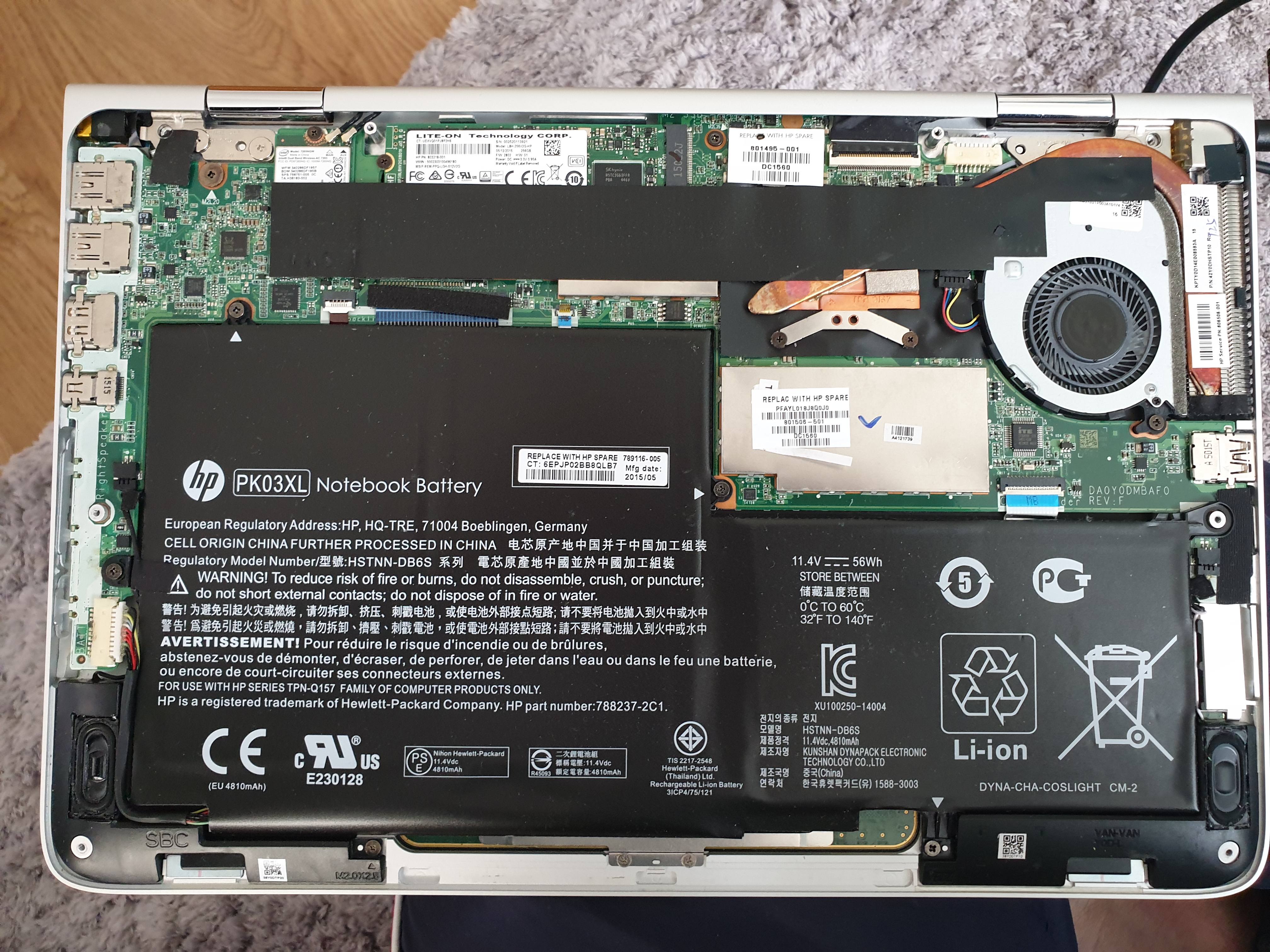
The battery may be old, worn out, or faulty. Batteries lose capacity over time and may fail to hold charge. A swollen or damaged battery can also cause the blinking light. In some cases, the battery connections inside the laptop may be loose or dirty. Replacing or properly reconnecting the battery often resolves the issue.
Power Adapter Problems
The power adapter could be defective or not supplying enough power. A damaged or frayed charging cable interrupts power flow. The adapter’s wattage might not match the laptop’s requirements. Testing with another compatible adapter can identify this problem. Proper connection between the adapter, power outlet, and laptop is essential.
Hardware Malfunctions
Internal hardware components like the charging port or motherboard may have faults. Dust, debris, or physical damage can cause poor connections. A malfunctioning charging circuit can prevent the battery from charging. Repair or replacement of hardware parts is necessary if this is the cause.
Firmware And Software Glitches
Firmware controls the charging process and can sometimes glitch. Outdated BIOS or system software may cause charging errors. Software conflicts or corrupted drivers can affect battery detection. Updating BIOS and drivers, or resetting the system, often fixes these glitches.
Diagnosing The Blinking Light
The blinking white and orange light on your HP laptop signals a hardware issue. Diagnosing this blinking light helps find the exact problem. Follow simple steps to understand what causes this issue. This saves time and avoids unnecessary repairs.
Start by checking the battery condition. Then inspect the power adapter and cable. Run HP’s built-in hardware tests. Finally, pay attention to the blink patterns of the light. Each step gives clues about the laptop’s health.
Check Battery Health
Battery problems often cause the blinking light. Remove the battery if possible and check for damage or swelling. Use HP’s battery report tool to see battery status. Look for signs like fast draining or not charging. Replace the battery if it shows serious wear.
Inspect Power Adapter And Cable
Faulty power adapters or cables cause charging issues. Look for frayed wires or bent connectors. Test the adapter with another compatible device. Use a different power outlet to rule out socket problems. Replace the adapter or cable if power supply is unstable.
Run Hp Hardware Diagnostics
HP laptops have built-in diagnostic tools. Restart your laptop and press the ESC key repeatedly. Select “System Diagnostics” to run tests on hardware parts. These tests check battery, memory, and motherboard health. Note any error codes shown and consult HP support if needed.
Observe Light Blink Patterns
The blinking light follows specific patterns for different errors. Count the number of blinks before a pause. White and orange blinks together often mean battery or motherboard issues. Use HP’s manual to decode the blink sequence. This guides you on the exact repair or replacement needed.
Quick Fixes To Try
The blinking white and orange charging light on your HP laptop signals a power or battery issue. Quick fixes can help resolve this without professional help. These steps are easy and safe to try at home.
Start with simple actions to reset and reconnect power. Next, update software to ensure smooth charging. Finally, calibrate the battery for accurate power readings. Follow these methods carefully for the best results.
Perform A Hard Reset
Turn off your HP laptop completely. Unplug the charger and remove the battery if possible. Press and hold the power button for 15 seconds. Reinsert the battery and plug in the charger. Turn on your laptop and check the charging light.
Reconnect Power Components
Inspect the power adapter and cable for damage. Disconnect and reconnect the charger firmly to the laptop. Try a different power outlet to rule out socket issues. Clean the charging port gently to remove dust. Ensure all connections are secure before testing again.
Update Bios And Drivers
Visit the HP support website for your laptop model. Download and install the latest BIOS update. Update battery and power management drivers as well. Restart your laptop after updates. These updates fix bugs affecting charging functions.
Calibrate The Battery
Charge your laptop fully to 100%. Disconnect the charger and use the laptop until the battery drains completely. Let the laptop stay off for a few hours. Recharge the battery to 100% without interruption. Calibration improves battery performance and charging accuracy.
Advanced Troubleshooting
Advanced troubleshooting helps identify deeper problems causing the blinking lights. These steps go beyond simple fixes to target hardware or software issues. Follow each method carefully for the best results.
Performing these checks can save time and avoid unnecessary repairs. Make sure to work in a static-free environment to prevent damage.
Test With Another Charger
Use a compatible charger from another HP laptop. This test reveals if the original charger is faulty. Connect the alternative charger and observe the charging light.
If the light stops blinking and shows normal charging, replace your charger. If the issue persists, continue troubleshooting.
Remove And Reseat The Battery
Turn off the laptop and unplug it from the power source. Carefully remove the battery from its compartment. Wait for a few minutes before reinserting it firmly.
This process resets the battery connection and may fix minor power issues. Power on the laptop and check the charging light behavior.
Check For Physical Damage
Inspect the charging port and battery for visible damage. Look for bent pins, debris, or corrosion inside the port. Examine the battery for cracks or swelling.
Physical damage can cause charging problems and blinking lights. Clean the port gently with a soft brush if needed. Replace damaged parts promptly.
Consult Hp Support Tools
Use HP’s built-in diagnostic tools to scan for hardware faults. Restart the laptop and access the HP Support Assistant or BIOS diagnostics. Follow on-screen instructions to run battery and charger tests.
These tools provide specific error codes and solutions. If errors appear, note them for further help from HP support or technicians.
When To Replace Battery Or Charger
Knowing when to replace your HP laptop battery or charger is key to keeping your device running smoothly. The blinking white and orange charging light signals a problem. This section helps you spot signs that mean it’s time for a new battery or charger. Acting early can save you from sudden shutdowns or power issues.
Signs Of Battery Failure
Battery failure shows in many ways. Your laptop may drain power very fast. Charging might take longer than usual. The device could shut down without warning. Overheating is a clear warning sign. Look for any bulges or damage on the battery. Sometimes, you see messages like “Battery Failure” on the screen. These signs mean the battery no longer works well.
Charger Malfunction Indicators
The charger also shows signs when it fails. Check if the charging light blinks white and orange constantly. The laptop may not charge at all. The charger might feel unusually hot or make strange noises. Loose connections or frayed wires are danger signals. If the charger only works when moved or held a certain way, it is faulty. These problems suggest the charger needs replacement.
Cost And Replacement Options
Battery replacement cost varies by model and quality. Official HP batteries cost more but ensure compatibility. Third-party batteries are cheaper but may lack warranty. Chargers are generally less expensive than batteries. Buying from trusted sellers avoids scams or low-quality parts. Some stores offer repair services that include battery or charger replacement. Compare prices and reviews before making a choice.

Preventing Future Charging Issues
Preventing future charging issues with your HP laptop helps keep it running smoothly. Small habits protect the battery and charging system. These steps avoid common problems like blinking white and orange charging lights. Consistent care ensures your laptop stays reliable.
Maintain Battery Health
Charge the battery regularly, but avoid overcharging. Use the laptop on battery power sometimes to keep it active. Avoid letting the battery drain completely. Store the laptop in a cool, dry place if unused for long.
Use Genuine Accessories
Always use HP chargers and cables designed for your model. Cheap or fake chargers can cause charging errors and damage. Genuine accessories provide the right voltage and current. This protects the battery and charging circuits.
Keep Software Updated
Install the latest HP software and BIOS updates. Updates often fix charging bugs and improve power management. Check HP support regularly for new versions. Updated software helps the laptop charge correctly and efficiently.
Avoid Overheating
Keep the laptop on hard, flat surfaces to improve airflow. Clean dust from vents and fans frequently. Overheating can cause charging errors and battery damage. Use cooling pads if needed to keep temperatures low.
Frequently Asked Questions
How To Hard Reset Hp Laptop Battery?
To hard reset an HP laptop battery, turn off the laptop and unplug all devices. Press and hold the power button for 15 seconds. Reconnect the power adapter and turn the laptop on. This resets the battery and may resolve charging issues.
How To Force An Hp Laptop To Charge?
Press and hold the power button to shut down your HP laptop. Unplug the charger, wait 30 seconds, then reconnect and power it on. This hard reset can force the laptop to start charging.
What Are The Signs Of A Failing Hp Laptop Battery?
Signs of a failing HP laptop battery include rapid draining, slow charging, unexpected shutdowns, overheating, and physical swelling. Diagnostic alerts or blinking power lights also indicate battery issues.
Why Is The Charging Light Blinking On My Hp Laptop?
The blinking charging light on your HP laptop indicates a battery or power issue. It may signal low battery, faulty charger, or hardware problems. Check connections, try a hard reset, or replace the battery if needed to resolve the blinking light.
Why Is My Hp Laptop Charging Light Blinking White And Orange?
A blinking white and orange light shows a battery or charger issue. It means the laptop is not charging properly. Check the power adapter and battery connection first.
Conclusion
The blinking white and orange light on your HP laptop signals a charging issue. Check your power adapter and battery connections first. Try a hard reset to fix minor glitches. If the problem stays, the battery might need replacement. Regular care helps avoid charging problems later.
Stay calm and follow these simple steps to keep your laptop running smoothly.









