
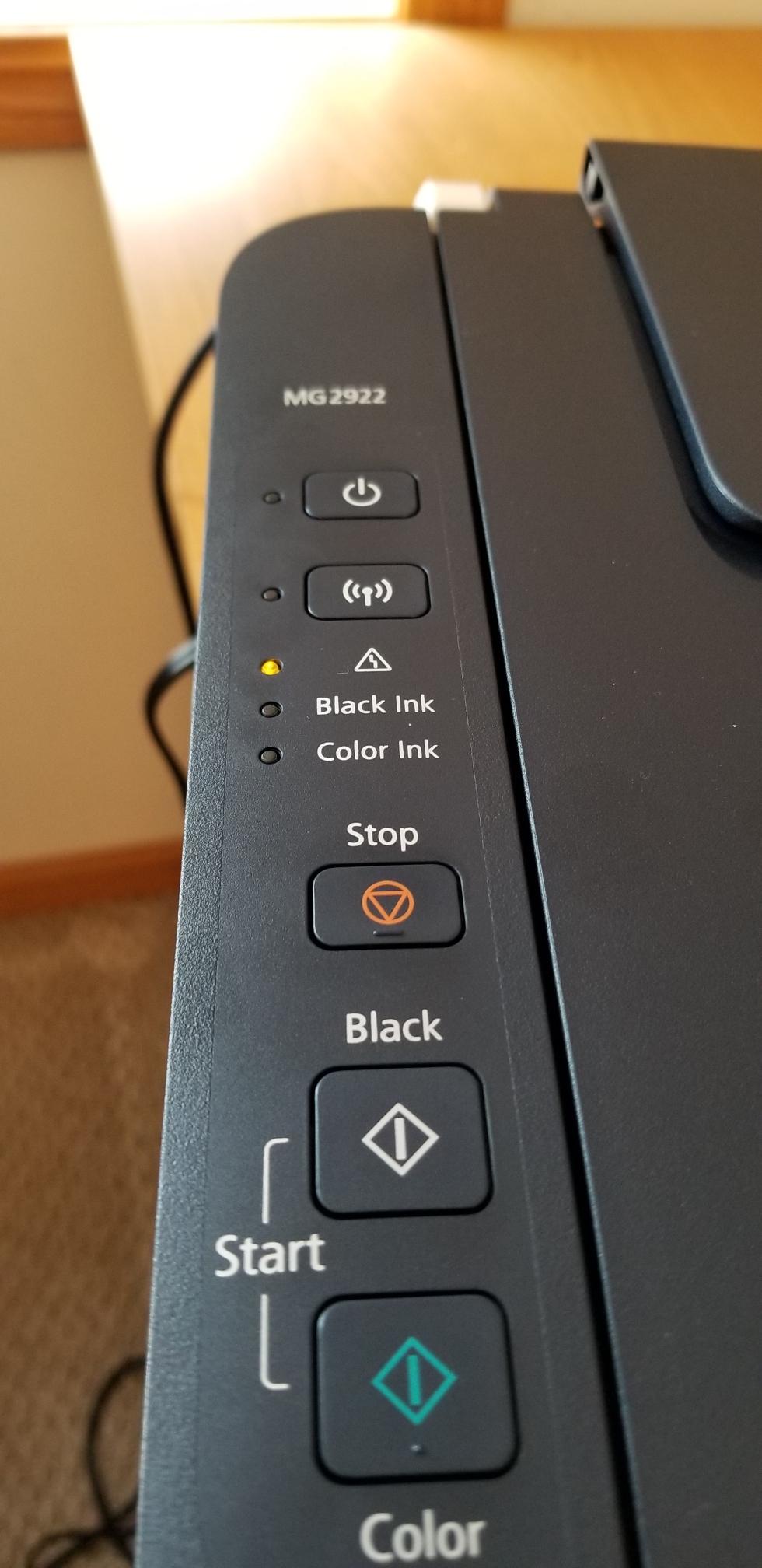
Is your Canon printer’s orange light blinking and you’re not sure why? This flashing signal can be frustrating, especially when you need to print something urgently.
But don’t worry—you’re not alone, and the fix might be simpler than you think. Whether it’s a paper jam, low ink, or a connection glitch, understanding what that blinking orange light means is the first step to solving the problem quickly.
Keep reading, and you’ll learn easy, step-by-step solutions to get your Canon printer back to working smoothly in no time.
Blinking Orange Light Causes
The blinking orange light on a Canon printer signals various issues. It acts as a warning to help users identify problems quickly. Understanding the causes can save time and avoid frustration. Below are common reasons for this blinking light.
Low Ink Levels
One common cause is low ink levels. The printer detects when ink cartridges are almost empty. This triggers the orange light to blink. Replacing or refilling ink cartridges can resolve this issue fast. Always check ink levels regularly to prevent interruptions.
Paper Jams
Paper jams also cause the orange light to flash. When paper gets stuck inside the printer, sensors detect the blockage. The blinking light warns users to clear the jam. Carefully remove any stuck paper to continue printing smoothly.
Connection Errors
Connection errors between the printer and computer or network can make the orange light blink. Loose cables or poor Wi-Fi signals often cause this. Ensure all cables are secure and the network is stable. Restarting the printer and device may help fix the problem.
Printhead Clogs
Printhead clogs affect ink flow and trigger the blinking light. Dust, dried ink, or debris block nozzles, reducing print quality. Running the printer’s cleaning cycle can clear clogs. In stubborn cases, manual cleaning might be necessary to restore function.

Basic Troubleshooting Steps
Basic troubleshooting helps fix the Canon printer blinking orange light issue fast. This light often signals simple problems. Checking certain parts can clear errors quickly. Follow these steps to identify and fix common issues. The process is easy and requires no special tools.
Checking Ink Cartridges
Turn on the printer and open the ink cartridge cover. Remove each cartridge carefully. Check cartridges for low ink or damage. If ink is low, replace the cartridge. Reinsert cartridges firmly until they click. Close the cover and watch the printer light. The orange light should stop blinking if cartridges are the cause.
Clearing Paper Jams
Turn off the printer before clearing jams. Open the printer’s paper tray and rear cover. Look inside for stuck paper or torn bits. Gently pull out any jammed paper without tearing. Check the paper path carefully to remove small scraps. Close all covers securely. Turn the printer back on. The orange light often stops blinking after jam removal.
Inspecting Printer Connections
Check all cables connecting the printer to power and computer. Ensure the power cord is plugged in firmly. Confirm the USB or network cable is secure at both ends. If using wireless, verify the printer is connected to the correct network. Restart the printer and computer to refresh connections. Loose or faulty connections can cause the orange light to blink.
Cleaning The Printhead
Cleaning the printhead is essential to fix the Canon printer blinking orange light issue. Dirt, dried ink, or clogs can block ink flow. This causes print quality problems and error signals. Regular cleaning helps maintain printer performance and avoids errors. Here are simple ways to clean the printhead effectively.
Running Built-in Cleaning Cycles
Most Canon printers have built-in cleaning tools. Access the Setup or Maintenance menu on your printer. Select the “Cleaning” option to start a standard cleaning cycle. This uses ink to flush out minor clogs from the printhead. After the cycle, print a test page to check results. If problems persist, run the “Deep Cleaning” cycle. It uses more ink but clears tough blockages better. Repeat cleaning cycles until the print quality improves.
Performing A Nozzle Check
The nozzle check helps identify printhead clogs. From the printer menu, find the “Nozzle Check” option. Print the nozzle check pattern on a sheet. Look for missing lines or gaps in the pattern. Missing areas show which nozzles are clogged. Use this test after each cleaning cycle. It confirms if the cleaning helped or if more action is needed. This step saves time by targeting the problem accurately.
Manual Printhead Cleaning
Some Canon models allow manual printhead removal for cleaning. Turn on the printer and open the ink cartridge cover. Remove the printhead carefully according to your manual. Use a soft cloth or cleaning pad to wipe the printhead nozzles gently. Avoid touching electrical contacts or applying strong pressure. Manual cleaning helps remove stubborn dried ink. After cleaning, reinstall the printhead and run a cleaning cycle for best results.
Using Distilled Water And Cleaning Solutions
Distilled water is ideal for cleaning printheads. Tap water may contain minerals that cause damage. Dampen a lint-free cloth or cleaning pad with distilled water or specialized printhead cleaner. Gently wipe the printhead nozzles to dissolve dried ink. For heavy clogs, soak the printhead in cleaning solution for a few minutes. Do not use alcohol or harsh chemicals. After cleaning, dry the printhead completely before reinstalling. This method extends printhead life and improves print quality.
Resetting The Printer
Resetting the printer can often fix the blinking orange light on your Canon device. This step clears minor errors and restores normal function. A reset refreshes the printer’s system without deleting your settings. It is a simple process that anyone can do at home.
Before starting, make sure the printer is turned on and connected to power. Follow the instructions carefully to avoid further issues. Resetting helps solve problems like paper jams, ink errors, or communication faults.
Most Canon printers have a reset button or a combination of buttons to press. Check your printer’s manual for the exact location. Usually, the reset button is small and recessed. It may be on the back or bottom of the printer.
Some models use the power button or stop/reset button for resetting. If you cannot find a dedicated reset button, use the stop/reset button instead. Pressing it correctly will trigger the reset process.
Steps To Reset Your Canon Printer
First, turn off the printer and disconnect the power cable. Wait for about 10 seconds to clear the printer’s memory. Then, plug the power cable back in and turn on the printer.
Next, press and hold the reset button or the stop/reset button for 5 to 10 seconds. Release the button once the printer starts to reset. You may see the lights blink or the printer make noise.
Wait for the printer to complete its reset cycle. The orange blinking light should stop and the printer will return to ready mode. If the light keeps blinking, repeat the reset steps or check for other issues.
Advanced Fixes
Advanced fixes tackle deeper problems causing the Canon printer’s orange light to blink. These steps involve handling printer parts carefully to restore proper function. Follow these solutions only if basic troubleshooting fails.
Removing And Soaking The Printhead
Turn off the printer and unplug it from power. Open the printer cover and carefully remove the printhead. Use a lint-free cloth dampened with distilled water or printhead cleaning solution. Soak the printhead gently in the solution for about 10 to 15 minutes. Avoid harsh chemicals to prevent damage. After soaking, wipe off excess moisture before reinstalling the printhead.
Flushing Ink Inlets
Prepare a syringe with distilled water or printhead cleaning fluid. Gently flush the ink inlets to clear clogged nozzles. This step helps remove dried ink blocking the flow. Do not force water or fluid to avoid damaging printer parts. Repeat flushing until ink flows smoothly.
Drying And Reinstalling Components
Allow all cleaned parts to air dry completely before reinstalling. Moisture inside the printer can cause errors or damage. Place components on a clean, dry surface for at least an hour. After drying, carefully reinstall the printhead and cartridges. Power on the printer and check if the orange light stops blinking.
Preventive Tips
Preventing the Canon printer’s orange blinking light saves time and avoids frustration. Simple habits keep your printer running smoothly. Regular care reduces errors and extends printer life. Follow these easy tips to maintain your device and prevent issues.
Regular Maintenance
Clean your printer often to avoid dust buildup. Use a soft cloth and avoid harsh chemicals. Run the printer’s cleaning cycle regularly to clear clogged print heads. Check for firmware updates to keep the printer software current. Inspect the printer for worn parts and replace them if needed.
Using Quality Ink
Choose original or high-quality ink cartridges. Cheap or fake ink can cause errors and damage. Always check ink levels before printing large jobs. Replace cartridges promptly when ink runs low. Store ink cartridges in a cool, dry place to keep them fresh.
Avoiding Paper Mishandling
Use the correct paper type and size for your printer. Fan the paper stack before loading to prevent jams. Align paper properly in the tray and avoid overfilling it. Remove any torn or curled sheets before printing. Clear paper jams carefully without forcing parts.

Frequently Asked Questions
How To Fix Printer Blinking Orange Light?
Turn off the printer and open the ink cartridge flap. Remove and reinstall cartridges properly. Check for paper jams and clear them. Restart the printer to reset the error.
Why Is The Orange Light Blinking On My Canon Printer?
The blinking orange light on your Canon printer signals issues like low ink, paper jams, or connection errors. Check ink levels, clear jams, and ensure proper cable connections to fix it.
The reset button on a Canon printer is usually inside the printer, near the ink cartridge area. Open the front cover to find it. Some models use a combination of buttons for reset instead of a dedicated button. Check your printer manual for exact reset instructions.
How Do I Unclog A Canon Printhead?
Run the printer’s standard cleaning cycle from the maintenance menu. Print a nozzle check. If clogged, run deep cleaning. For severe clogs, remove the printhead, soak it in distilled water or cleaning solution, let it dry fully, then reinstall and test again.
Why Is My Canon Printer’s Orange Light Blinking?
A blinking orange light means the printer needs attention. It can indicate low ink, paper jams, or connection problems. Check the printer screen or manual for exact causes.
Conclusion
A blinking orange light on your Canon printer signals an issue. Common causes include low ink, paper jams, or connection errors. Checking ink cartridges and clearing jams often solves the problem. Running the printer’s cleaning cycle can help with print quality.
Always follow the printer manual for detailed steps. Regular maintenance keeps your printer running smoothly. Stay patient and methodical to fix the blinking light quickly. Your printer will be back to work in no time.









