
Is your Tapo camera blinking red and leaving you wondering what’s wrong? You’re not alone.
That steady or flashing red light can be confusing and even stressful, especially when you rely on your camera for home security or peace of mind. But don’t worry—this blinking red signal is your camera’s way of telling you something important.
You’ll discover exactly what the red blinking means, why it happens, and simple steps you can take right now to fix it. Keep reading to get your Tapo camera back online and working smoothly in no time.

Red Light Causes
The red blinking light on your Tapo camera signals an issue that needs attention. This alert helps identify problems quickly. Understanding the causes can save time and avoid frustration.
Several reasons may cause the red light to blink. Each points to a different type of problem. Knowing these helps you find the right fix faster.
Connectivity Issues
A common cause is poor Wi-Fi connection. The camera may struggle to link to your network. Weak signals or router problems often trigger the red blink. Moving the camera closer to the router can help. Restarting the router or camera also restores connection. Check for Wi-Fi interruptions and interference from other devices.
Power And Firmware Problems
Power supply issues cause the red light to flash. A loose or faulty power cable may be the problem. Ensure the power adapter fits snugly and the outlet works. Outdated firmware also triggers alerts. Regular updates keep the camera running smoothly. Use the Tapo app to check for and install updates.
Recording And Motion Detection
The red light might blink during recording errors. Problems with the SD card or storage space can cause this. A full or corrupted SD card stops proper recording. Remove and reinsert the card, or try a different one. Motion detection settings may also affect the red light. Incorrect setup or sensitivity issues can trigger alerts.
Hardware Malfunctions
Internal camera faults cause the red blinking light. These include sensor or circuit failures. Physical damage or manufacturing defects may be responsible. If other fixes fail, hardware issues might be the cause. Contact customer support for repair or replacement options. Avoid opening the camera yourself to prevent further damage.

Basic Fixes
When your Tapo camera blinks red, basic fixes can often solve the problem quickly. These steps help refresh the device and improve its connection. Follow these simple actions before trying more complex solutions.
Power Cycle Camera And Router
Unplug your Tapo camera from power. Wait for 10 seconds. Plug it back in. Do the same with your Wi-Fi router. This resets the devices and clears temporary issues. Power cycling often restores normal operation.
Update App And Firmware
Open the Tapo app on your phone. Check for updates to the app itself. Also check the camera’s firmware version. Update both if newer versions exist. Updates fix bugs and improve device stability.
Check Wi-fi Signal Strength
Weak Wi-Fi can cause the red blinking light. Use the Tapo app to check signal strength. Move the camera closer to the router if the signal is low. Strong Wi-Fi keeps the camera connected and working well.
Optimize Camera Placement
Place the camera where it has a clear view of the router. Avoid walls, metal objects, or large furniture blocking the signal. Higher placement may help. Proper placement improves signal quality and reduces connection drops.
Advanced Troubleshooting
Advanced troubleshooting helps fix persistent problems with your Tapo camera blinking red. It digs deeper than basic steps, targeting less obvious causes. These techniques focus on improving signal quality and device stability.
Follow these methods carefully to identify and resolve issues affecting your camera’s performance. Each step isolates potential problems and can restore normal operation.
Reduce Electronic Interference
Electronic devices near your Tapo camera may cause interference. Move the camera away from microwaves, cordless phones, or baby monitors. Thick walls and metal objects also block signals. Try placing the camera in a more open area. This helps improve Wi-Fi connection and reduces red blinking.
Test With Mobile Hotspot
Connect your Tapo camera to a mobile hotspot instead of your home Wi-Fi. This test checks if your router is causing the problem. Turn on the hotspot on your phone and connect the camera through the Tapo app. If the camera works well on the hotspot, your router or network settings need attention.
Remove Sd Card Temporarily
Sometimes, a faulty SD card can trigger the red blinking light. Power off the camera and remove the SD card carefully. Restart the camera without the card inserted. If the blinking stops, the SD card may be corrupted or incompatible. Format the card using the camera or replace it with a new one.
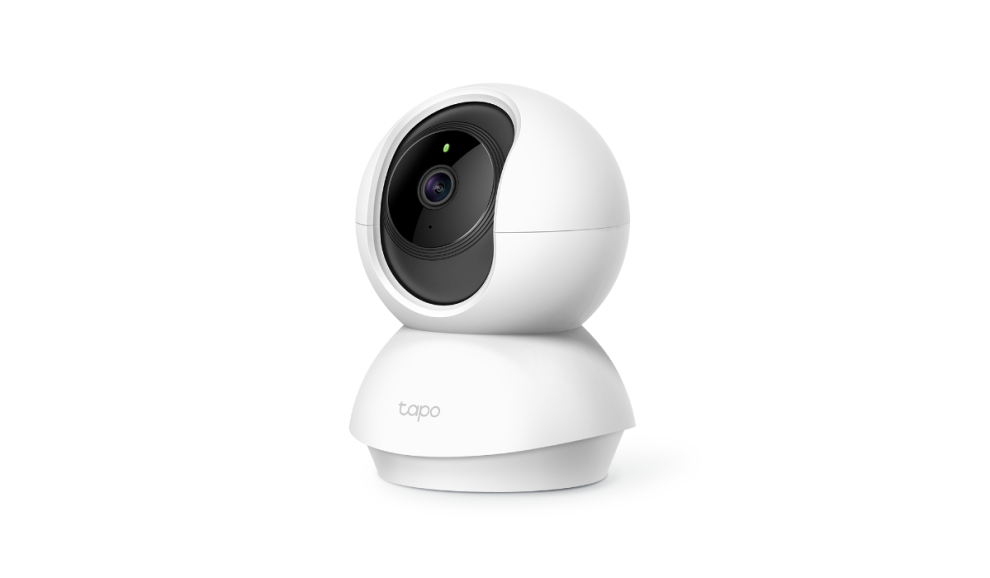
Factory Reset Steps
Factory resetting your Tapo camera solves many connection issues. This step clears all settings and restores the camera to its original state. Use it only if other fixes fail. Follow these simple steps to reset your camera safely and quickly.
Find the small reset button on your Tapo camera. It is usually near the power port or under a small hole. You may need a pin or paperclip to press it. Knowing its exact spot helps you reset the camera properly.
Perform The Reset
Press and hold the reset button for about 5 to 10 seconds. Keep holding until the camera’s LED blinks red or changes color. This indicates the reset process has started. Release the button and wait for the camera to reboot fully.
Re-add Camera In App
Open the Tapo app on your smartphone. Tap the “+” icon to add a new device. Follow the on-screen instructions to connect your camera to Wi-Fi. The camera will now work as a new device, fixing previous connection errors.
Preventive Tips
Preventing the Tapo camera from blinking red saves time and avoids frustration. Simple steps keep your camera running smoothly. Follow these easy tips for better performance and fewer issues.
Use Original Power Supply
Always use the original power adapter that came with your Tapo camera. Third-party chargers may not provide the right voltage. This can cause power interruptions and trigger the red blinking light. A stable power source ensures the camera works without glitches.
Maintain Firmware Updates
Keep your camera’s firmware up to date. Firmware updates fix bugs and improve stability. Check the Tapo app regularly for new updates. Installing them promptly prevents errors that can cause the red light to blink. Updated software keeps your camera secure and reliable.
Ensure Stable Wi-fi Connection
Connect your Tapo camera to a strong and stable Wi-Fi network. Weak signals often cause the camera to lose connection, leading to red blinking. Place the camera near the router or use a Wi-Fi extender if needed. A reliable network keeps your camera online without interruptions.
Frequently Asked Questions
Why Is My Tapo Camera Only Blinking Red?
A blinking red light on your Tapo camera indicates connection issues or errors. Power-cycle the camera and router, update firmware, check Wi-Fi signal, or reset the device to fix it.
How Do I Get My Tapo Camera Back Online?
Power cycle your Tapo camera and Wi-Fi router. Update the Tapo app and camera firmware. Move the camera closer to the router. Remove the SD card temporarily. If needed, perform a factory reset and re-add the device in the app.
Why Does My Camera Keep Blinking Red?
A blinking red camera light usually signals connection issues, low battery, recording status, or device errors. Check power and Wi-Fi.
Why Does My Tp-link Keep Blinking Red?
Your TP-Link blinks red due to connection issues, power problems, or firmware errors. Restart the device, check power supply, and update firmware to fix it.
Why Is My Tapo Camera Blinking Red Only?
A blinking red light means the camera can’t connect to Wi-Fi. It may have weak signal or network issues. Restarting the camera and router often helps.
Conclusion
A blinking red light on your Tapo camera signals connection or setup issues. Start by power-cycling the camera and router to refresh connections. Check the app and update the firmware for smooth operation. Move the camera closer to the Wi-Fi router to improve signal strength.
Remove the SD card temporarily to rule out storage problems. If problems persist, perform a factory reset and set up the camera again. These simple steps often fix the blinking red light quickly. Staying patient and following these tips keeps your Tapo camera working well.









