
Is your Dell laptop’s battery light blinking orange? This warning can be confusing and a bit alarming.
You might wonder if your battery is failing, if there’s a charging problem, or if your laptop is about to shut down unexpectedly. The good news is, you don’t have to guess or panic. Understanding why that orange light blinks can help you fix the issue quickly and keep your laptop running smoothly.
You’ll discover simple steps to identify what the blinking orange light means, how to check your battery’s health, and the best ways to troubleshoot and solve the problem. Keep reading to take control of your Dell laptop’s battery and avoid unexpected interruptions.
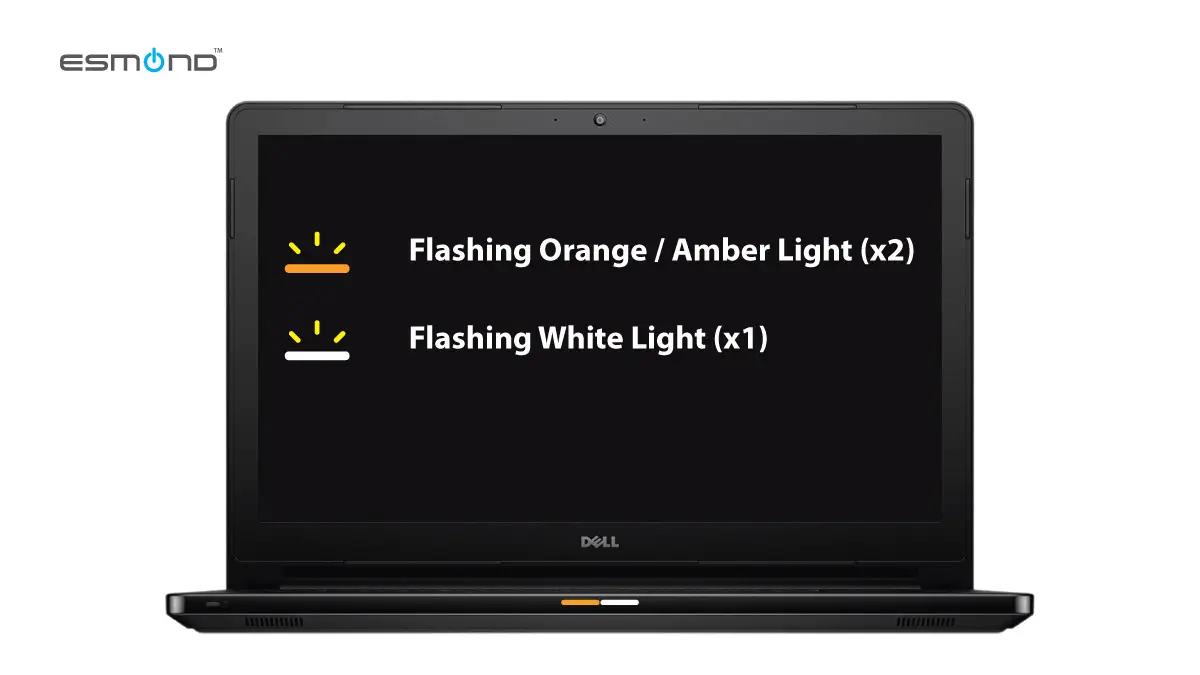
Causes Of Blinking Orange Light
The blinking orange light on a Dell laptop’s battery indicator signals an issue that needs attention. This warning helps users identify problems with the battery or power system. Understanding the causes behind this blinking light can guide you in fixing the issue quickly. Below are the common reasons for the orange light blinking on your Dell laptop.
Battery Health Issues
Aging batteries lose their ability to hold a charge properly. Over time, the battery capacity decreases, causing the light to blink orange. Swollen or damaged batteries also trigger this warning. Poor battery health can lead to sudden shutdowns and slow charging. Dell laptops monitor battery status and alert users about any health concerns.
Charging Problems
Problems with the charging process often cause the orange light to blink. A faulty charger or damaged charging port can prevent the battery from charging correctly. Loose connections between the charger and laptop may also cause interruptions. Inconsistent power supply or using the wrong charger can trigger the blinking light as well.
Hardware Malfunctions
Internal hardware issues can affect battery performance and cause warning lights. Problems with the motherboard, power circuits, or battery sensor may lead to the blinking orange light. Faulty hardware components can disrupt battery communication with the laptop. Diagnosing hardware malfunctions often requires professional help or service support.

Performing A Hard Reset
Performing a hard reset can fix many battery problems on Dell laptops. It clears temporary glitches and resets the hardware. This process often stops the battery light from blinking orange. Follow these simple steps carefully to perform a hard reset safely.
Shutdown And Disconnect Peripherals
First, shut down your Dell laptop completely. Make sure it is not in sleep or hibernate mode. Unplug the AC adapter from the laptop. Remove all connected devices like USB drives, external keyboards, and mice. Disconnecting peripherals helps avoid power issues during the reset.
Remove And Reinstall Battery
Locate the battery release latch or button on your laptop’s underside. Carefully remove the battery from its compartment. Wait for about 30 seconds to let the laptop fully power down. Place the battery back into its slot until it clicks securely. This step resets the battery connection to the laptop.
Restart Laptop
Reconnect the AC adapter to the laptop. Press the power button to turn on the laptop. Observe the battery light for any changes in behavior. The blinking orange light should stop if the hard reset worked. This restart refreshes the system and clears minor battery errors.
Battery Calibration Steps
Battery calibration helps your Dell laptop show the correct battery level. It fixes issues like the battery light blinking orange. Calibrating improves battery life and charging accuracy. Follow these simple steps to calibrate your battery properly.
Discharge Battery Completely
Use your laptop until the battery runs out. Let it shut down by itself. Avoid plugging in the charger during this step. This makes the battery drain fully and resets its power meter.
Full Recharge Cycle
Connect the charger and charge the battery to 100%. Keep the laptop turned off while charging. Wait until the light shows the battery is fully charged. This step helps the system learn the battery’s full capacity.
Repeat Calibration
After the full charge, unplug the charger and use the laptop again. Let the battery drain completely once more. Then recharge it fully again. Repeat this cycle two or three times for best results.
Updating Software And Drivers
Updating your Dell laptop’s software and drivers can fix many battery issues. The blinking orange battery light often means the system needs fresh updates. These updates help the laptop manage power better. They improve communication between hardware and software. Regular updates keep your laptop running smoothly. They can stop the battery light from blinking.
Intel Management Engine Interface
The Intel Management Engine Interface (MEI) controls power management on many Dell laptops. Outdated MEI drivers may cause battery errors. Check the Device Manager for MEI updates. Installing the latest driver improves power delivery. It helps the battery charge and discharge correctly. This update can reduce blinking orange light problems.
Bios Firmware Updates
The BIOS controls basic hardware functions. An old BIOS version may misread battery status. Visit Dell’s official support site to download BIOS updates. Follow the instructions carefully to avoid issues. Updated BIOS firmware fixes battery detection errors. It can stop the battery light from blinking orange. Keeping BIOS current ensures better system stability.
Dell Power Manager Tools
Dell Power Manager helps monitor and optimize battery health. Install or update this tool from Dell’s website. It gives control over charging settings and battery profiles. Using the latest Dell Power Manager reduces battery errors. It can fix blinking orange light warnings. This tool also extends battery life by managing power smartly.
Checking Battery Health
Checking the battery health is essential when the battery light on your Dell laptop blinks orange. It helps identify if the battery needs replacement or recalibration. Several tools and apps can assist in this process. These tools provide clear insights into your battery’s condition and performance. Regular checks can prevent sudden shutdowns and power issues.
Bios/uefi Diagnostics
Most Dell laptops have built-in BIOS or UEFI diagnostics. Restart your laptop and press the F12 key during startup. Select Diagnostics from the boot menu. The tool will run tests on the battery and other hardware. It reports any errors found, including battery health issues. This method is quick and does not require Windows to load.
Windows Battery Report
Windows has a battery report feature that provides detailed battery stats. Open Command Prompt as an administrator. Type powercfg /batteryreport and press Enter. The system generates an HTML file with battery usage, capacity, and life estimates. Find this report in your user folder. Review it to check battery wear and charge cycles.
Dell Battery Management Apps
Dell offers specific apps to monitor and manage battery health. Dell Power Manager is one such app. It shows battery status, charge levels, and health alerts. You can adjust settings to extend battery life. These apps also notify you if the battery needs service or replacement. They run easily on Dell laptops without extra setup.
Common Battery Problems
Battery issues often cause the orange blinking light on Dell laptops. These problems affect your laptop’s performance and daily use. Knowing common battery problems helps you spot issues early. It also guides you on the right steps to fix them.
Here are some common battery problems that Dell laptop users face.
Rapid Battery Drain
Rapid battery drain means your laptop loses power very fast. A fully charged battery may last only a short time. This can happen due to old batteries or heavy background apps. Poor battery health also causes fast draining. Check battery usage in settings to find power-heavy apps.
Unexpected Shutdowns
Unexpected shutdowns happen when the laptop turns off suddenly. This problem often shows bad battery health or faulty connections. The battery may not hold a charge properly. Over time, the battery can fail to supply consistent power. This makes your device shut down without warning.
Overheating And Swelling
Overheating batteries get very hot and may swell. Swollen batteries can damage the laptop’s internal parts. Heat can come from overcharging or using the laptop on soft surfaces. Swollen batteries are unsafe and need immediate replacement. Avoid using a laptop with a swollen battery to prevent accidents.
When To Replace The Battery
Knowing when to replace your Dell laptop battery helps avoid unexpected shutdowns and performance issues. The blinking orange battery light signals a problem that needs attention. Some signs clearly show the battery has reached the end of its life. Replacing the battery on time keeps your laptop running smoothly and safely.
Physical Damage Or Swelling
Check your battery for any physical damage or swelling. A swollen battery can push against the laptop casing and cause damage. Do not use a battery that looks bloated or cracked. It can be dangerous and may lead to overheating or fire. Replace the battery immediately if you notice any signs of swelling or damage.
Significant Capacity Loss
A battery that loses its capacity quickly needs replacement. If your laptop runs only a few minutes unplugged, the battery cannot hold a proper charge. You can check battery health with built-in tools or third-party apps. Batteries usually lose capacity after 2-3 years of use. Replacing it improves battery life and laptop performance.
Charging Failures
When the battery does not charge or the charging light blinks orange, there is a problem. Charging failures can happen due to battery wear or hardware issues. Try basic fixes like reconnecting the charger or updating drivers. If the problem persists, replacing the battery is often the best solution. This stops sudden shutdowns and keeps your device reliable.
Additional Troubleshooting Tips
Experiencing a blinking orange battery light on your Dell laptop can be frustrating. After basic checks, try these extra steps to find the problem. These additional troubleshooting tips help identify issues beyond simple fixes.
Check Ac Adapter And Power Source
Examine the AC adapter for damage or loose connections. Use a different power outlet to rule out socket issues. A faulty adapter or power source can cause the battery light to blink orange.
Make sure the power cable fits snugly into the laptop’s charging port. Avoid using third-party chargers that may not meet Dell’s specifications. Using the correct adapter ensures stable power delivery.
Test With Battery Removed
Turn off your laptop and unplug the charger. Remove the battery carefully following your laptop’s manual. Then, plug in the AC adapter and power on the laptop without the battery.
If the laptop runs normally, the battery could be the issue. This test helps isolate whether the problem is with the battery or the charging system. Reinstall the battery later and observe the behavior.
Contact Dell Support
If the battery light continues blinking after these tests, contact Dell support. Their technicians can provide expert advice and service options. Use your laptop’s service tag for faster assistance.
Dell support can help with warranty claims or guide you through advanced troubleshooting. Reaching out ensures you get professional help and avoid further damage.

Frequently Asked Questions
How Do I Reset My Dell Laptop Battery?
To reset your Dell laptop battery, shut down and unplug the laptop. Remove the battery if possible, then reinstall it. Reconnect the AC adapter and power on. Perform a hard reset by disconnecting all peripherals before restarting. Update BIOS and drivers if issues persist.
How To Tell If A Dell Battery Is Bad?
A bad Dell battery drains quickly, overheats, swells, charges slowly, or causes sudden shutdowns. Check battery health in BIOS or run powercfg /batteryreport in Command Prompt.
Why Is My Battery Light Blinking Orange?
A blinking orange battery light signals a low battery charge or a charging issue. Check your power adapter and battery connection. Update BIOS and drivers for better battery management. Perform a battery reset or calibration if problems persist. Replace the battery if it shows signs of failure.
How Do I Force My Dell Laptop To Start?
Press and hold the power button for 10-15 seconds to force start your Dell laptop. If it doesn’t start, disconnect power, remove the battery, then reconnect and try again.
Why Is My Dell Laptop Battery Light Blinking Orange?
A blinking orange battery light means the battery charge is very low. It may also indicate a battery or charging issue that needs attention.
Conclusion
A blinking orange battery light on your Dell laptop signals a power issue. It often means the battery needs attention or replacement. Simple steps like resetting the battery or updating drivers can help. Watch for signs like quick drain or overheating.
Keep your BIOS and power management software updated. Regular checks prevent unexpected shutdowns and prolong battery life. Taking action early saves time and avoids bigger problems. Stay aware of your laptop’s battery health for smooth use every day.









