
Is your Dell Optiplex showing a blinking orange light, leaving you wondering what’s wrong? That steady blink isn’t just a random glitch—it’s your computer’s way of signaling a problem that needs your attention.
You might feel frustrated or worried, especially if your PC won’t start or work properly. But don’t worry, this blinking orange light actually gives you clues to fix the issue quickly. You’ll learn what the blinking orange light means, why it happens, and most importantly, how you can troubleshoot and solve it step by step.
Keep reading to get your Dell Optiplex back to normal without the guesswork or stress.

Credit: www.reddit.com
Blinking Orange Light Meaning
The blinking orange light on a Dell Optiplex signals an issue. It is an alert from the system to show something needs attention. This light often points to power or hardware problems. Understanding its meaning helps in quick troubleshooting.
The orange blinking does not always mean the same thing. It varies by the number and pattern of blinks. Common causes include power faults, hardware failures, or battery issues. Each cause needs a specific check to resolve it.
Power Issues
A blinking orange light can indicate power supply problems. The computer may not receive enough power to start. Check the power cable and outlet first. Make sure the power supply unit inside the case works well. Sometimes, a reset or replacement is necessary.
Power issues can stop the system before it boots. The blinking light warns users early. Without proper power, the PC cannot perform any task. This step is critical in diagnosing Dell Optiplex problems.
Hardware Failures
Hardware failures often trigger the blinking orange light. The computer uses blink codes to identify faulty parts. Common failed components include RAM, hard drives, or the motherboard. Testing each part helps find the exact problem.
Removing and reseating memory sticks can fix connection errors. Faulty hardware may need replacing to restore function. The blinking light is a guide to narrow down the issue. It prevents guesswork and speeds up repairs.
Battery And Charger Problems
Battery and charger issues cause blinking orange lights in laptops. A weak or dead battery can trigger the alert. Faulty chargers also lead to power inconsistencies. Check both battery health and charger connections carefully.
Replacing a damaged battery or charger often stops the blinking. Ensuring a stable power source is vital for laptop use. This check keeps your Dell Optiplex running smoothly without interruptions.
Diagnostic Indicator Patterns
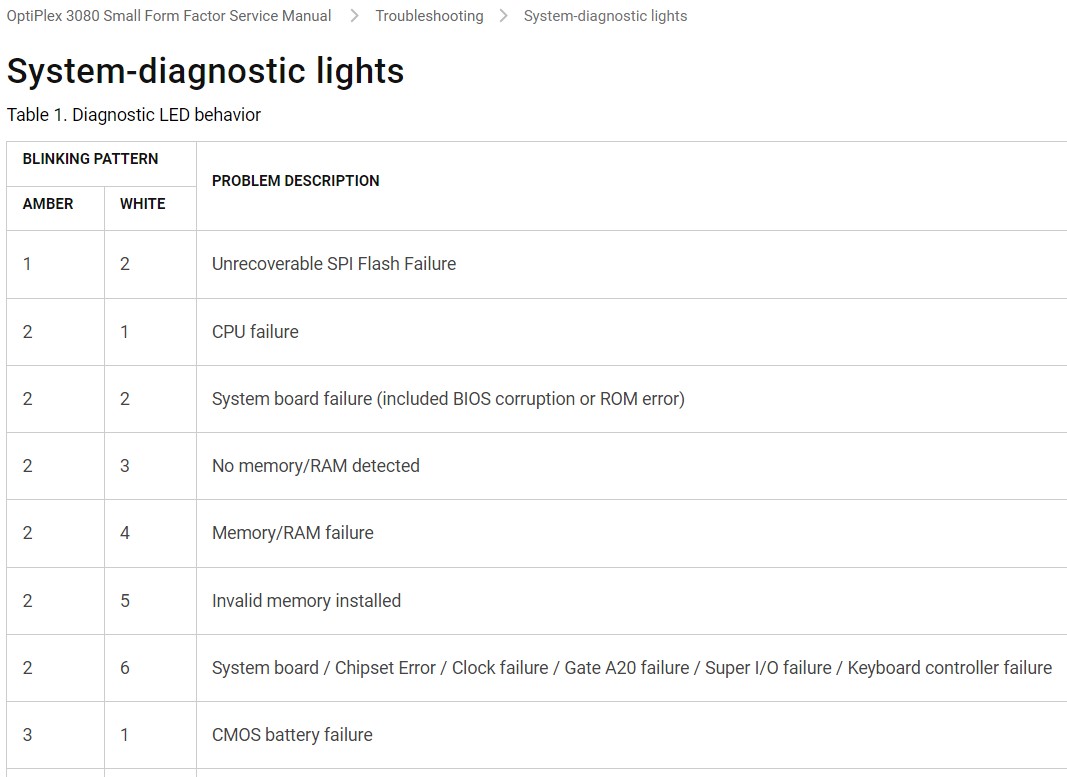
Dell Optiplex computers use diagnostic indicator patterns to signal hardware issues. These blinking lights help users and technicians identify problems quickly. Understanding these patterns can save time and avoid unnecessary repairs. The orange blinking light often means the system has detected an error. Each pattern of blinks corresponds to a specific fault. Knowing what each code means is essential for troubleshooting.
Interpreting Light Codes
The blinking orange light flashes in a sequence. This sequence repeats and shows the error code. Count the number of blinks and pauses between them. For example, two blinks followed by three blinks mean a different error than four blinks. Dell provides a list of these codes in their user manuals and support sites. These codes tell if the issue is with memory, motherboard, or other parts. Always note the exact pattern before searching for solutions.
Identifying Faulty Components
Once you know the blink code, match it to the faulty component. Common problems include bad RAM, failing power supply, or video card errors. For example, a pattern of three blinks often signals memory problems. Removing and reseating the RAM modules may fix the issue. Other codes may point to the hard drive or system board. This helps narrow down the repair or replacement needed. Avoid guessing by relying on the specific light patterns Dell shows.
Immediate Troubleshooting Steps
The Dell Optiplex blinking orange light signals a hardware or power issue. Start with quick checks to find the cause. These immediate steps help fix common problems fast. Follow each carefully to avoid damage.
Power Cycle And Reset
Turn off the computer and unplug all cables. Hold the power button for 15 seconds to drain residual power. Reconnect cables and turn on the system. This simple step can clear temporary errors causing the orange light.
Checking Ram Modules
Open the computer case carefully. Remove the RAM sticks one at a time. Clean the contacts gently with a soft cloth. Reinsert each stick firmly until it clicks. Test the system with one stick at a time. Faulty or loose RAM often causes blinking lights.
Inspecting Power Supply
Ensure the power cable is secure at both ends. Check the power outlet with another device to confirm it works. Look for any damage on the power cord or adapter. If possible, try a different power supply unit. A bad power source can cause the orange blinking light.
Memory problems often cause the Dell Optiplex blinking orange light. Fixing these issues can restore your PC’s normal function. Memory errors stop the computer from starting properly. Checking and fixing RAM is a key step to solve this.
Follow these simple steps to handle memory faults safely and quickly. Each step targets common RAM problems that trigger the orange light.
Reseating Ram Sticks
Turn off the PC and unplug all cables. Open the case carefully to find the RAM slots. Remove the RAM sticks by releasing the clips on each side. Clean the RAM contacts gently with a soft cloth. Push the sticks back firmly into the slots until you hear a click. Close the case and power on the PC. This step often fixes loose or poorly connected memory.
Testing Single Ram Modules
Remove all RAM sticks except one. Insert the single stick into the first RAM slot. Turn on the computer and watch for the orange light. If the light stays off, that RAM is good. Repeat this with each stick in the same slot. This process helps find the faulty memory module. It isolates bad RAM by testing sticks one at a time.
Replacing Faulty Ram
Once you identify the bad RAM stick, it needs replacement. Buy new RAM compatible with your Dell Optiplex model. Turn off the PC and remove the faulty stick. Insert the new RAM firmly into the slot. Close the case and power on the machine. The orange blinking light should stop if memory was the issue. Replacing bad RAM ensures stable system performance.
Power Supply Troubleshooting
Troubles with the power supply can cause the Dell Optiplex to blink an orange light. This signals a possible issue with power delivery inside the computer. Checking the power supply unit (PSU) is an important step to solve this problem. It helps confirm if the PSU is working or needs attention.
Resetting Power Supply Unit
Resetting the power supply unit can clear minor faults. First, turn off the computer and unplug it from the power source. Press and hold the power button for 15 seconds to drain any remaining charge. Wait for a few minutes before plugging it back in and turning the system on.
This simple reset may stop the orange blinking light by refreshing the PSU’s internal components. It often fixes power issues caused by temporary glitches.
Verifying Power Connections
Check all power cables connected to the Dell Optiplex. Ensure the power cord is firmly plugged into the PSU and the wall socket. Loose or damaged cables can cause power interruptions and trigger the blinking light.
Inspect the power connectors for any signs of wear or damage. Replace any faulty cables. Confirm that the power source itself is delivering electricity by testing it with another device.
Using Spare Power Supply
Using a spare power supply unit helps identify if the current PSU is faulty. Swap the existing PSU with a known good one compatible with the Dell Optiplex. Connect all necessary cables and power on the system.
If the orange light stops blinking, the original PSU likely has a problem. This test avoids unnecessary repairs by pinpointing the power supply as the root cause. Replace the faulty PSU to restore normal function.

Battery And Charger Checks
Battery and charger issues often cause the Dell Optiplex blinking orange light. Checking these components helps identify power problems quickly. A faulty battery or charger can stop the computer from starting. This section covers simple checks to find the root cause. Follow these steps to ensure your power sources work correctly.
Inspecting Battery Health
Check the battery for any signs of damage or swelling. Remove the battery carefully and look for corrosion on the connectors. A weak or dead battery often triggers the orange blinking light. Use Dell’s built-in battery diagnostics tool to test battery health. Replace the battery if test results show poor performance or failure.
Testing Ac Adapter
Confirm the AC adapter is delivering the correct power. Unplug the charger and inspect the cable for breaks or frays. Plug the adapter into a different power outlet to rule out socket issues. Use a multimeter to measure voltage output if possible. A charger that fails to provide stable power can cause the blinking light.
Replacing Faulty Chargers
Buy a genuine Dell charger compatible with your Optiplex model. Avoid cheap third-party replacements that may damage your system. Swap the old charger with the new one and power on the PC. If the orange light stops blinking, the charger was the problem. Proper charger replacement restores stable power and prevents future errors.
Advanced Hardware Solutions
Advanced hardware solutions help identify and fix the blinking orange light on Dell Optiplex desktops. This light signals issues inside your computer that need careful checking. Addressing these problems requires a step-by-step hardware approach. Follow these simple methods to find the cause and solve the issue safely.
Removing Peripheral Devices
Start by disconnecting all external devices like USB drives, printers, and monitors. These peripherals can cause hardware conflicts leading to the orange blinking light. After removal, restart the computer to see if the light stops blinking. If the light goes off, reconnect devices one by one. This helps find the faulty peripheral causing the issue.
Checking Internal Components
Open the computer case carefully to inspect internal parts. Look for loose cables, memory modules, or expansion cards. Remove and reseat RAM sticks to ensure proper connection. Check the power supply cables and make sure they are firmly plugged in. Clean dust from fans and components using compressed air. Faulty or damaged parts may need replacement to fix the blinking light.
Consulting Dell Support
If hardware checks do not fix the blinking orange light, contact Dell Support. They provide expert advice and diagnostic tools for your Optiplex model. Dell can guide you through advanced troubleshooting or arrange repairs. Using official support ensures the problem gets proper attention and your warranty stays valid.
Preventive Maintenance Tips
Preventive maintenance helps keep your Dell Optiplex running smoothly. It reduces the chance of the blinking orange light issue. Small, regular steps can improve your computer’s health. These tips save time and avoid costly repairs.
Regular Cleaning
Dust buildup can cause overheating and hardware failure. Clean your Dell Optiplex inside and out every few months. Use a soft brush or compressed air to remove dust from vents and fans. Avoid using liquids that can damage components. Keeping the PC clean helps prevent power issues and blinking lights.
Updating Firmware And Drivers
Outdated firmware or drivers can cause hardware conflicts. Check Dell’s website for updates regularly. Install the latest firmware and driver versions for your model. Updates fix bugs and improve system stability. This step reduces the chance of blinking orange light errors.
Ensuring Proper Ventilation
Proper airflow prevents overheating in your computer. Place the Dell Optiplex on a hard, flat surface. Avoid blocking air vents with objects or dust. Keep the surrounding area clean and cool. Good ventilation lowers hardware stress and avoids warning lights.
Frequently Asked Questions
Why Is Optiplex Flashing Orange?
The Dell Optiplex flashes orange to signal hardware issues, often with RAM, power supply, or device failure preventing boot.
Why Is The Power Light Flashing Orange On My Dell Computer?
The flashing orange power light on your Dell computer signals a hardware or power issue. Check the RAM, battery, and charger connections. Faulty components or improper installation may cause this. Resolving it often involves reseating memory or replacing defective parts.
Why Is The Amber Light Blinking On My Dell Optiplex?
The blinking amber light on your Dell Optiplex signals a boot failure due to hardware issues. The power supply works, but a device may be faulty or improperly installed. Check RAM, reseat components, or consult Dell’s diagnostic codes to identify the problem.
Why Is My Pc Light Blinking Orange?
A blinking orange light on your PC indicates a hardware issue preventing boot. Check RAM, power supply, and connections.
What Does The Blinking Orange Light On Dell Optiplex Mean?
A blinking orange light signals a hardware or power issue. It usually means the system cannot boot properly. Checking error codes helps identify the exact problem.
Conclusion
A blinking orange light on a Dell Optiplex signals a hardware or power issue. Check your RAM sticks first by reseating or testing them one at a time. Inspect power connections and ensure all components are properly installed. This simple process often resolves common faults.
Staying calm and following these steps can restore your PC’s normal function. Troubleshooting becomes easier with patience and careful observation. Keep your system clean and well-maintained to prevent future problems. Regular checks help your Dell Optiplex run smoothly every day.









