
Is your Dell XPS showing a blinking orange light and leaving you wondering what it means? You’re not alone, and this small signal can actually tell you a lot about your laptop’s health.
Whether your laptop won’t charge, won’t turn on, or suddenly shuts down, the blinking orange light is your device’s way of trying to communicate a problem. Don’t ignore it—understanding what this light means can save you time, frustration, and even costly repairs.
Keep reading to discover why your Dell XPS is blinking orange and the simple steps you can take right now to fix it.

Blinking Orange Light Causes
The blinking orange light on a Dell XPS signals an issue needing attention. This warning helps identify the root cause quickly. Knowing common causes saves time and reduces stress. Below are the main reasons this light blinks.
Hardware Issues
Hardware faults often cause the orange light to blink. Problems with RAM, motherboard, or internal components trigger this alert. Loose or damaged parts can interrupt normal function. Checking hardware connections and status is essential. Faulty hardware may need repair or replacement.
Battery Problems
A failing battery is a frequent cause of the blinking orange light. Batteries that drain fast or fail to charge properly show this warning. Overheating or swelling batteries also trigger the alert. Monitoring battery health helps prevent sudden shutdowns. Using built-in diagnostics can reveal battery status clearly.
Power Supply Faults
Issues with the power adapter or charging port cause blinking orange lights. A damaged or incompatible charger disrupts power flow. Loose connections or faulty power cables also contribute. Ensuring a proper power supply keeps the laptop running smoothly. Replacing defective parts often solves this problem.

Diagnosing Battery Health
Diagnosing battery health is key to understanding why your Dell XPS shows a blinking orange light. This light often signals battery problems. Checking battery health helps decide the next steps for repair or replacement. It also ensures your laptop runs smoothly without sudden shutdowns.
Several tools and methods exist to check battery health. These range from built-in diagnostics to software reports. Each method gives a clear picture of your battery’s condition. Use these tools to confirm if the battery needs attention.
Bios/uefi Diagnostics
Dell laptops include built-in BIOS or UEFI diagnostics to check battery health. Restart your laptop and press F12 during boot. Select Diagnostics from the menu. The test scans the battery and other components.
Look for the battery health status under Battery Information or System Info. Status terms like Excellent, Good, or a percentage indicate battery condition. This quick check shows if the battery works well or needs replacement.
Windows Battery Report
Windows offers a detailed battery report using Command Prompt. Open Command Prompt by typing cmd in the Start menu search. Enter the command powercfg /batteryreport and press Enter.
This creates an HTML report in your user folder. Open this file in a web browser. The report compares design capacity to current full charge capacity. Large differences suggest battery wear or damage.
Review recent usage and charge cycles. These details help identify battery performance issues causing the blinking orange light.
Dell Power Manager Tools
Dell Power Manager is software for managing battery settings and health. Download it from Dell’s official website if not pre-installed. Open the app to view battery status and health information.
The tool shows battery charge levels, wear, and temperature. It also offers options for battery preservation and charging modes. Use these settings to extend battery life and avoid errors that trigger the orange light.
Quick Fixes To Try
Seeing a blinking orange light on your Dell XPS can be frustrating. This light often signals an issue with power or hardware. Before calling for professional help, try these quick fixes. These steps are simple and may solve the problem fast. Follow each carefully for the best results.
Performing A Hard Reset
Start by turning off your Dell XPS completely. Unplug the power cable and remove the battery if possible. Press and hold the power button for 15 to 20 seconds. This step drains any leftover power in the system. Reinsert the battery and plug in the power cable. Turn on your laptop to check if the blinking stops.
Checking Power Connections
Ensure the power adapter is firmly connected to your laptop and wall socket. Inspect the power cable for any visible damage or wear. Try using a different power outlet to rule out socket issues. If available, test with another compatible charger. Loose or faulty connections often cause the orange blinking light.
Updating Bios And Drivers
Outdated BIOS or drivers can cause hardware signals like blinking lights. Visit Dell’s official support website. Enter your laptop model and download the latest BIOS and driver updates. Follow the installation instructions carefully. Restart your laptop after updates complete. This process can fix firmware glitches causing the blinking light.
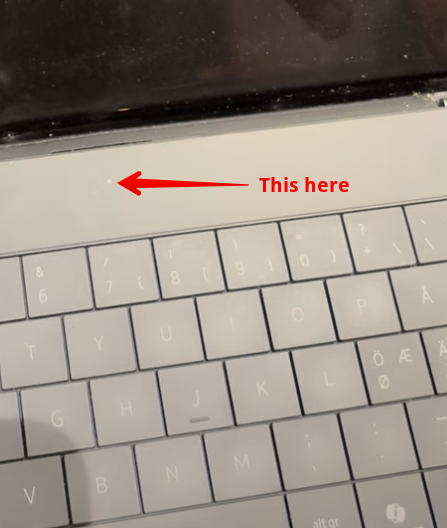
Credit: www.koskila.net
When To Replace Battery
Knowing when to replace your Dell XPS battery is important for smooth performance. The blinking orange light often signals battery issues. Replacing the battery at the right time prevents further problems. Here are key signs to watch for that mean it is time to get a new battery.
Signs Of Physical Damage
Look closely at the battery for any visible damage. Swelling or bulging means the battery is unsafe. Cracks, leaks, or corrosion also show the battery is failing. Physical damage reduces battery life and can be dangerous. Replace the battery immediately if you spot these signs.
Significant Capacity Drop
Notice if your laptop runs out of power quickly. A sharp drop in battery capacity means it can no longer hold charge well. Charging times may increase and battery life shortens drastically. Use battery health tools to check capacity. Replace the battery if capacity is very low.
Unusual Overheating
Feel the laptop and battery during use and charging. Overheating beyond normal warmth is a warning sign. Excess heat can damage internal components and cause shutdowns. If your Dell XPS gets very hot often, the battery may be failing. Changing the battery can stop overheating issues.
Preventive Tips
Preventing the Dell XPS blinking orange light saves time and avoids frustration. Taking simple steps keeps your laptop healthy and running smoothly. These preventive tips focus on charging, battery health, and software updates. Follow them to reduce issues and extend your laptop’s lifespan.
Proper Charging Habits
Use the original charger designed for your Dell XPS. Avoid cheap or incompatible chargers that can harm the battery. Plug and unplug the charger gently to prevent damage. Keep the charging port clean and free from dust. Do not keep the laptop plugged in all the time; unplug it after full charge.
Regular Battery Health Checks
Check your battery health regularly using built-in diagnostics or Windows tools. Monitor signs like rapid drainage or slow charging. Replace the battery if it shows swelling or poor performance. Regular checks catch problems early before the blinking orange light appears. Healthy batteries help your laptop work better and longer.
Keeping Software Updated
Keep your laptop’s BIOS and drivers up to date. Updates often fix power and battery-related bugs. Install Windows updates promptly to improve system stability. Updated software ensures better communication between hardware and operating system. This reduces errors that cause warning lights on your Dell XPS.
Frequently Asked Questions
How To Fix Orange Light Blinking On Dell Laptop?
Blinking orange light on a Dell laptop usually signals hardware or power issues. Perform a hard reset, check battery and charger connections, run diagnostics in BIOS, and update drivers to fix it. If problems persist, contact Dell support for professional help.
Why Is My Computer Blinking Orange Light?
A blinking orange light on your computer usually signals a hardware issue. It often indicates problems with the battery, RAM, motherboard, or power supply. Check your device’s manual for specific blink codes to identify the exact fault and consider running diagnostics or contacting support for repairs.
How To Do A Hard Reset On A Dell Laptop That Won’t Turn On?
Unplug the laptop and remove the battery. Press and hold the power button for 15-20 seconds. Reinsert the battery and plug in the charger. Press the power button to turn it on.
How To Tell If A Dell Laptop Battery Is Bad?
Check for rapid battery drain, unexpected shutdowns, slow charging, overheating, or physical swelling. Use Dell BIOS diagnostics or run “powercfg /batteryreport” in Command Prompt to assess battery health accurately. Replace the battery if health status shows significant degradation or if swelling occurs.
What Does The Blinking Orange Light On Dell Xps Mean?
A blinking orange light usually signals a hardware or battery issue. It can indicate low battery, charging problems, or system faults.
Conclusion
A blinking orange light on your Dell XPS signals an issue needing attention. It often means battery or hardware problems. Simple checks, like inspecting the battery health, can help find the cause. Running built-in diagnostics often reveals useful information. Don’t ignore the warning lights; they protect your laptop’s performance.
Taking quick steps can prevent bigger problems later. Stay calm, follow easy fixes, and keep your Dell XPS running smoothly.









