
Is your Dell computer showing a blinking orange power light and refusing to start? That flashing orange glow isn’t just a random flicker—it’s a signal that something is wrong with your device’s power system.
You might feel stuck, unsure whether it’s a simple fix or a serious hardware problem. But don’t worry—understanding what that blinking orange light means is the first step to getting your Dell back up and running. You’ll discover the common reasons behind the orange power light, easy ways to troubleshoot the issue, and practical tips to avoid it in the future.
Keep reading, and you’ll soon know exactly what to do when your Dell’s power light blinks orange.

Blinking Orange Light Causes
When your Dell laptop shows a blinking orange power light, basic troubleshooting helps find the problem. These simple steps can fix common issues without extra tools. Follow each carefully to check power and battery status. This saves time and avoids unnecessary repairs.
Hard Reset Procedure
Start with a hard reset to clear minor errors. Turn off the laptop completely. Unplug the power adapter. Hold the power button for 15 seconds. Release the button and reconnect the power adapter. Turn on the laptop to see if the orange light stops blinking. This resets the hardware and often solves power glitches.
Removing And Reinstalling Battery
Next, try removing the battery to isolate the issue. Power off the laptop and unplug the charger. Carefully remove the battery from its compartment. Press and hold the power button for 15 seconds. Reinsert the battery firmly. Plug in the charger and turn on the laptop. This step checks if the battery causes the blinking light.
Testing With Ac Adapter Only
Test the laptop using only the AC adapter to check the battery’s role. Remove the battery again. Connect the power adapter to the laptop. Power on the device. If the laptop works without blinking orange, the battery might be faulty. If blinking continues, the adapter or internal power parts may need inspection.

Frequently Asked Questions
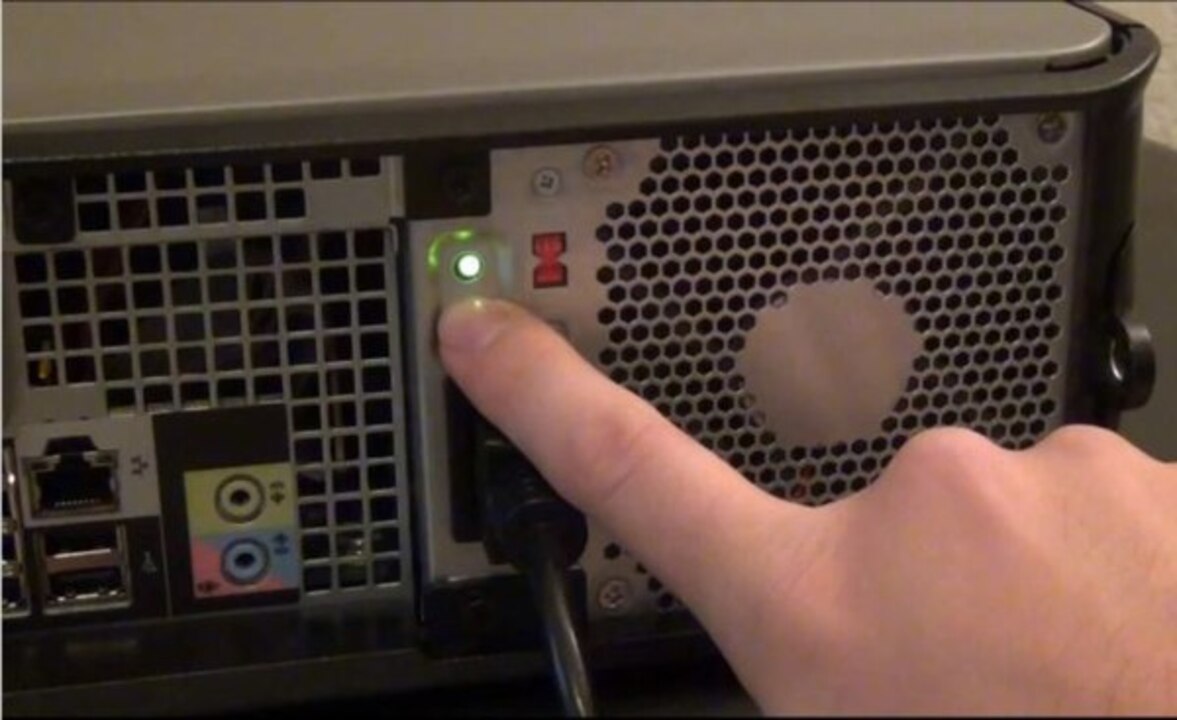
A flashing orange power button on a Dell PC signals a hardware or power issue. It often indicates a power supply failure or battery problem. Check connections, remove the battery, and test the power adapter. Running Dell’s built-in diagnostics can help identify the exact cause.
A blinking orange power button light usually signals a battery or power adapter issue. The battery may be low, faulty, or not charging properly. Try removing the battery and powering on with the adapter only. Check for hardware faults or perform diagnostics to identify the exact problem.
How To Do A Hard Reset On A Dell Laptop That Won’t Turn On?
Unplug the laptop and remove the battery. Press and hold the power button for 15 seconds. Reinsert the battery and plug in the charger. Press the power button to turn it on.
How To Tell If A Dell Laptop Battery Is Bad?
Check for rapid battery drainage, unexpected shutdowns, slow charging, overheating, or physical swelling. Use Dell BIOS diagnostics or run powercfg /batteryreport in Windows to view battery health and capacity. Significant capacity drop or poor health status indicates a bad Dell laptop battery needing replacement.
What Does A Blinking Orange Power Light On Dell Mean?
A blinking orange light usually signals a power or hardware issue. It often means the computer is not getting enough power or has a faulty component.
Conclusion
A blinking orange power light on your Dell signals a power issue. Check the battery and power adapter first. Removing the battery and using only the adapter can help isolate the problem. Run built-in diagnostics to test battery health and power supply.
Sometimes, a simple reset or replacing faulty parts fixes the issue. Stay patient and follow each step carefully. This approach helps you solve the problem without extra costs. Remember, small fixes often restore your Dell’s power quickly and safely.









