
If you’ve noticed an orange light blinking on your Dell computer, it’s more than just a harmless glow—it’s your machine’s way of signaling that something isn’t quite right. This blinking light can be confusing and even worrying, especially when your computer refuses to boot up or work as expected.
But don’t panic. Understanding what that orange light means is the first step to fixing the problem quickly and getting your Dell back to normal. You’ll discover the common reasons behind the blinking orange light, how to identify what’s causing it, and simple steps you can take to resolve the issue.
Keep reading to take control of your Dell’s health and avoid unnecessary stress.

Causes Of Orange Light Blinking
The orange light blinking on a Dell computer signals an issue needing attention. It acts as a warning to users that something inside the device is not working properly. Understanding the causes of this blinking light helps to diagnose the problem quickly. This section explains the main reasons why the orange light blinks on Dell computers.
Power Supply Failures
The power supply unit (PSU) provides electricity to the computer’s components. If the PSU fails or is unstable, the orange light may blink. This failure can happen due to damaged cables, loose connections, or a faulty power brick. Power supply problems stop the computer from starting up properly. Testing the power supply with built-in tools can help identify this issue.
Battery And Charger Issues
A common cause of the orange blinking light is battery or charger problems. The battery might be dead, damaged, or not charging correctly. Using a charger that does not match the Dell computer’s specifications can also cause this light to blink. Checking the battery health and charger condition is essential for resolving this issue. Replacing a bad battery or charger often fixes the problem.
Hardware Component Errors
Hardware errors inside the computer can trigger the orange blinking light. Faulty RAM, hard drives, or other internal parts can cause this warning. Dust buildup or loose components inside the case may also lead to hardware errors. Running hardware diagnostics helps detect these issues. Repairing or replacing the faulty components can stop the blinking light.
Post Error Codes
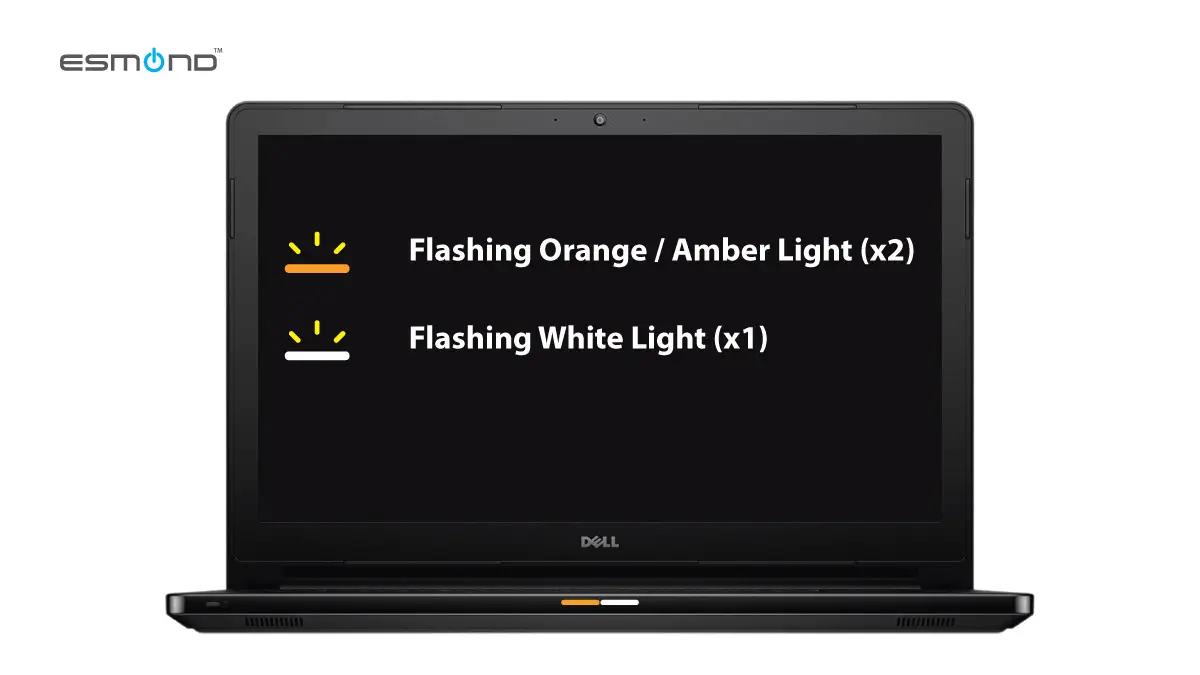
The orange blinking light may represent a POST (Power-On Self-Test) error code. POST is a process the computer runs before starting the operating system. If POST finds a hardware problem, it uses blinking lights to communicate the error. Each pattern of blinks corresponds to a specific issue, such as memory failure or motherboard trouble. Knowing these codes helps users and technicians find the exact problem.
Diagnosing The Problem
The orange light blinking on your Dell computer signals a hardware or power issue. Diagnosing this problem helps find the exact cause quickly. Follow simple steps to check and fix the issue effectively.
Start by understanding the blink patterns. Then use Dell’s built-in tools for testing. Finally, verify the power connections to ensure proper supply.
Interpreting Blink Patterns
The orange light blinks in specific sequences to show error codes. Count the number of blinks and note any pauses. Each pattern matches a particular hardware problem. This helps identify if the issue is with memory, motherboard, or power supply. Use the Dell support site to match your blink code.
Using Dell Built-in Self Test
Dell computers have a built-in self test to check hardware health. Turn off your computer and disconnect all external devices. Press and hold the power button for 15 seconds. Then, press it again to start the test. The system will run diagnostics and show error codes through the blinking lights. Note these codes to find the faulty component.
Checking Power Connections
Loose or faulty power connections often cause the orange blinking light. Check the power cable for damage or loose plugs. Make sure the cable is firmly connected to both the computer and the power outlet. Try a different outlet or power cord if available. Inspect the power supply unit inside the computer for any signs of failure or damage. Proper power flow is key to solving the blinking light issue.
Quick Fixes For Desktops
Quick fixes for desktops can solve the orange light blinking issue on Dell computers fast. This problem often signals a power or hardware fault. Simple steps can help identify and fix the cause. You do not need special tools or skills. Just follow these easy checks to get your desktop working again.
Inspecting Power Supply Unit
Start by examining the power supply unit (PSU). Look for any signs of damage or burning smell. Check if the PSU fan is spinning when the computer is on. A faulty PSU often causes the orange light to blink. You can test the PSU using Dell’s built-in self-test feature. Press the button on the PSU and watch for LED codes. These codes tell you if the PSU is working or needs replacement.
Reseating Internal Components
Turn off your desktop and unplug it from the power source. Open the case carefully. Remove and then reseat internal components like RAM sticks and graphics cards. Loose connections can cause power issues and blinking lights. Make sure each part fits tightly in its slot. This step can restore proper contact and solve the blinking light problem.
Testing Power Outlets And Cables
Check the power outlet by plugging in another device to ensure it works. Inspect the power cable for any cuts or damage. Swap the cable with a known working one if possible. A bad cable or outlet can cause power interruptions and blinking lights. Use a different outlet to rule out electrical issues in your home or office.
Quick Fixes For Laptops
Quick fixes can often solve the orange light blinking issue on Dell laptops. These simple steps do not require special tools or advanced skills. They help identify and fix common power and battery problems fast. Follow these easy methods to try and get your laptop working again.
Battery Removal And Reinstallation
Start by turning off the laptop and unplugging it from power. Remove the battery carefully from its compartment. Wait for about one minute before placing the battery back. Ensure the battery fits securely and clicks into place. Plug the charger back in and try to turn on the laptop. This can reset the battery connection and stop the orange blinking light.
Hard Reset Procedures
Performing a hard reset clears temporary hardware faults. First, turn off the laptop and disconnect the charger. Remove the battery if possible. Press and hold the power button for 15 to 20 seconds. Release the button and reinsert the battery. Connect the charger and switch on the laptop. This process refreshes the system and may fix power issues causing the blinking light.
Charger And Port Inspection
Check the charger for any visible damage like frayed wires or bent plugs. Inspect the charging port on the laptop for dust, dirt, or damage. Use a soft brush or compressed air to clean the port gently. Try using a different compatible charger if available. A faulty charger or dirty port can cause power delivery problems and trigger the orange light blinking.
Advanced Troubleshooting
Advanced troubleshooting helps identify deeper issues causing the orange light blinking on your Dell computer. This stage goes beyond basic checks and targets key hardware components. Follow clear steps to test memory, motherboard, and CPU. Pinpointing the exact problem saves time and effort.
Memory And Ram Checks
Start by inspecting your computer’s RAM modules. Remove each stick carefully and clean the contacts using a soft cloth. Reseat the RAM firmly in its slot to ensure good connection. Run Dell’s built-in diagnostic tool to test memory health. Faulty RAM often causes blinking orange lights and system failures. Replace any defective modules with compatible ones.
Motherboard And Cpu Testing
Motherboard problems can trigger power issues and blinking lights. Check for visible damage like burnt components or swollen capacitors. Reset the CMOS battery to clear motherboard settings. Use Dell’s diagnostic tests to scan the CPU and motherboard status. An overheating or damaged CPU also causes startup failure. Seek professional help if you suspect these parts are faulty.
When To Contact Dell Support
If advanced troubleshooting does not fix the blinking orange light, contacting Dell support is wise. Provide detailed information about your diagnostics and symptoms. Dell technicians can guide you through further tests or arrange repairs. Avoid opening the computer more than necessary to keep warranty valid. Professional support ensures safe and accurate problem resolution.
Preventive Measures
Preventing the orange light blinking on your Dell computer saves time and avoids damage. Simple steps can keep your system healthy. Routine care and smart habits reduce risks of hardware and software issues.
Regular Hardware Maintenance
Dust buildup can cause overheating and hardware failure. Clean vents and fans every few months. Use compressed air to remove dust inside the computer. Check cables and connections for wear or looseness. Replace damaged parts promptly to avoid bigger problems.
Using Surge Protectors
Power surges can damage your computer’s power supply. Plug your Dell into a surge protector to guard against electrical spikes. Choose a reliable surge protector with good reviews. Avoid plugging many devices into one outlet. This protects your computer and other electronics.
Software Updates And Bios Checks
Outdated software can cause hardware conflicts. Keep your operating system and drivers updated regularly. Dell releases BIOS updates to fix bugs and improve performance. Check Dell’s support website for the latest BIOS version. Follow instructions carefully when updating BIOS to avoid issues.

Frequently Asked Questions
Why Is My Dell Pc Flashing Orange?
A flashing orange light on your Dell PC signals power or hardware issues. Check power cables, battery, or PSU for faults. Use Dell’s diagnostic tool to identify the exact problem.
Why Is My Computer Light Blinking Orange?
A blinking orange light on your computer usually signals a power or hardware issue. Check power connections, battery health, and consult your device’s diagnostic codes for specific faults.
A blinking power button on a Dell desktop signals hardware or power supply issues. Check power cables and outlet. Run Dell’s built-in diagnostic for error codes. Contact Dell support if problems persist.
How To Do A Hard Reset On A Dell Laptop That Won’t Turn On?
To hard reset a Dell laptop that won’t turn on, unplug the power adapter and remove the battery. Hold the power button for 15 seconds. Reconnect the battery and power adapter, then press the power button to restart the laptop.
What Does The Orange Light Blinking On Dell Mean?
The blinking orange light on a Dell computer usually signals a hardware or power issue. It often points to problems with the power supply or battery. This warning helps diagnose what part needs fixing.
Conclusion
The orange light blinking on a Dell computer signals a power or hardware issue. Check the power connections and battery status first. Running Dell’s built-in diagnostics helps find the exact problem. Resetting the device or testing the power supply often solves the issue.
If the light keeps blinking, consider contacting Dell support for help. Staying calm and following simple steps can restore your computer’s normal function quickly.









