
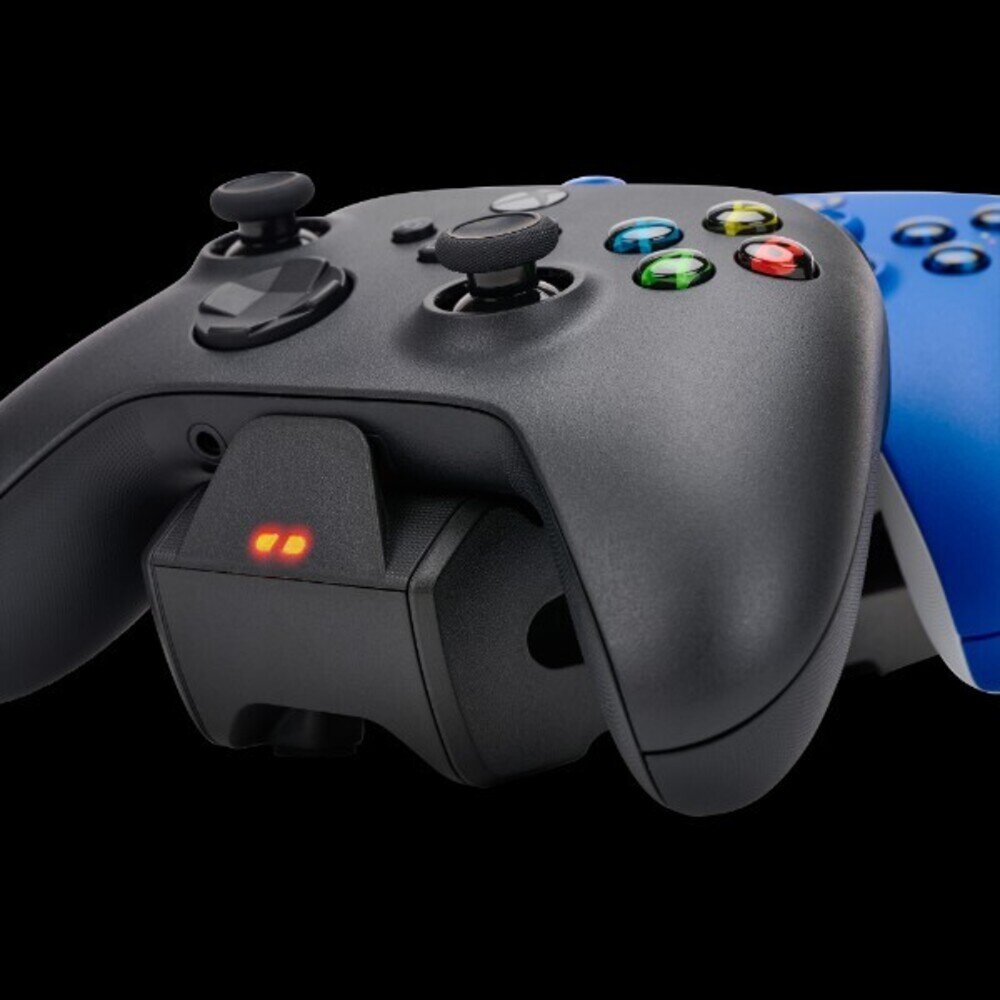
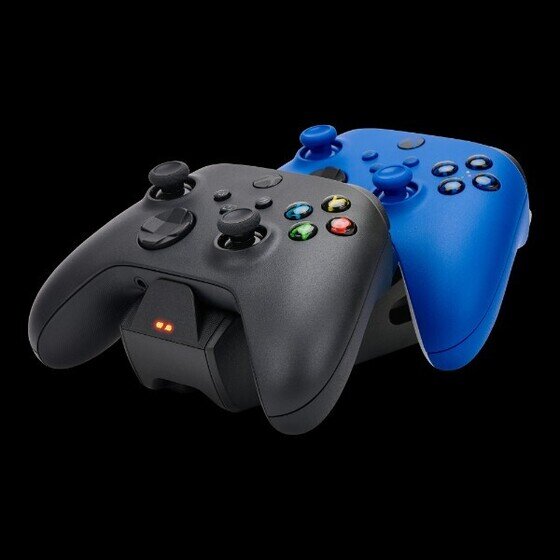
Is your PowerA dual charging station blinking orange and leaving you wondering what’s going on? That flashing light isn’t just a random signal—it’s trying to tell you something important about your controller’s charging status.
If you’ve been struggling with controllers that won’t charge properly or keep flashing orange, you’re not alone. But don’t worry, you’re about to discover simple, effective steps to fix this common issue and get back to gaming without interruptions. Keep reading to learn exactly what that blinking orange light means and how you can troubleshoot it quickly and easily.
Blinking Orange Light Meaning
A blinking orange light on your PowerA Dual Charging Station signals a charging problem. Quick fixes can often solve the issue fast. This section covers easy steps to get your charger working again. Follow these tips carefully to avoid further issues.
Reseat The Battery Or Controller
Remove the battery or controller from the charging station. Check if it fits securely. Align the charging pins properly with the metal pads. Press the battery or controller firmly back into place. A loose connection can cause the orange blinking light. This simple step often restores proper charging.
Clean Metal Charging Pads
Dirt or oxidation on the metal pads can block charging. Use a dry cloth or a soft brush to clean them gently. Avoid using water or liquids. Clean both the battery contacts and the charging station pads. Clean contacts improve the power flow and stop the blinking light.
Switch Power Source
Try plugging the charging station into a different power outlet. Use a wall adapter instead of a USB hub. Some ports may not supply enough power. A stable power source helps the station charge properly. Changing the power source can fix blinking light errors.
Replace Usb Cable
USB cables can wear out or get damaged. Test the charging station with a different USB cable. Use a cable that supports power delivery. A faulty cable may cause charging issues. Replacing the cable is a quick way to solve the blinking orange light problem.
Common Causes
Advanced troubleshooting helps resolve persistent blinking orange lights on your PowerA dual charging station. This step goes beyond simple fixes and digs deeper into common issues that affect charging. Follow these checks carefully to identify and fix the problem.
Check Battery Pack Condition
Remove the battery pack from the controller. Inspect it for any damage or swelling. Dirty or corroded battery contacts may block charging. Clean the metal contacts gently with a dry cloth. Replace the battery pack if it shows physical damage or does not hold a charge.
Test With Alternate Controllers
Try charging a different controller on the station. If the other controller charges normally, the issue lies with the original controller or battery. If both controllers blink orange, the station might be faulty. Testing with multiple devices helps pinpoint the exact cause quickly.
Update Firmware If Available
Check the manufacturer’s website for firmware updates. Updated firmware can fix bugs that cause charging errors. Follow the instructions carefully to install any new updates. Restart the charging station after updating to apply changes and improve performance.
Quick Fixes
Preventive tips help avoid issues like the PowerA Dual Charging Station blinking orange. These tips keep your charging station working well and extend the battery life of your controllers. Small habits can prevent charging errors and save you time and frustration.
Regular Contact Cleaning
Clean the metal contacts on the charging station and batteries often. Use a soft cloth or cotton swab slightly dampened with rubbing alcohol. Dirt and grime block the connection and cause blinking orange lights. Clean contacts ensure a steady power flow and proper charging.
Use Recommended Power Adapters
Always use the power adapter that came with your charging station. Other adapters may not provide the right voltage or current. Wrong adapters cause weak power supply and trigger the orange blinking light. A stable power source keeps the charging process smooth and safe.
Store Batteries Properly
Keep batteries in a cool, dry place when not in use. Avoid extreme heat or cold, which damage battery health. Remove batteries from controllers if you won’t use them for a long time. Proper storage helps maintain battery capacity and prevents charging problems.
Frequently Asked Questions
How To Hard Reset A Powera Controller?
To hard reset a PowerA controller, press and hold the sync button for 10 seconds. Then, reconnect it to your console. This resets the controller and resolves common connection issues.
Why Is My Powera Controller Charger Blinking?
A blinking orange light on your PowerA controller charger signals a charging error. Check battery seating, clean contacts, and ensure a stable power source. Replace the USB cable or battery if needed.
How To Tell If A Powera Controller Is Charging?
A solid orange LED on a PowerA controller means it is charging. A blinking orange light indicates a charging error or bad connection.
Why Is My Powera Controller Not Charging?
A blinking orange light on your PowerA controller indicates charging errors. Check battery seating, clean contacts, try a different USB cable, or test another power source.
Why Is My Powera Charging Station Blinking Orange?
A blinking orange light means a charging error is detected. It usually happens due to poor battery contact or low power supply. Check the battery placement and power source first.
Conclusion
A blinking orange light on your PowerA dual charging station signals a charging issue. Check that the batteries fit well and the contacts are clean. Try using a different power source or USB cable to improve the connection. Sometimes, the battery may be old and need replacement.
Keeping these tips in mind helps maintain smooth charging. Stay patient and troubleshoot step-by-step to fix the blinking light problem. This way, your controller stays ready for play whenever you want.









