
Is your Mophie charger blinking and leaving you wondering what’s wrong? You’re not alone.
When that little light starts flashing, it’s trying to tell you something important about your charging setup. Ignoring it could mean your device won’t charge properly or might even get damaged. But don’t worry—understanding why your Mophie charger is blinking is easier than you think.
You’ll discover the common reasons behind those blinking lights and simple steps you can take right now to fix the issue. Keep reading to get your charger back on track and power up your devices without hassle!
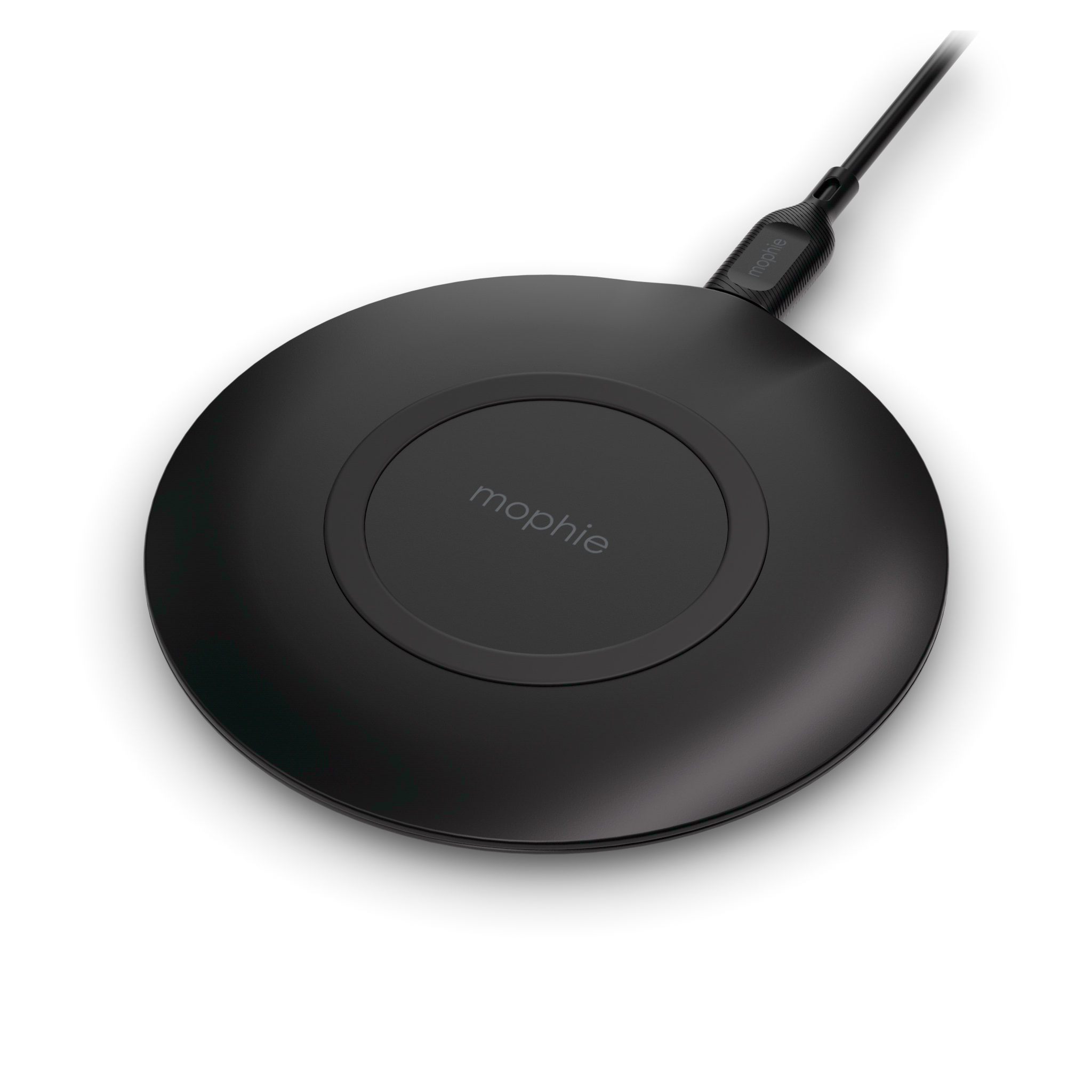
Causes Of Blinking Light
A blinking light on your Mophie charger signals a problem during charging. This blinking alerts you that the charger is not working as expected. Identifying the cause helps fix the issue quickly. Several common reasons can make the light blink. Understanding these causes improves your charging experience.
Foreign Object Detection
The charger senses metal or other objects on the charging pad. These foreign objects block charging and cause the light to blink. Metal rings, coins, or keys near the charger can trigger this alert. Remove any objects from the charging area to stop blinking.
Device Misalignment
Placing your phone off-center on the charger causes poor contact. The charger’s coils must align perfectly with your device. Misalignment interrupts power transfer and makes the light blink. Position the device carefully in the middle of the pad for steady charging.
Insufficient Power Supply
The charger needs enough power to work properly. Using low-quality cables or weak power sources can cause blinking. Avoid plugging the charger into USB ports on laptops or power strips. Connect it directly to a wall outlet for a stable power supply.
Charger Overheating
Excess heat can damage the charger and stop it from working. Overheating triggers the blinking light as a safety warning. Keep the charger in a cool, ventilated place. Remove thick cases from your device to reduce heat buildup during charging.
Credit: everestkitchennc.com
Repositioning The Device
Repositioning the device is a simple yet effective way to fix the Mophie charger blinking issue. Small shifts in placement can improve the connection between the phone and charger. This helps the charger detect the device properly and start charging without interruptions.
Many users find that moving the device slightly or adjusting how it sits on the pad resolves the blinking light problem. The wireless charger needs precise alignment to work correctly. Below are key tips for repositioning your device to stop the blinking and ensure smooth charging.
Centering On Charging Pad
Place your phone exactly in the center of the charging pad. The charging coils inside both devices must line up for power transfer. Even a small misplacement can cause the charger to blink and not charge. Check the phone’s position and adjust it until the charging light stays steady.
Removing Thick Cases
Thick phone cases can block wireless charging signals. Take off bulky or metal cases before placing your phone on the charger. Thin cases usually allow charging, but thick ones create a gap that weakens the connection. Removing the case often stops the blinking and helps the charger work properly.
Clearing Metal Objects
Metal objects between the phone and charger interfere with wireless charging. Remove any metal cards, rings, or accessories from the phone or charging area. Metal triggers the charger’s safety feature, causing the blinking light to warn of a foreign object. Clear the space to restore proper charging function.
Power Source Check
Inspecting cables and connections plays a crucial role in fixing a Mophie charger blinking issue. Faulty cables or loose connections often cause the charger to blink without charging. Careful inspection helps identify these problems quickly. This step saves time and avoids unnecessary replacements.
Checking Cable Integrity
Examine the charging cable for any visible damage. Look for cuts, frays, or bent connectors. Damaged cables may not deliver power properly. Try using a different cable to see if the blinking stops. Using a high-quality cable ensures stable charging. Avoid cables that feel brittle or weak.
Ensuring Firm Connections
Verify that all cable connections are tight and secure. The charger should plug firmly into the wall outlet. The cable must fit snugly into the charger and your device. Loose connections cause power interruptions and blinking lights. Push each connector gently but firmly to check fit. Regularly clean the ports to remove dust or debris.
Inspecting Cables And Connections
Understanding the light patterns on your Mophie charger helps identify its current status. The blinking or steady light signals different messages about charging progress or issues. Interpreting these patterns correctly allows you to troubleshoot quickly and ensure your device charges properly.
Each light pattern represents either an error, charging status, or battery level. Recognizing these helps avoid confusion and improves your charging experience.
Error Indicators
Blinking lights often point to problems. A rapid blink may mean a foreign object is between the charger and device. Metal or thick cases can cause this issue. A slow blink might show misalignment of your device on the charging pad. Sometimes, the power supply is not enough, causing the light to blink. Check cables and power sources if errors appear.
Charging Status Signals
A steady light usually indicates active charging. The light may glow white or green depending on the model. A pulsing light could mean the charger is preparing to charge or cooling down. No light often means the charger is not connected to power or the device. Watching these signals helps you know if charging is working properly.
Battery Level Displays
Some Mophie chargers show battery levels through lights. Multiple blinking lights can represent different battery percentages. For example, two blinking lights might mean 40% charge. When fully charged, the light stays solid or turns off. Understanding these displays keeps you informed about your device’s battery health.
Cooling And Resetting Charger
A blinking Mophie charger light can mean a problem with parts. Some parts wear out or get damaged over time. Knowing when to replace these parts helps keep your charger working well.
Replacing faulty parts can stop the blinking light and improve charging speed. Watch for signs like frayed cables or broken charger units. These often cause blinking lights and charging issues.
Faulty Cables
Cables carry power from the outlet to the charger. If cables are damaged, power flow may interrupt. Look for cuts, bends, or exposed wires on cables.
Loose connections or worn plugs cause blinking lights too. Replace cables that feel hot or show visible damage. Using a new cable can fix charging problems fast.
Damaged Charger Units
Charger units may fail due to drops or power surges. Cracks, dents, or broken parts reduce charger performance. These damages can cause the charger light to blink.
If your charger overheats or smells strange, stop using it. Replace the charger unit to avoid further damage or safety risks. A new charger unit ensures reliable charging.
Interpreting Charger Light Patterns
Preventing future blinking issues with your Mophie charger improves its performance and lifespan. Simple habits can help avoid common errors that cause blinking lights. These tips ensure steady charging without interruptions.
Focus on device placement, cleanliness, and accessory compatibility. Each area plays a key role in smooth charging. Follow these steps to keep your charger working well.
Proper Device Placement
Place your device firmly at the center of the charging pad. Misalignment stops the charger from connecting properly. Avoid shifting the phone during charging. This reduces blinking caused by poor contact.
Regular Cleaning
Clean the charging surface and your device regularly. Dirt or dust blocks the charging coils. Use a soft, dry cloth for cleaning. Remove any debris that might cause errors. A clean charger ensures consistent charging.
Using Compatible Accessories
Use only cables and adapters designed for your Mophie charger. Incompatible accessories can cause power issues. Avoid cheap or uncertified products. Proper accessories maintain steady power flow. This prevents blinking caused by power fluctuations.

Frequently Asked Questions
What Does It Mean When My Mophie Wireless Charger Is Blinking?
A blinking Mophie wireless charger means a charging error due to misalignment, foreign objects, or insufficient power. Reposition your device, remove obstructions, and ensure the charger is plugged into a proper power source.
Why Is My Charger Blinking And Not Charging?
A blinking charger often signals misalignment, foreign objects, or insufficient power. Place the device correctly, remove obstructions, and use a direct wall outlet. Check cables and let the charger cool if blinking continues.
Why Is My Mophie Not Charging?
Your Mophie may not charge due to misalignment, foreign objects, faulty cables, or insufficient power from the outlet.
Why Does My Wireless Charger Keep Blinking And Not Charging?
Your wireless charger blinks due to misalignment, foreign objects, insufficient power, or overheating. Center your device, remove cases, and use a direct wall outlet to fix it.
What Does A Blinking Light On Mophie Charger Mean?
A blinking light usually shows an error like misalignment or foreign objects. It can also mean low power or connection issues. Check your device position and charger power source.
Conclusion
A blinking Mophie charger light often signals a charging issue. Check device placement and remove any objects between phone and charger. Use a direct wall outlet for power, not a USB port or power strip. Inspect cables for damage or loose connections.
If blinking continues, unplug and let the charger cool down. These simple steps usually fix the problem quickly. Staying patient and careful helps keep your charger working well.









