
Is your Sonos speaker flashing a blinking orange light, and you’re not sure what it means? You’re not alone.
When your Sonos starts blinking orange, it usually signals an issue that needs your attention. Ignoring this warning can stop your music and disrupt your whole listening experience. You’ll discover exactly why your Sonos is blinking orange and, more importantly, how to fix it fast.
Keep reading to get your sound system back to perfect working order without frustration.
Why Sonos Blinks Orange
The Sonos speaker blinking orange is a sign that something needs attention. This light warns users about issues that stop the speaker from working properly. Understanding why Sonos blinks orange can help fix problems fast and keep music playing without interruptions.
Power And Connectivity Issues
A blinking orange light often means power problems. The speaker might not be getting enough power or may have a loose connection. Check the power cable and outlet first. Sometimes the device loses connection to Wi-Fi. This causes the speaker to blink orange as it tries to reconnect.
Software And Firmware Alerts
The blinking orange can also signal software issues. Sonos updates its software regularly. If an update fails or is interrupted, the orange light appears. This alerts users to restart the device or try updating again. Firmware problems can also cause this blinking light. They need attention to keep the system running smoothly.
Hardware Malfunctions
Hardware problems may trigger the orange blinking. Internal parts can wear out or get damaged. This includes speakers, amplifiers, or circuit boards. The blinking orange light warns users of hardware failures. In such cases, professional repair or replacement might be necessary.

Basic Troubleshooting Steps
When your Sonos device blinks orange, basic troubleshooting steps can fix many issues. Start with simple checks to find the cause quickly. These steps are easy and require no special tools. Follow them carefully to restore your Sonos system.
Check Power Supply
Ensure your Sonos device is plugged in securely. Check the power outlet by testing another device. Avoid using power strips or extension cords that may cause problems. A stable power source keeps your Sonos running smoothly.
Inspect Network Connection
Sonos needs a good network to work well. Confirm your Wi-Fi is on and devices connect to it. Move your Sonos device closer to the router for a stronger signal. Weak or lost connections often cause the orange light.
Restart Your Sonos Device
Turn off your Sonos device by unplugging it from the power source. Wait at least 10 seconds before plugging it back in. Restarting can clear minor software glitches. This step often resolves blinking orange light issues.
Resetting Your Sonos Speaker
Resetting your Sonos speaker can fix many common problems, including the blinking orange light. It helps clear minor glitches and refreshes the device. There are two main reset types: soft reset and factory reset. Each serves a different purpose and has different steps.
Soft reset keeps your settings and data. Factory reset erases everything and restores the speaker to its original state. Choose the reset type based on your needs.
Soft Reset Procedure
Unplug your Sonos speaker from the power outlet. Wait for about 10 seconds to let the device fully power down. Plug the speaker back into the power source. Wait until the light on the speaker turns white and stops blinking. This means the soft reset is complete. Your settings and data remain intact after this process.
Factory Reset Instructions
Unplug the Sonos speaker from power. Press and hold the Join button (or Play/Pause button on some models). While holding the button, plug the speaker back into the power outlet. Keep holding the button until the light flashes orange and white. Release the button when the light starts flashing green. The speaker will now reset to factory settings and restart. You will need to set it up again from scratch.
Network Optimization Tips
Network issues often cause the Sonos device to blink orange. Optimizing your network helps keep your Sonos system stable and responsive. A strong and clear Wi-Fi signal improves connectivity. Avoiding interference keeps your device online. Updating your router firmware can fix bugs and boost performance.
Improve Wi-fi Signal
Place your router close to the Sonos speaker. Walls and furniture can block signals. Use a Wi-Fi extender if the signal is weak. Choose a less crowded Wi-Fi channel. Strong signals reduce the chance of blinking orange.
Avoid Network Interference
Devices like microwaves and cordless phones can cause interference. Keep your Sonos and router away from these devices. Use the 5 GHz Wi-Fi band if possible. It is less crowded and offers faster speeds. Clear signals help Sonos stay connected.
Update Router Firmware
Check your router’s settings for firmware updates. Manufacturers release updates to fix bugs and improve speed. Updated firmware helps your network run smoothly. This can prevent Sonos from losing connection. Regular updates keep your system reliable.
Firmware And Software Updates
Firmware and software updates are important for your Sonos device’s performance. They fix bugs and add new features. Sometimes, a blinking orange light means your Sonos needs an update. Keeping the software current helps avoid connection problems and errors.
Check For Updates
Open the Sonos app on your phone or computer. Go to the settings menu and find “System Updates.” The app will check if your Sonos device has a new update. If there is one, it will show you the option to install it. Make sure your Sonos stays connected to Wi-Fi during this process.
Manual Update Process
If the automatic update does not work, try a manual update. Download the latest Sonos firmware from the official website. Connect your Sonos device to your computer using a USB cable. Follow the instructions on the Sonos support page to load the update manually. This method can fix stubborn issues causing the orange light.
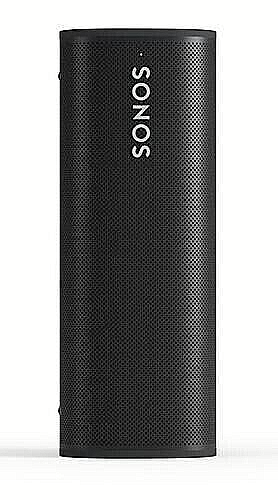
Credit: houwhoekfarmstall.com
When To Contact Sonos Support
Seeing a blinking orange light on your Sonos device can be frustrating. Sometimes, simple fixes solve the problem. Other times, professional help is needed. Knowing when to contact Sonos support saves time and reduces stress. This section explains when to reach out for help and what to expect.
Identifying Hardware Failures
A blinking orange light may signal a hardware problem. If your Sonos device won’t connect or respond after resets, hardware might be failing. Unusual sounds or no power could also mean a hardware issue. These signs need expert attention. Sonos support can diagnose and confirm if the device requires repair or replacement.
Warranty And Repair Options
Sonos offers a warranty that covers many hardware problems. Check your purchase date and warranty status before contacting support. If your device is under warranty, repairs or replacements might be free. Sonos support guides you through the process. They explain repair options and help with sending the device in if needed.
Preventive Measures For Smooth Operation
Keeping your Sonos device running smoothly prevents the blinking orange light issue. Regular care and smart use reduce errors and improve performance. Follow simple steps to protect your speaker from common problems. This saves time and avoids frustration with device setup and use.
Regular Maintenance Tips
Clean your Sonos speaker often. Dust and dirt can block vents and affect sound. Use a soft cloth to wipe the surface gently. Avoid liquids near the device to prevent damage.
Check for software updates regularly. Updates fix bugs and improve stability. Use the Sonos app to install new updates easily. Restart the speaker after updates for best results.
Keep the device in a cool, dry place. Heat and moisture can cause internal damage. Avoid placing it near heaters or windows.
Safe Usage Practices
Use the original power adapter only. Wrong chargers may cause power issues and blinking lights. Plug the device into a stable power source to avoid outages.
Limit the number of connected devices. Too many connections can overload the system. Disconnect devices not in use to keep the network stable.
Place the speaker away from wireless interference. Microwaves, cordless phones, and routers can disrupt signals. A clear signal helps prevent connection problems.
Frequently Asked Questions
What Does Sonos Blinking Orange Light Mean?
A blinking orange light on Sonos shows a connection or setup issue. It often means the speaker is not linked to the network properly.
How To Fix Sonos Blinking Orange Light Quickly?
Restart your Sonos speaker and router to refresh the connection. Check the cables and Wi-Fi signal strength for any problems.
Can Sonos Blinking Orange Light Indicate A Software Update?
Yes, sometimes the blinking orange means the speaker is updating or needs one. Make sure your app is up to date to avoid this.
Why Won’t My Sonos Stop Blinking Orange?
Persistent blinking orange means the speaker cannot connect or has a hardware fault. Try resetting the device or contacting Sonos support if it continues.
Is Sonos Blinking Orange Light A Sign Of Power Issue?
A blinking orange light rarely means power problems but can indicate unstable power. Ensure your Sonos is plugged into a stable outlet without power strips.
Conclusion
Sonos blinking orange means your speaker needs attention. It might be updating or facing a connection issue. Check your Wi-Fi and power sources first. Restarting your device often helps fix the problem fast. If the light keeps blinking, try resetting the speaker.
These steps usually solve common Sonos issues. Staying calm and patient works best here. Your Sonos will play music smoothly again soon. Keep your system updated to avoid future troubles. Simple fixes go a long way with Sonos devices.









