Is your Verizon box blinking green and leaving you confused? You’re not alone.
That flashing light can signal different issues, and knowing what it means is the first step to fixing it fast. Don’t let this small problem disrupt your internet or TV experience. You’ll discover simple, clear solutions to get your Verizon box back to normal quickly.
Keep reading—you’re just minutes away from turning that blinking green light into a steady, worry-free connection.
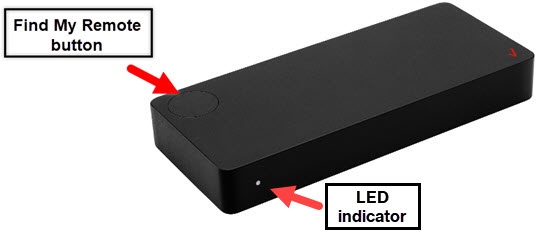
Reasons For Green Light
The Verizon box blinking green light can mean different things. It often shows the device’s current state. Understanding the reasons helps you decide the next step. The green light usually points to power, updates, or network issues. Each reason affects your internet connection differently.
Power And Connectivity Status
The green light often means the box has power. It shows the device is on and working. The blinking green might mean it is trying to connect. This happens when the box starts up or resets. It could also mean the box is searching for a signal. Check power cables and connections if the light stays green.
Firmware Updates
The blinking green light may signal a firmware update. Firmware is the device’s software. Updates fix bugs and improve performance. During updates, the box restarts and the light blinks. This can take several minutes. Avoid turning off the box during this time. Let the update finish to keep your device working well.
Network Issues
The green blinking can mean network problems. The box may lose connection to Verizon’s network. It tries to reconnect automatically. This causes the light to blink green. Network issues can come from outages or weak signals. Check for local Verizon service alerts. You might need to reset the box to restore service.
Basic Troubleshooting Steps
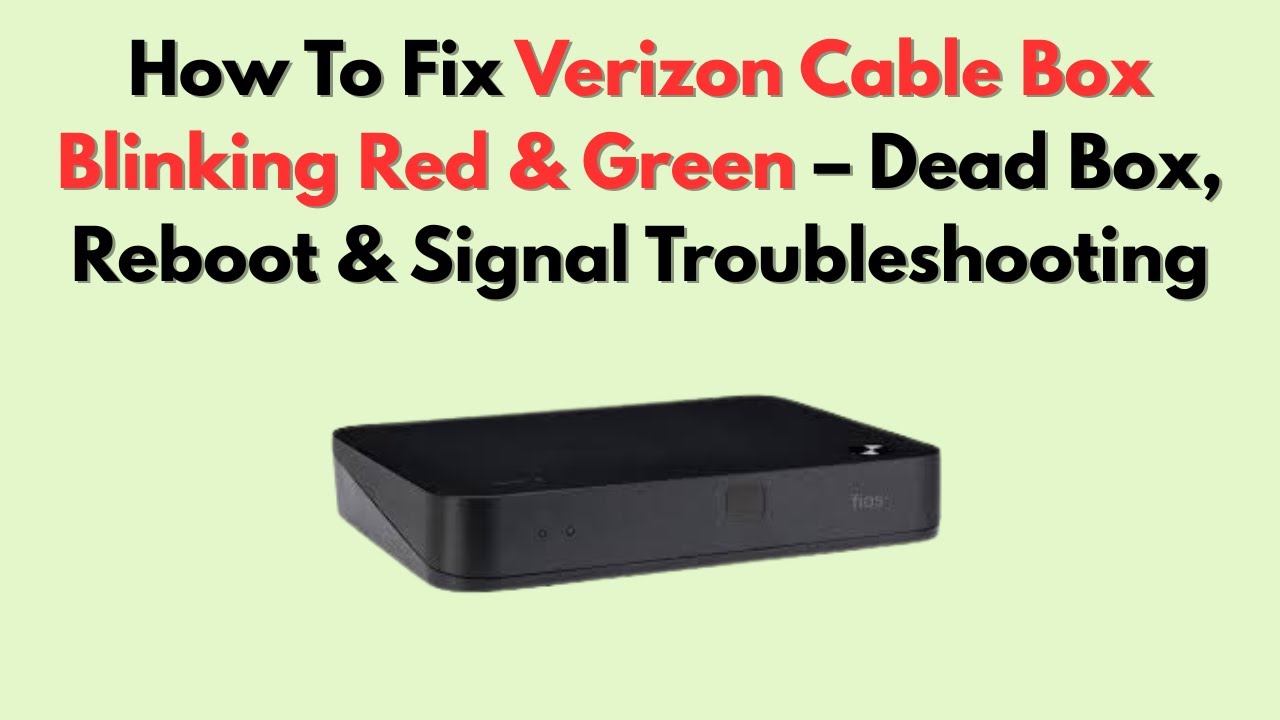
The Verizon Box blinking green can signal several issues. Basic troubleshooting helps fix common problems fast. Start with simple steps before calling support. These actions often restore your connection quickly.
Restart The Verizon Box
Turn off the Verizon Box. Wait at least 30 seconds. Turn it back on. Restarting clears temporary errors. It refreshes your device connection. Watch the lights after restarting.
Check Cable Connections
Look at all cables linked to the box. Make sure each cable fits tightly. Loose cables cause blinking green lights. Inspect for damaged or worn cables. Replace any faulty cables to improve signal.
Verify Power Supply
Confirm the power adapter is plugged in correctly. Check the outlet works by testing another device. Use the original power supply only. A weak or faulty power source affects box performance.
Advanced Fixes
Advanced fixes help solve tough problems with your Verizon box blinking green. These steps go beyond basic checks. They may take more time but often fix deeper issues. Follow each step carefully to avoid more trouble.
Reset To Factory Settings
Resetting to factory settings clears all custom changes. It restores the box to its original state. This can fix software glitches causing the green light. Find the reset button on the device. Hold it for about 10 seconds until the box restarts. Remember, this deletes all saved settings. You will need to set up your network again after reset.
Update Firmware Manually
Firmware controls how your Verizon box works. Outdated firmware can cause blinking lights. Download the latest firmware from Verizon’s official site. Use a USB drive or direct upload to update the box. Follow the update instructions carefully. A manual update often fixes bugs and improves device stability.
Adjust Network Settings
Incorrect network settings can trigger the green blinking light. Access the box’s settings page through a web browser. Check IP address, DNS, and connection type. Switch from automatic to manual settings if needed. Save changes and restart the device. Correct network setup helps maintain a steady connection and stops the blinking light.
When To Contact Support
Knowing when to contact Verizon support can save time and reduce frustration. Some issues with your box blinking green require expert help. Others might resolve after a few minutes. Watch your device closely to decide the next step.
Persistent Green Light
If the green light keeps blinking for more than 30 minutes, contact support. This may signal a deeper problem with the device. Do not try to fix it by unplugging repeatedly. A technician can guide you through the next steps.
Service Outages
Green blinking might happen during a service outage. Check Verizon’s outage map online first. If the outage lasts longer than expected, call support for updates. They provide estimated repair times and advice.
Hardware Replacement
Sometimes the blinking green light means hardware failure. Support can test your box remotely. If needed, they arrange a replacement device. Do not wait too long to report this. Early action prevents longer service disruption.
Preventive Tips
Preventing the Verizon box from blinking green saves time and avoids frustration. Simple steps keep the device running smoothly. These tips help maintain a steady connection and reduce errors. Follow these easy actions to keep your system stable.
Regular Device Maintenance
Clean the Verizon box regularly to remove dust. Dust can block vents and cause overheating. Check all cables for secure connections. Loose cables often cause blinking lights. Restart the device once a week to refresh its system. Avoid placing the box near heat sources.
Stable Power Source
Use a reliable power outlet for the Verizon box. Power fluctuations cause the device to reset often. Avoid using extension cords with multiple devices. A surge protector helps prevent electrical damage. Keep the power cable free from damage or bends. Consistent power ensures the box works without interruptions.
Monitor Firmware Updates
Check for firmware updates regularly to improve device performance. Updates fix bugs that may cause blinking lights. Enable automatic updates if the option is available. Restart the device after installing updates. Keeping firmware current helps maintain a stable connection. It also enhances security and features.
Frequently Asked Questions
Why Is My Verizon Box Blinking Green?
A green blinking light on your Verizon box usually means it is updating or syncing. This process can take a few minutes to complete.
How Long Should Verizon Box Blink Green?
The green blinking should last less than 10 minutes during updates. If it blinks longer, there might be a connection or hardware issue.
What To Do If Verizon Box Keeps Blinking Green?
Try restarting your Verizon box by unplugging it for 30 seconds. If the green light keeps blinking, contact Verizon support for help.
Does Blinking Green Light Affect Internet Connection?
Yes, a blinking green light can cause slow or no internet. It shows the device is not fully ready to provide service.
Can A Firmware Update Cause Green Blinking Light?
Yes, the Verizon box blinks green when installing firmware updates. This is normal and means the device is improving its software.
Conclusion
A Verizon box blinking green usually means it’s trying to connect. Restart your router and check the cables first. Sometimes, waiting a few minutes solves the issue. If the green light keeps blinking, contact Verizon support for help. Keeping your device updated can prevent future problems.
Staying calm and following simple steps can fix most issues. Don’t ignore the blinking light; it signals a connection problem. Taking quick action helps restore your internet fast and smoothly.