
Is your Cox router blinking blue and leaving you wondering what it means? You’re not alone.
That blinking light can be confusing and frustrating, especially when you need your internet to work smoothly. But don’t worry—understanding why your Cox router is blinking blue and how to fix it is easier than you think. Keep reading, and you’ll learn exactly what’s happening and the simple steps you can take to get your connection back to normal fast.
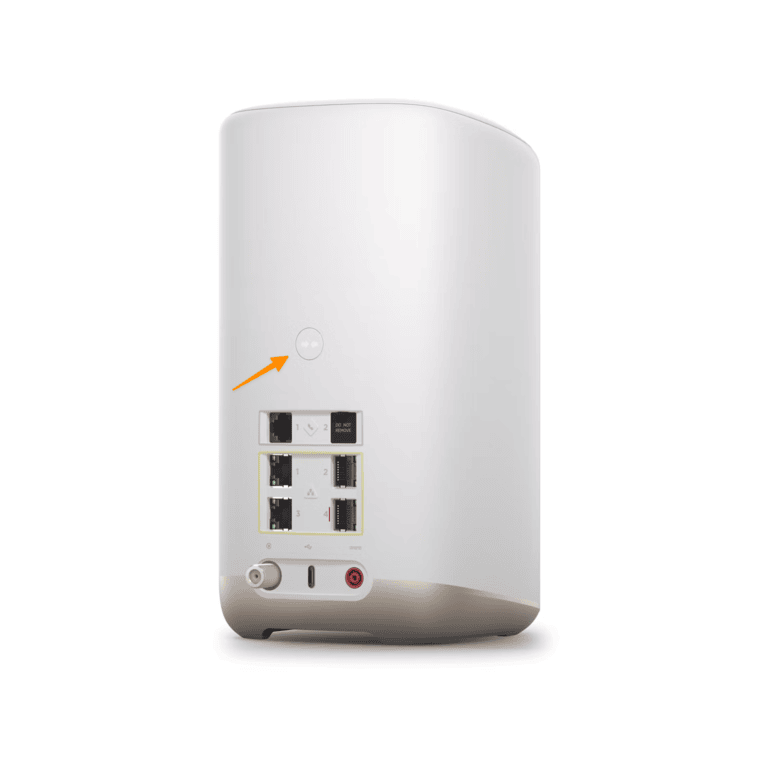
Why The Cox Router Blinks Blue
The Cox router blinking blue light can catch your attention quickly. This blinking shows the router’s current status. It often signals different stages or issues with your internet connection. Understanding why the Cox router blinks blue helps you know what to do next. This section explains the main reasons behind this blinking.
Normal Startup Process
The blue light blinking usually means the router is starting up. It checks all systems before connecting to the internet. This process takes a few minutes. Once complete, the light changes to a solid color. A blinking blue light during startup is normal and shows the router is working.
Connection Issues
The blue light blinking can also indicate connection problems. The router tries to connect but has trouble reaching the internet. This issue can happen due to weak signals or cable problems. Restarting the router or checking cables may help fix this. Persistent blinking means the connection is not stable.
Firmware Updates
Sometimes, the blue light blinks during firmware updates. The router updates its software to improve performance. This blinking shows the update is in progress. Do not turn off the router while updating. After the update, the light will stop blinking and return to normal.
Basic Troubleshooting Steps
Basic troubleshooting steps help fix common issues with your Cox router blinking blue. These steps are simple and quick to follow. They can often restore your internet connection without needing extra help.
Start with easy checks. This saves time and avoids confusion. The following tips cover the most common causes of the blinking blue light on your Cox router.
Restarting The Router
Turn off your router by pressing the power button or unplugging it. Wait for 30 seconds before turning it back on. This clears temporary glitches and refreshes the connection. Wait for the lights to stabilize. The blinking blue light should stop.
Checking Cable Connections
Ensure all cables are plugged in tightly. Check the coaxial cable that connects to the wall. Make sure the Ethernet cable links the router to your device. Loose or damaged cables cause connection issues. Replace any faulty cables if needed.
Verifying Service Status
Sometimes, the problem is on Cox’s end. Visit the Cox website or use their app to check for outages. Service interruptions cause the blue light to blink. Wait until Cox fixes the issue if there is an outage.
Advanced Fixes For Blue Light Issues
Advanced fixes help solve persistent blue light issues on your Cox router. These steps go beyond basic troubleshooting. They tackle deeper problems that might cause the blinking blue light. Follow these methods carefully for better results.
Resetting To Factory Settings
Resetting the router erases all custom settings. This action restores the device to its original state. Use a paperclip to press the reset button. Hold it for 10 seconds until lights blink. The router restarts with default settings. Set up your network again after the reset.
Updating Router Firmware
Firmware controls your router’s functions. Outdated firmware can cause the blue light to blink. Access the router’s admin panel via your browser. Check for the latest firmware update available. Download and install the update carefully. This can fix bugs and improve stability.
Changing Wi-fi Channels
Wi-Fi interference may cause connectivity issues and blinking lights. Changing the Wi-Fi channel reduces signal overlap. Log into the router settings. Find the wireless channel option. Select a less crowded channel, like 1, 6, or 11. Save changes and reboot the router.
When To Contact Cox Support
The Cox router blinking blue can signal various issues. Knowing when to contact Cox support saves time and frustration. Some problems need expert help to fix quickly. Here are clear signs that mean it is time to call Cox support.
Persistent Blue Light Problems
The blue light should stop blinking after a short time. If it keeps blinking for hours, this signals a problem. Restarting your router might not help. Continuous blinking shows your device is not connecting properly. Contact Cox support to check your connection status.
Hardware Malfunctions
Hardware issues cause the blue light to blink oddly. Faulty cables or damaged router parts can trigger this. You may notice slow internet or no connection. Cox support can guide you to test the hardware. They can arrange a repair or replacement if needed.
Service Outages
Sometimes, the blue light blinks because of service outages. These outages affect many users in your area. Cox support can confirm if there is an outage. They will provide updates and estimated time for fixing the problem.
Tips To Prevent Future Connection Issues
Preventing connection problems with your Cox router saves time and frustration. Taking simple steps keeps your internet stable and fast. These tips help reduce blinking blue lights and other issues.
Regular Router Maintenance
Turn off your router once a week for a few minutes. This clears temporary glitches in the system. Clean the router’s vents to stop dust buildup. Check for firmware updates on the Cox website. Updating keeps your router secure and efficient.
Optimal Router Placement
Place your router in a central spot in your home. Avoid hiding it inside cabinets or behind furniture. Keep it away from microwaves and cordless phones. These devices cause interference and weaken signals. Elevate the router to improve signal reach.
Monitoring Network Performance
Use apps or tools to track your internet speed regularly. Spot slowdowns before they become big problems. Note the times when your connection drops or slows. Share this information with Cox support for faster help. Regular checks keep your network reliable and smooth.

Frequently Asked Questions
What Does A Blinking Blue Light On Cox Router Mean?
A blinking blue light shows the router is trying to connect to the internet. It means the device is not fully online yet. Wait a few minutes for it to finish.
How To Fix Cox Router Blinking Blue Light Issue?
Try restarting your router by unplugging it for 30 seconds. Then plug it back in and wait for the light to turn solid. Check your cables are secure too.
Can Blinking Blue Light Cause Slow Internet On Cox Router?
Yes, a blinking blue light may cause slow or no internet. It means the router is not fully connected. Fixing the connection usually restores full speed.
Why Does Cox Router Keep Blinking Blue After Reset?
The router may still be trying to sync with Cox’s network. Wait a few minutes for it to stabilize. If it keeps blinking, contact Cox support.
Is Blinking Blue Light Normal On Cox Router During Setup?
Yes, blinking blue light is normal during the initial setup process. It shows the router is connecting to Cox’s service. The light will turn solid when done.
Conclusion
A blinking blue light on your Cox router signals connection activity. It often means the router is trying to connect or update. Restarting the router can fix many common problems. Make sure all cables are secure and the internet service is active.
If the light keeps blinking, contact Cox support for help. Staying patient and following simple steps usually restores your connection quickly. A steady connection means smooth browsing and streaming. Keep your router updated and in a good spot for best results.









