
Is your Ooma device showing a blinking red light? That little red blink can be more than just a simple warning—it might be stopping your calls, messages, or internet connection.
You rely on Ooma for clear, reliable communication, so seeing that red light can be frustrating and confusing. But don’t worry—understanding what this blinking red means and how to fix it is easier than you think. Keep reading, and you’ll learn exactly what’s going on and how to get your Ooma back to normal fast.
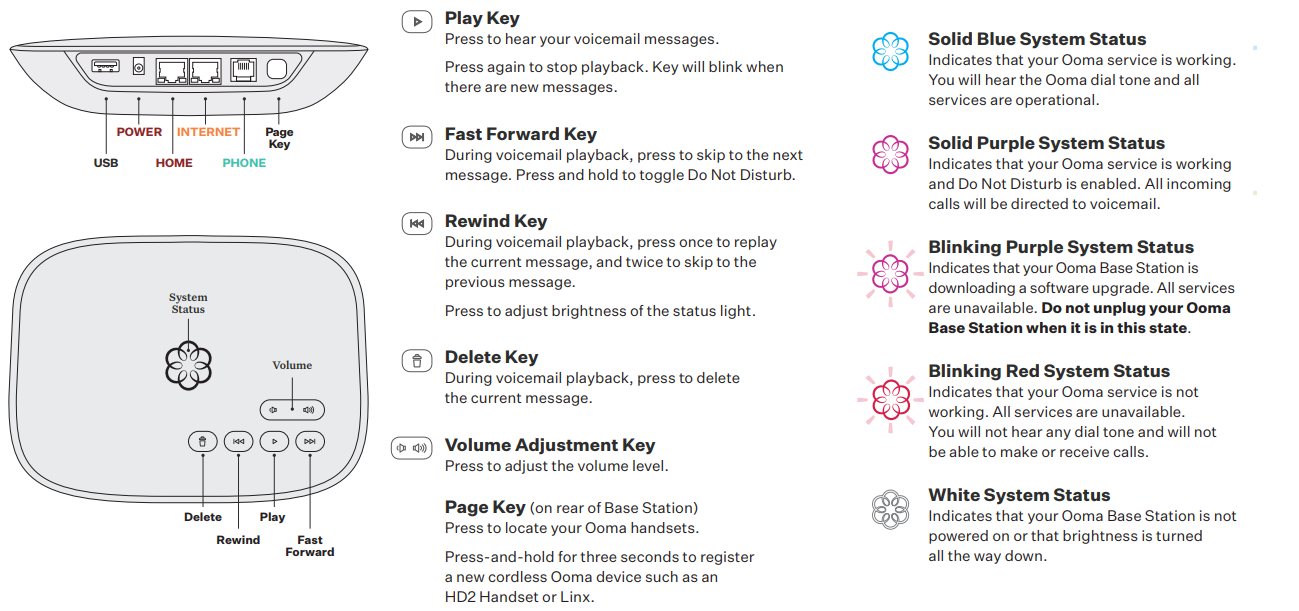
Causes Of Red Blinking Light
The Ooma device shows a red blinking light for several reasons. This signal warns users about issues needing quick attention. Understanding these causes helps fix problems faster. It improves your device’s performance and keeps calls clear.
Network Connectivity Issues
Network problems often cause the red blinking light. The device may lose connection to the internet. This can happen if the router is off or the cable is loose. Slow or unstable internet can also trigger the red light. Checking the network status is the first step to fix this.
Power Supply Problems
Power issues can make the red light blink. If the power adapter is damaged or unplugged, the device cannot work properly. A faulty power outlet may also cause power interruptions. Make sure the power source is stable and the adapter is connected firmly.
Firmware Glitches
Firmware errors can lead to the red blinking light. The software inside the Ooma device might have bugs or need updates. Outdated firmware can affect device functions and cause errors. Regular firmware updates help keep the system running smoothly.
Hardware Malfunctions
Physical damage or faults inside the device may cause the red light. Internal parts might fail due to wear or accidents. Hardware issues often require professional repair or replacement. If other fixes fail, hardware malfunction might be the cause.
Basic Troubleshooting Steps
Ooma blinking red indicates a problem with your device. Basic troubleshooting helps find simple issues fast. Follow these clear steps to fix common problems. Each step checks key parts of your setup. Start with power, then check internet and phone lines. These quick checks often solve the blinking red light.
Check Power And Cables
Look at the power adapter and cable. Make sure the plug fits securely into the wall outlet. Confirm the cable connects firmly to the Ooma device. No loose connections allowed. A faulty power source can cause the red blinking light. Try a different outlet if needed. Check for damaged or frayed cables and replace if necessary.
Restart The Ooma Device
Turn off the Ooma device by unplugging it. Wait 30 seconds before plugging it back in. Restarting resets the system and clears minor errors. Watch the lights as the device powers up. A steady or blinking green light means the device works well. The red blinking light may disappear after a restart.
Verify Internet Connection
Ooma needs a strong internet connection to work. Check your router or modem for power and cables. Test internet on another device like a phone or laptop. No internet means Ooma cannot connect. Restart your router if no internet shows. A stable internet link stops the red blinking light.
Inspect Phone Line Connections
Look at phone cables connected to the Ooma device. Make sure cables plug in firmly and correctly. Test the phone line by plugging a different phone. No dial tone or static can cause issues. Replace cables if they look worn or broken. Proper phone line setup helps fix the blinking red light.
Advanced Fixes
Advanced fixes can help solve the Ooma blinking red issue. These steps go beyond basic checks and need careful attention.
Try these solutions if simple methods do not work. They often resolve deeper problems with your device and network.
Resetting The Ooma Device
Resetting the Ooma device clears temporary errors. Press and hold the reset button for about 15 seconds. Release it and wait for the device to restart. This can fix many connection issues and restore normal operation.
Updating Firmware Manually
Manual firmware updates fix bugs and improve device performance. Visit the official Ooma website to download the latest firmware. Follow the instructions carefully to update the device. This process can stop the blinking red light caused by outdated software.
Checking Router Settings
Router settings can block Ooma’s connection. Access your router’s admin panel and check firewall rules. Ensure ports required by Ooma are open. Disable any settings that might block voice traffic. This helps the device connect smoothly to the network.
Contacting Ooma Support
Contact Ooma support for help beyond advanced fixes. They offer expert advice and can guide you step-by-step. Use their phone or chat service for quick assistance. Support can also replace your device if needed.

Preventive Measures
Preventing the Ooma device from blinking red saves time and avoids frustration. Small steps keep your phone system running smoothly. These easy measures help maintain stable service and clear connections.
Focus on updates, power, and network health to stop problems before they start. Each area plays a key role in device performance and reliability.
Regular Firmware Updates
Keep your Ooma device software up to date. Updates fix bugs and improve security. Check for new firmware regularly through the Ooma app or website. Installing updates early prevents many common errors.
Automatic updates help but also verify the version manually. An outdated system may cause the blinking red light issue.
Stable Power Supply Setup
Provide a steady power source to your Ooma device. Avoid power surges or interruptions. Use a surge protector to protect against voltage spikes. Make sure the power cable is firmly connected at both ends.
Unstable power leads to frequent restarts and blinking red alerts. A clean power supply ensures continuous operation.
Network Stability Tips
Maintain a strong internet connection for your Ooma device. Use a wired Ethernet connection if possible. Wireless connections can cause interruptions and red light warnings.
Restart your router regularly to clear network issues. Limit other devices’ bandwidth use during calls. A stable network supports clear, uninterrupted voice service.
Frequently Asked Questions
What Does Ooma Blinking Red Light Mean?
A blinking red light on Ooma signals a network or hardware problem. It often means the device is not connecting properly.
How Can I Fix Ooma Blinking Red Light?
Try restarting your Ooma device and router. Check all cables are firmly connected and your internet is working.
Why Is My Ooma Device Losing Internet Connection?
Frequent blinking red lights may mean your internet is unstable. Check your modem and router for issues or outages.
Can Firmware Updates Cause Ooma Blinking Red?
Yes, sometimes updates fail or get stuck, causing the light to blink red. Restarting the device usually helps.
When Should I Contact Ooma Support For Blinking Red?
Contact support if the red light keeps blinking after resets. They can help diagnose or replace faulty devices.
Conclusion
A blinking red light on your Ooma device signals a problem. It helps you know when something needs fixing. Check your internet connection and power source first. Restarting the device often solves many issues. Keep your Ooma updated to avoid errors.
If the light stays red, contact support for help. Staying calm and following these steps saves time. Your Ooma will work smoothly again soon. Simple actions can fix most problems quickly.









