
Is your Xfinity modem blinking orange and leaving you without internet? It’s frustrating when your connection suddenly drops, especially when you need it the most.
But don’t worry—you’re not alone, and this problem is often easier to fix than you think. You’ll discover simple steps to get your internet back up and running quickly. Keep reading, and you’ll be connected again before you know it.
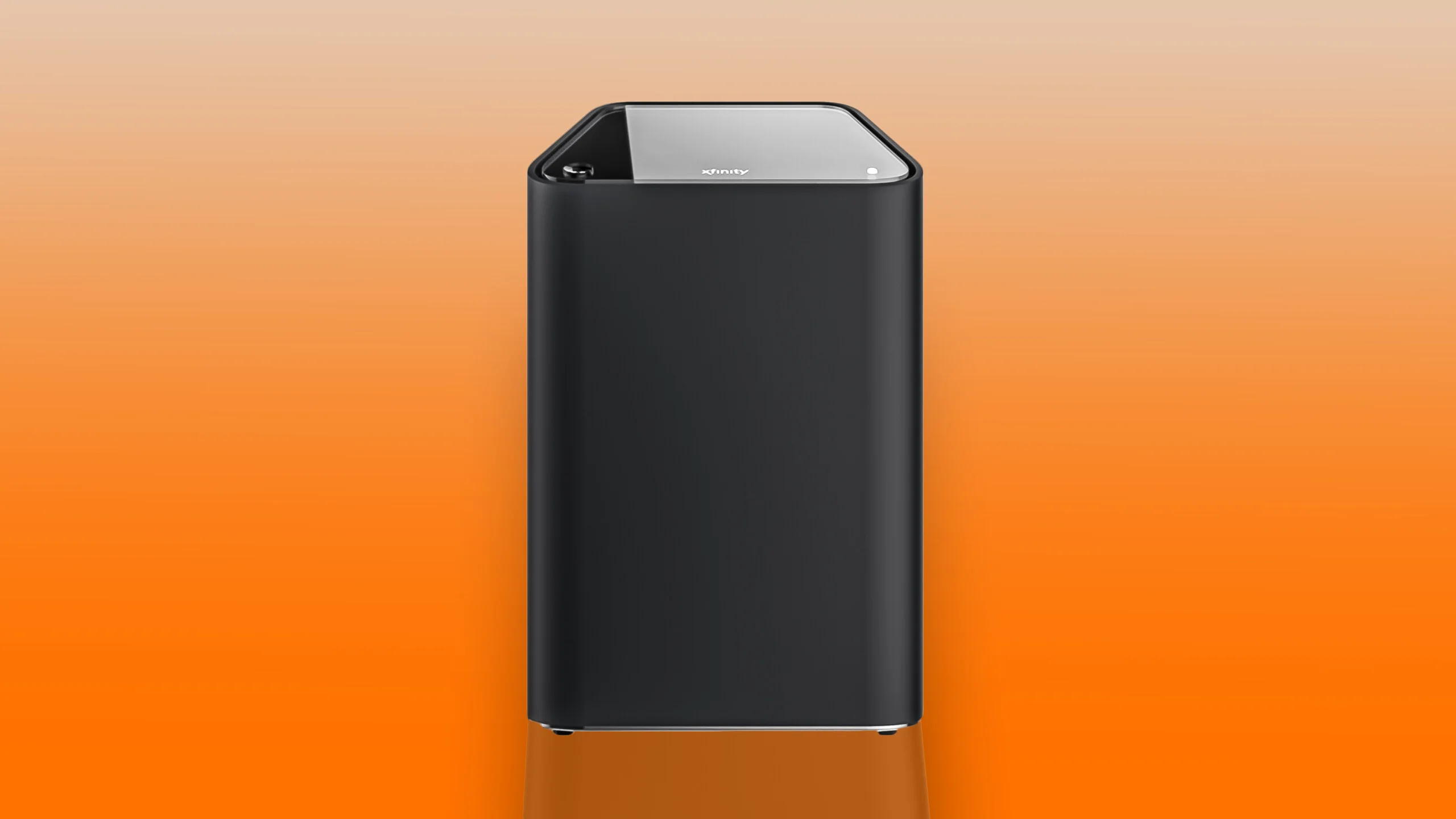
Reasons For Orange Blinking Light
The orange blinking light on your Xfinity modem shows a problem. It means the modem tries to connect but can’t get internet. Understanding why this happens helps fix the issue faster. Several reasons cause this blinking. Each one affects your internet in a different way.
Network Connectivity Issues
Network problems often cause the orange blinking light. The modem may not get a strong signal. Cables might be loose or damaged. Your home network setup might block the connection. These issues stop the modem from linking to the internet.
Modem Firmware Problems
Firmware controls how your modem works. Outdated or corrupted firmware can cause blinking lights. The modem struggles to complete the startup process. Firmware errors can stop the modem from connecting properly.
Service Outages
Internet service outages are common reasons for no connection. The problem may be with your provider. Maintenance or technical troubles can interrupt service. During outages, your modem cannot connect to the internet.
Hardware Malfunctions
Hardware problems can also cause the orange blinking. Internal parts may fail or overheat. Damage from power surges or wear can affect performance. Faulty hardware stops the modem from working correctly.
Basic Troubleshooting Steps
Seeing your Xfinity modem blinking orange and no internet can be frustrating. Start with basic troubleshooting. These simple steps help fix common problems fast. Follow each step carefully to check your modem and network status.
Restarting The Modem
Turn off the modem by pressing its power button or unplugging it. Wait for 30 seconds. Turn it back on and watch the lights. This can clear small glitches causing the orange blinking light. Wait a few minutes for the modem to fully restart.
Checking Cable Connections
Look at all cables connected to the modem. Make sure the coaxial cable is tightly screwed in. Check the power cable and Ethernet cables for any loose or damaged parts. A loose cable can cause the orange light and no internet issue.
Power Cycling The Network
Unplug the modem and your router, if you have one. Leave them off for about one minute. Plug the modem back in first. Wait until all lights turn stable. Then plug the router back in. This resets your whole network and can fix connection problems.
Verifying Service Status
Check if Xfinity is having service outages in your area. Visit their website or use the Xfinity app on your phone. Service interruptions may cause the modem to blink orange and lose internet. Knowing this saves time before trying other fixes.
Advanced Fixes To Try
The blinking orange light on your Xfinity modem can mean no internet access. Basic fixes might not solve this issue. Advanced fixes can help you restore your connection. These methods take a deeper look into your modem and network settings. Follow these steps carefully to try to fix the problem.
Resetting The Modem To Factory Settings
Resetting your modem removes all custom settings. It restores the modem to its original state. Find the reset button, usually at the back of the modem. Use a paperclip to press and hold the button for 10 seconds. Release the button and wait for the modem to restart. This process can fix many software glitches causing the orange light.
Updating Modem Firmware
Firmware is the software that runs your modem. Outdated firmware can cause connection issues. Check your modem’s admin page for firmware updates. Download and install updates if available. Updated firmware improves performance and fixes bugs. Keep your modem’s firmware current to avoid future problems.
Configuring Network Settings
Incorrect network settings can disrupt your internet connection. Access your modem’s settings through the IP address in a web browser. Verify settings like IP address, subnet mask, and DNS servers. Set them to automatic if unsure. Save changes and restart the modem. Proper configuration helps stabilize your connection.
Contacting Xfinity Support
If advanced fixes do not work, contact Xfinity support. Provide details about the blinking orange light and your attempts to fix it. Support can check for outages or signal issues. They may guide you through more steps or send a technician. Getting professional help ensures your internet returns quickly.

Preventing Future Connection Issues
Preventing future connection issues helps keep your internet stable and fast. Simple steps can stop the Xfinity modem blinking orange problem. These tips improve your network’s health and avoid frequent disruptions.
Small changes in how you care for your modem and router make a big difference. Follow these easy methods to maintain a smooth internet connection.
Regular Modem Maintenance
Clean your modem and router regularly to remove dust. Dust can block vents and cause overheating. Overheated devices often lose connection or blink orange.
Restart your modem once a week. Restarting clears minor errors and refreshes the connection. Update your modem’s firmware when updates are available. Firmware updates fix bugs and improve performance.
Optimizing Router Placement
Place your router in a central, open spot in your home. Walls and furniture block signals and reduce speed. Keep the router away from other electronics that cause interference.
Elevate the router on a shelf or table. Higher placement helps signals reach all rooms better. Avoid placing the router on the floor or inside cabinets.
Monitoring Network Usage
Check which devices use the most internet in your home. High usage can slow the network and cause connection issues. Limit background apps that use data without your knowledge.
Set time limits for heavy internet tasks like downloads or streaming. This balance keeps the network stable for all users. Use your modem’s settings to monitor and control traffic.

Frequently Asked Questions
Why Is My Xfinity Modem Blinking Orange?
A blinking orange light means the modem is trying to connect. It may be updating or facing signal issues.
How Can I Fix Xfinity Modem Blinking Orange?
Restart your modem by unplugging it for 30 seconds. Check all cable connections to ensure they are secure.
Does Blinking Orange Mean No Internet Connection?
Yes, a blinking orange light often means no internet access. The modem is not fully connected to the network.
When Should I Contact Xfinity Support For Blinking Orange?
Contact support if the orange light blinks for more than 30 minutes. They can check for outages or account issues.
Can A Firmware Update Cause Blinking Orange On Modem?
Yes, firmware updates can cause temporary blinking orange. Wait a few minutes as the modem finishes updating.
Conclusion
Seeing the Xfinity modem blinking orange means no internet connection. Try restarting your modem first. Check all cables to ensure they are secure. Reset the modem if needed. Sometimes, service outages cause this issue. Contact Xfinity support if the problem continues.
Staying calm helps solve the issue faster. With these steps, you can restore your internet soon. Don’t let a blinking orange light stop your online activities. Keep your connection steady and enjoy smooth browsing again.









