
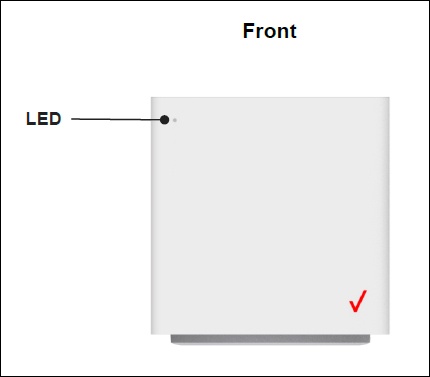
Is your Verizon Internet Gateway blinking red right now? That little red light can be more than just annoying—it usually means something is wrong with your internet connection.
You rely on your internet every day for work, streaming, and staying connected. When that red light appears, it can feel like your whole online world is about to stop. But don’t worry—you’re not alone, and fixing this issue might be simpler than you think.
You’ll discover exactly what the red blinking light means and the easy steps you can take to get your internet back up and running fast. Keep reading—you’ll be back online before you know it.
Causes Of Red Blinking Light
The red blinking light on your Verizon Internet Gateway signals a problem. It shows that the device is facing issues that stop it from working properly. Understanding the causes helps fix the problem faster. Several common reasons can trigger this red light.
Connection Issues
Connection problems are the most frequent cause of a red blinking light. The gateway may not connect to the internet service properly. Loose cables, damaged wires, or poor signal strength can cause this. Network outages from Verizon’s side also lead to connection failures. Check all cables and service status first.
Firmware Problems
Firmware controls how the gateway works. If the firmware is outdated or corrupted, the device may blink red. Failed updates or software glitches can disrupt internet service. Sometimes, the gateway needs a manual firmware update to fix bugs. Keeping firmware current prevents many issues.
Power Supply Concerns
Power supply issues can cause the red blinking light too. An unstable or weak power source affects the gateway’s performance. Faulty power adapters or loose plugs may cut power intermittently. Ensure the device receives steady and correct voltage. Using the original power adapter is best.
Hardware Malfunctions
Hardware problems inside the gateway might also cause the red light. Faulty internal components like the modem or circuit board can fail. Overheating or physical damage may lead to hardware malfunctions. In such cases, replacing the device may be necessary. Regular care can reduce hardware failures.
Basic Troubleshooting Steps
When your Verizon Internet Gateway blinks red, basic troubleshooting can help fix the issue. These steps are easy to follow and often solve common problems quickly. Start with simple actions before calling support. This saves time and may restore your internet connection fast.
Restarting The Gateway
Turn off your Verizon Internet Gateway. Unplug it from the power source. Wait for about 30 seconds to one minute. Plug it back in and turn it on. Wait for the lights to stabilize. This simple restart can clear temporary errors in the system.
Checking Cables And Connections
Inspect all cables connected to the gateway. Make sure the power cable is firmly plugged in. Check the coaxial or Ethernet cables for tight connections. Look for any damaged or frayed wires. Loose or broken cables can cause the red blinking light. Secure or replace any faulty cables.
Resetting To Factory Settings
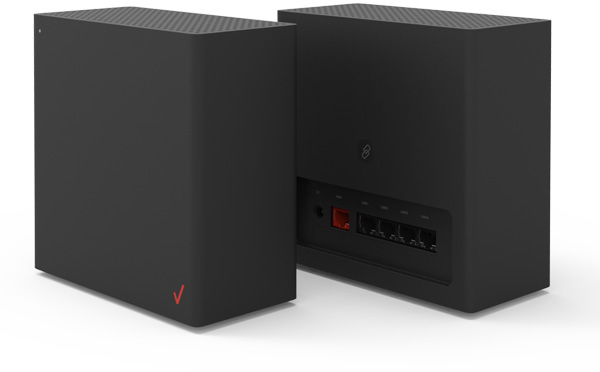
Find the reset button on the back of the gateway. Use a small pin or paperclip to press and hold it. Hold the button for about 10 seconds. Release it and wait for the gateway to restart. This resets all settings to factory defaults. You may need to reconfigure your network after this reset.
Advanced Fixes
Advanced fixes for a Verizon Internet Gateway blinking red go beyond simple resets. These steps require some technical knowledge but can solve persistent issues. Follow these methods carefully for better results.
Start with updating the device’s firmware. This can fix bugs and improve performance. Next, adjust network settings to ensure proper connection. Finally, check hardware components. Faulty parts might cause the red light.
Updating Firmware
Firmware controls the gateway’s functions. Outdated firmware can cause errors and connectivity problems. Access the gateway’s admin panel through a web browser. Find the firmware update section. Download and install the latest version. This process can fix glitches causing the red blink.
Adjusting Network Settings
Incorrect network settings can disrupt the internet connection. Log in to the gateway’s settings page. Check IP addresses, DNS settings, and connection types. Set them to default or recommended values. Save changes and restart the device to apply.
Replacing Faulty Hardware
Hardware issues also cause blinking red lights. Inspect cables for damage or loose connections. Try using different Ethernet cables. If the gateway itself is faulty, contact Verizon for a replacement. Replacing broken parts restores stable service.

When To Contact Verizon Support
Knowing when to contact Verizon support can save time and reduce frustration. The red blinking light on your Verizon Internet Gateway signals a problem. Sometimes, it fixes itself. Other times, it needs expert help. Understanding the right moments to call Verizon ensures quick and effective support.
Identifying Persistent Issues
A blinking red light that lasts more than a few minutes often means a serious issue. Check if your internet is still working. If the connection drops repeatedly or never returns, the problem is persistent. Also, if you reset the gateway and the light stays red, it’s time to contact support.
Preparing For Support Calls
Before calling Verizon, gather key information. Have your account number ready. Note the exact time the red light started blinking. List any troubleshooting steps you already tried. This helps the support team understand your issue faster. Clear communication can speed up the solution.
Escalating The Problem
If the first support response does not fix the issue, ask to escalate. Persistent outages or repeated red blinking require higher-level attention. Keep a record of your calls and ticket numbers. Escalation ensures your problem gets proper priority and expert review.
Preventive Measures
Preventive measures help avoid the Verizon Internet Gateway blinking red error. Taking simple steps keeps your connection stable and fast. These actions reduce the chance of network problems and improve overall performance.
Regular Maintenance Tips
Clean the gateway and its vents regularly to prevent dust buildup. Dust can cause overheating and connection issues. Restart the gateway once a week to clear temporary errors. Check cables and connections often to ensure they are secure. Update the gateway’s firmware to fix bugs and improve stability.
Optimizing Gateway Placement
Place the gateway in a central location in your home. Avoid areas near walls, metal objects, or microwaves. Keep the device off the floor and away from direct sunlight. Higher placement helps the signal spread evenly. This reduces signal drops and blinking red alerts.
Monitoring Network Health
Use Verizon’s app or website to check your network status daily. Watch for unusual slowdowns or disconnects. Note when the gateway blinks red and what you were doing. This helps identify patterns and fix issues quickly. Early detection prevents bigger problems later.
Frequently Asked Questions
Why Is My Verizon Internet Gateway Blinking Red?
A red blinking light usually means there is a connection or hardware issue. Check cables and restart your gateway first.
How Can I Fix Verizon Gateway Blinking Red Light?
Try unplugging the gateway, wait 30 seconds, then plug it back in. This often resets the device and clears errors.
What Does A Red Light On Verizon Gateway Indicate?
It often signals no internet connection or a service outage. Confirm if Verizon has reported any problems in your area.
Can A Firmware Update Cause Verizon Gateway To Blink Red?
Yes, during updates the light may blink red. Wait a few minutes for the update to complete before troubleshooting further.
When Should I Contact Verizon Support For Blinking Red Light?
Contact support if the red light continues after restarting and checking cables. They can run remote tests and guide you.
Conclusion
Seeing your Verizon Internet Gateway blinking red can be frustrating. This usually means there is a connection or hardware problem. Start by checking all cables and restarting the device. Sometimes, a simple reset fixes the issue quickly. If the blinking continues, contacting Verizon support is the best step.
They can guide you through more detailed troubleshooting. Staying calm and following these steps helps restore your internet faster. Keep your internet working smoothly with quick action and patience.









