
Is your Samsung TV’s red light blinking and refusing to turn on? If you’ve noticed that steady red glow suddenly flashing, it’s a clear signal that something isn’t right.
But don’t worry—you’re not alone, and this blinking red light isn’t just a random glitch. It’s actually your TV’s way of telling you there’s a specific issue that needs attention. You’ll discover exactly what those red light blinking codes mean, why they happen, and how you can fix them quickly.
Whether you’re a tech newbie or just want to save time and money before calling for help, keep reading—your Samsung TV might be closer to working perfectly again than you think.
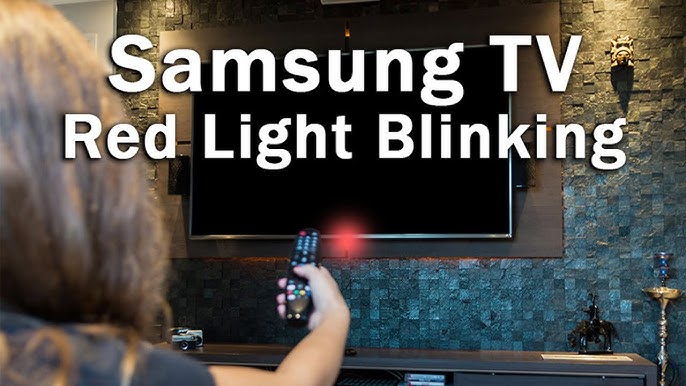
Red Light Blinking Causes
The red light blinking on a Samsung TV signals an issue inside the device. This blinking code helps identify the cause of the problem quickly. Understanding these causes can save time and avoid frustration.
Samsung TVs use the red blinking light to show specific errors. The number of blinks often points to different faults. Most issues fall into three main categories. These include power issues, internal component failures, and software glitches.
Power Issues
Power problems are a common cause of the red blinking light. Faulty power cords or unstable electricity can trigger this error. A loose or damaged plug may cause the TV to lose power intermittently. Voltage spikes or drops can also harm the TV’s circuits. Using an unstable power source often leads to repeated blinking.
Checking the power supply and outlet is a good first step. Avoid using the TV during electrical storms or power surges. Surge protectors help prevent damage from sudden power changes.
Internal Component Failures
Internal parts can fail over time and cause the red light to blink. Common failures include problems with the main board or power board. If a circuit inside the TV is damaged, it may stop working properly. Overheating can also damage sensitive components inside. Dust buildup and poor ventilation increase this risk.
When internal parts fail, the TV may not turn on or work normally. Often, professional repair is required to replace broken parts. Regular cleaning and good airflow can help reduce internal failures.
Software Glitches
Software bugs sometimes cause the TV’s red light to blink. These glitches can freeze the system or block normal startup. Apps or firmware updates may trigger errors in rare cases. Restarting the TV or performing a factory reset can fix many software problems. Keeping the TV’s software up to date reduces the chance of glitches.
Software issues are usually easier to fix than hardware faults. They do not require opening the TV or replacing parts. Checking for updates and resetting the TV often restore normal function.

Identifying Blinking Patterns
Recognizing the blinking red light on your Samsung TV is key to diagnosing issues. The pattern of these blinks helps identify the problem quickly. Each pattern gives a specific error code. Understanding these codes saves time and guides repair efforts.
Short Blinks Vs Long Blinks
Short blinks usually indicate minor errors or standby mode signals. Long blinks often point to more serious internal problems. Pay close attention to the length of each blink. This difference helps narrow down the cause of the issue. Short blinks may mean a simple reset is needed. Long blinks might require professional repair or part replacement.
Number Of Flashes And Error Codes
The number of red light flashes corresponds to specific error codes. For example, two flashes might signal a power supply issue. Five flashes could indicate a problem with the main board. Count the flashes carefully to identify the exact error. These codes are listed in Samsung’s service manuals. Knowing the code helps decide the next step. It can be a quick fix or a signal to contact support.
Basic Troubleshooting Steps
Samsung TV blinking red light codes often signal an issue needing quick checks. Basic troubleshooting steps help identify simple problems before calling for repairs. These steps save time and can fix common issues easily.
Power Cycle Your Tv
Turn off your Samsung TV completely. Unplug it from the power outlet. Wait for about one minute. Plug the TV back in and turn it on. This resets the internal system and clears minor errors. Many blinking red light issues resolve after a power cycle.
Check Power Outlet And Connections
Ensure the power outlet works properly. Test by plugging in another device. Confirm the TV power cable is firmly connected. Loose or damaged cables cause power interruptions. Replace any worn or broken cables to avoid blinking red light problems.
Inspect Hdmi And External Devices
Turn off the TV and disconnect all HDMI cables. Remove any connected external devices like gaming consoles or DVD players. Turn on the TV to see if the red light stops blinking. Reconnect devices one at a time to find the faulty device. Faulty HDMI devices or cables often cause blinking red light issues.
Advanced Fixes
Advanced fixes help solve persistent Samsung TV blinking red light codes. These methods go beyond simple steps. They target deeper issues inside the TV. Applying these fixes may restore your TV’s normal function. Follow each step carefully for best results.
Resetting The Tv Manually
Manually resetting the TV clears temporary errors. Start by unplugging the TV from power. Wait at least 60 seconds to let it drain. Press and hold the power button on the TV for 10 seconds. Release the button and plug the TV back in. Turn on the TV to check if the red light stops blinking. This process resets the hardware without affecting settings.
Updating Firmware
Outdated firmware can cause blinking red light issues. Connect your TV to the internet using Wi-Fi or Ethernet. Go to the Settings menu and select Support. Choose Software Update and then Update Now. The TV will download and install the latest firmware. This update fixes bugs and improves TV performance. Restart the TV after updating to apply changes.
Replacing Faulty Components
Persistent blinking may signal faulty internal parts. Common culprits include the power board or main board. Identifying the faulty component requires opening the TV case. Only attempt this if you have technical skills. Otherwise, seek professional repair service. Replacing bad components can stop the red light blinking and restore TV function.
When To Seek Professional Help
Knowing when to seek professional help is important for your Samsung TV’s health. Some blinking red light issues can be fixed easily. Others need expert attention. Acting at the right time can save you money and frustration.
Persistent Red Light Blinking
A red light that keeps blinking signals a serious problem. It may mean a hardware fault inside the TV. If you have tried basic fixes like unplugging and resetting but the light stays on, get help. Continuing to use the TV may cause more damage.
Tv Not Turning On After Troubleshooting
After troubleshooting steps, the TV should turn on or show some sign of life. If it does not, the issue is likely complex. Problems with the power board, main board, or backlight may be involved. Professional technicians have tools and knowledge to diagnose these issues accurately.
Samsung offers authorized service centers and official customer support. Choosing these options ensures genuine parts and skilled technicians. You can contact Samsung support online or by phone. Certified repair centers follow Samsung’s repair guidelines to keep your warranty valid.
Extending Samsung Tv Lifespan
Extending the lifespan of your Samsung TV helps you enjoy clear pictures and sound longer. Simple care and smart habits protect your device from damage. These steps reduce the chance of seeing the blinking red light error. Follow these tips to keep your TV working well for years.
Use Surge Protectors
Power spikes harm TV circuits quickly. Surge protectors stop sudden voltage changes. Plug your Samsung TV into a quality surge protector. This shields your TV from electrical damage. It can prevent blinking red light issues caused by power problems.
Maintain Proper Ventilation
Heat builds up inside TVs during use. Blocked vents cause overheating and damage parts. Place your TV where air flows freely around it. Avoid tight spaces or covering vents. Proper ventilation keeps internal parts cool and prevents early failure.
Manage Brightness And Screen Usage
High brightness strains the TV’s backlight and screen. Lower brightness settings reduce wear on these parts. Avoid leaving static images on the screen for long periods. Changing content often prevents screen burn-in and flickering issues. These habits help your TV last longer.
Frequently Asked Questions
Why Is The Samsung Tv Red Light Flashing?
The Samsung TV red light flashing signals power or internal component issues. Try unplugging and plugging it back in. Contact Samsung Support if the problem persists.
Why Is My Tv Light Blinking But Not Turning On Samsung?
A blinking Samsung TV light usually signals power or internal hardware issues. Unplug, wait, and retry. Contact Samsung Support if it persists.
What Is The Lifespan Of A Samsung Tv?
A Samsung TV typically lasts 7 to 10 years with average use. Proper care and environment can extend its lifespan.
How Do I Reset My Samsung Tv If It Won’t Turn On?
Unplug your Samsung TV from the power outlet. Wait 60 seconds, then plug it back in. Press the power button on the remote or TV. If it still won’t turn on, contact Samsung Support for service.
What Does A Blinking Red Light On Samsung Tv Mean?
A blinking red light usually signals a power or hardware problem. It shows the TV is trying to start but faces an error. Checking cables or power sources can help.
Conclusion
Samsung TV blinking red light codes often signal power or hardware issues. Checking connections and resetting the TV can sometimes fix the problem. If blinking continues, the TV may need professional repair. Understanding these codes helps you act quickly and avoid bigger damage.
Keeping your TV in a good environment also extends its life. Simple care and timely troubleshooting keep your Samsung TV working longer. Don’t ignore blinking lights; they are your TV’s way to alert you. Stay informed and maintain your device for the best experience.









