
Is your Roku device showing a blinking blue light and leaving you puzzled? You’re not alone.
That flashing blue light isn’t just a random flicker—it’s your Roku trying to tell you something important about its status. Whether your screen stays blank or your streaming suddenly stops, this blinking signal can be frustrating. But don’t worry—understanding what that blue light means is the first step to fixing the problem fast.
You’ll discover simple, clear solutions to get your Roku back to streaming smoothly. Keep reading, because your entertainment deserves to be uninterrupted.
Blue Light Causes
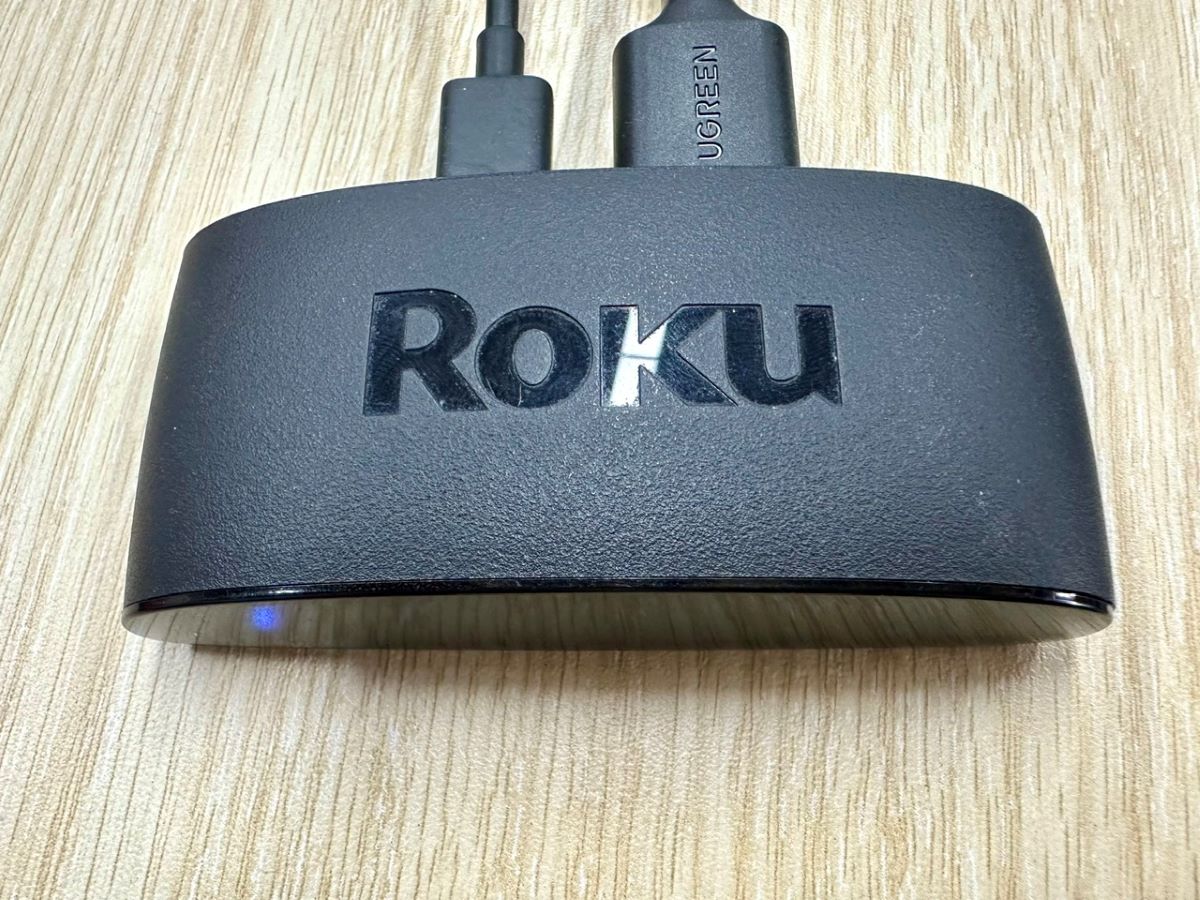
The blinking blue light on your Roku device signals an issue. Understanding the causes helps fix the problem quickly. Common reasons include connection troubles, power faults, or hardware failures. Each cause affects the device differently and needs specific attention.
Connection Issues
Roku depends on a strong internet connection. A weak or lost Wi-Fi signal can cause the blue light to blink. Loose or faulty HDMI cables also disrupt the connection. Check all cables and network settings to ensure proper links. Restart your router and Roku to refresh connections.
Power Problems
Power supply problems often cause the blue light to flash. A damaged power cord or adapter can cut off power intermittently. Unstable power sources or loose plugs create similar issues. Use the original power adapter and plug it firmly into a working outlet. Avoid power strips with known faults.
Hardware Failures
Internal hardware faults trigger the blinking blue light as a warning. Faulty components like the hard drive or motherboard can cause this. Overheating or physical damage also leads to hardware failure. If software fixes fail, hardware repair or replacement might be necessary. Seek professional help for advanced repairs.
Basic Troubleshooting
Basic troubleshooting helps fix common Roku blinking blue light issues fast. Start with simple checks before trying complex solutions. These steps often resolve connection and power problems without extra tools.
Check Cables And Connections
Ensure all cables connect tightly to your Roku and TV. Loose HDMI or power cords cause blinking blue lights. Swap out HDMI cables to rule out damage. Use a different TV port if possible. Confirm the power adapter fits correctly and supplies steady power.
Power Cycle Roku Device
Turn off your Roku device and unplug it from the power outlet. Wait at least 30 seconds before plugging it back in. Power cycling resets the system and clears minor glitches. After restarting, check if the blue light stops blinking and the screen shows the home menu.
Replace Remote Batteries
Weak remote batteries can interrupt Roku signals, causing blinking lights. Remove old batteries and insert fresh ones. Use high-quality alkaline batteries for best results. Test the remote by pressing buttons and watching the Roku response. Replace batteries regularly to avoid connection issues.
Safe Mode Fixes
The Roku blinking blue light often signals a software glitch or display problem. Safe Mode offers a set of simple fixes to solve these issues without harming your data. Using Safe Mode can restore your Roku’s normal function quickly and easily.
Safe Mode fixes include changing video output, updating system software, and rebuilding the Roku database. These steps address common problems that cause the blue light to blink. Follow each method carefully to resolve the issue.
Change Video Output Settings
Sometimes the Roku’s video output settings do not match your TV’s capabilities. This mismatch causes the blinking blue light. In Safe Mode, you can reset the video output to a default setting. This action forces Roku to use a compatible resolution and refresh rate. Changing video settings often fixes display problems and restores normal operation.
Update System Software
Outdated or corrupted software can trigger the blinking blue light. Safe Mode allows you to update the system software safely. This process installs the latest firmware without deleting your personal data. Updating ensures your Roku has the newest features and bug fixes. A software update often stops the blue light from blinking.
Rebuild Roku Database
Roku’s database may become corrupted after repeated use or improper shutdowns. Rebuilding the database repairs this corruption. Safe Mode offers an option to rebuild the database without wiping settings. This fix cleans up system files and improves performance. Rebuilding the database can eliminate the blinking blue light and boost Roku’s stability.
Advanced Hardware Solutions
When software fixes fail, hardware issues might cause the Roku blinking blue light. This problem can stem from internal hardware faults. Diagnosing these faults helps restore your device’s normal function. The following steps focus on inspecting key internal parts. Understanding these checks can save time and avoid unnecessary repairs.
Handle your Roku device carefully while performing hardware checks. Always unplug the device before opening it. Use proper tools to avoid damage. Let’s explore the main hardware areas to inspect.
Inspect Internal Hard Drive
The internal hard drive stores your Roku’s system files. A loose or damaged hard drive can cause blinking lights. Open the device and check if the hard drive is seated firmly. Look for signs of damage or corrosion. If needed, reseat the hard drive gently. Replace the hard drive if it shows physical faults.
Test Power Supply Unit
The power supply unit (PSU) delivers electricity to your Roku. A failing PSU often causes unstable power and blinking lights. Use a multimeter to test the PSU voltage output. Compare it with the device’s required voltage. If the PSU voltage is low or unstable, replace it. A new PSU can restore stable power flow.
Diagnose Internal Components
Other internal parts may cause the blinking blue light. Check for shorted capacitors or damaged chips on the motherboard. Look for burnt marks or swollen components. Testing these parts needs specialized tools and skills. If unsure, seek professional repair services. Fixing internal components can stop the blinking light and revive your Roku.
When To Seek Professional Repair
Sometimes, the blinking blue light on your Roku signals a deeper issue. Basic troubleshooting might not fix it. Knowing when to seek professional repair can save time and money. Professionals can diagnose and fix complex problems safely. Below are key points to consider before reaching out for expert help.
Signs Of Hardware Damage
Hardware damage often causes the Roku light to blink blue continuously. Look for unusual noises or smells from the device. The Roku may also fail to power on or connect properly. Physical damage like cracks or loose parts is another warning. If these signs appear, do not try to open or fix it yourself. Hardware issues need careful handling to avoid further damage.
Component-level Repairs
Component-level repairs involve fixing or replacing small parts inside the Roku. This work requires special tools and skills. Parts like the power supply, motherboard, or connectors may need attention. Professionals can solder components and test the device thoroughly. These repairs often restore your Roku to full function. Attempting this without training can cause permanent damage.
Finding Reliable Repair Services
Choose a repair service with good reviews and experience in Roku devices. Look for certified technicians who offer warranties on their work. Transparent pricing and clear communication matter too. Local repair shops or specialized online services are good options. A trustworthy service ensures your Roku is handled carefully and returned quickly.
Preventing Future Issues
Preventing future issues with your Roku device helps maintain smooth streaming and avoids frustrating interruptions. Simple habits can protect your Roku from common problems like the blinking blue light. Following easy steps keeps your device healthy and reliable over time.
Regular Software Updates
Updating your Roku software is essential for smooth operation. Software updates fix bugs and improve performance. Set your Roku to update automatically. Check for updates manually if you notice any issues. Keeping software current reduces errors and connection problems.
Proper Device Handling
Handle your Roku device with care to avoid damage. Keep it in a well-ventilated area to prevent overheating. Avoid dropping or moving it while in use. Protect it from dust and moisture. Proper care extends the device’s lifespan and prevents hardware faults.
Using Quality Accessories
Choose high-quality cables and power adapters for your Roku. Cheap or faulty accessories can cause connection problems. Use the original or certified replacements. Check cables regularly for wear and tear. Good accessories ensure stable power and signal, reducing blinking light issues.
Roku Device Lifespan
The lifespan of a Roku device depends on several key elements. Understanding these factors helps users know when to expect issues or consider an upgrade. Roku devices are designed to last for years but their performance may decline over time. Knowing what affects longevity and the signs of aging can improve your streaming experience.
Factors Affecting Longevity
Usage frequency plays a big role in how long a Roku lasts. Devices used daily tend to wear out faster. Environmental conditions like heat and dust also impact lifespan. Keeping the Roku in a cool, clean place helps extend its life. Software updates keep the device running smoothly but outdated firmware can cause problems. Power surges or unstable electricity can damage internal parts, shortening device life.
Signs To Upgrade
Frequent freezing or slow response often means the Roku is aging. If the device shows a blinking blue light repeatedly, it may signal hardware or software issues. When apps stop working or the Roku can no longer update software, it’s time to think about upgrading. Newer models offer better features and improved streaming quality. Upgrading ensures a smoother and more reliable viewing experience.
Typical Usage Expectations
Most Roku devices last between 3 to 5 years under normal use. With careful handling and regular updates, some can work well beyond this range. Heavy users might see a shorter lifespan due to constant operation. Light users may enjoy longer device performance. Regular maintenance like checking cables and restarting the device can help maintain its function over time.
Frequently Asked Questions
How To Fix Flashing Blue Light Of Death?
To fix the flashing blue light of death, power cycle the device and check all cables. Use Safe Mode to rebuild the database, update software, or change video settings. If issues persist, inspect hardware like the hard drive or power supply and consider professional repair.
Why Is My Roku Blinking And Not Working?
Your Roku blinks and stops working due to power issues, faulty cables, or software glitches. Try restarting, checking connections, and updating software. Persistent blinking may indicate hardware failure needing professional repair or replacement.
What Is The Life Expectancy Of A Roku Stick?
A Roku stick typically lasts 3 to 5 years. Software updates and daily use affect its lifespan. Proper care can extend its durability.
How Do I Reset My Unresponsive Roku?
To reset an unresponsive Roku, unplug its power cable for 10 seconds, then plug it back in. Use the remote to press Home five times, Up once, Rewind twice, and Fast Forward twice to enter the reset menu. Select “Factory reset” to restore settings.
What Does Roku Blinking Blue Light Mean?
A blinking blue light on Roku shows it is trying to connect. It often means the device is starting up or searching for a network.
Conclusion
Roku’s blinking blue light usually signals a connection or hardware issue. Start by checking all cables and power cycling the device. Use Safe Mode options to update software or fix display settings. If problems persist, hardware faults might be the cause.
In that case, consider professional repair or parts replacement. Staying patient and following these steps can help restore your Roku quickly. Don’t ignore simple fixes—they often solve the problem fast. Keep your Roku in good shape for smooth streaming every time.









