
Is your Roku Stick blinking white, leaving you frustrated and unsure what’s wrong? You’re not alone.
That blinking white light can feel like a confusing signal—does it mean your device is updating, stuck, or worse, broken? Don’t worry. You’ll discover exactly what that blinking white light means and simple steps you can take to fix it quickly.
Whether you want to get back to streaming your favorite shows or avoid costly replacements, keep reading—because your Roku Stick’s blinking white light is a problem you can solve today.
Causes Of White Light Blinking
The white light blinking on your Roku Stick signals that something is not right. This blinking can happen for several reasons. Understanding these causes helps in fixing the problem quickly. The most common reasons include power supply issues, software glitches, hardware problems, and overheating.
Power Supply Issues
Power problems often cause the Roku Stick to blink white. A loose or damaged power cable can disrupt the power flow. Using the wrong power adapter or USB port may also lead to blinking lights. Check the power source and cables for any faults.
Software Glitches
Software errors can make the white light blink continuously. Corrupted updates or failed installations cause these glitches. Sometimes, the Roku system needs a restart or factory reset to clear the errors. Keeping the software up to date prevents many issues.
Hardware Problems
Internal hardware faults can trigger the blinking white light. Faulty components like the mainboard or memory chip might be the cause. Physical damage or manufacturing defects also lead to hardware problems. Professional repair or replacement may be necessary.
Overheating
Overheating is a common reason for the blinking light. When the Roku Stick gets too hot, it tries to cool down by blinking. Poor ventilation or blocking the device can cause heat build-up. Place the stick in a cool, open area to avoid this issue.
Basic Troubleshooting Steps
Troubleshooting a Roku Stick blinking white light starts with simple checks. These steps help identify common issues fast. They often fix the problem without extra tools or support.
Follow each step carefully. Make sure to power off your device before checking connections. Keep your Roku Stick unplugged during inspections for safety.
Check Power Connections
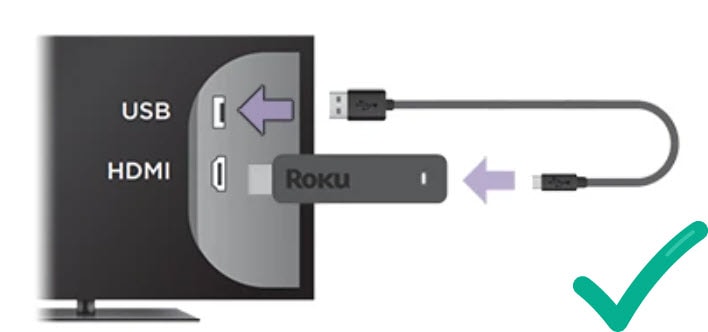
Ensure the power adapter is firmly plugged into an outlet. Use the original Roku power adapter for best results. Avoid using USB ports on your TV for power. These may not supply enough electricity. Try a different power outlet if the light keeps blinking.
Restart The Roku Stick
Unplug the Roku Stick from the power source. Wait for about 30 seconds to 1 minute. Plug it back in and watch the light. Restarting clears minor glitches that cause blinking. This step often restores normal operation quickly.
Inspect Hdmi Port And Cable
Check the HDMI cable for any visible damage. A loose or faulty HDMI connection can cause blinking. Remove and reinsert the cable firmly into the TV and Roku Stick. Try a different HDMI port on your TV. Using a new or different HDMI cable helps rule out cable issues.
Resetting Your Roku Stick
Resetting your Roku Stick can fix many common issues, including the blinking white light problem. A reset refreshes the device’s software and clears temporary glitches. There are different ways to reset your Roku Stick, depending on the situation. Choose the method that suits your needs best.
Soft Reset Using Remote
Press the Home button on your Roku remote five times fast. Then press the Up button once. Next, press the Rewind button twice. Finally, press the Fast Forward button twice. Your Roku Stick will restart automatically. This soft reset does not erase your settings or apps.
Locate the reset button on the Roku Stick. It is usually a small pinhole or a physical button on the device. Hold the button down for about 10 seconds until the light starts blinking rapidly. Release the button and wait for the Roku to reset. This method erases all settings and returns the device to factory defaults.
Reset Through Roku Mobile App
Open the Roku mobile app on your phone. Connect it to the same Wi-Fi network as your Roku Stick. Select your Roku device from the app’s home screen. Go to Settings, then System. Choose Advanced System Settings, and tap Factory Reset. Follow the on-screen instructions to complete the reset.
Updating Software And Firmware
Updating the software and firmware on your Roku Stick is essential for smooth performance. It helps fix bugs, improve features, and maintain stability. Sometimes, blinking white light issues occur due to outdated software. Keeping your device updated ensures it runs the latest version and avoids glitches.
Check For Updates
Start by checking if your Roku Stick has any pending updates. On your Roku home screen, navigate to Settings > System > System update. Select Check now. The Roku will search for available updates and download them if found. This process helps keep your device current without extra effort.
Manual Update Process
If automatic updates do not work or your Roku Stick shows a blinking white light, try updating manually. Restart your Roku device first. Then, go to Settings > System > System update. Choose Check now to force the update process. Make sure your internet connection is stable during this step to avoid interruptions.
Network And Streaming Issues
Network and streaming issues often cause the Roku Stick blinking white light problem. Poor internet connection or weak Wi-Fi can interrupt streaming. This makes the device struggle to load content or stay connected. Checking your network setup helps solve these problems fast.
Test Internet Connection
Start by testing your internet speed on another device. A slow connection can cause buffering and white light blinking. Use a speed test website or app to check your download and upload speeds. Roku needs at least 3 Mbps for standard streaming and 5 Mbps for HD quality. If speeds are low, your internet may be the issue.
Restart Router And Modem
Power cycling your router and modem refreshes the network connection. Unplug both devices from power for 30 seconds. Plug them back in and wait until all lights turn stable. This process clears temporary glitches that block smooth streaming. After restarting, check if the Roku Stick stops blinking white.
Improve Wi-fi Signal
Weak Wi-Fi signals cause frequent disconnections and poor streaming. Move your router closer to the Roku device. Avoid walls or large objects that block the signal. Use a Wi-Fi extender if your home is large. Also, connect Roku to a 5 GHz network for faster speed and less interference.
When To Replace Your Roku Stick
Knowing the right time to replace your Roku Stick can save frustration and improve your streaming experience. The blinking white light often signals a problem, but it does not always mean you need a new device. Understanding the signs of hardware failure, the typical life expectancy, and how to choose a new model will help you decide when to upgrade.
Signs Of Hardware Failure
Frequent blinking white light may indicate hardware issues. Your Roku Stick might not connect to Wi-Fi or keep losing signal. The device could freeze often or fail to power on properly. Remote control may stop responding, even after changing batteries. If these problems persist after resets, hardware failure is likely.
Life Expectancy Of Roku Stick
Roku Sticks generally last around 3 to 5 years under normal use. Software updates keep the device running smoothly for a few years. Older models may slow down as apps require more power. Heavy daily use can reduce lifespan slightly. Physical damage is rare but can shorten the device’s life.
Choosing A New Model
Look for a Roku Stick with updated hardware and software support. Choose one that supports the latest streaming apps and faster Wi-Fi standards. Consider models with better video quality and voice control features. A newer model often offers smoother performance and longer software updates. Check customer reviews to find a reliable option that fits your needs.
Preventive Tips For Smooth Streaming
Maintaining smooth streaming on your Roku Stick requires simple care steps. These preventive tips help avoid common issues like the blinking white light. Following basic habits keeps your device running well and reduces interruptions.
Proper Ventilation
Place your Roku Stick in a well-ventilated spot. Avoid tight spaces that trap heat around the device. Heat buildup can cause the stick to blink white and stop working properly. Keep it away from direct sunlight and other heat sources. Allow air to flow freely around the device for better cooling.
Regular Software Updates
Check for Roku software updates often. Updates fix bugs and improve performance. They also keep your stick compatible with new apps. Go to Settings > System > Software Update to see if updates are available. Installing updates regularly prevents errors and blinking lights.
Avoiding Power Surges
Use a surge protector to plug in your Roku Stick and TV. Power surges can damage the device’s hardware. Sudden voltage spikes cause malfunctions like blinking lights. A surge protector guards your Roku from unstable power and extends its life. Always unplug during storms to be extra safe.
Frequently Asked Questions
How To Reset Roku Stick?
To reset a Roku stick, press and hold the reset button until the LED blinks. Release to complete factory reset.
What Is The Life Expectancy Of A Roku Stick?
A Roku stick typically lasts 3 to 5 years, depending on usage, software updates, and hardware durability.
Why Is My Roku Tv Just Blinking And Not Turning On?
Your Roku TV blinks and won’t turn on due to power issues, faulty cables, or system glitches. Check power connections, replace damaged cables, and perform a restart or factory reset to fix the problem.
How To Reset Unresponsive Roku?
Unplug the Roku device from power. Wait 10 seconds, then plug it back in. It should restart and respond.
Why Is My Roku Stick Blinking White Light?
A blinking white light means the Roku Stick is updating or restarting. It may also indicate a power or connection issue.
Conclusion
A blinking white light on your Roku Stick can be frustrating. Simple fixes like checking power connections often help. Restarting the device may stop the blinking. Sometimes, a factory reset is needed to clear issues. Keep your Roku software updated for smooth performance.
If problems persist, contacting Roku support is a good step. Regular care extends your device’s life and enjoyment. Stay patient and follow these tips to enjoy streaming again.









