
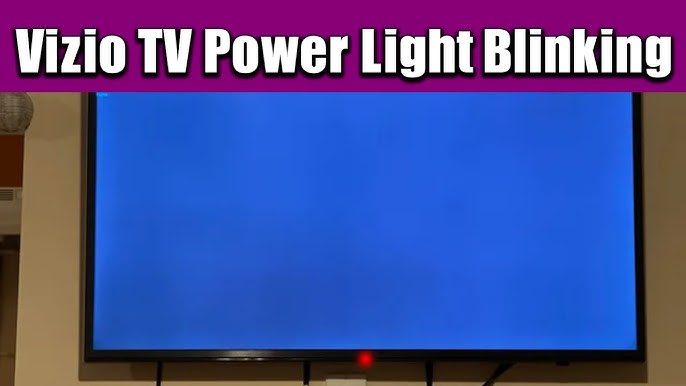
Is your Vizio TV’s red light blinking slowly and leaving you confused about what’s wrong? You’re not alone, and this blinking light is your TV’s way of telling you something needs attention.
Ignoring it won’t make the problem disappear, but the good news is, you don’t have to be a tech expert to fix it. You’ll discover simple, step-by-step solutions that can get your TV back to normal quickly. Keep reading to understand what this blinking red light means and how you can solve the issue without frustration.
Your TV deserves to work perfectly—and you deserve the peace of mind that comes with it.
Causes Of Red Light Blinking
The red light blinking slowly on your Vizio TV signals an issue that needs attention. Understanding the causes helps in troubleshooting effectively. Several factors can trigger this blinking light, each linked to different parts of the TV’s operation. Below are common reasons why the red light may blink slowly.
Power Supply Issues
Power supply problems often cause the red light to blink. A loose power cord or unstable power source can interrupt the TV’s normal function. Faulty power adapters or internal power boards may fail to deliver consistent power. This results in the TV entering a standby mode, indicated by the blinking red light.
Firmware Glitches
Firmware is the software running your Vizio TV. Bugs or errors in firmware can cause the blinking light. Sometimes, a failed update or corrupted files disrupt the TV’s startup process. Resetting or updating the firmware may resolve these glitches and stop the blinking.
Remote Control Problems
The remote control can also cause the red light to blink slowly. Stuck buttons or low battery levels may send continuous signals to the TV. This confuses the TV’s sensor and triggers the blinking light. Checking and replacing remote batteries or removing stuck buttons can help.
Hardware Malfunctions
Internal hardware issues often cause blinking lights. Problems with the TV’s motherboard, display panel, or other components can prevent normal operation. Overheating or damaged parts may force the TV into protection mode, shown by the blinking red light. Professional repair might be necessary for hardware faults.
Basic Troubleshooting Steps
Experiencing a slow blinking red light on your Vizio TV can be worrying. Basic troubleshooting steps often fix this issue quickly. These steps help identify simple problems before calling for professional help. Follow these easy checks to get your TV working again.
Power Cycle Your Tv
Turn off your TV and unplug it from the power source. Wait for about one minute. Plug the TV back in and turn it on. This process resets the TV’s internal systems. It can fix minor glitches causing the red light to blink.
Check Power Connections
Make sure the power cable is firmly connected to the TV and wall outlet. Try a different power outlet if needed. Loose or faulty power connections can cause blinking lights. Inspect the cable for any visible damage. Replace the cable if it looks worn out or broken.
Test With Different Remote
Use another remote control compatible with your Vizio TV. Sometimes, the original remote may send wrong signals. Check if the blinking stops with the different remote. Replace the remote batteries to rule out low power issues. A faulty remote can cause the TV to behave strangely.
Inspect For Overheating
Feel the back of your TV to see if it is very hot. Overheating can cause the red light to blink slowly. Make sure the TV has enough space for ventilation. Remove any objects blocking the vents. Turn off the TV and let it cool down before using it again.
Resetting Your Vizio Tv
Resetting your Vizio TV can often fix issues related to the red light blinking slowly. This simple process clears minor glitches and restores normal function. Different reset methods exist depending on the problem’s severity. Follow these steps carefully to reset your Vizio TV and get it working properly again.
Soft Reset Method
Start by unplugging your TV from the power source. Wait at least 60 seconds to allow the TV to drain residual power. Press and hold the power button on the TV itself for about 15 seconds. Release the button and plug the TV back in. Turn the TV on using the remote or power button. This soft reset can clear temporary issues causing the blinking light.
Hard Reset Procedure
Unplug the TV and wait for 5 minutes to ensure complete power loss. Press and hold the power button on the TV for 30 seconds. While still holding the button, plug the TV back into power. Continue holding the power button for another 30 seconds. Release the button and turn on the TV. This method resets more deeply than a soft reset and can fix stubborn errors.
Factory Reset Guide
Access the TV’s menu using your remote control. Navigate to the “System” or “Settings” section. Find and select “Reset & Admin” or “Reset TV to Factory Defaults.” Confirm the reset by entering your PIN if asked. The TV will erase all settings and return to factory condition. Use this as a last resort when other resets fail. Remember, this deletes all personal settings and apps.
Fixes For Remote Control Red Light
The red light blinking on your Vizio TV remote often signals a connection or power issue. Fixing this problem restores normal remote control function quickly. Try these simple steps to address the remote control red light blinking slowly.
Replace Remote Batteries
Old or weak batteries cause the remote’s red light to blink. Remove the battery cover and take out the old batteries. Insert fresh batteries with correct polarity. Test the remote to see if the blinking stops. This is the easiest fix to try first.
Reestablish Remote Connection
The remote may lose connection with the TV. Turn off the TV and unplug it for 30 seconds. Plug the TV back in and turn it on. Point the remote at the TV and press any button to reconnect. This simple reset often restores communication between devices.
Reset The Remote
Resetting the remote clears any temporary glitches. Remove the batteries and press every button once to drain residual power. Replace the batteries and press the power button to turn on the TV. This reset refreshes the remote’s internal system and stops the blinking red light.
Advanced Solutions
Advanced solutions help fix Vizio TV issues beyond basic troubleshooting. They target deeper problems inside your TV. These methods require some technical knowledge and patience.
Try these steps carefully to resolve the red light blinking slowly issue. Make sure to follow instructions for safety and accuracy.
Update Tv Firmware
Outdated firmware can cause blinking red lights on Vizio TVs. Updating firmware improves performance and fixes bugs. Connect your TV to the internet using Wi-Fi or Ethernet. Go to the settings menu and select “System” or “Support.” Choose “Check for Updates” and install any available updates. Restart your TV after the update completes. This step often resolves software-related problems.
Check Internal Hardware
Hardware issues might cause the red light to blink slowly. Unplug your TV and remove the back panel carefully. Look for loose cables, damaged parts, or burnt components. Check the power supply board and mainboard for visible signs of damage. If comfortable, reseat connectors or replace faulty parts. Avoid touching other internal parts to prevent damage. This step may require professional help if unsure.
Contact Vizio Support
When advanced fixes fail, contact Vizio support for expert help. Provide your TV model number and describe the blinking light issue clearly. Support may guide you through further troubleshooting or arrange repairs. Using official service ensures safe and reliable solutions. Keep your warranty information ready to speed up the process.
Preventive Tips
Preventing the Vizio TV red light from blinking slowly saves time and stress. Simple care steps keep your TV working well. These tips help avoid common issues and extend your TV’s life. Follow them to enjoy clear, uninterrupted viewing.
Keep Tv Ventilated
Place your TV in a spot with good airflow. Avoid tight spaces or closed cabinets. Heat builds up quickly and can cause problems. Keep vents clear from dust and blockages. Use a soft cloth to clean vents regularly.
Avoid Power Surges
Power surges harm your TV’s electronics and cause blinking lights. Use a surge protector to shield your TV. Unplug the TV during storms or long absences. This simple step prevents damage and saves repair costs.
Regular Firmware Updates
Firmware updates fix bugs and improve TV performance. Check for updates in the TV settings often. Install updates as soon as they are available. Updated software reduces errors and blinking light issues.

Frequently Asked Questions
Why Is My Vizio Tv Not Turning On But The Power Light Is Blinking?
A blinking power light on your Vizio TV usually indicates a power or hardware issue. Try unplugging the TV, wait 60 seconds, then plug it back in. If it still won’t turn on, perform a hard reset by holding the power button for 10 seconds.
How To Fix Vizio Tv Blinking?
Unplug the Vizio TV for 60 seconds, then plug it back in. Check and replace remote batteries. Perform a factory reset via settings. Ensure firmware is updated. Contact support if blinking persists.
How To Hard Reset A Vizio Tv That Won’t Turn On?
Unplug your Vizio TV from power for 60 seconds. Press and hold the power button on the TV for 30 seconds. Plug it back in and try turning it on. This hard reset often resolves power issues.
How To Force Reset A Vizio Tv?
To force reset a Vizio TV, unplug it from power for 60 seconds. Press and hold the power button on the TV for 15 seconds. Release the button, then plug the TV back in and turn it on. This clears temporary issues and resets the TV.
Why Is My Vizio Tv Red Light Blinking Slowly?
A slow blinking red light usually means the TV is in standby mode or updating software. It can also signal a minor issue with power or the remote control.
Conclusion
A slowly blinking red light on your Vizio TV usually signals a power or hardware issue. Try simple steps like unplugging and power cycling first. Resetting the TV can often solve common problems quickly. If problems continue, check connections or contact support.
Staying calm and following these tips helps fix the issue without stress. Your TV can be back to normal with just a few easy fixes.









