
Is your Chromecast blinking white and leaving you puzzled? That flashing light can be frustrating, especially when you just want to enjoy your favorite shows or movies.
But don’t worry—you’re not alone, and this blinking white light actually tells you a lot about what’s going on with your device. You’ll discover simple and effective ways to fix the problem quickly. Keep reading, and you’ll have your Chromecast working smoothly again in no time.
Causes Of Blinking White Light
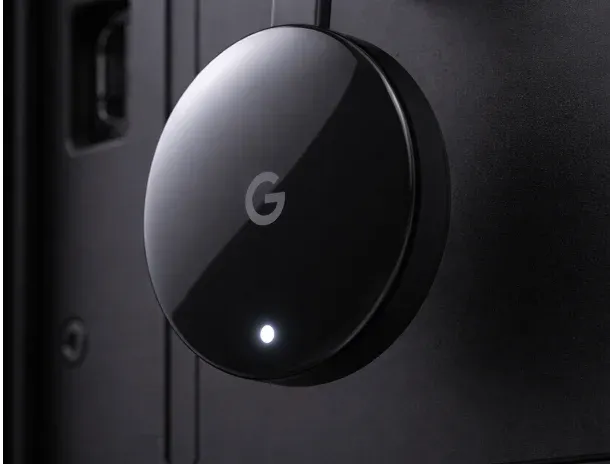
The blinking white light on your Chromecast signals that the device is active but facing some issues. Understanding the causes helps fix the problem faster. Several factors can make the white light blink continuously. These include power supply problems, connection troubles, idle status, or internal errors. Each cause affects the device differently and requires specific attention.
Power Supply Issues
Insufficient power often causes the white light to blink on Chromecast. Using a USB port on the TV may not provide enough power. The Chromecast needs a stable and strong power source from a wall outlet. A faulty or loose power cable can also trigger blinking. Always use the original power adapter and cable for best results.
Hdmi Connection Problems
A loose or damaged HDMI cable can cause the blinking white light. The Chromecast must be properly connected to the TV’s HDMI port. Try unplugging and reconnecting the HDMI cable firmly. Switching to a different HDMI port can help identify if the port is defective. Sometimes, replacing the HDMI cable resolves the issue entirely.
Idle Or Waiting State
The blinking white light might indicate the Chromecast is idle or waiting for input. This means the device is on but not actively streaming content. It pulses gently to show it is ready to receive commands. This state is normal if the Chromecast is on but not connected to any source or app. Restarting the device can refresh its status.
Device Errors
Internal errors or firmware glitches cause the white light to blink repeatedly. These errors might occur after failed updates or system crashes. A hard reset can often clear these errors. Press and hold the reset button on the Chromecast until the light changes color. This action restores the device to factory settings and usually stops the blinking.
Quick Power Fixes
Quick power fixes can often solve the blinking white light issue on your Chromecast. This problem usually points to power supply troubles. Simple adjustments to your power source might get your device working again fast. These fixes require no special tools or technical knowledge.
Use Wall Outlet Power
Always plug your Chromecast into a wall outlet. Wall outlets provide steady and strong power. This helps your Chromecast run smoothly. Avoid using extension cords or power strips that may cause power drops. A direct connection to the wall is best for stable power.
Avoid Tv Usb Ports
Do not power your Chromecast from a TV USB port. Many TV USB ports supply less power than needed. This can cause the Chromecast light to blink white. Use the original power adapter that came with your device. It ensures the Chromecast gets enough power to work properly.
Unplug And Replug Chromecast
Unplug the Chromecast from the power source. Wait about 10 seconds before plugging it back in. This simple reset can fix minor glitches. It forces the device to restart and refresh its system. Watch the LED light after reconnecting. The light should stop blinking white if the power issue is fixed.
Hdmi Troubleshooting
HDMI issues often cause the Chromecast blinking white problem. Checking the HDMI connection is a good first step. Loose or faulty cables can interrupt the signal. The TV may not detect the Chromecast properly, leading to the blinking light. Simple HDMI troubleshooting can often fix this issue quickly.
Check Hdmi Cable Connection
Make sure the HDMI cable is firmly plugged into both the Chromecast and the TV. A loose connection can cause the white light to blink. Remove the cable and plug it back in to ensure a secure fit. Inspect the cable for any visible damage that may affect the connection.
Try Different Hdmi Ports
Sometimes, the HDMI port on the TV may have a problem. Switch the Chromecast to another HDMI port on your TV. This step helps identify if the port is the issue. Using a different port can restore the connection and stop the blinking white light.
Restart Your Tv
Restarting the TV resets the HDMI ports and internal settings. Turn off the TV, unplug it from the power source, wait for about 30 seconds, then plug it back in. Power on the TV and check if the Chromecast stops blinking white. This simple restart often resolves connection problems.
Resetting Chromecast
Resetting your Chromecast often resolves many common issues, including the blinking white light problem. It helps refresh the device’s settings and clears minor glitches. There are two main ways to reset your Chromecast: a soft reset and a factory reset. Each method serves a different purpose depending on the problem’s severity.
Soft Reset Steps
To perform a soft reset, keep your Chromecast plugged into the TV and power source. Press and hold the small button on the back of the device. Watch the LED light closely. It will start blinking yellow. When the light turns solid white, release the button. The Chromecast will restart and try to reconnect to your network.
Factory Reset Instructions
A factory reset erases all your settings and data from the device. Start with your Chromecast plugged in. Press and hold the button on the back for about 25 seconds. The LED light will flash orange and then turn white. Release the button once the white light stays solid. Your Chromecast will restore to its original factory settings.
When To Reset
Reset your Chromecast if it won’t connect to Wi-Fi or your TV. Try a soft reset first for minor issues like freezing or lag. Use a factory reset if the device keeps blinking white or shows repeated errors. Resetting solves network and software problems effectively.
Wi-fi And Network Tips
Network issues often cause Chromecast blinking white problems. A strong Wi-Fi connection helps Chromecast work smoothly. Follow these simple network tips to improve your streaming experience and fix blinking white light issues.
Check Wi-fi Connection
Make sure your Chromecast and phone are on the same Wi-Fi network. Use a stable Wi-Fi signal with good speed. Move closer to the router to get a stronger connection. Avoid public or guest networks, as they may block casting features.
Restart Router
Turn off your router and wait 30 seconds before turning it on again. Restarting clears temporary network issues. This refresh helps Chromecast reconnect to the internet properly. Restart your Chromecast device too, for a full reset of connections.
Avoid Signal Obstructions
Keep your Chromecast and router away from thick walls and metal objects. Devices like microwaves and cordless phones can cause interference. Place your router in an open area for better signal reach. Clear paths help Chromecast receive a steady Wi-Fi connection.

Remote Sync And Pairing
Remote sync and pairing are key to using your Chromecast smoothly. The remote controls your device, so it must connect properly. If your Chromecast’s white light blinks, the remote might have syncing issues. Fixing this helps your streaming work without interruptions.
Resync Chromecast Remote
To resync the Chromecast remote, start by turning on your TV and Chromecast. Hold the remote close to the device. Press and hold the Back and Home buttons together for five seconds. The remote’s light will blink, showing it is pairing. Once the light turns solid, the remote is connected.
This quick step often solves connection problems. It resets the link between the remote and Chromecast. Try this before moving to other solutions.
Troubleshoot Remote Pairing
Check the remote’s batteries first. Weak batteries can cause pairing issues. Replace them with fresh ones if needed. Make sure no objects block the remote’s signal to the Chromecast.
Restart your Chromecast by unplugging it from power for 30 seconds. Plug it back in and wait for it to start. Try pairing the remote again. Keep the remote close during this process.
If pairing fails, reset the remote. Press and hold the Home button for 10 seconds. This clears old connections. Then follow the resync steps to pair it again.
Frequently Asked Questions
How Do I Reset A Chromecast That Won’t Connect?
Press and hold the button on Chromecast’s back while powered. Release when the LED turns solid white to reset the device.
How Do I Resync My Chromecast?
To resync your Chromecast, press and hold the button on its back until the LED blinks yellow. Release when solid white appears. Then reconnect it to your Wi-Fi and device through the Google Home app to complete syncing.
Why Won’t My Chromecast Remote Pair?
Chromecast remote won’t pair due to low battery, interference, or outdated firmware. Restart both devices and ensure Bluetooth is on. Keep remote close to Chromecast during pairing. Reset Chromecast if needed and check for software updates to fix connection issues.
How Do I Reboot My Chromecast?
Unplug the Chromecast’s power cable from the outlet. Wait about 10 seconds. Plug it back in to reboot the device.
Why Is My Chromecast Blinking White Light?
A blinking white light means the device is starting or updating. It can also signal a connection issue. Check power and HDMI cables for proper setup.
Conclusion
A blinking white light on Chromecast often means it needs attention. Check the power source first; use the wall adapter provided. Make sure the HDMI cable is firmly connected or try another port. Restart your TV and Chromecast to refresh the connection.
Press and hold the reset button if the light keeps blinking. These simple steps usually fix the problem quickly. Staying calm and following these tips can get your Chromecast working again. Keep your device updated to avoid future issues.









