
Are the lights on your Shark vacuum blinking and you’re not sure why? It’s frustrating when your trusted cleaning partner suddenly signals trouble with flashing lights.
But don’t worry—you’re not alone, and this blinking is actually trying to tell you something important about your vacuum’s health. Whether it’s a low battery, a blockage, or an overheating issue, understanding what those lights mean can save you time and keep your vacuum running smoothly.
In this guide, you’ll discover simple, step-by-step solutions to get your Shark vacuum back to work quickly. Keep reading—you’re just a few fixes away from a cleaner home without the hassle.
Causes Of Blinking Lights
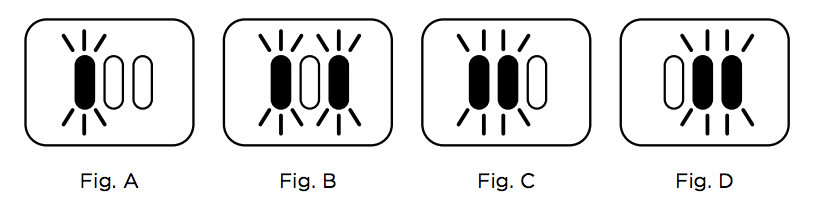
Blinking lights on a Shark vacuum usually warn of a problem. These signals help users identify the issue fast. Understanding the causes can save time and prevent damage. The lights blink in different ways depending on the fault.
Low Battery Issues
Low battery often causes blinking lights on the vacuum. The vacuum may not charge properly if the battery is weak. Check the charging dock and power supply. Dirty or misaligned charging contacts can stop charging. Replace the battery if it no longer holds power.
Overheating Problems
Overheating triggers flashing lights to protect the vacuum. Continuous use on thick carpets or blocked filters causes heat. The vacuum stops working until it cools down. Keep vents clean and avoid long use without breaks. Overheating can damage the motor if ignored.
Brush Roll Blockages
Hair and debris can jam the brush roll. A blinking brush light signals this blockage. Remove the brush roll and clean it regularly. Tangled hair slows the vacuum and causes errors. Clear all debris to restore proper function.
Wheel Obstructions
Obstructions under wheels cause blinking light alerts. Dirt, hair, or small objects can block wheel movement. Blocked wheels stop the vacuum or make it beep. Check wheels for debris and clear any stuck items. This keeps the vacuum moving smoothly.
Sensor And Connection Errors
Dirt on sensors or loose connections cause blinking lights. Sensors detect obstacles and floor types for cleaning. Clean sensors gently with a soft cloth. Ensure all parts are firmly connected. Faulty sensors or poor connections lead to error signals.
Identifying Light Patterns
Shark vacuum cleaners use blinking lights to communicate their status and issues. Identifying these light patterns helps understand what the vacuum needs. Each pattern signals a different problem or condition. Knowing these signals saves time and avoids frustration. Below are common light patterns and their meanings.
Single Light Blinking
A single blinking light usually means the vacuum needs attention. It can indicate low battery or a need to reset the device. Check if the vacuum is charging properly. Ensure the charging contacts are clean and aligned. Sometimes, a simple reset fixes the issue quickly.
Multiple Lights Flashing
When several lights flash at once, the vacuum may face a bigger problem. This often signals an overheating issue or a blockage. The vacuum might have stopped working to protect itself. Let it cool down and check for any stuck debris. Clear the brush roll and wheels if needed.
Red Light Indicators
A red blinking light is a clear warning. It usually points to a critical issue like a jammed brush roll or stuck wheel. Remove the brush and clean out any hair or dirt. Also, inspect the wheels for objects blocking movement. Fixing these problems restores normal operation.
Specific Error Codes
Some Shark models use specific blinking patterns to show error codes. These codes identify sensor problems or connection faults. Check the Shark app or user manual for exact meanings. Following the code instructions helps solve the issue faster. Keep the manual handy for quick reference.
Basic Troubleshooting Steps
Basic troubleshooting steps help fix common Shark vacuum light blinking issues. These steps focus on simple checks and cleaning. They prevent bigger problems and keep your vacuum working well.
Start by inspecting parts that often cause errors. Brush rolls, wheels, sensors, and charging contacts can get dirty or blocked. Cleaning these can stop lights from blinking.
If cleaning does not help, try resetting the vacuum. This can clear minor errors and restore normal function.
Cleaning Brush Roll And Wheels
Remove the brush roll carefully from the vacuum. Check for hair, threads, or debris wrapped around it. Use scissors or your fingers to clear all blockages.
Look at the wheels and remove any dirt or objects stuck in them. Clean with a dry cloth or a soft brush. Reinstall the parts properly before testing the vacuum.
Wiping Sensors
Sensors detect obstacles and help the vacuum navigate. Dirt on sensors can cause blinking lights. Find the sensor areas on your vacuum.
Use a soft, dry cloth to wipe the sensors gently. Avoid liquids or harsh cleaners. Keep sensors clean to maintain proper operation.
Checking Charging Contacts
Dirty or misaligned charging contacts can cause charging problems. Locate the charging contacts on both the vacuum and the base station.
Wipe the contacts with a dry cloth to remove dust or grime. Make sure the vacuum sits correctly on the charger. Proper contact helps stop blinking lights related to charging.
Resetting The Vacuum
Resetting clears errors and restarts the vacuum’s system. Find the reset button or follow the reset instructions in your manual.
Press and hold the reset button for a few seconds. Release and wait for the vacuum to restart. This often fixes blinking light issues after cleaning steps.
Using The Shark App
The Shark app is a helpful tool for managing your Shark vacuum. It connects your device to your smartphone. This connection allows quick access to important information about your vacuum’s status. You can see alerts, get guidance, and update your vacuum’s software. Using the app makes it easier to fix blinking light issues fast. It guides you through each step to keep your vacuum running smoothly.
Accessing Error Notifications
Open the Shark app on your phone. It shows error notifications when your vacuum’s lights blink. These notifications explain the problem clearly. You can see if the battery is low or if there is a blockage. The app helps you understand what the blinking lights mean. This saves time and avoids guesswork.
Following App Guidance
The app gives clear instructions to solve the error. It tells you how to clean the brush roll or wheels. You get step-by-step help to fix the issue. The app also suggests when to reset the vacuum. Following the app’s guidance improves your vacuum’s performance. It reduces the chance of future blinking light problems.
Updating Firmware
The Shark app keeps your vacuum’s firmware up to date. Firmware updates fix bugs and add new features. The app notifies you when an update is ready. Installing updates can stop blinking light errors. It also enhances battery life and cleaning efficiency. Regular updates keep your vacuum working at its best.
Resetting Your Vacuum
Resetting your Shark vacuum can clear errors and stop blinking lights. It helps fix many common issues quickly. This process forces the vacuum to restart and refresh its system. Follow these easy steps to reset your vacuum and get it working again.
Power Cycling Method
Turn off your Shark vacuum completely. Press and hold the power button for 10 seconds. Release the button and wait for 30 seconds. Turn the vacuum back on to see if the lights stop blinking. This method resets minor software glitches fast.
Unplug And Wait
Unplug the vacuum from the charging dock or wall outlet. Leave it unplugged for at least one minute. This cuts all power and resets the internal battery system. Plug it back in and power on the vacuum. This simple step often clears error lights.
Factory Reset Options
Some Shark vacuum models allow a full factory reset. Check your user manual for reset instructions. Usually, it involves holding specific buttons for several seconds. Factory reset erases all settings and error codes. Use this only if power cycling and unplugging do not work.
When To Contact Support
Knowing when to contact support for your Shark vacuum is important. Some blinking light issues are easy to fix at home. Others need professional help. Paying attention to the type of blinking light helps decide the next step. Persistent problems or unusual patterns often require expert advice. Below are key signs that show it is time to reach out to Shark customer support.
Persistent Red Light Issues
A red blinking light can indicate many issues. If you clean and reset the vacuum but the red light stays on, this is a persistent problem. It may mean the vacuum has a deeper fault. Do not ignore this signal. Continued blinking red light after troubleshooting needs support. Contacting Shark support can provide guidance or repair options.
Battery Or Control Board Failure
Battery or control board problems cause unusual blinking lights. If the vacuum does not hold a charge or stops working suddenly, these parts may fail. Troubleshooting steps like cleaning contacts will not fix this. A faulty battery or control board requires professional service. Support can confirm the issue and suggest repair or replacement.
Warranty Service Options
Shark vacuums come with a warranty covering many defects. If the blinking lights point to hardware failure, check your warranty status. Support will explain your warranty options and the process for sending in the vacuum. Using warranty service can save money on repairs. Contact Shark support for details and instructions.
Preventive Maintenance Tips
Preventive maintenance keeps your Shark vacuum running smoothly. Simple habits stop blinking lights caused by common issues. Regular care avoids interruptions and extends vacuum life.
Regular Cleaning Routines
Clear the brush roll of hair and debris often. Check wheels for stuck dirt or objects. Clean dust from sensors and charging contacts. A clean vacuum avoids blockages that cause blinking lights.
Proper Charging Habits
Place the vacuum correctly on the charger. Ensure the charging contacts are clean and aligned. Avoid using damaged cords or outlets. Charge the vacuum in a cool, dry place for best results.
Avoiding Overheating
Give the vacuum breaks during long cleaning sessions. Avoid vacuuming thick carpets or large debris nonstop. Keep vents clear to allow airflow. Overheating triggers blinking lights and stops the vacuum.
Frequently Asked Questions
Why Are My Shark Vacuum Lights Blinking?
Shark vacuum lights blink to signal issues like low battery, overheating, brush roll blockages, or stuck wheels. Clean brush, wheels, and contacts. Reset the vacuum and check the Shark app for error codes. Persistent blinking may require contacting Shark support for battery or sensor problems.
What Do The Flashing Lights On The Shark Mean?
Flashing lights on a Shark vacuum indicate issues like low battery, overheating, or blockages. Check brush roll, wheels, and charging contacts. Reset the unit and consult the Shark app for specific error codes. Persistent flashing may require contacting Shark support.
How Do I Reset My Shark Vacuum Cleaner?
To reset your Shark vacuum, unplug it and wait 30 seconds. Press and hold the power button for 15 seconds, then release. Plug it back in and turn it on. Clean brush rolls and charging contacts before resetting for best results.
What Is The Average Lifespan Of A Shark Vacuum Cleaner?
The average lifespan of a Shark vacuum cleaner is 5 to 7 years with proper maintenance and regular use.
Why Are My Shark Vacuum Lights Blinking?
Blinking lights usually mean a problem like low battery, overheating, or blockages. Check the brush roll, wheels, and battery status to find the issue.
Conclusion
Shark vacuum lights blinking usually point to simple maintenance issues. Check the battery, brush roll, and wheels for blockages. Clean charging contacts and sensors regularly to avoid errors. Cool down the vacuum if it overheats before charging again. Use the Shark app to identify specific error codes quickly.
Following these steps keeps your vacuum running smoothly. Persistent problems? Reach out to Shark support for help. Keeping your vacuum clean and maintained solves most blinking light issues.









