
Is your Kwikset smart lock blinking red and you’re not sure what it means? You’re not alone, and it’s a common sign that your lock needs your attention.
Ignoring that red light could leave you locked out or compromise your smart lock’s performance. But don’t worry—understanding why your Kwikset smart lock is blinking red is easier than you think. You’ll discover exactly what that red blinking light signals, how to fix it quickly, and tips to keep your smart lock running smoothly.
Keep reading to avoid frustration and ensure your home stays secure.
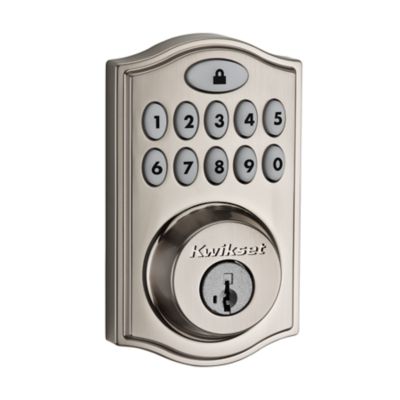
Kwikset Red Light Signals
The Kwikset smart lock uses red light signals to communicate important information. These signals help users understand the lock’s status at a glance. Recognizing these signals can prevent lockouts and ensure smooth operation.
Each red light pattern means something specific. Knowing these meanings saves time and avoids confusion. The red light may indicate low battery, errors, or other alerts.
Battery Low Indicator
A blinking red light usually means the battery is low. The lock warns users before it stops working. Replace batteries soon to keep the lock functional. Use fresh AA alkaline batteries for best results. Delaying battery replacement may cause the lock to stop responding.
Locking And Unlocking Colors
The lock shows different colors for locking and unlocking. Red flashes mean locking is in progress or the door is locked. Green flashes indicate the door is unlocked. These colors help users confirm the lock’s status quickly. Watching these signals avoids guesswork at the door.
Error And Jam Alerts
Rapid red blinking can signal an error or jam inside the lock. This alert helps users know something blocks the mechanism. Check for physical obstructions or misalignment. Clearing jams promptly ensures the lock returns to normal operation. Ignoring these alerts can cause further issues.
Battery Issues
The Kwikset smart lock blinking red often signals battery problems. The lock needs fresh power to work properly. Ignoring the red light can lead to lock failure. Understanding battery issues helps maintain smooth lock function. Below are key points about battery care and replacement.
Replacing Batteries Correctly
Use the correct battery type for your Kwikset lock. Remove all old batteries at once. Insert new batteries with the right polarity. Make sure batteries fit snugly in the compartment. Close the battery cover securely after replacement. This ensures the lock receives steady power. Avoid mixing old and new batteries to prevent errors.
Using Alkaline Batteries
Always choose alkaline batteries for your Kwikset smart lock. Alkaline batteries provide stable power and last longer. Avoid rechargeable or zinc-carbon batteries as they drain fast. Alkaline batteries reduce the chance of a red blinking light. Keep spare alkaline batteries handy for quick swaps. This keeps your lock running without interruption.
Battery Life Expectations
Kwikset smart lock batteries last about 6 to 12 months. Battery life depends on lock usage and environmental factors. Frequent use or extreme temperatures may shorten battery life. The lock alerts you with a red blinking light when power is low. Replace batteries promptly to avoid lock malfunctions. Regular checks help prevent sudden lockouts.
Power Backup Options
Power backup options keep your Kwikset smart lock working during power issues. A blinking red light often signals low battery power. This means the lock may stop responding to digital commands. Using backup power helps you avoid lockouts and maintain security. Here are simple ways to keep your lock powered temporarily or in emergencies.
Usb-c Power Bank Use
Many Kwikset smart locks have a USB-C port. Connect a USB-C power bank to this port for instant power. This solution works well if your lock’s batteries die suddenly. The power bank supplies energy to the lock, allowing you to unlock it digitally. Use a fully charged power bank for best results. This method is quick and does not require replacing batteries immediately.
Temporary Power Solutions
Temporary power solutions are useful in emergencies. Besides USB-C power banks, you can use portable chargers or power adapters. These devices can provide short-term power to your smart lock. They keep the lock active until you replace the batteries. Always keep a portable charger handy near your door. This preparation saves time and stress during power loss.
Physical Key Access
Kwikset smart locks come with a physical key option. Use the key to unlock the door when electronic power fails. The key slot is often hidden for a clean look. Keep your physical key in a safe, accessible place. This method guarantees access even if all power options fail. It is a reliable backup that requires no batteries or electricity.

Common Lock Problems
Kwikset smart locks may show a blinking red light due to common lock problems. These issues can stop your lock from working properly. Understanding these problems helps in quick troubleshooting and fixes.
Many lock problems come from the door or the lock parts not working well together. Small misalignments or obstructions often cause the lock to struggle. The bolt may not move smoothly, which affects the lock’s function.
Door Misalignment Effects
When the door is not aligned correctly, the lock may not latch properly. This causes the Kwikset lock to blink red as a warning. Misalignment puts extra pressure on the lock parts, leading to wear and tear. It may also cause the lock to jam or fail to lock.
Strike Plate Obstruction
The strike plate is the metal plate on the door frame where the bolt goes in. Dirt, paint, or debris can block the strike plate. This obstruction stops the bolt from sliding in fully. The lock then shows a blinking red light to signal the problem. Cleaning or adjusting the strike plate can fix this easily.
Bolt Movement Issues
The bolt must move smoothly to lock and unlock the door. Dust, rust, or damage can slow or stop bolt movement. The Kwikset lock may blink red due to this resistance. Regular maintenance and lubrication keep the bolt working well. If the bolt is broken, it needs replacement for the lock to work.
Troubleshooting Steps
Experiencing a Kwikset smart lock blinking red can be frustrating. This signal often means your lock needs attention. Follow these troubleshooting steps to fix the issue quickly. Each step targets common problems to get your lock working again.
Resetting The Lock
Start by resetting your Kwikset lock. This helps clear minor errors. Press and hold the program button for about 10 seconds. Release the button when the light turns green. The lock will reboot and may stop blinking red. This process does not erase your settings.
Checking For Firmware Updates
Firmware updates improve lock performance and fix bugs. Open the Kwikset app on your phone. Check the lock settings for available updates. Download and install any new firmware. Keep your lock connected to Wi-Fi during this process. Updated firmware can resolve blinking red light issues.
Performing A Factory Reset
A factory reset restores your lock to original settings. Use this step if other fixes fail. Locate the reset hole on the lock. Insert a paperclip and hold the reset button for 30 seconds. Wait until the lock flashes green twice. Note that a factory reset erases all user codes and settings.
Preventive Measures
Taking preventive measures can keep your Kwikset smart lock working smoothly. Regular care helps avoid the red blinking light issue. It also extends the lock’s life and maintains security. Small steps can make a big difference in performance.
Monitoring Battery Alerts
Always watch for low battery signals on your smart lock. A red blinking light means the battery is weak. Replace batteries promptly to prevent lock failure. Use good quality alkaline batteries for longer life. Check battery status in the lock’s app if available.
Regular Maintenance Tips
Clean the lock regularly to avoid dirt buildup. Use a soft cloth to wipe the keypad and exterior. Avoid harsh chemicals that can damage the surface. Lubricate the keyhole and moving parts once a year. Test the lock’s functions often to spot issues early.
Avoiding Common Errors
Do not mix old and new batteries in the lock. Insert batteries with the correct polarity to avoid damage. Avoid forcing the lock’s buttons or keys. Keep the lock’s firmware updated through the app. Prevent water or extreme heat exposure to protect electronics inside.
Frequently Asked Questions
Why Is My Kwikset Smart Lock Flashing Red?
A Kwikset smart lock flashes red to indicate low battery. Replace all batteries promptly with fresh AA alkaline ones to restore function.
Why Is My Smart Lock Blinking Red?
A smart lock blinking red usually indicates low battery. Replace all batteries promptly with fresh AA alkaline ones to restore function.
How Long Do You Have To Wait For A Kwikset Lock To Reset?
A Kwikset lock resets instantly after completing the reset process. No waiting time is required.
What Happens If The Battery Dies In A Smart Lock?
If a smart lock’s battery dies, it stops responding to digital commands and auto-lock features. Use a physical key or connect a power bank via USB port to unlock. Replace batteries promptly after low battery alerts to maintain functionality and security.
Why Is My Kwikset Smart Lock Blinking Red?
A blinking red light usually means the battery is low. Replace all batteries with new AA alkaline ones to fix this. This ensures the lock works properly and avoids lockouts.
Conclusion
A blinking red light on your Kwikset smart lock signals low battery. Replace all batteries promptly with new AA alkalines. This keeps your lock working smoothly and avoids lockouts. Remember to check battery status regularly for uninterrupted security. Use a physical key or power bank if the lock stops responding.
Staying aware helps maintain your smart lock’s reliability every day.









