Is your Xbox controller stuck blinking and refusing to connect? It’s frustrating when you’re ready to dive into your favorite game, but that blinking light just won’t stop.
This flashing signal usually means your controller is struggling to sync with your console, and without a quick fix, your gaming session is on hold. But don’t worry—this blinking issue is more common than you think, and you can solve it with a few simple steps.
Keep reading, and you’ll learn exactly why your Xbox controller won’t stop blinking and how to get it back to work fast. Your next game is waiting!
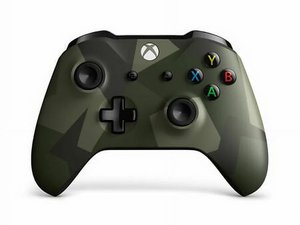
Why The Controller Blinks
The blinking light on your Xbox controller signals a problem. It tries to connect but cannot. Understanding why it blinks helps to fix it quickly. Several common causes can make the controller flash continuously. These include battery issues, connection problems, and firmware glitches. Each issue affects the controller differently and needs a specific approach.
Battery Issues
Low or dead batteries cause the controller to blink. The controller cannot hold a stable connection without enough power. Sometimes, batteries are installed the wrong way. This also leads to blinking lights. Using fresh batteries or charging the controller fully often stops the blinking. Always check the battery level first when the light blinks.
Connection Problems
The blinking light means the controller struggles to sync with the console. Wireless interference may block the signal between them. Distance too far from the console causes connection loss. Sometimes, the controller loses connection during gameplay and starts blinking. Restarting the console or re-pairing the controller usually fixes this. Another quick fix is to use a USB cable for a direct connection.
Firmware Glitches
Outdated or corrupted firmware causes blinking issues. The controller’s software might have bugs that stop it from connecting properly. Firmware updates from Xbox improve stability and fix bugs. Checking and updating the controller’s firmware can solve blinking problems. Resetting the controller can also clear temporary glitches that cause the light to flash.

Simple Power Cycling
Simple power cycling can often fix the Xbox controller that won’t stop blinking. This method refreshes the controller’s connection to the console. It clears temporary glitches that cause the blinking light. Power cycling is quick and easy to do at home. Follow these steps carefully to try this solution.
Turn Off And On
Start by turning off your Xbox controller. Press and hold the Xbox button for about 10 seconds. The controller will shut down completely. Wait for a few seconds before turning it back on. Press the Xbox button again to power it up. Check if the blinking stops and the controller connects.
Unplug Console Power
Next, unplug the power cord from your Xbox console. Leave it unplugged for around 30 seconds. This step resets the console’s internal systems. After 30 seconds, plug the power cord back in. Turn on the console and wait for it to fully start. Try connecting your controller again to see if it works.
Controller Reset Sequence
Perform a reset sequence on your controller to clear issues. Hold down the Xbox button and the sync button together. Keep holding both buttons for about 15 seconds. The controller will flash and then turn off. Release the buttons, then press the Xbox button to turn it on. The blinking light should stop and pairing should work normally.
Re-pairing The Controller
Re-pairing your Xbox controller can fix the blinking light issue. This process helps the controller reconnect properly to the console. It is simple and takes only a few minutes. Follow the steps below to re-pair your controller and stop the blinking light.
Using Sync Buttons
Turn on your Xbox console first. Next, press the Xbox button on your controller. Hold the sync button on the controller until the light blinks faster. Then press the sync button on the console. Wait for the controller light to stay solid, showing a successful connection.
Pairing Via Usb Cable
Connect your controller to the console using a USB cable. The controller will power on automatically. This wired connection will stop the blinking light. It also updates the controller firmware if needed. After a few seconds, unplug the cable to test the wireless connection again.
Checking Controller Status
Look at the controller’s Xbox button light. A solid light means the controller is connected. A blinking light shows it is still searching for the console. Try turning the controller off and on again if it keeps blinking. Also, check the batteries or charge level before re-pairing.
Battery Troubleshooting
Battery issues often cause the Xbox controller to keep blinking. Checking and fixing battery problems can stop the flashing light. This section explains simple steps to solve battery-related troubles. Follow these tips to get your controller working smoothly again.
Replace Batteries
Old or weak batteries cause connection problems. Remove the current batteries and put in new ones. Use fresh alkaline batteries for best results. Avoid mixing old and new batteries in the controller. Replace both batteries at the same time to ensure balanced power.
Recharge Packs
Rechargeable battery packs are a popular choice for Xbox controllers. Make sure the pack is fully charged before use. Plug the controller into the charger and wait until the light shows full charge. If the pack does not hold charge, consider replacing it with a new one. Using a faulty pack can cause the blinking light to continue.
Battery Installation Tips
Place batteries with correct polarity. The plus (+) and minus (-) signs inside the battery compartment guide proper placement. Press batteries firmly into their slots to ensure good contact. Check for dirt or corrosion on battery contacts and clean them if needed. A loose or dirty connection can cause blinking problems.
Firmware And Software Updates
Firmware and software updates keep your Xbox controller working well. Updates fix bugs that may cause blinking lights. They also improve connection stability. Staying current can solve many controller problems.
Update Controller Firmware
Updating the controller firmware can stop blinking issues. Connect the controller to your console with a USB cable. Go to settings, then select devices and accessories. Choose your controller and start the update. Let it finish before disconnecting.
Console Software Check
Check your console software for updates regularly. Outdated console software can cause syncing problems. Open settings, then go to system and updates. Select “Update console” if an update is available. Install it and restart the console for best results.
Using Xbox Accessories App
The Xbox Accessories app helps manage controller updates. Download it from the Microsoft Store on your console or PC. Connect your controller and open the app. The app will prompt you if a firmware update is needed. Follow the on-screen steps to update.
Advanced Fixes
Advanced fixes help solve stubborn blinking issues on your Xbox controller. These methods go beyond basic troubleshooting and target deeper problems. Follow these steps carefully to restore full controller function.
Factory Reset Controller
Resetting your controller restores its original settings. Press and hold the Xbox button for 10 seconds to turn it off. Then, hold the sync button and the Xbox button together for 15 seconds. Release both buttons and wait a moment. Turn the controller back on to test if the blinking stops.
Try Different Usb Cables
Faulty USB cables can cause connection troubles. Use a different USB-C cable to connect your controller to the console. Avoid cheap or damaged cables. A good cable ensures stable power and data transfer, often fixing blinking problems instantly.
Test On Another Console
Testing your controller on a different Xbox helps identify hardware issues. If it blinks on another console, the controller likely needs repair. If it works fine, the problem may be with your original console. This step saves time and narrows down the cause.
Preventive Tips
Preventing your Xbox controller from blinking endlessly saves time and frustration. Simple steps help keep your controller working smoothly. Follow these tips to avoid common issues that cause blinking.
Regular Firmware Updates
Keep your controller’s firmware up to date. Firmware updates fix bugs and improve connection stability. Connect your controller to the Xbox or PC regularly to check for updates. Updated firmware reduces blinking caused by software glitches.
Proper Battery Care
Use fresh, high-quality batteries or a fully charged rechargeable pack. Low power often causes the blinking light. Remove batteries if you do not use the controller for a long time. Avoid mixing old and new batteries to prevent connection problems.
Safe Storage Practices
Store your controller in a cool, dry place. Avoid exposure to heat or moisture, which can damage internal parts. Keep the controller away from direct sunlight and strong magnetic fields. Proper storage helps maintain a stable connection and reduces blinking issues.

Frequently Asked Questions
Why Is My Xbox Controller Blinking Non Stop?
Your Xbox controller blinks nonstop due to connection issues, low batteries, or sync problems. Replace batteries, reset, or reconnect it.
How To Hard Reset An Xbox Controller?
To hard reset an Xbox controller, press and hold the Xbox button for 10 seconds until it turns off. Wait a few seconds, then press the Xbox button again to turn it back on. This power cycle helps fix most connection and responsiveness issues.
Why Is My Xbox Controller Not Pairing?
Your Xbox controller may not pair due to low batteries, interference, outdated firmware, or needing a reset. Replace batteries, restart both devices, update firmware, and press the sync button to reconnect. Using a USB cable can also help bypass wireless issues.
What Are The Signs Of A Failing Xbox?
Signs of a failing Xbox include frequent freezing, unexpected shutdowns, loud fan noise, disc read errors, and failure to power on or connect controllers.
Why Is My Xbox Controller Blinking Nonstop?
A blinking Xbox controller usually means it can’t connect to the console. This often happens due to low battery or connection issues.
Conclusion
A blinking Xbox controller usually means connection trouble. Check the batteries first and replace if needed. Try restarting both your controller and console to refresh the link. Using a USB cable can help fix wireless problems quickly. These simple steps often solve the blinking light issue.
Keep your controller updated and clean for best performance. With a little patience, you can get back to gaming smoothly. Don’t let a blinking light stop your fun.