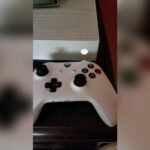
Is your Xbox controller blinking slowly and leaving you frustrated right before an intense gaming session? You’re not alone.
That slow blinking light is more than just a minor annoyance—it’s your controller’s way of telling you something needs attention. Whether it’s a connection issue, a battery problem, or something else, understanding why your Xbox controller blinks slowly is the first step to fixing it fast.
Keep reading, and you’ll learn simple, effective solutions to get your controller back to perfect working order—so you never miss a beat in your game again.
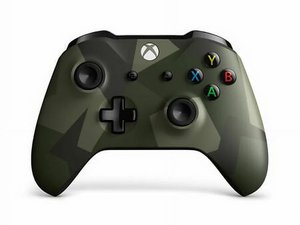
Causes Of Slow Blinking
The slow blinking of an Xbox controller light signals an underlying issue. Understanding the causes helps solve the problem quickly. Several factors can trigger this slow blinking behavior. Identifying each cause makes troubleshooting easier and faster.
Low Battery Levels
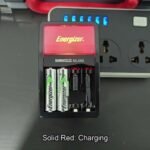
One common reason for slow blinking is low battery power. The controller’s light starts blinking slowly to warn about weak batteries. Replacing or recharging the batteries often stops the blinking. Always check battery status before other fixes.
Syncing Issues
Syncing problems between the controller and the console cause slow blinking. The controller tries to connect but fails. This happens if the controller is out of range or the console is off. Re-syncing the controller usually restores a stable connection.
Wireless Interference
Wireless signals from other devices may interfere with the controller’s connection. Nearby Wi-Fi routers, Bluetooth gadgets, or microwaves can disrupt signals. This interference leads to slow blinking as the controller struggles to maintain connection. Reducing nearby wireless devices helps.
Firmware Glitches
Outdated or corrupted firmware in the controller can cause slow blinking. Firmware controls how the controller communicates with the console. Bugs or errors in the software may trigger blinking lights. Updating the controller firmware often fixes these issues.

Basic Troubleshooting Steps
When your Xbox controller blinks slowly, it signals a connection or power issue. Basic troubleshooting steps can fix this quickly. Follow these simple actions to restore your controller’s normal function. Each step targets a common cause of the blinking light.
Replace Or Recharge Batteries
Check the batteries in your controller first. Weak or dead batteries cause slow blinking. Swap old batteries with new ones or recharge rechargeable packs. This often solves power-related problems fast. Always use batteries that fit your controller’s needs.
Power Cycle The Xbox Console
Turn off your Xbox console completely. Unplug it from the power source for about 30 seconds. This clears temporary glitches that affect controller connection. Plug the console back in and turn it on. Power cycling refreshes the system and can stop blinking.
Resync The Controller
Press the sync button on your Xbox console. Then press the sync button on your controller. Wait for the blinking light to become steady. This step re-establishes the wireless connection between the controller and console. It fixes syncing issues that cause slow blinking.
Move Closer To The Console
Distance can interrupt the controller’s signal. Move closer to your Xbox console to improve connection. Walls and objects can block wireless signals. Staying near the console reduces interference. This simple adjustment often stops the blinking light.
Advanced Fixes
Advanced fixes address deeper issues causing your Xbox controller to blink slowly. These methods go beyond basic troubleshooting. They often resolve firmware glitches, wireless disruptions, or hardware faults.
Applying these fixes requires some technical steps but can restore your controller’s normal function quickly. Follow the instructions carefully to avoid further issues.
Update Controller Firmware
Updating the controller firmware ensures it runs the latest software. Connect your controller to the Xbox or PC using a USB cable. Navigate to settings, then devices and connections. Select your controller and choose the update option. The update can fix bugs causing the blinking light.
Check For Wireless Interference Sources
Wireless signals can interfere with your controller’s connection. Remove other wireless devices near your Xbox. Devices like routers, cordless phones, or microwaves may disrupt the signal. Move closer to the console and test the connection again. Reducing interference often stops the blinking light.
Reset The Controller
Resetting the controller clears temporary faults. Turn off the controller by holding the Xbox button for 10 seconds. Remove the batteries or disconnect the USB cable. Wait for a minute, then power it back on. This simple reset can restore the controller’s connection and stop blinking.
Try A Different Usb Cable
A faulty USB cable may cause connection problems. Use another high-quality cable to connect the controller to the console or PC. Poor or damaged cables can prevent proper syncing. Testing with a different cable helps identify if the issue lies with the cable or the controller itself.
When To Seek Professional Help
Knowing when to seek professional help for your Xbox controller is important. A slowly blinking light can signal various issues. Some problems are simple to fix at home. Others need expert attention to avoid further damage. This section helps you identify those moments.
Persistent Connection Problems
Connection issues that do not improve after basic steps need professional help. If the controller keeps blinking slowly and fails to connect, it may have deeper faults. Continuous syncing failures or frequent drops can indicate internal faults. Experts have tools to diagnose and fix complex wireless problems.
Hardware Malfunctions
Hardware problems cause blinking lights that do not go away. Faulty buttons, broken triggers, or damaged internal parts need repair. Signs include unresponsive controls or strange noises inside the controller. Professionals can open the device safely and replace or fix damaged components.
Controller Repair Options
You can send the controller to authorized repair centers. Many offer repair or replacement under warranty. Third-party repair shops also fix common issues at lower costs. Professionals use proper parts and techniques. Attempting repair without knowledge can worsen the problem or void warranties.
Preventive Tips
Preventing the Xbox controller from blinking slowly helps keep your gaming experience smooth. Simple steps can avoid many connection and power issues. Follow the tips below to maintain your controller and enjoy uninterrupted play.
Regular Firmware Updates
Keep your Xbox controller’s firmware up to date. Updates fix bugs and improve connection stability. Connect your controller to the console or PC and check for updates often. Updated firmware reduces blinking light issues and enhances performance.
Proper Storage And Handling
Store your controller in a safe, dry place. Avoid dropping or exposing it to moisture. Handle the controller gently to prevent internal damage. Proper care stops hardware problems that cause blinking lights and other errors.
Avoiding Interference
Wireless devices can interfere with your controller’s signal. Keep the controller away from routers, microwaves, and other wireless gadgets. Use your controller close to the console or PC. Clear signal paths reduce blinking caused by connection loss.
Battery Care Best Practices
Use fresh or fully charged batteries for your controller. Remove batteries if you won’t use the controller for a long time. Avoid mixing old and new batteries. Good battery care prevents low power signals that cause slow blinking.

Frequently Asked Questions
What Are The Signs Of A Failing Xbox?
Signs of a failing Xbox include sudden shutdowns, overheating, loud fans, disc drive errors, HDMI issues, controller drift, crashing games, and power failures.
Why Is My Xbox One Controller Just Blinking And Not Connecting?
Your Xbox One controller blinks because it fails to pair. Check batteries, press sync button, and stay near the console. Restart both devices and update firmware to resolve connection issues.
How To Force Reset An Xbox Controller?
To force reset an Xbox controller, press and hold the Xbox button for 10 seconds until it turns off. Then, press the Xbox button again to power it back on. This clears minor glitches and reconnects the controller to the console.
Why Is My Xbox Controller Responding Slowly?
Your Xbox controller may respond slowly due to low battery, wireless interference, outdated firmware, or connection issues. Charge batteries, update firmware, and reduce interference for better response.
Why Is My Xbox Controller Blinking Slowly?
A slow blinking light usually means the controller is in pairing mode. It tries to connect to the console or a device nearby.
Conclusion
A slowly blinking Xbox controller light often signals connection or battery issues. Try syncing the controller again or charging its batteries fully. Cleaning the controller’s contacts may also help improve connection. Restarting your Xbox console can refresh the system and fix minor glitches.
If the blinking continues, checking for firmware updates is a good step. Persistent problems might need professional repair or replacement. Staying patient and following these simple steps can restore your gaming experience quickly. Keep your controller updated and charged to avoid future blinking issues.