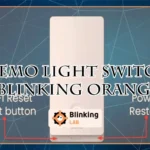
Is your Wemo Light Switch blinking orange, leaving you wondering what’s going on? That blinking orange light is your Wemo’s way of telling you it’s struggling to connect to your Wi-Fi.
If your smart switch isn’t working as it should, it can be frustrating—especially when you rely on it every day to control your lights effortlessly. But don’t worry, you’re not alone, and fixing this issue might be simpler than you think.
You’ll discover exactly why your Wemo switch blinks orange and learn easy, step-by-step solutions to get it back online quickly. Keep reading to take control of your smart home again without the hassle.
Blinking Orange Light Causes
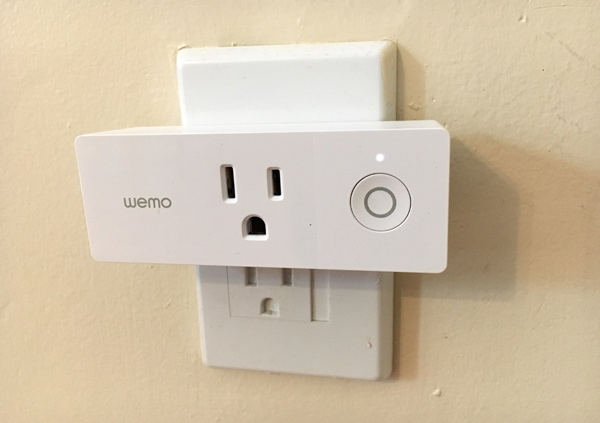
The Wemo Light Switch blinking orange signals a connection or setup issue. This alert helps users identify problems quickly. Understanding the causes can guide you to fix it fast.
Each orange blink pattern points to a specific issue. Checking these can restore your device’s normal function.
Wi-fi Connection Issues
The most common cause is a lost Wi-Fi connection. The switch cannot communicate with your network. This stops it from working properly. Restarting your router and switch often solves this.
Check if your Wi-Fi is active and stable. Devices without connection show a blinking orange light.
Weak Signal Strength
A weak Wi-Fi signal makes the light stay solid orange. This means the switch is connected but struggles to keep a strong link. Walls and distance reduce signal power.
Try moving your router closer to the switch or removing obstacles. Improving signal strength helps the device work without errors.
Device Setup Mode
Blinking orange can also mean the switch is in setup mode. This happens after a reset or during initial installation. The device waits for you to complete setup via the app.
Look for alternating white and orange lights too. Follow the app’s instructions to finish setup and stop blinking.
Firmware Update Status
A blinking orange light may show a firmware update is in progress. The device updates its software to improve features. Interrupting this can cause issues.
Allow time for updates to finish. Avoid turning off the switch or router during this process.
Basic Troubleshooting Steps
When your Wemo Light Switch blinks orange, it signals connection issues. Basic troubleshooting steps can help fix this quickly. Follow these simple actions to restore normal operation.
Restarting The Switch
Locate the small restart button on the switch face. Press and hold it for about 10 seconds. Release the button and wait for the light to stop blinking. This step refreshes the switch’s system and often clears minor errors.
Power Cycling The Device
Turn off the light switch at the circuit breaker or unplug it if possible. Wait at least 30 seconds before turning it back on. Power cycling resets the internal components and resolves many temporary glitches causing the orange blink.
Rebooting Your Router
Unplug your Wi-Fi router from the power source. Wait 1-2 minutes to clear any network issues. Plug the router back in and allow it to fully restart. A fresh network connection often restores communication between the Wemo switch and your Wi-Fi.
Resetting The Wemo Light Switch
Resetting the Wemo Light Switch often resolves blinking orange light issues. This blinking usually means the switch has trouble connecting to Wi-Fi. Resetting helps refresh the device and restore proper function. There are two main reset methods: a soft reset and a factory reset. Each serves a different purpose and can fix various problems.
Soft Reset Procedure
A soft reset restarts the Wemo Light Switch without erasing your settings. To do this, press and hold the reset button on the switch for about 5 seconds. The light will blink, then turn off and back on. This step refreshes the connection and clears minor glitches. After the reset, check if the orange blinking stops and the device reconnects to Wi-Fi.
Factory Reset Instructions
A factory reset erases all your settings and returns the switch to its original state. Press and hold the reset button for 10 seconds or until the light blinks rapidly. Release the button, and wait for the switch to restart. This reset removes saved Wi-Fi details and custom settings. You will need to set up the switch again using the Wemo app. Use this method if the soft reset does not fix the blinking orange light.
Improving Wi-fi Connectivity
Improving Wi-Fi connectivity is essential for your Wemo Light Switch to work properly. A blinking orange light often means the switch struggles to connect to your network. Strong and stable Wi-Fi signals keep your smart devices running smoothly. Small changes around your home can make a big difference in connection quality.
Optimizing Router Placement
Place your router in a central location of your home. Avoid hiding it in cabinets or behind large objects. Higher spots, like shelves, help the signal travel farther. Keep the router away from thick walls and metal surfaces. This reduces signal interference and improves coverage.
Changing Wi-fi Channels
Wi-Fi networks use different channels to send signals. Some channels may be crowded with other devices nearby. Switch to a less busy channel to reduce interference. Use your router’s settings to find and select the best channel. This step can clear up slow or unstable connections.
Using Wi-fi Extenders
Wi-Fi extenders boost your network’s reach into weak areas. Place an extender halfway between your router and the Wemo switch. This device repeats the signal, filling dead zones in your home. Extenders help keep your Wemo switch connected with a strong signal.
App Troubleshooting Tips
Troubleshooting your Wemo Light Switch through the app can fix most connection issues. The blinking orange light often means the switch is not connected to Wi-Fi. Using the app correctly helps restore the connection quickly. Follow these easy steps to troubleshoot the app and get your switch working again.
Force Closing And Reopening The App
Sometimes the Wemo app may freeze or not respond. Close the app completely to stop all background activity. On iOS, swipe up from the bottom and swipe the app off the screen. On Android, open recent apps and swipe the Wemo app away. Reopen the app and check if the switch connects. This simple step clears minor glitches and refreshes the app’s connection.
Removing And Re-adding The Device
Removing the Wemo switch from the app and adding it back can solve setup errors. Open the app and find your device list. Select the blinking switch and choose “Remove Device.” Wait a few seconds, then tap “Add Device” to start the setup again. Follow the instructions to reconnect the switch to your Wi-Fi. This resets the device’s network settings and often stops the blinking orange light.
Updating The Wemo App
Using the latest app version ensures the best performance and bug fixes. Visit the App Store or Google Play Store to check for updates. Download and install any available updates for the Wemo app. After updating, open the app and try controlling your switch again. Updates improve compatibility and fix issues that may cause connection problems.
When To Contact Support
Knowing when to contact support for your Wemo Light Switch blinking orange saves time and frustration. Some issues are simple and fixable at home. Others need expert help to avoid damage or further problems.
Persistent Blinking Issues
If the orange light keeps blinking after multiple resets, it signals a deeper problem. Constant blinking means your switch may not connect to Wi-Fi properly. Troubleshooting steps like restarting your router or switch might not work. Contact support to get precise guidance and avoid losing control over your device.
Device Malfunction Signs
Look for signs of device malfunction beyond blinking. If your switch is hot to touch, unresponsive, or resets randomly, something is wrong. Faulty hardware or firmware issues can cause these symptoms. Support teams can diagnose these problems accurately and suggest proper fixes or updates.
Warranty And Replacement Options
Your Wemo Light Switch comes with a warranty that covers defects and malfunctions. If support confirms the device is faulty, they will guide you through warranty claims. Replacement or repair options depend on your warranty status. Contact support early to protect your investment and get a working switch quickly.
Frequently Asked Questions
Why Is My Wemo Blinking Orange?
Your Wemo blinks orange because it cannot connect to Wi-Fi. Restart your router and Wemo device to fix this.
How Do I Reset My Wemo Light Switch?
Press and hold the Wemo light switch’s reset button for 10 seconds until the LED blinks. Release to complete the reset.
Why Is Wemo Unresponsive?
Wemo becomes unresponsive if unplugged or disconnected from Wi-Fi. Restart the device and router to fix connection issues. Force close and reopen the Wemo app if it freezes.
Is Wemo No Longer Supported?
Wemo devices still receive support and updates from Belkin. Some older models may have limited support. Check Belkin’s website for the latest info.
Why Is My Wemo Light Switch Blinking Orange?
A blinking orange light means the Wemo switch is not connected to Wi-Fi. Check your router and restart both the router and switch. This usually fixes connection issues quickly.
Conclusion
A blinking orange light on your Wemo switch means it’s not connected to Wi-Fi. Try restarting the switch and your router first. If that doesn’t help, perform a factory reset to refresh settings. Check the Wi-Fi signal strength and move the switch closer to the router if needed.
These simple steps often fix connection problems quickly. Staying patient and following these tips can restore your Wemo switch’s normal function soon. Keep your smart home running smoothly without stress.