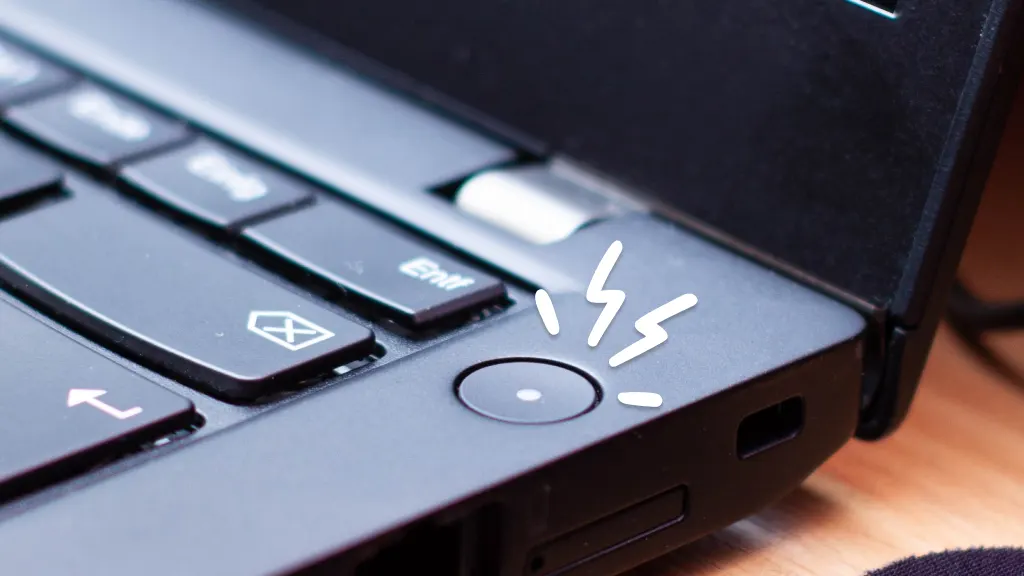
Is your ThinkPad’s power button blinking and leaving you wondering what’s wrong? You’re not alone.
That flashing light is your laptop’s way of signaling an issue—often related to power or hardware—but it doesn’t mean your device is broken beyond repair. You’ll discover simple, effective steps to understand why the power button blinks and how you can fix it quickly.
Whether it’s a loose power connection or a deeper system freeze, you’ll learn what to do next to get your ThinkPad back up and running without frustration. Keep reading, because the solution might be easier than you think.

Power Button Blinking Causes
The blinking power button on a ThinkPad often signals an underlying problem. Understanding the causes helps in quick troubleshooting. The blink pattern varies, but it usually points to one of several key issues. Identifying the right cause can save time and prevent further damage.
Power Supply Issues
A common cause is a faulty power supply. The laptop may not get enough power if the charger or cable is damaged. Loose connections between the power adapter and laptop can also trigger blinking. Check for frayed cables or bent connectors. Using a different charger can help confirm if power supply is the problem.
Hardware Faults
Hardware problems inside the laptop can cause the power button to blink. Faulty RAM or motherboard issues often lead to this symptom. Overheating components may also cause the system to protect itself by blinking the power button. Hardware faults usually require professional repair or part replacement.
Battery And Charging Problems
The battery may be failing or not charging correctly. A damaged battery often causes the power button to blink rapidly. Sometimes the laptop does not recognize the battery, causing power issues. Removing and reinserting the battery or performing a battery reset can help. Using the emergency reset pinhole might also fix charging problems.
System Freezes And Sleep Mode
The blinking power button can indicate the laptop is stuck in sleep mode or frozen. System freezes prevent normal operation, causing the light to blink as a warning. The emergency reset button can clear this state without data loss. Restarting the laptop usually resolves sleep mode issues that cause blinking.

Checking Power Connections
Checking the power connections is an important first step if your ThinkPad power button is blinking. A loose or faulty connection can cause power issues and prevent your laptop from turning on properly. Ensuring all power components work correctly helps avoid further problems.
Power problems often come from damaged cables or unreliable power sources. Careful inspection and testing can identify these issues. Replacing damaged parts can restore normal power flow and stop the blinking light.
Inspecting Power Cable And Adapter
Start by examining the power cable and adapter closely. Look for any frayed wires, cracks, or bent connectors. These damages can stop electricity from flowing smoothly to your laptop. Check if the adapter feels unusually hot or makes strange noises. Such signs mean it may not work properly and needs replacement.
Testing Wall Outlet And Power Source
Next, test the wall outlet or power source. Plug in another device to see if it receives power. Try different outlets to rule out problems with the socket. Sometimes, power strips or extension cords cause interruptions. Connect the adapter directly to the wall to confirm stable power supply.
Replacing Damaged Power Components
If any power cable or adapter shows signs of damage, replace it immediately. Using broken parts can harm your laptop’s battery or internal system. Choose original or certified replacement parts for best results. After replacement, check if the power button still blinks to see if the issue is fixed.
Using The Emergency Reset Hole
The ThinkPad emergency reset hole is a simple tool to fix power issues. It helps when your power button blinks and the laptop won’t start. Using this reset does not delete any files. It just forces the laptop to power cycle and clear stuck states. This method is safe and useful for many common laptop problems.
Locating The Reset Pinhole
Find the emergency reset pinhole on the bottom of your ThinkPad. It is a small, round hole that looks like a tiny dot. Check near the battery or on the laptop’s base. Use your user manual for exact location if you cannot find it. Make sure the laptop is unplugged before you try the reset.
Performing The Paperclip Reset
Take a thin paperclip and straighten one end. Gently insert the paperclip into the reset hole. Press and hold for about 10 to 15 seconds. You may feel a slight click or resistance. Remove the paperclip and wait a few seconds. Now, try turning on your laptop as usual.
When To Use The Emergency Reset
Use the emergency reset if your ThinkPad won’t turn on. It also helps if the power button keeps blinking and does not respond. Try this reset after checking the charger and power cable. It is useful when the laptop freezes or fails to wake from sleep. This reset solves many common power and charging issues.
Battery And Charging Fixes
Battery and charging issues often cause the ThinkPad power button to blink. These problems prevent the laptop from receiving or holding enough power. Fixing battery and charging faults can stop the blinking and restore normal function. Simple steps like resetting the battery connection or calibrating the battery help. At times, the battery may need replacement if it no longer works well.
Resetting Battery Connection
Turn off your ThinkPad and unplug the charger. Remove the back cover carefully to access the battery. Disconnect the battery cable from the motherboard gently. Wait for about one minute to let the power drain fully. Reconnect the battery cable firmly. Close the cover and turn on your laptop. This reset can clear minor power glitches causing the blinking button.
Calibrating Battery
Charging problems sometimes come from poor battery calibration. Start by charging your laptop to 100 percent. Unplug the charger and use the laptop until it shuts down from low battery. Leave it off for a few hours to drain residual power. Recharge fully without interruption. This process helps the battery report its charge level accurately and may stop the blinking.
Replacing Faulty Battery
A blinking power button may mean the battery is faulty or worn out. Batteries lose capacity after long use and can cause power issues. If resets and calibrations fail, try replacing the battery. Purchase a compatible battery from Lenovo or a trusted supplier. Install it carefully following your ThinkPad’s manual. A new battery often solves charging and blinking power button problems.
Troubleshooting Hardware Issues
When the ThinkPad power button blinks, it often signals a hardware problem. Troubleshooting these issues quickly can save time and prevent further damage. Start with simple steps before moving to complex checks. This approach helps identify the root cause effectively.
Removing External Devices
Disconnect all external devices from your ThinkPad. This includes USB drives, external keyboards, mice, and docking stations. Sometimes, these devices cause power conflicts that make the power button blink. After removal, try turning on the laptop. If the blinking stops, reconnect devices one by one to find the faulty one.
Checking For Internal Component Damage
Inspect your ThinkPad for any signs of internal damage. Look for loose or damaged cables inside the laptop if you are comfortable opening it. Check the battery and RAM to ensure they are seated correctly. Damage to these parts can cause the power button to blink. If unsure, seek professional help to avoid causing more harm.
Running Hardware Diagnostics
Use Lenovo’s built-in hardware diagnostics to check your system. Restart the laptop and press the appropriate key to enter diagnostics mode, usually F10 or F12. Run a full scan to detect hardware failures. This tool helps pinpoint issues with memory, hard drive, and other components. Follow the on-screen instructions to fix or report the problems found.
Updating Firmware And Drivers
Updating firmware and drivers plays a key role in fixing the ThinkPad power button blinking issue. Firmware controls the hardware, while drivers manage communication between the system and devices. Outdated firmware or drivers can cause power management problems and blinking lights. Keeping them current helps maintain laptop stability and performance.
Bios Update Procedures
BIOS updates fix bugs and improve hardware compatibility. Start by identifying your ThinkPad model and current BIOS version. Visit Lenovo’s official support site to download the latest BIOS update file. Follow the instructions carefully to avoid errors during installation. Usually, updates require connecting the laptop to power and running the update tool. Avoid turning off the laptop during the process.
Driver Updates For Power Management
Power management drivers control the laptop’s power supply and battery use. Outdated drivers can cause blinking power buttons or power failures. Open Device Manager and check for any alerts near power-related devices. Download the latest power management drivers from Lenovo’s website. Install the updates and restart the laptop. This step often resolves blinking or unresponsive power button issues.
Using Lenovo Vantage Software
Lenovo Vantage is a helpful tool for updating your ThinkPad’s firmware and drivers. It scans your device and suggests necessary updates. Open Lenovo Vantage, navigate to the System Update section, and check for updates. Install all recommended updates, including BIOS and drivers. This method simplifies the update process and keeps your laptop running smoothly.
When To Seek Professional Help
Seeing your ThinkPad power button blink can be worrying. Sometimes, the problem is simple and easy to fix. Other times, the issue might be more serious and need expert care.
Knowing when to ask for professional help can save time and prevent further damage. It is important to watch the behavior of your laptop closely before deciding what to do next.
Recognizing Persistent Problems
If the power button keeps blinking after several attempts to fix it, the issue might be persistent. Problems that do not go away could mean a hardware fault or a deeper software error.
Other signs to watch for include the laptop not turning on at all, unusual noises, or overheating. These are strong signs to get professional support.
Warranty And Service Options
Check if your ThinkPad is still under warranty. A valid warranty can cover repairs and reduce costs. Lenovo offers service options that include in-home repairs or sending the laptop to a service center.
Using official service helps keep your laptop safe and protects your warranty. Avoid unauthorized repairs as they might cause more harm or void your warranty.
Data Backup Before Repair
Always back up your important data before sending your laptop for repair. A blinking power button might signal a risk to your files. Saving your data keeps it safe from loss during repairs.
Use an external drive or cloud storage to keep copies of your documents, photos, and other files. This step is crucial for peace of mind.
Frequently Asked Questions
Why Is My Thinkpad Power Button Just Blinking?
A blinking ThinkPad power button usually signals power issues or system freezes. Check power connections and use the emergency reset pinhole to fix it.
What Does The Lenovo Pinhole Reset Do?
The Lenovo pinhole reset hard resets internal batteries, fixing freezes, charging issues, and unresponsive states without deleting data. Pressing it disconnects power, allowing the system to restart and clear stalled processes safely.
Why Is My Computer Power Button Blinking And Not Turning On?
A blinking power button usually signals power supply or hardware issues. Check your power cable and adapter for damage. Try using the emergency reset pinhole to drain internal battery power. This often fixes freezes or charging problems without losing data.
If unresolved, seek professional help.
How To Tell If A Lenovo Battery Is Bad?
Check for rapid battery drain, failure to charge, or the laptop shutting down unexpectedly. Lenovo battery health tools can also diagnose issues. Swollen battery or overheating signals a bad battery. Replace the battery if these symptoms persist to maintain laptop performance.
Why Is My Thinkpad Power Button Blinking?
A blinking power button usually means power issues or hardware problems. Check the power adapter and connection first. Damaged cables often cause this blinking behavior.
Conclusion
A blinking power button on your ThinkPad signals a power or hardware issue. Check the power cable and adapter for damage first. Use the emergency reset pinhole to clear frozen states safely. This simple step often resolves charging or startup problems.
Regular care helps keep your laptop running smoothly. Stay calm and follow these fixes to get your ThinkPad working again.