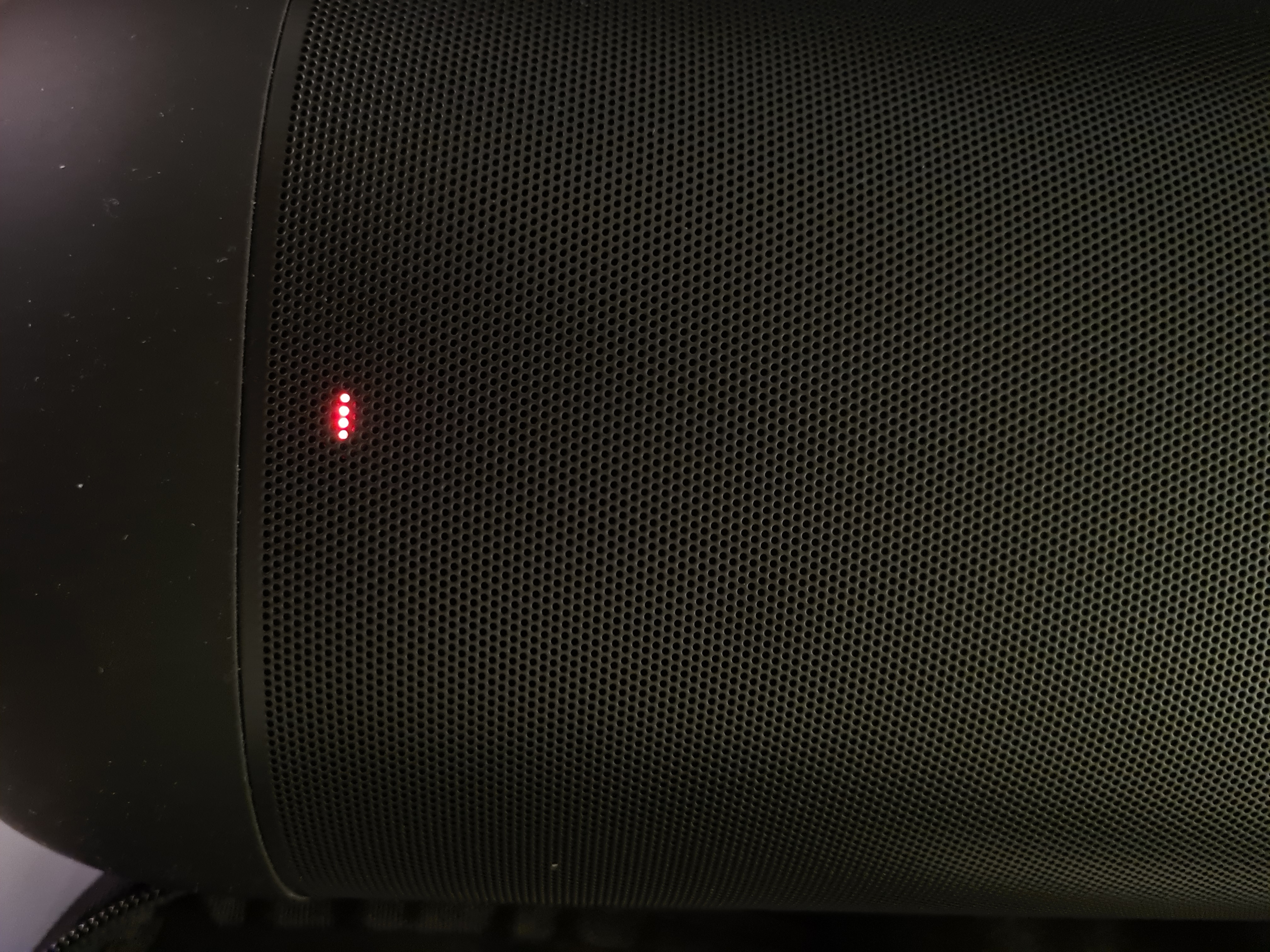
Is your Sonos speaker blinking red and leaving you frustrated? You’re not alone.
That red light can be confusing and might stop your music from playing. But don’t worry—this blinking red signal is your speaker’s way of telling you something needs attention. You’ll discover simple steps to fix the issue quickly and get your sound system back to perfect.
Keep reading to find out exactly what the red light means and how you can solve it without stress.
Why Sonos Blinks Red
The Sonos speaker blinking red is a sign that something needs your attention. This red light is a warning signal. It tells you that the device faces a problem. Understanding why your Sonos blinks red helps you fix it fast. This section explains the common reasons and error signals behind the red blinking light.
Common Causes
The most frequent cause of a red blinking light is a power issue. The speaker may not receive enough power or have a faulty power cable. Another cause is a failed software update. Sometimes, the update process stops or fails, causing the red light. Network problems can also trigger the red blink. If your Sonos cannot connect to Wi-Fi, it will warn you this way. Overheating is another reason. If the speaker gets too hot, the red light appears as a safety alert.
Error Signals
The red blinking light also acts as an error signal. It helps you identify specific problems. For example, a fast blinking red light often means a hardware failure. A slow blinking red light could indicate a network error. Some Sonos models have different blink patterns for errors. Checking the pattern can guide your troubleshooting. Listening for unusual sounds or checking the Sonos app helps too. The app often provides error messages linked to the red light.

Initial Troubleshooting Steps
Seeing a red blinking light on your Sonos speaker can be worrying. It means the device needs attention. Start with simple checks to fix the problem. These basic steps often solve the issue quickly.
Check Power Connection
Make sure the power cable is firmly plugged into the speaker. Check the outlet too. Sometimes, a loose connection causes the red light. Try a different power outlet if needed. Avoid using power strips that may be faulty.
Restart Your Device
Turn off your Sonos speaker. Wait for about 10 seconds. Then turn it back on. Restarting resets the system and clears minor errors. This step often stops the red blinking light.
Verify Network Status
Sonos needs a strong Wi-Fi signal to work. Check your router and internet connection. Make sure the speaker is connected to the right network. Restart your router if the internet is slow or unstable. Poor network causes the red blinking light.
Fixing Network Issues
Network problems often cause Sonos to blink red. Fixing these issues helps your speaker connect smoothly. A stable network keeps music playing without interruptions. Below are simple steps to solve network troubles quickly.
Reset Wi-fi Settings
Resetting Wi-Fi settings can fix connection errors. Open the Sonos app and go to Settings. Find the option to forget the current network. Reconnect by entering the Wi-Fi password again. This refresh often clears network glitches fast.
Improve Signal Strength
Weak Wi-Fi signals cause connection drops. Move your Sonos closer to the router. Remove objects like walls or metal between devices. Use a Wi-Fi extender if the signal stays weak. Strong signals help Sonos stay connected without blinking red.
Update Router Firmware
Old router software can cause network issues. Check your router’s admin page for updates. Download and install the latest firmware version. Updated routers work better with Sonos devices. This step can stop the red blinking light from showing.
Resetting Sonos Speaker
Resetting your Sonos speaker is a key step to fix the blinking red light issue. This process helps refresh the device and clear minor errors. Depending on the problem, a soft reset or a factory reset might be needed. Both methods are simple and can restore your speaker’s normal function quickly.
Soft Reset
A soft reset restarts your Sonos speaker without deleting any settings. To do this, unplug the power cord from the speaker. Wait for about 10 seconds. Plug the power cord back in. The speaker will reboot and try to fix small glitches on its own. This reset often solves common issues and stops the red blinking light.
Factory Reset
A factory reset erases all your settings and data on the Sonos speaker. Use this only if a soft reset does not work. First, unplug the speaker from power. Press and hold the Join button (or Play/Pause button on some models). Keep holding the button while plugging the power back in. Release the button when the light flashes orange and white. The speaker will reset to factory settings. After this, you need to set it up again in the Sonos app.
Using Sonos App For Diagnostics
The Sonos app is a useful tool for diagnosing issues with your Sonos speakers. It helps identify problems quickly and guides you through simple fixes. Using the app for diagnostics can save time and avoid frustration.
You can check the system status and update your speaker firmware. These steps often fix common errors like the blinking red light. The app makes the process easy, even for beginners.
Running System Checks
Open the Sonos app and go to the Settings menu. Select System and then System Diagnostics. The app runs a series of checks on your speaker’s hardware and network connection.
It will highlight any detected issues. Follow the app’s instructions to resolve these problems. This might include restarting the speaker or checking your Wi-Fi connection.
Updating Firmware
Firmware updates improve your speaker’s performance and fix bugs. Open the Sonos app and go to Settings, then System Updates. The app will tell you if an update is available.
Tap to download and install the update. Keep your speaker connected to Wi-Fi during this process. Updated firmware can stop the red blinking light and restore normal function.

When To Contact Sonos Support
Sonos devices blinking red can mean a serious issue. Sometimes, simple fixes work. Other times, professional help is needed. Knowing when to contact Sonos support saves time and frustration. It ensures the problem is handled correctly and your device works well again.
Read on to learn key signs that show it’s time to get expert help. This guide focuses on spotting hardware problems and understanding warranty and repairs.
Identifying Hardware Problems
A red blinking light often signals hardware trouble. It may be a speaker, power, or connection issue. Try basic troubleshooting first. Restart your device and check cables. Persistent blinking means a deeper problem.
Listen for strange sounds or no sound at all. Check if the device overheats or feels hot. These signs suggest hardware failure. Sonos support can confirm this and guide you on the next step.
Warranty And Repairs
Check if your Sonos device is still under warranty. Warranty covers repairs or replacements at no cost. Visit the Sonos website to find warranty status quickly. Keep your purchase receipt handy for proof.
For devices out of warranty, Sonos support offers repair options. They explain costs and process clearly. Using official repairs protects your device and keeps it safe to use.
Frequently Asked Questions
What Does Sonos Blinking Red Light Mean?
A blinking red light on Sonos shows a serious error. It often means the speaker cannot start or connect properly.
How To Fix Sonos Blinking Red Light Issue?
Try unplugging your Sonos for 10 seconds, then plug it back in. If blinking continues, check for firmware updates or reset the device.
Can Sonos Blinking Red Light Signal Network Problems?
Yes, it can indicate network connection troubles. Make sure your Wi-Fi is stable and your Sonos is within range.
Does Sonos Blinking Red Light Mean Hardware Failure?
Sometimes, yes. It can show a hardware fault inside the speaker, requiring service or replacement.
How Long Should Sonos Blink Red Before Action?
If the red light blinks for more than a minute, it needs attention. Immediate steps like reboot or reset usually help.
Conclusion
A blinking red light on your Sonos means it needs attention. Check the power and network connections first. Reset the device if problems persist. This simple action often fixes many issues fast. Keep your Sonos firmware updated for smooth use.
Contact Sonos support if the light stays red. Your speaker will work well again soon. Stay patient and follow these easy steps. Enjoy great sound without interruptions.