Is your Roku device stuck with a blinking light and refusing to turn on? It’s frustrating when you just want to enjoy your favorite shows, but your Roku won’t respond.
You’re not alone—many Roku users face this exact problem. The blinking light is actually trying to tell you something about what’s wrong. In this guide, you’ll discover simple, effective steps to fix your Roku and get it back to working condition quickly.
Keep reading, because the solution might be easier than you think—and you’ll be streaming again in no time.
Blinking Light Symptoms
The blinking light on your Roku device shows important signs about its status. It helps identify problems that stop the device from turning on. Understanding these blinking light symptoms can guide you to fix the issue quickly.
Each color and pattern of the blinking light means something different. Watching these signals closely can save time and avoid frustration.
White Light Patterns
A blinking white light usually means the Roku is starting up or trying to connect to the TV. If it keeps blinking without turning on, the device might be stuck in a startup loop. Sometimes, a white blinking light shows the Roku is changing display settings. This can cause the screen to go black briefly as it adjusts.
Repeated white blinking often needs a reset or checking the HDMI connection. Make sure the TV is set to the right input for Roku.
Red Light Indicators
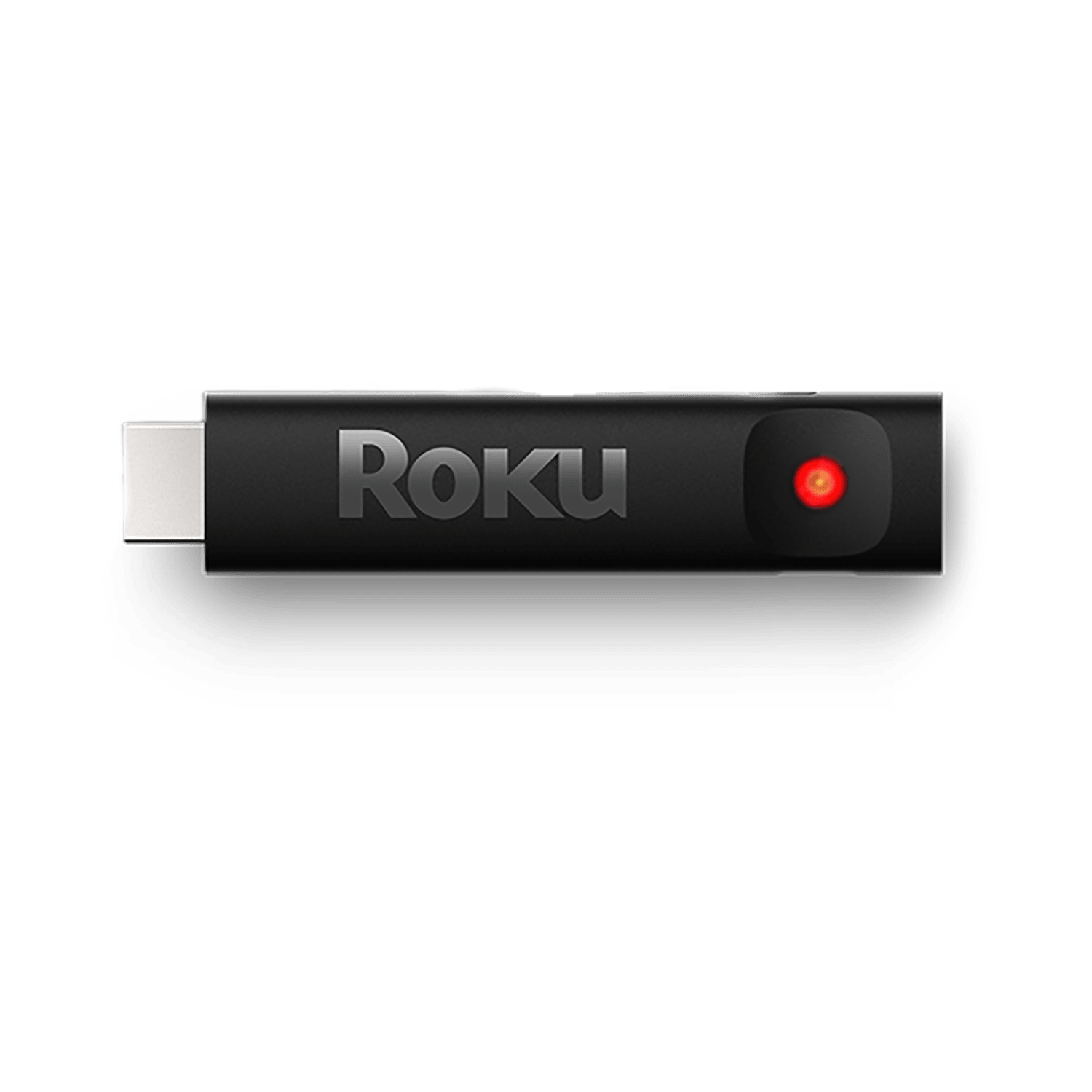
A blinking red light often signals a power problem. It can mean the Roku is not getting enough electricity. This may happen if the power cable is loose or the outlet is faulty. The device may also overheat, causing the red light to blink as a warning. Proper ventilation helps reduce overheating risks.
Sometimes, the red blinking means the Roku is in standby mode but not responding. Checking power sources and cables usually helps fix this issue.
Remote Control Signals
The Roku remote sometimes blinks to show it is sending signals. A blinking green or red light on the remote means it is working but might have low battery power. If the remote blinks but the Roku does not respond, try replacing the batteries. Also, check if the remote is paired correctly with the device.
A non-working remote can make the Roku seem like it won’t turn on. Testing the remote first can save effort when troubleshooting.
Power Source Checks
Power source issues are common reasons why a Roku won’t turn on or shows a blinking light. Ensuring the device gets stable and sufficient power helps avoid many problems. Simple checks on the power connection can save time and frustration.
Follow these easy steps to verify your Roku’s power source and fix blinking light issues.
Direct Wall Outlet Use
Plug your Roku directly into a wall outlet. Avoid power strips or extension cords. These can cause voltage drops or interruptions. A direct connection provides steady power and reduces blinking light errors.
Inspecting Power Cables
Check all power cables for damage or wear. Look for frayed wires or bent connectors. Replace any faulty cables immediately. Make sure cables fit snugly into the Roku and power outlet.
Avoiding Low Power Warnings
Low power warnings often cause blinking lights on Roku devices. Use the original power adapter with the correct voltage. Avoid using chargers from other devices. This prevents underpowering and keeps Roku running smoothly.
Cable And Connection Tips
Checking cables and connections is key when Roku won’t turn on or shows a blinking light. Loose or damaged cables can stop the device from working properly. Small issues with cables often cause power or display problems. A careful cable check can solve many Roku startup troubles. Below are simple tips to inspect and secure your cables.
Hdmi Cable Inspection
Look closely at the HDMI cable connecting your Roku to the TV. Check for bends, frays, or cuts along the cable. Any damage can block the signal or cause power issues. Try using a different HDMI cable to see if the problem fixes. A faulty HDMI cable often stops the Roku from turning on correctly.
Secure Cable Connections
Make sure all cables are firmly plugged in. The HDMI cable must fit tightly into both Roku and TV ports. Loose connections can cause blinking lights or no power. Also, check the power cable to confirm it is fully inserted. Unplug and reconnect the cables to ensure a solid connection.
Overheating Concerns
Overheating is a common cause when a Roku won’t turn on and shows a blinking light. The device might shut down or fail to start to protect itself from damage. Heat buildup can affect Roku’s internal parts and stop it from working properly.
Understanding signs of overheating and ways to improve ventilation can help keep your Roku safe and working well. These steps can prevent the blinking light issue and extend the life of your device.
Signs Of Overheating
Your Roku may get very hot to the touch. It might run slowly or freeze often. The blinking light may appear as the device tries to restart. Sometimes, the Roku turns off on its own without warning. These signs show the device is too hot and needs attention.
Improving Ventilation
Place your Roku in a well-ventilated area. Avoid putting it inside closed cabinets or near other electronics. Keep it away from direct sunlight and heat sources. Make sure air can flow freely around the device. Use a small fan if needed to help cool it down. Good airflow helps prevent overheating and blinking light problems.
Remote Control Fixes
The remote control plays a key role in turning on your Roku device. Sometimes, the blinking light issue happens because the remote is not working properly. Fixing the remote can help solve the problem quickly. Try simple steps like replacing batteries or resetting the remote. These actions often restore connection and control.
Replacing Batteries
Old or weak batteries can stop the remote from working. Remove the back cover of the remote. Take out the old batteries carefully. Insert new batteries in the correct direction. Close the cover and press any button to test. New batteries provide fresh power and better signals.
Resetting The Remote
Resetting the remote clears minor errors. Press and hold the pairing button inside the battery compartment. Hold it for about five seconds or until the remote light blinks. Release the button and wait for the remote to reconnect to the Roku. This resets the remote and fixes connection issues.

Roku Express Specific Issues
Roku Express users face unique problems causing the device not to turn on or show a blinking light. These issues often relate to input source settings or display resolution conflicts. Understanding these common problems helps fix the device quickly and avoid frustration.
Input Source Adjustments
Roku Express might not turn on if the TV input is set incorrectly. The device sends a blinking white light to signal it cannot connect properly. Check the TV remote and cycle through input options to find the correct HDMI port. Make sure the Roku Express is plugged into the same port you select on the TV. Incorrect input selection blocks the signal, causing the device to remain off.
Sometimes, the TV does not automatically switch to the Roku input. Manually changing the source often resolves the blinking light issue. Confirm that all cables connecting the Roku and TV are secure. Loose connections can also cause input detection failures.
Display Resolution Problems
Roku Express may struggle to display if the resolution setting does not match the TV’s capability. This mismatch triggers a blinking light as the device attempts to adjust. Resetting the resolution to a compatible level often restores normal function. Use the Roku remote to access the resolution settings and select a lower or standard option.
Some TVs cannot support 4K or high-resolution signals from the Roku Express. Switching to 1080p or 720p can solve the display problem. If the screen stays blank and the light blinks, try unplugging the Roku, then powering it on again to reset the resolution. These steps fix most display-related startup problems.
Factory Reset Options
Factory reset options offer a way to restore your Roku device to its original settings. This can solve problems like a Roku that won’t turn on or shows a blinking light. Resetting clears any software glitches or errors causing the issue. It can also fix settings that block the device from starting properly.
Resetting a Roku is simple but requires finding the right button on the device. Most Roku models have a reset button hidden in a small hole. This keeps the button safe from accidental presses but is easy to access with a pin or paperclip. Knowing where to find this button is the first step in performing a factory reset.
Locating Reset Button
The reset button is usually on the back or bottom of the Roku device. It is small and round, often labeled “Reset.” Sometimes it sits near the HDMI or power ports. Use a thin object like a paperclip to press it. Avoid using sharp tools that could damage the button or device.
Performing A Reset
Press and hold the reset button for about 10 to 15 seconds. The Roku light will blink or turn off, showing the reset started. Release the button and wait for the Roku to restart. The device will return to factory settings after rebooting. You will need to set it up again like new. This process can fix many power and startup issues.
Firmware And Software Updates
Firmware and software updates keep your Roku device running smoothly. Outdated software can cause the blinking light issue. Updates fix bugs and improve performance. Checking for and installing updates often solves power problems. This section explains how to check and update your Roku device.
Checking For Updates
Start by turning on your Roku and accessing the main menu. Navigate to Settings and select System. Choose System Update to check for available updates. Your Roku will search for the latest firmware and software versions. If an update is available, the device will notify you. Confirm to download the update and install it. This process may take a few minutes. Do not unplug the device during the update.
Updating The Device
After the update download completes, the Roku will install the new software automatically. The device may restart one or more times during installation. Wait patiently without interrupting the process. Once the update finishes, the Roku will boot normally. Check if the blinking light issue remains. If the problem persists, consider repeating the update check. Regular updates prevent many common Roku problems.
When To Seek Professional Help
Knowing when to seek professional help is key for resolving Roku power issues safely. Some problems need expert care to avoid further damage. Understanding signs that require professional attention helps save time and money. Below are key situations to watch for.
Persistent Power Issues
Roku devices that fail to power on after multiple resets may have internal faults. Blinking lights that do not stop or change pattern signal deeper hardware problems. Repeated attempts to fix power issues without success suggest professional diagnosis. Experts can test components and identify hidden defects quickly. Avoid forcing fixes that might worsen the device condition.
Repair Vs Replacement
Professionals can advise if repair or replacement is best for your Roku. Minor faults may be fixed with new parts or adjustments. Extensive damage or outdated models might require replacing the device. A technician evaluates cost-effectiveness and device lifespan before recommending options. This guidance prevents unnecessary spending and ensures long-term performance.
Frequently Asked Questions
Why Does My Roku Light Keep Blinking But Won’t Turn On?
A blinking light often means a power or hardware problem. Check the power source and cables first. Sometimes, it signals overheating or firmware issues.
How To Fix Roku Blinking Light With No Power?
Unplug the Roku from the wall for 30 seconds, then plug it back in. Use a direct wall outlet, not a power strip. Replace damaged cables if needed.
What Does A Blinking Red Light On Roku Mean?
A blinking red light usually shows low power or overheating. Make sure your Roku has good ventilation. Also, check if the power adapter is working properly.
Can The Roku Remote Cause Blinking Light Issues?
Yes, a blinking light on the remote may mean low battery. Try replacing the remote batteries with new ones. This often solves remote control problems.
Why Is My Roku Express Blinking White And Not Turning On?
A white blinking light on Roku Express can mean input or resolution problems. Change your TV input to Roku’s source. Restart the device to reset the display settings.
Conclusion
A blinking light on your Roku can signal several issues. Start by checking the power source and cables carefully. Make sure the device has good ventilation to avoid overheating. Try changing the TV input if the light blinks white on Roku Express.
Replacing remote batteries often solves blinking green light problems. Taking these steps usually fixes the issue quickly. Stay patient and follow each troubleshooting tip. Your Roku should turn on and work properly soon.