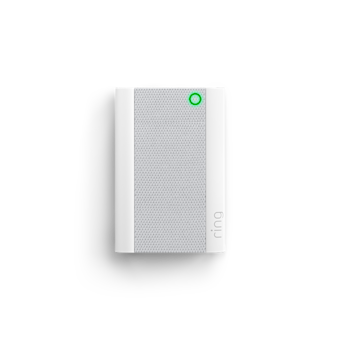
Is your Ring Chime blinking green and you’re not sure what it means? You’re not alone.
When your Ring Chime flashes green, it’s trying to tell you something about its connection or setup status. This little light can be confusing, but understanding it is key to keeping your doorbell system running smoothly. You’ll learn exactly why your Ring Chime blinks green and, more importantly, how to fix it quickly.
Keep reading to get your Ring Chime back to working perfectly—no tech headaches needed!

Ring Chime Light Colors
The Ring Chime uses different light colors to show its status. Each color tells you what the device is doing. Knowing these colors helps you understand your Ring Chime better.
These lights indicate if the device is working, updating, or facing issues. The colors are easy to recognize and remember. Let’s explore what each light color means.
Solid Blue Meaning
A solid blue light means the Ring Chime is online. It shows the device is connected to Wi-Fi. The chime is ready to alert you. No action is needed when you see this light.
Flashing Blue And Green
Flashing blue and green means the Ring Chime is updating. It could also be in setup mode. The device is working on improving or connecting. Wait until the light stops flashing to continue use.
Alternating Red And Green
Alternating red and green signals a setup failure. The device cannot connect to the network. Check your Wi-Fi or reset the Ring Chime. Fixing this helps the chime work correctly again.
Spinning White Light
A spinning white light shows the device is powering on. The Ring Chime is starting up or restarting. Wait for the light to change to solid blue. This means it is ready for use.
Causes Of Blinking Green Light
The blinking green light on your Ring Chime signals that something is disrupting its normal function. Understanding the causes helps you fix the issue quickly. Several common reasons explain why the green light blinks. These include problems with your Wi-Fi, recent router changes, firmware updates, and power interruptions. Each factor affects the device’s ability to connect and operate smoothly.
Wi-fi Connection Issues
A weak or unstable Wi-Fi signal can cause the green light to blink. The Ring Chime relies on a steady internet connection to work properly. If the Wi-Fi signal drops or is too far from the Chime, it struggles to maintain connection. This leads to blinking green light alerts. Checking your Wi-Fi strength near the device is crucial.
Router Changes
Changing your router or updating its settings can disrupt the Ring Chime’s connection. The device remembers the old network settings and tries to connect to them. This mismatch causes the blinking green light. Reconnecting the Ring Chime to the new router or network fixes this issue. It ensures the device recognizes the correct Wi-Fi network.
Firmware Updates
The Ring Chime periodically updates its firmware for improved features and security. During these updates, the green light may blink to show progress. Sometimes, the update may take longer or face errors, causing the blinking to continue. Patience during updates is important, but restarting the device can help if the blinking persists.
Power Interruptions
Power cuts or unplugging the Ring Chime can trigger the blinking green light on restart. The device needs time to reboot and reconnect to the network. Frequent power interruptions may confuse the Ring Chime and cause ongoing blinking. Ensuring a stable power supply prevents this problem and keeps the device running smoothly.
Basic Troubleshooting Steps
The blinking green light on your Ring Chime signals a connection or setup issue. Basic troubleshooting can help fix this quickly. Follow simple steps to restore your device’s normal function. These actions often solve the problem without needing expert help.
Restarting The Ring Chime
Turn off your Ring Chime by unplugging it from the power outlet. Wait for about 10 seconds to clear any temporary glitches. Plug it back in and watch the light. Restarting refreshes the system and can stop the blinking green light.
Checking Power Source
Ensure the Ring Chime is firmly plugged into a working outlet. Try another outlet if unsure. Avoid using power strips or extension cords. A stable power supply is key to proper operation and stops blinking lights caused by power issues.
Verifying Wi-fi Network
Check your Wi-Fi connection on your phone or computer. Confirm the network is active and strong near the Ring Chime. The device needs a steady Wi-Fi link to work without blinking green alerts. Move closer to the router if the signal is weak.
Resetting The Device
Press and hold the reset button on your Ring Chime for about 15 seconds. Release the button and wait for the device to restart. Resetting returns the device to factory settings, clearing errors that cause blinking green lights. You will need to set up the device again after this step.
Advanced Fixes
Advanced fixes help solve persistent issues with your Ring Chime blinking green. These steps focus on network and device settings. They improve connection and update problems that basic fixes miss.
Try these methods if your Ring Chime keeps blinking green despite simple troubleshooting. They require more technical steps but offer better chances of success.
Reconnecting To Wi-fi
Start by disconnecting your Ring Chime from the current Wi-Fi. Open the Ring app and select your device. Choose the option to forget the network. Then, reconnect by entering your Wi-Fi password again. This can clear connection glitches causing the green blink.
Updating Firmware Manually
Your Ring Chime’s firmware might be outdated or stuck during an update. Check the Ring app for firmware status. If an update is pending, try to trigger it manually by restarting the device. Sometimes, reinstalling the app also helps the update process complete smoothly.
Adjusting Router Settings
Router settings can block your Ring Chime from connecting properly. Log in to your router’s admin panel. Ensure that the 2.4 GHz band is enabled, as Ring Chime uses it. Disable any MAC filtering or firewall rules that might block Ring devices. Save changes and restart your router.
Using A Wi-fi Extender
A weak Wi-Fi signal often causes blinking green lights on Ring Chime. Place a Wi-Fi extender halfway between your router and Ring Chime. This boosts signal strength and stabilizes the connection. Make sure the extender supports 2.4 GHz Wi-Fi for best results.
Preventing Future Blinking Issues
Preventing future blinking issues with your Ring Chime helps keep it working smoothly. Understanding simple steps can reduce connection problems and avoid blinking green lights. These steps focus on Wi-Fi stability, updates, device placement, and network interference. Each plays a key role in maintaining your Ring Chime’s performance.
Maintaining Stable Wi-fi
Stable Wi-Fi is crucial for your Ring Chime’s connection. Use a reliable router with strong signals near the device. Avoid using public or shared networks that may cause interruptions. Restart your router regularly to clear temporary issues. A steady internet connection reduces blinking green alerts.
Regular Device Updates
Keep your Ring Chime’s software up to date. Updates fix bugs and improve connectivity. Check for updates through the Ring app often. Enable automatic updates if possible. Running the latest version lowers chances of blinking green lights caused by outdated software.
Proper Placement Of Chime
Place the Ring Chime in an open area without walls blocking signals. Avoid placing it inside cabinets or behind furniture. Keep it away from metal objects that can block Wi-Fi signals. Proper placement ensures clear communication with your network and doorbell.
Avoiding Network Interference
Devices like microwaves, cordless phones, and baby monitors can disrupt Wi-Fi signals. Keep your Ring Chime away from these sources. Use a different Wi-Fi channel if interference persists. Reducing interference helps maintain a steady connection and prevents blinking green alerts.
When To Contact Support
Knowing when to contact support for your Ring Chime blinking green is important. Sometimes, simple fixes do not solve the problem. Other times, the issue might be related to hardware or warranty. This section helps you decide the right moment to reach out for help.
Persistent Blinking Despite Fixes
If the green light keeps blinking after trying all fixes, contact support. Restarting the device or resetting network settings usually helps. But if the blinking remains, the problem might be deeper. Support can guide you through advanced troubleshooting.
Hardware Malfunctions
Hardware problems can cause the Ring Chime to blink green. This includes issues like faulty lights, internal circuits, or power supply. If your device feels hot or shows other unusual signs, avoid further use. Reporting these symptoms to support ensures safe handling and repair options.
Warranty And Replacement Options
Check your Ring Chime warranty status before contacting support. Devices under warranty may qualify for free repair or replacement. Support can verify your warranty and explain how to send the device back. Knowing your options saves time and money.

Frequently Asked Questions
How Do I Reconnect My Ring Chime?
To reconnect your Ring Chime, open the Ring app and select your device. Choose “Reconnect to Wi-Fi,” then follow the on-screen instructions to join your network. Ensure your Wi-Fi is active and enter the correct password. Wait for the Chime’s light to turn solid blue, confirming connection.
What Does Green Light Mean On A Ring Chime?
A green light on a Ring Chime means the device is connected and working properly. A blinking green light usually indicates setup or connection issues.
Can A Ring Chime Work Without Wi-fi?
A Ring Chime needs Wi-Fi to receive alerts and send notifications. Without Wi-Fi, it cannot function properly.
What Color Should The Light Be On My Ring Chime?
The Ring Chime light shows status: solid blue means connected, flashing blue/green means updating or setup, and red/green alternation signals setup failure. White spinning light indicates setup mode.
What Does A Blinking Green Light On Ring Chime Mean?
A blinking green light on Ring Chime usually signals connection or setup issues. It often appears when the device tries to connect to Wi-Fi. This alerts you to check your network or settings.
Conclusion
A blinking green light on your Ring Chime usually means it is trying to connect. Check your Wi-Fi signal and make sure the network details are correct. Restarting the device often helps solve connection problems quickly. Keeping your Ring Chime updated ensures smooth performance.
If issues continue, consult the Ring support page for more tips. Staying patient and following simple steps can restore your device’s connection fast. Enjoy a reliable doorbell alert once the green light stops blinking.