Is your PS4 controller blinking yellow and leaving you puzzled? You’re not alone.
That flashing yellow light can mean different things—from a simple charging alert to a more serious connection issue. If you’ve ever felt stuck, wondering what’s going on with your controller and how to fix it fast, this article is made just for you.
Keep reading, and you’ll discover clear, easy steps to get your controller back to perfect working order—so you can jump back into your game without frustration.
Yellow Light Meaning
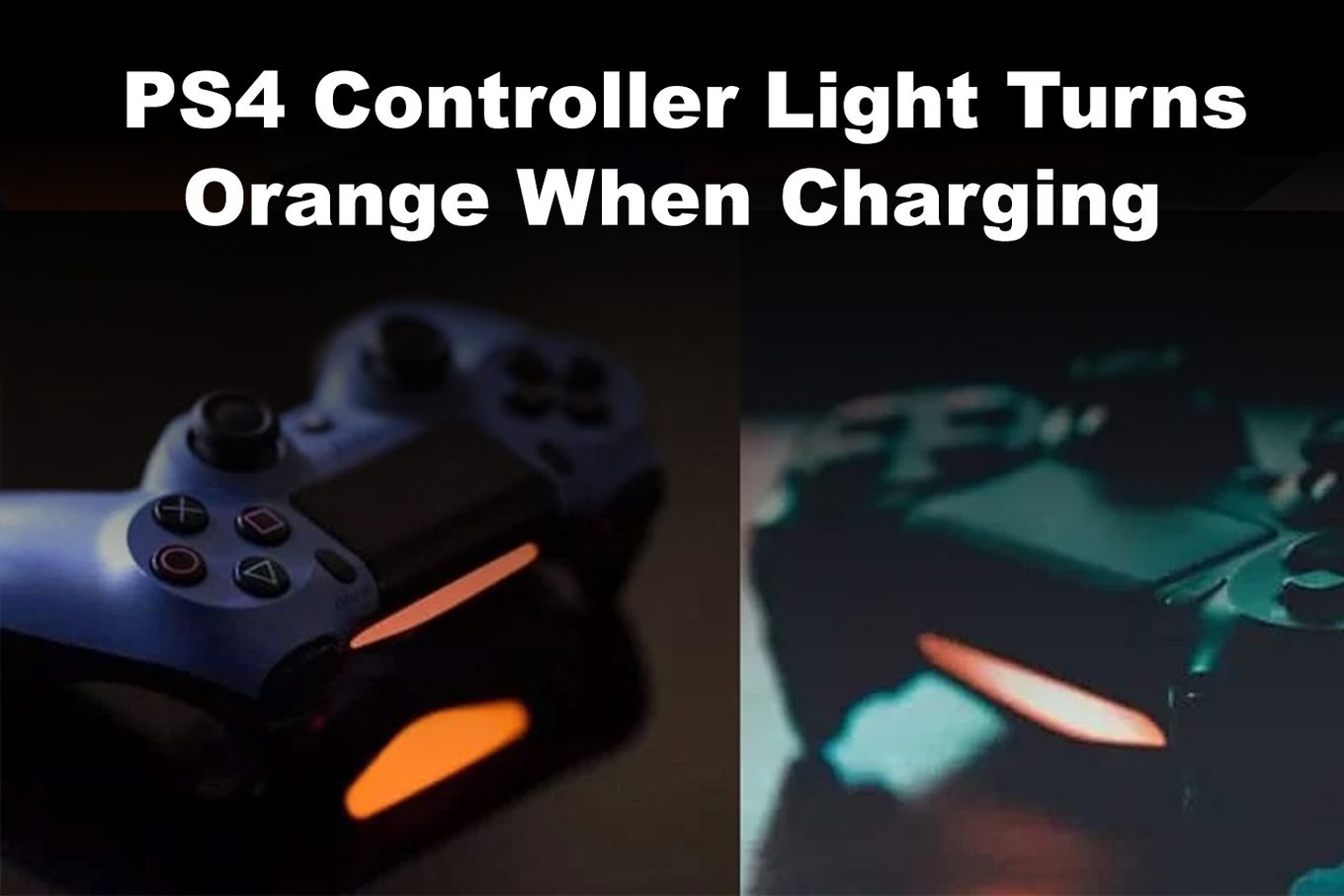
The yellow light on a PS4 controller signals different statuses. It is important to understand what this light means. The yellow blinking light can indicate charging, connection problems, or hardware errors. Knowing the cause helps fix the issue quickly. Below are details about the yellow light meaning.
Charging Indicator
A blinking yellow light often shows the controller is charging. The light blinks while the battery fills up. Once fully charged, the light turns off or changes color. Use the original USB cable for proper charging. A faulty cable might cause the yellow light to blink continuously.
Connection Issues
The yellow light may blink if the controller struggles to connect. This can happen if the controller is out of range or not synced properly. Try resetting the controller by pressing the small reset button. Reconnect it to the PS4 using a USB cable to restore connection.
Hardware Errors
A persistent yellow blinking light can signal hardware problems. This might be due to internal faults or damage. Common issues include faulty circuits or battery problems. In such cases, professional repair or replacement might be necessary to fix the controller.

Common Causes
The yellow blinking light on a PS4 controller signals an issue that needs attention. Several common causes trigger this blinking. Identifying the cause helps fix the problem quickly. Understanding these causes makes troubleshooting easier. Below are the main reasons why your PS4 controller blinks yellow.
Faulty Usb Cable
A damaged or poor-quality USB cable can cause connection issues. Some cables only charge and do not transfer data. Using such cables may make the controller blink yellow. Try a different cable that supports data transfer. Always choose cables from trusted brands to avoid issues.
Bluetooth Interference
Bluetooth signals can interfere with your controller’s connection. Other devices like phones or wireless gadgets nearby cause this interference. This disturbance may stop the controller from syncing properly. Turning off other Bluetooth devices temporarily can help. Keep the controller close to the console for better connection.
Battery Problems
A weak or faulty battery often causes the yellow light to blink. The controller may not hold a charge or power up correctly. Over time, batteries lose capacity and need replacement. Charging the controller fully before use can reduce blinking. If the battery is old, consider replacing it with a new one.
Hardware Malfunctions
Internal hardware failures can also cause the blinking yellow light. Faulty circuit boards or damaged components disrupt normal function. Physical damage from drops or spills may lead to malfunctions. In such cases, professional repair or replacement is necessary. Avoid opening the controller unless you have technical skills.
Basic Fixes
Basic fixes can solve the PS4 controller blinking yellow issue quickly. These simple steps help restore connection and functionality. Trying these fixes first saves time and effort before advanced troubleshooting.
Press Ps Button
Press the PS button on your controller. This action wakes the controller from sleep mode. It also starts the syncing process with the console. Watch the light bar for changes after pressing it.
Use Quality Usb Cable
Connect your controller using a high-quality USB cable. Some cables only charge and do not support data transfer. Use a different cable to ensure proper syncing. Cheap cables often cause connection problems.
Reset Controller
Locate the small reset button on the back of the controller. Use a pin or paperclip to press it for a few seconds. This step resets the controller to factory settings. After resetting, reconnect the controller to the console.
Unpair Other Devices
Turn off Bluetooth on nearby phones or computers. Other devices can interfere with the controller’s connection. Unpair or disable them temporarily. This reduces signal conflicts and helps the controller sync correctly.
Advanced Solutions
Advanced solutions help fix the PS4 controller blinking yellow issue deeply. These methods go beyond simple resets and cable checks. They require some technical steps but can save your controller from permanent damage. Proceed carefully and take your time with each step.
Replace Controller Battery
The blinking yellow light often means the battery is weak or faulty. Replacing the battery can restore normal function. Use a compatible battery designed for PS4 controllers. Carefully open the controller case with the right tools. Remove the old battery and install the new one. Reassemble the controller and charge it fully before testing.
Check Internal Components
Internal parts like the circuit board or connectors may cause the blinking light. Inspect these components for damage or loose connections. Look for corrosion or broken wires inside the controller. Clean any dust or debris gently with a soft brush or compressed air. Tighten or resolder loose parts if you have experience. Seek help if unsure about handling electronics.
Consult Repair Guides
Repair guides offer step-by-step instructions for fixing hardware issues. Websites like iFixit provide detailed tutorials for PS4 controllers. These guides include images and tools lists for each repair task. Follow the instructions carefully to avoid further damage. Repair guides can boost your confidence and save repair costs. Always prioritize safety and proper techniques.
Preventive Tips
Preventing the PS4 controller from blinking yellow extends its life. Taking simple steps helps avoid common issues. These tips keep your controller working smoothly. Follow easy habits to protect your device.
Proper Charging Habits
Charge the controller using the original cable or a high-quality replacement. Avoid cheap cables that may cause problems. Do not keep the controller plugged in after it reaches full charge. Unplugging on time prevents battery damage. Charge in a cool, dry place for best results.
Avoid Overheating
Keep the controller away from direct sunlight and heat sources. Use it in a well-ventilated area to prevent heat buildup. Avoid long gaming sessions without breaks to cool down the device. Heat can cause the blinking yellow light and damage internal parts.
Regular Firmware Updates
Connect your controller to the PS4 and check for updates often. Firmware updates fix bugs and improve device stability. Use the PS4 system menu to keep your controller software current. Updated firmware reduces blinking light errors and connection issues.

Frequently Asked Questions
Why Does My Ps4 Controller Keep Flashing Yellow?
A flashing yellow PS4 controller light usually means it’s charging or in pairing mode. Check the USB cable and reset the controller if needed.
How Do I Resync My Ps4 Controller To My Ps4?
Press the PS button on your controller to start syncing. If it doesn’t sync, connect it to the PS4 with a USB cable. Press the PS button again to complete the resync. Unplug the USB cable to use the controller wirelessly.
What Is The Yellow Light Of Death Ps4?
The PS4 Yellow Light of Death signals a hardware failure, often caused by overheating, faulty components, or short circuits. It prevents normal console operation and needs repair.
Why Is My Ps4 Controller Blinking Amber?
A blinking amber light on your PS4 controller means it is charging. If it continues blinking, try resetting or using a different USB cable.
What Does Ps4 Controller Blinking Yellow Mean?
A blinking yellow light usually shows a connection or charging issue. It can also mean the controller needs syncing or has low battery.
Conclusion
A blinking yellow light on your PS4 controller signals connection or charging issues. Check your USB cable quality and try different ports. Resetting the controller often helps fix the problem quickly. Avoid using cheap or damaged cables to ensure stable syncing.
Keep your controller firmware updated for smooth performance. With simple steps, you can enjoy uninterrupted gaming sessions. Stay patient and try these fixes to get back in the game.