Are you staring at your modem, wondering what those blinking lights mean? You’re not alone.
Those tiny flashes can feel confusing and even frustrating when your internet isn’t working right. But don’t worry—understanding what each light signals can help you fix problems fast and get back online. Keep reading, and you’ll learn exactly what your modem’s blinking lights mean and how to take control of your connection.
Common Light Patterns
Modem lights help you understand its current status. Each light shows different information about the modem’s functions. Watching these lights gives clues about your internet connection. Recognizing common light patterns is useful for quick troubleshooting. It helps you know if the modem is working well or needs attention.
Power Light Indicators
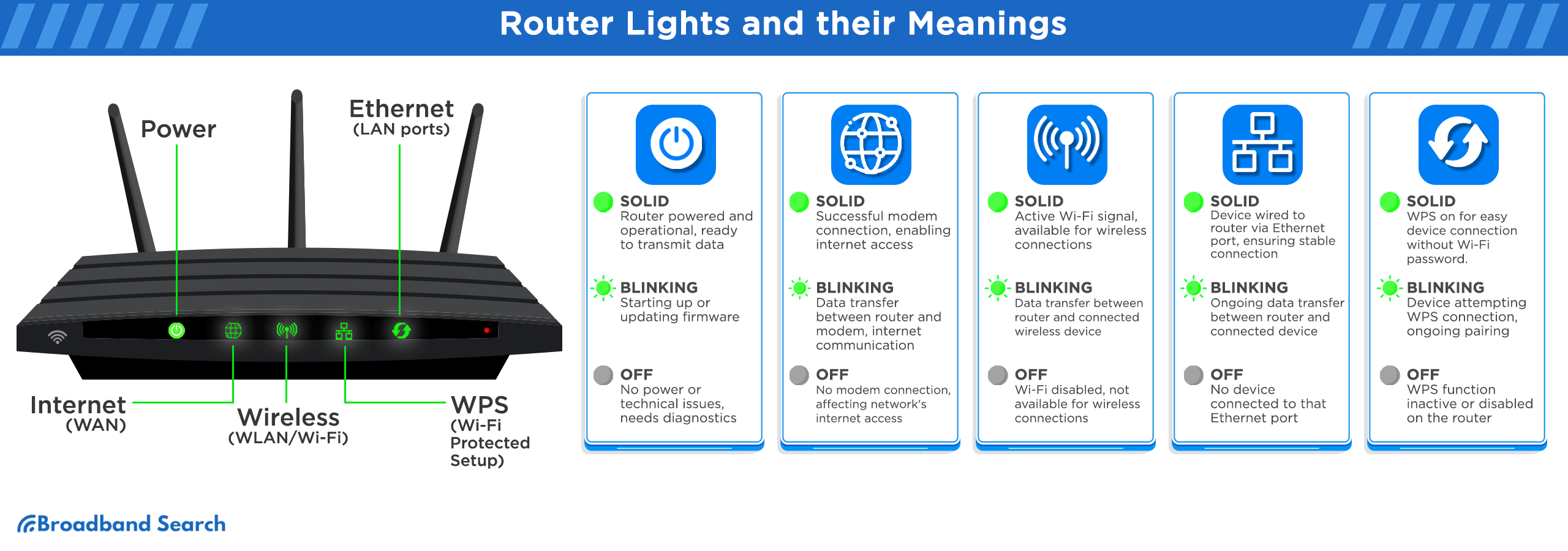
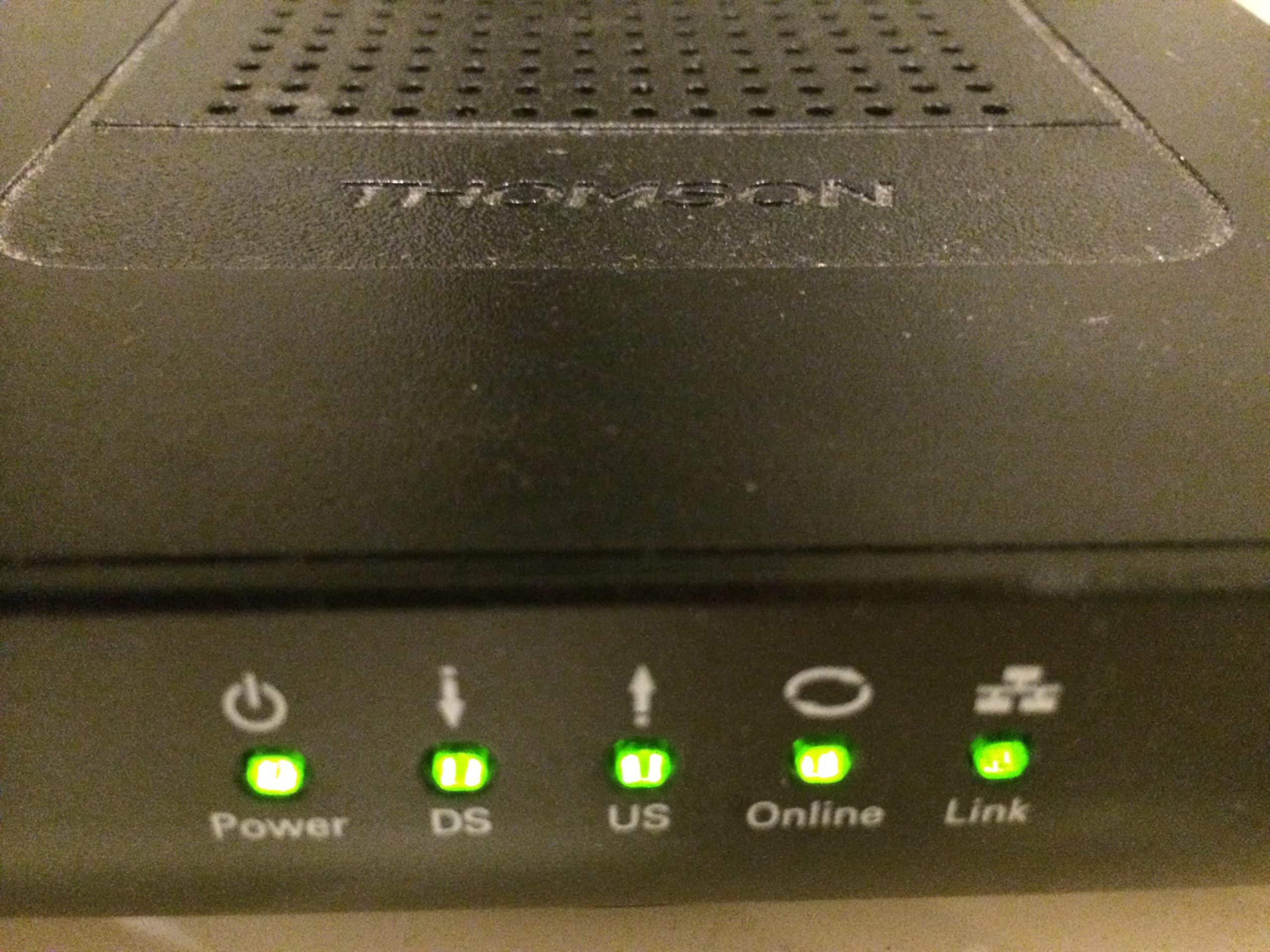
The power light shows if the modem is on. A solid light means the modem has power. A blinking light might show the modem is starting up. No light means the modem is off or has no power. Check the power source if the light stays off.
Internet Connectivity Lights
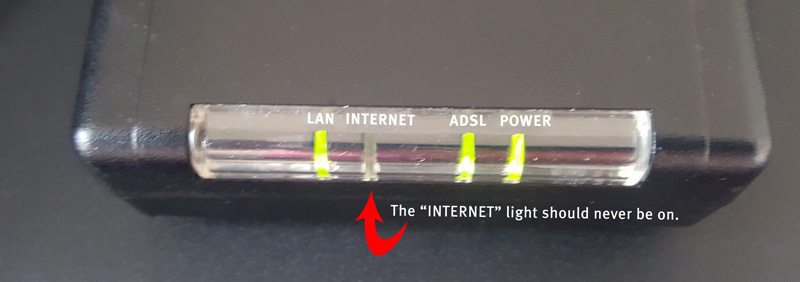
The internet light shows the connection status. A steady light means the internet is connected. A blinking light shows data is being sent or received. No light or red light means no internet connection. This light helps identify internet problems fast.
Wi-fi Signal Status
The Wi-Fi light shows if wireless is active. A solid light means Wi-Fi is on and working. Blinking means data is moving through Wi-Fi. No light means Wi-Fi is off or disabled. This light is key for wireless device users.
Ethernet Connection Signals
Ethernet lights show wired device connections. A solid light means a device is connected. Blinking means data moves through the cable. No light means no device is connected. These lights help check wired connections easily.
Reasons For Blinking Lights
The blinking lights on your modem can tell a lot about what is happening inside. Each blink or pattern has a meaning. Understanding these reasons helps in knowing if your internet is working well or if there is an issue.
Some blinking lights show normal activity, while others may point to problems. Knowing the cause can save time and avoid frustration.
Firmware Updates In Progress
Modems often update their software automatically. During this time, lights may blink differently. This update improves modem performance and security. The blinking usually stops once the update finishes.
Network Activity And Traffic
Blinking lights often mean data is moving. This shows that your modem is sending or receiving information. More blinking means more network traffic. It is a sign your internet is active and working.
Hardware Malfunctions
If the lights blink in an unusual way, it may mean a hardware problem. This could be a faulty cable or a damaged modem part. Such blinking patterns may need technical help or replacing equipment.
Service Outages
Sometimes blinking lights mean your internet provider has a service outage. This is a problem outside your home. The blinking may continue until the provider fixes the issue. Checking with the provider can confirm this.
Basic Troubleshooting Steps
When modem lights blink, basic troubleshooting helps fix common issues fast. Start with simple steps to check your connection and settings. These steps often solve problems without extra tools or calls to support.
Restarting The Modem
Turn off the modem by unplugging it from power. Wait 30 seconds to 1 minute. Plug it back in and wait for the lights to stabilize. Restarting clears minor errors and refreshes the connection.
Checking Cable Connections
Check all cables connected to the modem. Make sure wires are firmly plugged in. Look for damaged or loose cables. Secure connections help maintain a strong signal.
Resetting To Factory Settings
Find the small reset button on your modem. Press and hold it for 10-15 seconds using a pin. The modem will restart and return to default settings. Use this step if other fixes fail.
Verifying Service Status
Check if your internet provider has outages in your area. Visit their website or call customer service. Service disruptions can cause blinking lights and connection loss.
Advanced Fixes
Advanced fixes help solve tricky modem light problems. These steps go beyond basic checks.
They require some technical effort but can improve your internet connection.
Updating Firmware Manually
Firmware controls how your modem works. Old firmware can cause blinking lights.
Visit the modem maker’s website to download the latest firmware version.
Follow their guide to update it safely. This can fix bugs and improve performance.
Changing Modem Placement
Location affects signal strength and modem light activity.
Place the modem in an open area, away from walls and metal objects.
Keep it off the floor and away from other electronics that cause interference.
Adjusting Network Settings
Modem settings can affect how lights behave. Access the modem’s admin panel.
Check settings like channel, frequency, and DHCP. Adjust them for better stability.
Resetting to default settings can also help if you made changes before.
Contacting Your Isp
Your Internet Service Provider can offer support for modem issues.
They can check for outages or line problems in your area.
Ask if they can send a technician or replace your modem if needed.
Preventing Future Issues
Preventing future issues with your modem can save time and keep your internet stable. Taking small steps helps avoid blinking lights that signal problems. Regular care keeps your connection smooth and reliable.
Regular Firmware Updates
Modem manufacturers release updates to fix bugs and improve performance. Check for firmware updates often. Updating your modem helps it run better and stops errors that cause blinking lights. Many modems update automatically, but manual checks ensure you do not miss updates.
Using Surge Protectors
Power surges can damage your modem’s hardware. Always plug your modem into a surge protector. This device protects against sudden voltage spikes from storms or power faults. Using surge protectors extends your modem’s life and keeps it working properly.
Monitoring Network Traffic
High network traffic can overload your modem. Use apps or tools to watch your internet use. Spot heavy traffic or unknown devices slowing your network. Controlling traffic prevents slow speeds and blinking lights that show network stress.
Replacing Old Equipment
Old modems may not support new internet speeds or standards. Replace your modem every few years for best performance. New models handle data better and reduce connection issues. Upgrading stops frequent blinking lights caused by outdated hardware.
Expert Tips
Understanding the lights on your modem can save time and reduce frustration. These lights show the modem’s status and connection quality. Knowing what each blinking light means helps you solve problems faster. Follow these expert tips to keep your modem working well and choose the right device for your needs.
Interpreting Light Patterns Quickly
Each light on a modem has a specific meaning. A steady light often means a good connection. Blinking lights usually indicate activity or issues. Rapid blinking can mean data is being transferred. Slow blinking might point to a weak signal or startup process. Check your modem’s manual to match light patterns with their meanings. This knowledge helps you act fast and avoid service interruptions.
Maintaining Optimal Performance
Keep your modem in a cool, dry place to prevent overheating. Dust the device regularly to avoid blocked vents. Restart your modem once a week to clear temporary issues. Use a surge protector to protect from power spikes. Update your modem’s firmware as recommended by the manufacturer. These steps keep your connection stable and fast.
When To Upgrade Your Modem
Old modems may not support faster internet speeds. Frequent disconnections or slow performance signal a need to upgrade. Newer models offer better security and features. Check your internet plan to see if your modem matches its speed. Upgrade if the modem no longer meets your needs or causes repeated problems.
Choosing The Right Modem For Your Needs
Match the modem with your internet service provider’s requirements. Look for compatibility with your internet speed plan. Consider modems that support the latest technology like DOCSIS 3.1. Check for easy setup and reliable customer support. Choose a modem that fits your budget and usage habits. A good modem ensures a smooth and fast internet experience.
Frequently Asked Questions
What Does Blinking Light On Modem Indicate?
A blinking light on a modem usually means it is trying to connect. It shows activity like data transfer or signal searching. Steady blinking often means the modem is working properly.
Why Is My Modem Light Blinking Red?
A red blinking light means there is a problem with the connection. It can signal no internet or a hardware issue. Checking cables and restarting the modem often helps fix it.
How Long Should Modem Lights Blink During Startup?
Modem lights typically blink for 1 to 5 minutes when starting up. This shows the device is establishing a connection. If blinking lasts longer, there might be a connection problem.
Can Blinking Modem Lights Affect Internet Speed?
Blinking lights show data is moving but do not directly affect speed. Slow internet is usually due to signal strength or network issues. Check with your provider if speed stays low.
What To Do If Modem Lights Keep Blinking Endlessly?
Endless blinking often means the modem can’t connect to the network. Try restarting the modem and checking all cables. Contact your internet provider if the problem continues.
Conclusion
Blinking lights on your modem tell you important information. They show your connection status and data activity. Watching these lights helps spot problems early. Try restarting the modem if lights blink oddly. Keep cables secure and check your internet service.
Understanding modem lights makes troubleshooting easier. Stay patient and follow simple steps to fix issues. This way, you keep your internet running smoothly every day.