Is your HP laptop stuck with the Caps Lock key blinking nonstop and no display on the screen? This frustrating issue can leave you wondering what went wrong and how to fix it fast.
You’re not alone—many HP users face this exact problem, and the blinking Caps Lock light is actually a crucial clue. It signals that your laptop is trying to tell you something about its hardware. But what exactly? And how can you get your laptop back to normal without losing important data or spending a fortune?
Keep reading, because you’ll discover the common causes behind this blinking light, simple steps you can take right now, and expert tips to troubleshoot your HP laptop effectively. Don’t let a blinking Caps Lock stop you—let’s get your device working again!

Caps Lock Blinking Causes
The Caps Lock key blinking on an HP laptop signals a problem. The laptop shows no display because it cannot start properly. This blinking acts as a code to help find the issue. Common causes include hardware faults, RAM problems, and battery issues.
Understanding these causes helps in troubleshooting and fixing the problem. Each cause sends a specific pattern of blinks. Recognizing these patterns speeds up repair and reduces frustration.
Hardware Malfunction Signals
The blinking Caps Lock often points to hardware failures. Internal parts like the motherboard or CPU might be damaged. These failures stop the laptop from completing its startup checks. The blinking acts as a warning signal. It tells you to check the hardware carefully. Using diagnostic tools can identify the faulty component quickly.
Ram Issues
RAM problems are a frequent cause of blinking Caps Lock. Faulty or loose RAM modules prevent the laptop from booting. The system fails to display anything on the screen. Removing and reseating the RAM might fix the issue. Installing the wrong type of RAM can also cause this error. Testing RAM with special software helps confirm if it is bad.
Battery Problems
A weak or failing battery can trigger the Caps Lock blinking. The laptop may not get enough power to start. Battery issues cause sudden shutdowns and no display. Signs include rapid power loss and overheating. A swollen battery can press on internal parts, causing errors. Replacing the battery often solves the blinking problem.
Diagnosing The Problem
Diagnosing the issue of an HP laptop with a blinking Caps Lock key and no display requires careful checking. This problem often points to hardware faults. Identifying the exact cause helps fix it quickly. Focus on key components like RAM, battery, and internal diagnostics.
Systematic checks prevent unnecessary repairs and save time. Start with simple steps and move to advanced tools. Each check narrows down the possible reasons behind the failure.
Checking Ram Compatibility
RAM problems often cause the Caps Lock light to blink continuously. Confirm that the RAM installed matches your laptop’s specifications. Incompatible or faulty RAM stops the system from booting properly. Remove and reseat the RAM sticks firmly. Test each stick separately to find defects. Using the wrong RAM size or type can trigger error signals.
Testing The Battery Health
A failing battery can disrupt the laptop’s startup process. Check for signs like rapid draining or no charge. Physical damage such as bulging also indicates battery issues. Use built-in tools to view battery status and health. Replace the battery if it shows warning signs or poor performance. A good battery ensures stable power delivery.
Using Hp Diagnostic Tools
HP provides diagnostic tools designed to identify hardware problems. Run the HP PC Hardware Diagnostics from the startup menu. These tests check components like memory, battery, and motherboard. The tool reports error codes that explain the blinking Caps Lock light. Use the codes to find specific faults and follow repair steps. This method is reliable and user-friendly.
Quick Fixes For No Display
Experiencing no display on your HP laptop while the Caps Lock key blinks can be alarming. This issue often points to hardware problems that prevent the screen from showing any image. Quick fixes can help identify and solve the problem without needing professional repair. Below are simple steps you can try at home to restore your laptop’s display.
Reseating Or Replacing Ram
RAM problems commonly cause the Caps Lock to blink with no display. Turn off the laptop and unplug it. Open the back cover carefully to access the RAM sticks. Remove the RAM modules and reinsert them firmly. Make sure they click into place. If the problem continues, try replacing the RAM with a known good one. Faulty RAM can stop your laptop from booting properly.
Performing A Hard Reset
A hard reset clears temporary hardware issues. Disconnect the power adapter and remove the battery if possible. Hold the power button for about 15 seconds. This drains residual power from the laptop. Reinsert the battery and connect the power adapter. Turn on the laptop and check for display. This simple reset can fix many startup problems.
Connecting External Display
To check if the laptop screen is the issue, connect an external monitor. Use an HDMI or VGA cable depending on your laptop’s ports. Power on both devices and switch to the external display mode using the function keys. If the external monitor shows the screen, the laptop display might be faulty. This test helps isolate the problem source quickly.
Battery-related Solutions
Battery-related issues often cause the Caps Lock key to blink continuously on your HP laptop with no display. Checking the battery health and performance helps solve this problem. Faulty or drained batteries can stop the laptop from starting properly. Follow these steps to diagnose and fix battery problems.
Identifying Battery Failure Signs
Look for signs like fast battery drain or the laptop shutting down suddenly. The laptop may only work when plugged in and not on battery power. The battery might take too long to charge or stop charging early. Feel if the laptop gets hot quickly or notice if the battery bulges. The system may also show warnings such as “Battery Failure” or “Replace Battery.” These signs mean the battery needs attention.
Calibrating The Battery
Battery calibration helps the laptop read the battery level correctly. First, fully charge the battery to 100%. Then, unplug and use the laptop until it shuts down by itself. After that, recharge the battery fully without interruptions. This process resets the battery sensor and improves accuracy. Calibration can fix false battery readings and extend battery life.
Replacing The Battery
When signs of battery failure persist, replace the battery. Use an original HP battery for best results. Turn off the laptop and unplug it before removing the old battery. Follow the laptop manual to remove and install the new battery safely. After replacement, charge the new battery fully before using the laptop. A new battery often solves blinking Caps Lock and no display issues.
Software And Firmware Steps
When an HP laptop’s Caps Lock light blinks continuously and the screen stays black, the problem may lie in software or firmware. These steps can help fix issues related to BIOS settings, firmware, or display drivers. Software and firmware checks are important before considering hardware repairs. Follow these simple actions carefully to try restoring your laptop’s display function.
Resetting Bios
Resetting the BIOS can clear errors causing the blank screen. Turn off the laptop and unplug it from power. Press and hold the power button for 15 seconds to drain residual power. Then, press the BIOS reset key, usually F10 or Esc, right after powering on. Choose the option to reset BIOS settings to default. Save changes and exit. This resets configuration and may solve blinking Caps Lock errors.
Updating Firmware
Firmware controls hardware communication. An outdated or corrupted firmware can cause display problems. Visit the official HP support website using another device. Enter your laptop model and download the latest firmware update. Follow the instructions to install it via USB or Windows update tool. Keep the laptop plugged in during the update. Firmware updates fix bugs and improve hardware stability.
Rolling Back Display Drivers
Faulty or incompatible display drivers often cause no display issues. Access Device Manager by pressing Windows + X and selecting it. Find the display adapter, right-click, and choose Properties. Go to the Driver tab and select Roll Back Driver if available. This restores the previous driver version. Restart the laptop afterward. Rolling back drivers can resolve conflicts that cause the screen to stay black.
When To Seek Professional Help
Knowing when to seek professional help is key if your HP laptop’s Caps Lock keeps blinking and the screen stays blank. Some issues need expert tools and skills to fix properly. Acting early can prevent further damage and save time.
Simple checks might solve minor problems. But certain signs show the problem is more serious. At that point, a technician’s help becomes necessary for accurate diagnosis and repair.
Persistent Hardware Errors
Continuous blinking often signals hardware faults. If the Caps Lock light blinks nonstop after basic troubleshooting, the internal parts may be damaged. Problems with RAM, motherboard, or graphics can cause these errors.
Repeated hardware errors mean the laptop cannot start properly. This requires detailed inspection and replacement of faulty components. Professionals can test parts with special tools to find the exact cause.
Complex Diagnostic Codes
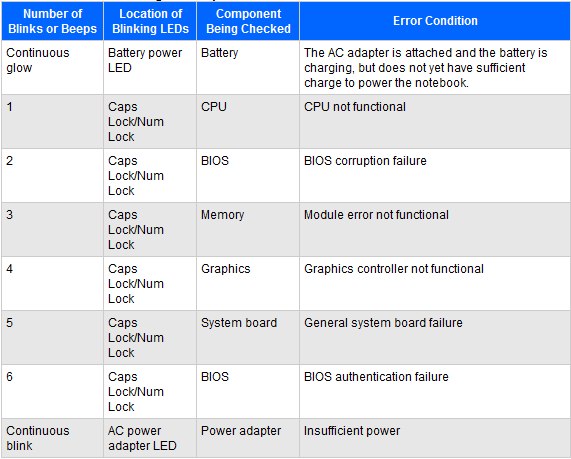
HP laptops use blinking lights as error codes. Different blink patterns mean different problems. Some codes are too complex for casual users to understand.
Technicians know how to read these codes and interpret the issue. They can quickly identify whether the problem is with memory, BIOS, or other hardware. This speeds up the repair process and avoids guesswork.
Warranty And Repair Options
Check if your laptop is still under warranty before opening it. Repairs done by unauthorized persons may void the warranty. HP offers support and repair services for covered devices.
Authorized service centers provide genuine parts and professional repairs. They also keep your warranty intact. Using official repair options ensures safety and quality work on your laptop.
Frequently Asked Questions
Why Is My Hp Laptop Cap Lock Blinking And No Screen?
A blinking Caps Lock on an HP laptop with no display signals a hardware issue, often faulty or incompatible RAM. Check and reseat or replace the RAM to fix the problem.
What Are The Signs Of A Failing Hp Laptop Battery?
Signs of a failing HP laptop battery include rapid draining, slow charging, unexpected shutdowns, overheating, physical bulging, and diagnostic warnings.
How Do I Fix My Hp Black Screen Of Death?
Restart your HP laptop, check RAM for faults, reseat it, disconnect external devices, and update BIOS to fix black screen issues.
What Does It Mean When The Caps Lock Is Blinking?
A blinking Caps Lock key usually signals a hardware issue, often related to faulty or incompatible RAM in your laptop.
Why Is My Hp Laptop Caps Lock Blinking Continuously?
A blinking caps lock usually signals a hardware problem. It often means the RAM is faulty or improperly installed. This prevents the laptop from showing any display.
Conclusion
The blinking caps lock light signals a hardware problem in your HP laptop. Often, faulty or incompatible RAM causes the no-display issue. Try reseating or replacing the RAM first to fix this. Other hardware parts might also need checking if the problem persists.
Regular maintenance helps prevent such errors from happening again. Staying calm and following simple steps can save time and money. Keep your laptop’s components clean and updated for better performance. This way, you can avoid frustrating startup problems in the future.