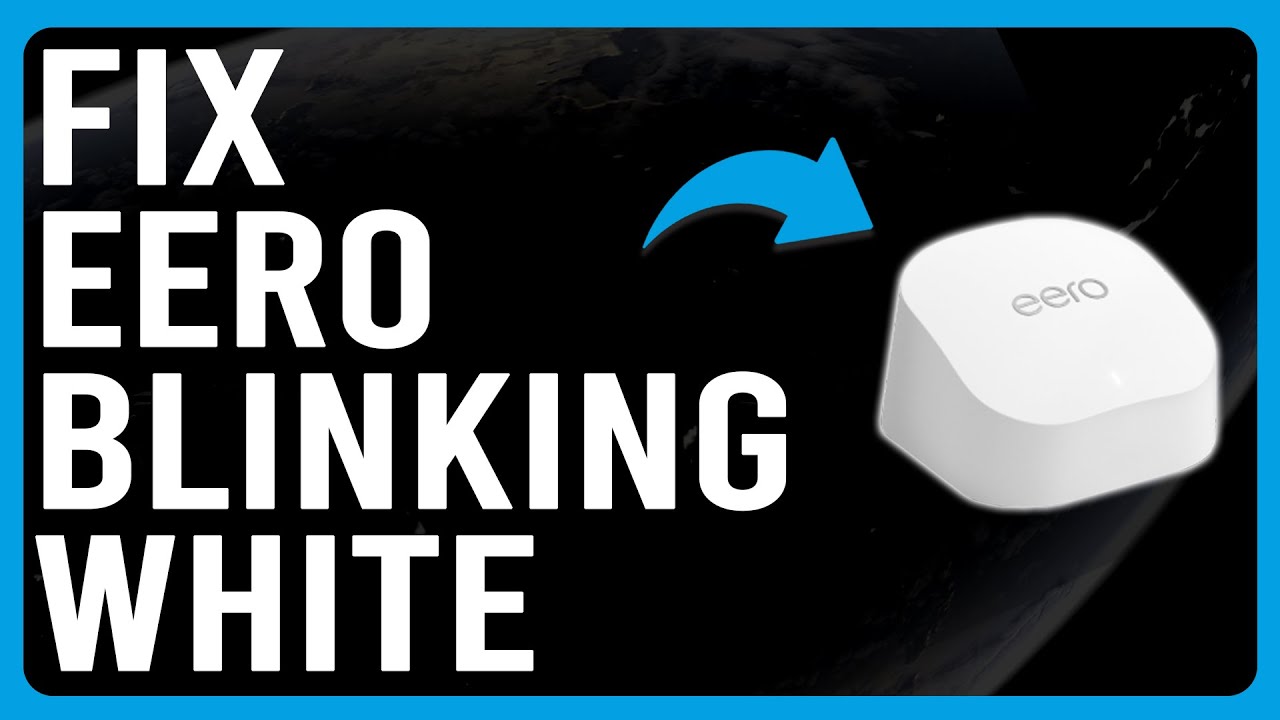
Is your Eero router blinking white and leaving you puzzled? You’re not alone.
That blinking white light can feel like a secret code, making you wonder if your internet is about to go down or if something needs fixing. Don’t worry—understanding what this signal means can save you time and frustration. You’ll discover exactly why your Eero is blinking white and what simple steps you can take to get your network back on track quickly.
Keep reading—you’re closer to a smooth, hassle-free connection than you think.
Why Eero Blinks White
The Eero device blinks white for a few important reasons. This light helps you understand what your Eero is doing. It shows the device’s status clearly. Knowing why it blinks white helps you solve problems fast.
Normal Startup Process
When you first turn on your Eero, the white light blinks. This means the device is starting up. It checks its systems and prepares to connect. The blinking stops once Eero is ready. This process usually takes a few minutes.
Connection Issues
A blinking white light can also mean connection problems. Your Eero might not connect to the internet. It tries to find a stable link. Keep your modem and router close to Eero. Restarting your modem can help fix this.
Firmware Updates
Eero blinks white during firmware updates. The device downloads new software to improve performance. It must finish updating before blinking stops. Avoid turning off your Eero during this time. Updates keep your network secure and fast.
Basic Troubleshooting Steps
Seeing your Eero blink white can be confusing. This light means the device is starting up or trying to connect. Basic troubleshooting can help fix many common issues quickly. Follow these steps to get your Eero back online.
Start with simple checks before moving to more complex fixes. These steps save time and often solve the problem.
Restarting Your Eero
Turn off your Eero by unplugging it from the power source. Wait about 30 seconds. Plug it back in and watch the light. Restarting refreshes the system and clears small errors. This step often restores normal operation.
Checking Power And Connections
Make sure your Eero is firmly plugged in. Check the power adapter and cable for damage. Confirm the Ethernet cable is properly connected to your modem and Eero. Loose or broken cables can cause blinking white lights. Replace any faulty cables to fix the issue.
Verifying Internet Service
Check if your internet service is active. You can test this by connecting a device directly to your modem. If the internet does not work there, the problem is with your service provider. Contact them for support. A working internet connection is essential for Eero to connect.
Advanced Fixes
Advanced fixes help solve tricky Eero blinking white issues. These steps go beyond basic checks. They target deeper problems with your device or network. Follow these methods carefully for better results.
Resetting Your Eero Device
Resetting your Eero clears old settings and errors. Press and hold the reset button for 15 seconds. Wait until the LED blinks red, then release. The device restarts and returns to factory settings. Set it up again using the app. This often fixes persistent blinking white lights.
Reconfiguring Network Settings
Network settings control how your Eero connects to the internet. Open the Eero app and find network settings. Check Wi-Fi name and password for mistakes. Remove any unusual or outdated devices from the network list. Save changes and restart your Eero. This can clear conflicts causing the blinking white light.
Updating Firmware Manually
Firmware updates improve device stability and fix bugs. Sometimes, automatic updates fail. Download the latest firmware from the official Eero website. Connect your computer to Eero via Ethernet. Use the update tool to install the new firmware. Restart your device after updating. This method ensures your Eero runs the newest software version.

Preventing Future Issues
Preventing future issues with your Eero blinking white light saves time and stress. Simple steps keep your network stable and strong. Follow easy tips to avoid common problems and enjoy smooth internet.
Optimizing Placement
Place your Eero device in an open area. Avoid corners, walls, and metal objects that block signals. Higher positions, like shelves, help spread the Wi-Fi better. Keep it away from other electronics that cause interference. Good placement makes a big difference in performance.
Regular Firmware Updates
Update your Eero firmware often. Updates fix bugs and improve security. They also add new features to keep your network fresh. Check the Eero app regularly for update alerts. Letting your device run old software can cause issues.
Monitoring Network Health
Use the Eero app to watch your network’s health. It shows device status and connection quality. Spot weak signals or offline devices quickly. Regular checks help catch problems early. Acting fast keeps your internet working well.
When To Contact Support
The Eero blinking white light can mean different things. Sometimes, it is a simple sign of activity. Other times, it points to a problem. Knowing when to contact support helps fix issues faster. It saves time and avoids frustration.
Here are key moments to reach out to Eero support for help.
Persistent Blinking White Light
The white light blinks during startup or updates. If it keeps blinking without stopping, this is a sign of trouble. It means the Eero is stuck or not connecting properly. Waiting too long will not fix this. Contact support to check the device and get instructions.
Hardware Malfunctions
Physical damage or hardware faults cause issues with Eero. If the device feels hot, makes noise, or won’t power on, support can help. These problems need expert advice or replacement parts. Trying to fix hardware alone can cause more damage. Support offers safe solutions.
Account And Service Problems
Sometimes, the blinking white light relates to account or service issues. Problems like subscription errors or network interruptions affect your Eero. Support can verify your account status and guide you through fixes. They also help if the app or device settings do not work as expected.
Frequently Asked Questions
What Does Eero Blinking White Light Mean?
A blinking white light on Eero shows it is starting up or restarting. It means your device is powering on or updating its software.
Why Is My Eero Blinking White And Not Connecting?
Blinking white means your Eero is trying to join the network. Check your internet connection and wait a few minutes for it to connect.
How Long Should Eero Blink White During Setup?
Eero usually blinks white for about 1 to 3 minutes during setup. If it blinks longer, there may be a connection issue or need for a reset.
Can I Fix Eero Blinking White By Rebooting?
Yes, rebooting Eero often fixes blinking white light problems. Unplug it, wait 30 seconds, and plug it back in to restart the device.
Does Eero Blinking White Mean Firmware Is Updating?
Yes, blinking white can indicate a firmware update is in progress. During this time, do not unplug the device to avoid problems.
Conclusion
The Eero blinking white light signals your device’s status clearly. It often means the system is starting up or updating. Watching this light helps you understand what your Eero is doing. If the blinking lasts too long, try restarting your router.
Simple steps can fix most issues quickly. Staying patient helps during updates or resets. Your Eero will usually return to normal soon. Knowing these signals makes managing your Wi-Fi easier. Keep this in mind for smoother internet days ahead.